









Download OmniPlayer: MKV Video Player Pro for macOS
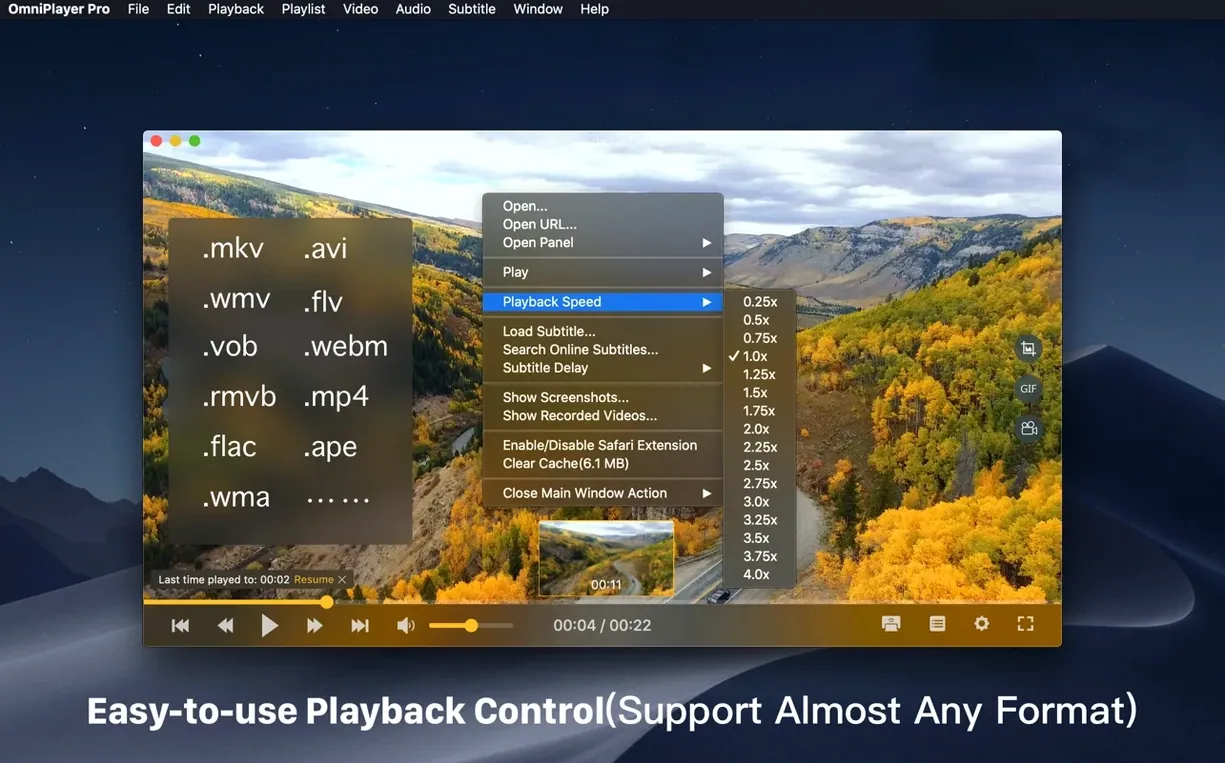
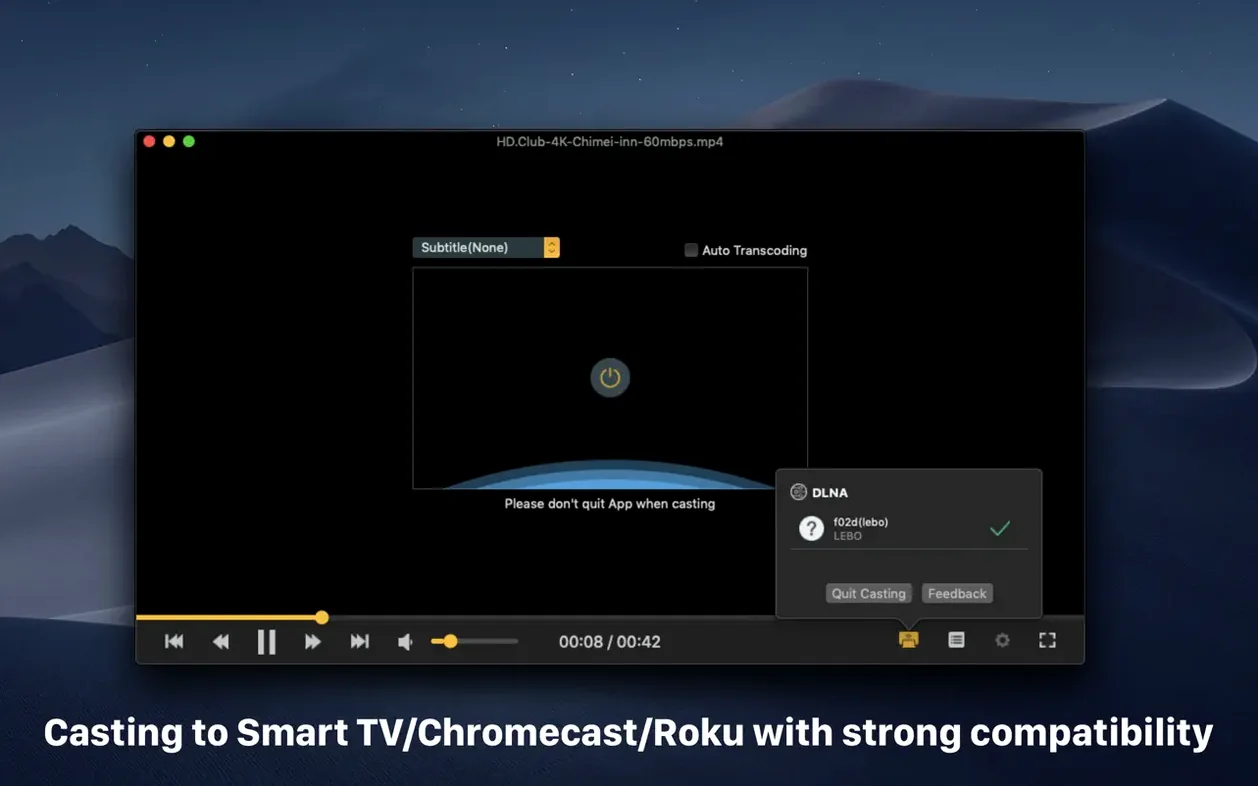
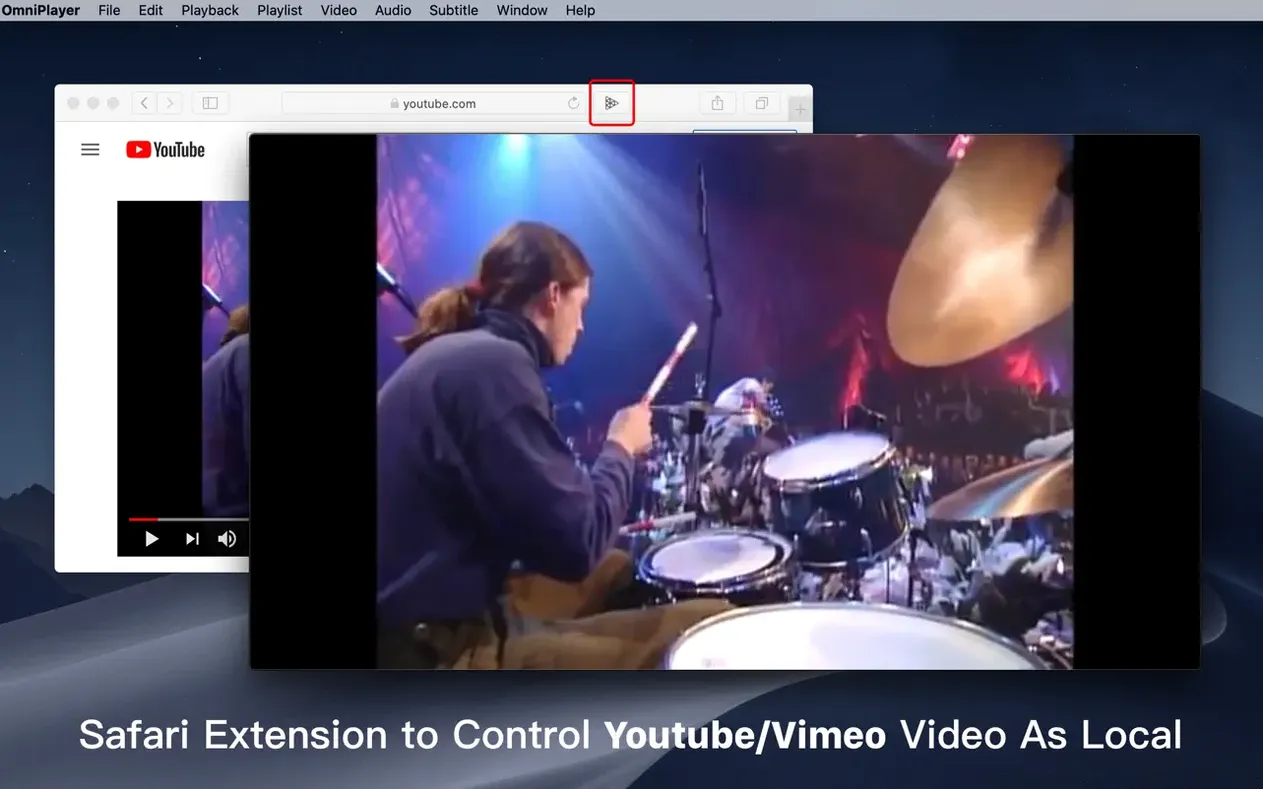
Film enthusiasts and language learners who work with a mix of media formats often reach for OmniPlayer Pro. It’s a straightforward macOS player built to handle video, audio, and playlists without fuss, and version 2.1.22 brings a handful of quiet fixes that keep larger files running smoothly. Here’s how a typical session with a downloaded .mkv file plays out.
- Launch the app and drag in a 4K .mkv. The video starts immediately while the player quietly loads any embedded subtitle tracks.
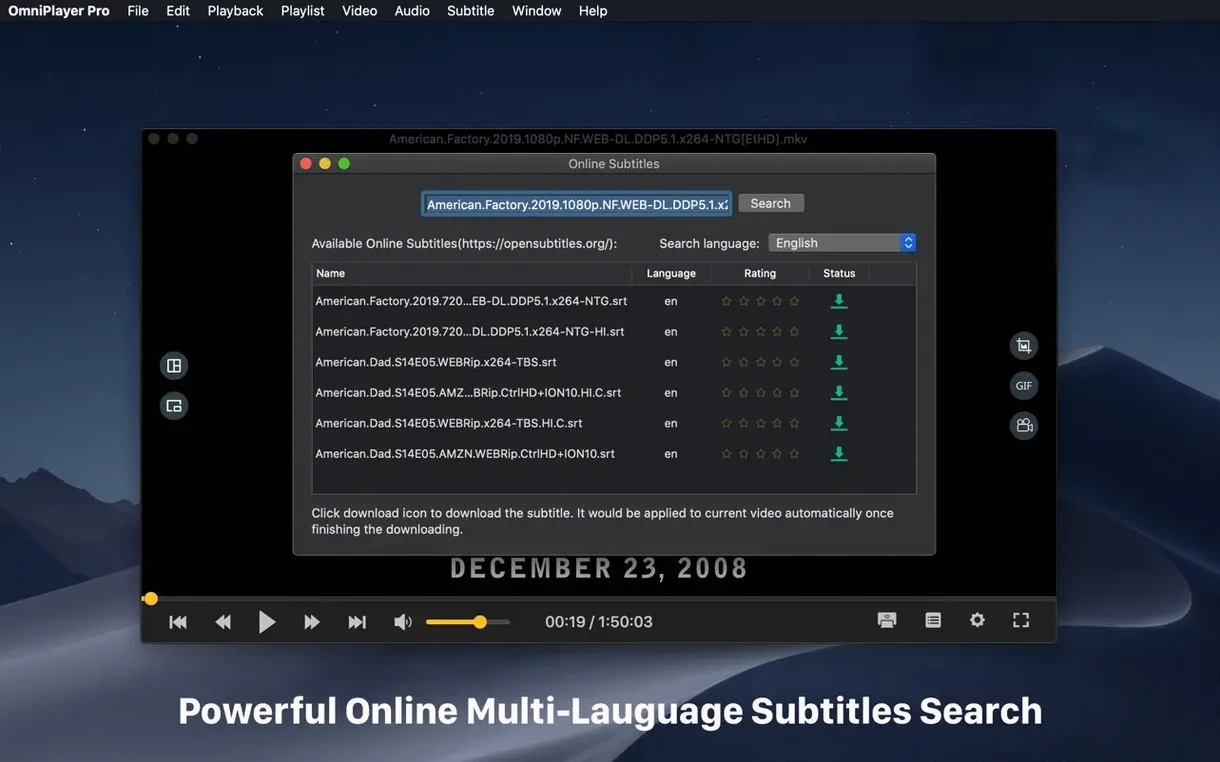
- If subtitles are missing, right-click to search online by the file’s hash. When an SRT pops up, you can adjust its color, size, and encoding right from the playback window without pausing.
- Foreign-language audio out of sync? Open the audio panel, select a different track if one exists, and nudge the delay slider a fraction of a second until dialogue matches lip movements.
- Spot a scene you want to share. Set in and out points of up to 60 seconds and export it as a GIF—perfect for a quick reaction clip.
- Rotate a phone-captured clip 90 degrees, or jump to a specific timestamp by typing it in. When you stop, the app remembers exactly where you left off for next time.
OmniPlayer Pro feels like a utility that gets out of the way during focused viewing sessions. It’s a good fit for anyone juggling MKVs, multiple audio tracks, and subtitle tweaks on a Mac.
GIF Creation and Chromecast Casting vs. IINA’s macOS Polish
Put OmniPlayer Pro next to IINA, and the differences show up quickly. IINA leans hard into the modern macOS aesthetic with a translucent title bar and touch bar support, but OmniPlayer counters with built-in GIF creation and Chromecast casting that IINA doesn't offer out of the box. Where IINA feels like a sleek wrapper around mpv, OmniPlayer Pro bundles more self-contained tools for quick exports and wireless beaming without extra plug-ins.
Compared to Elmedia Player, the contrast is sharper. Elmedia handles a wide format range and has its own streaming chops, but OmniPlayer Pro pulls ahead on subtitle workflow. The ability to search online subtitles by video hash — not just title — and tweak encoding on the fly makes a real difference when you're wrestling with a mislabeled .mkv from a language exchange group. Elmedia's subtitle options feel basic by comparison, especially for multilingual viewers who switch tracks often.
VLC, of course, is the elephant in the room. It plays anything, everywhere, and costs nothing. What OmniPlayer Pro offers over VLC is polish around specific tasks: the preview thumbnails that appear when you hover over the progress bar, the auto-saving playback position, and the GIF exporter are niceties VLC either lacks or buries in menus. If you just need a bulletproof player, VLC wins on ubiquity. If you find yourself regularly adjusting audio delay, pulling subtitles from the web mid-playback, or casting to a Roku, OmniPlayer Pro wraps those into a cleaner package.
Disable Auto-Clear Playlists Before Your First Video
A few tweaks make the player feel more like your own. Head into preferences before you queue up the first video, and you'll save yourself small annoyances later.
- Turn off auto-clear playlists on exit. By default, OmniPlayer Pro wipes your playlist when you quit. If you're working through a series or a folder of clips over several days, switch this off so you don't lose your place.
- Set a default subtitle language and appearance. The app can download subtitles automatically, but telling it your preferred language ahead of time avoids fetching the wrong SRT. While you're there, bump the font size up a notch and pick a color with decent contrast against dark scenes — yellow with a thin black outline reads well on most content.
- Adjust the screenshot format. The default might be PNG, but if you're grabbing frames for a message thread or notes, JPEG at 80% quality keeps file sizes small. Find it under the capture settings and set the destination folder to somewhere you'll actually remember.
- Enable auto-hide controls during full-screen playback. It's off by default for some installs, and nothing breaks immersion faster than a persistent toolbar. Set it to fade after a couple of seconds of inactivity.
A Full Subtitling Workflow for Foreign-Language .mkv Files
Here's a real scenario: you've downloaded a film in a language you're learning, and the .mkv file arrived with no subtitles and one mismatched audio track. OmniPlayer Pro can get you from bare file to comfortable viewing in a few minutes.
Open the file and let it load. The video starts, but you're staring at raw dialogue with no text support. Right-click the playback window and choose the online subtitle search. The app runs the file's hash against its subtitle database — not just the filename — so the hit rate is higher than title-based searches in other players. When results appear, pick the one in your target language and double-click to load it.
Now check the timing. If the SRT drifts by half a second, open the subtitle panel and use the sync offset slider to nudge it forward or back while the video plays. You'll see the change in real time. The text might look too small for your laptop screen, so bump the size to 28 or 32 points and switch the font color to something legible against both bright and dark backgrounds.
Next, tackle the audio. The film probably has at least one alternate track. Click the audio track selector and see what's available — often there's a director's commentary or a different language mix. Pick the one that matches the original performance, then open the audio delay control if lip movements still feel slightly off. A quarter-second adjustment in either direction usually snaps things into place.
Finally, if a particular scene has perfect dialogue for studying, set in and out points around it and export a short GIF for later review. The loop on a 10-second clip can help drill pronunciation or a tricky phrase without rewatching the whole section. When you close the player, it remembers the timestamp and subtitle settings for next time, so you pick up right where you left off.
Version 2.1.22 squashes a handful of bugs, including a playback hiccup with 30GB MKV files.
- macOS 11 or later
- Intel 64-bit
Questions people ask
Can OmniPlayer search for subtitles automatically?
Yes, it can search and download subtitles online using the video’s title or file hash, and you can change the subtitle encoding for different languages in real time.
Also on readers' docks
Sign in or create an account to leave a comment.
No comments yet. Tell me how it got on with your other devices.
More in Mac Apps
See all OmniGraffle Pro
7.26 Mac Apps
73 MB
OmniGraffle Pro
7.26 Mac Apps
73 MB
 ON1 Photo RAW
2026.5.2 v20.5.2.19304 Mac Apps
1.1 GB
ON1 Photo RAW
2026.5.2 v20.5.2.19304 Mac Apps
1.1 GB
 One Switch
1.35.4 Mac Apps
7 MB
One Switch
1.35.4 Mac Apps
7 MB
 OpenIn - Advanced Link Handler
4.5.1 Mac Apps
16 MB
OpenIn - Advanced Link Handler
4.5.1 Mac Apps
16 MB
 Pacifist
4.1.4 Mac Apps
38 MB
Pacifist
4.1.4 Mac Apps
38 MB
 Paragon NTFS
LAST Mac Apps
70 MB
Paragon NTFS
LAST Mac Apps
70 MB
 Updated Parallels Desktop
27.0.3-58680 Mac Apps
186 MB
Updated Parallels Desktop
27.0.3-58680 Mac Apps
186 MB
 Updated NotchNook
1.6.12 Mac Apps
41 MB
Updated NotchNook
1.6.12 Mac Apps
41 MB