









Download NotchNook for macOS
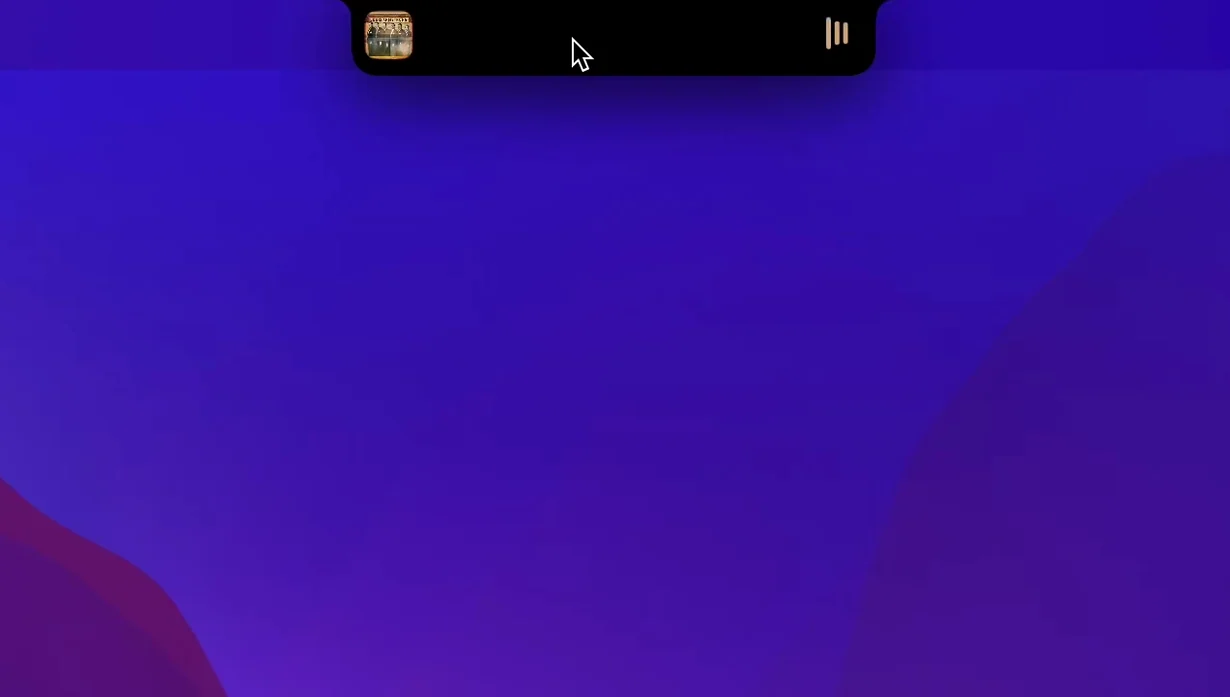
Over two dozen interface languages ship with NotchNook, giving the once-static MacBook notch a new job on any keyboard layout. It becomes a clickable hub that holds notifications and quick controls without pushing windows around.
Live Activities and a file shelf
Tapping the notch reveals Live Activities at a glance—timers, sports scores, or delivery ETAs stay visible without opening a separate app. Below them sits a file shelf, a drop zone for documents or images you want to keep within reach. Drag something to the shelf in the morning, and it’s still sitting there after lunch, ready for a drag-and-drop handoff to another app.
Notifications that don’t take over
Alerts land in the notch area instead of sliding over your workspace. A quick click expands the details; a flick dismisses them. The interaction feels native to the hardware rather than a bolted-on overlay, and it works on Intel Macs as well as Apple silicon machines.
Pin the calendar and skip the adjustment window
After dragging NotchNook into Applications and launching it, the notch lights up with the default widget stack. Spend ten minutes dialing it in and you skip the awkward adjustment window. Head straight to the preferences pane and pin the calendar widget to the top slot if you bounce between meetings—it surfaces the next three events without opening Fantastical or Calendar. Next, turn on the file shelf and drop your current project folder there. It stays persistent across restarts, so Monday's half-finished design doc is still one drag away on Tuesday morning.
Music controls appear automatically when any media app plays, but the real convenience comes from customizing which apps trigger them. By default, Spotify, Apple Music, and QuickTime all work. Add your podcast player of choice in the widget settings and the transport controls surface without switching windows. On Intel Macs with macOS 14.6 or later, the animation stays smooth even when the shelf holds a dozen files.
Notifications deserve a gentle touch those first days. Turn off alerts for apps that already ping your iPhone and Watch—doubling up gets noisy fast. The notch stream works best as a secondary channel: calendar reminders, delivery updates, the stuff you glance at, not the stuff you act on immediately.
Sports scores waiting in the notch before coffee
Picture a Wednesday morning. You crack the MacBook open around 9:15, coffee in hand. A sports score from last night's game sits in the notch area—NotchNook pulled it from a Live Activity you set up on the couch hours ago. You click the notch, the panel slides down, and you see the final score without unlocking your phone or opening a browser tab.
Next, you pull a client brief off the file shelf. It's been sitting there since yesterday afternoon, right where you dropped it. Drag it straight into an email draft, attach, send. No Finder digging, no Downloads folder archaeology. The shelf holds up to fifteen items before scrolling kicks in, but most days you'll keep it to five or six.
Mid-morning, a Slack message triggers a notification. It appears as a compact banner tucked under the notch, not floating over your Figma canvas. You expand it with a click, skim the message, and flick it away. Five seconds, no window juggling. Around noon, you tap the calendar widget—three dots and a 1 PM meeting title. Click it, and the full event opens in Calendar. The whole interaction takes less time than finding the Dock icon.
After lunch, you cue up a playlist. The media controls pop into the notch panel automatically: album art, track title, scrub bar, volume. Skip a track with one click, pause with another. The controls vanish when playback stops, so they're not eating real estate during a focused writing block.
Notch panel won’t open after sleep? Toggle accessibility
The biggest annoyance people report: the notch panel refuses to open after a system sleep cycle. It's almost always a permissions hiccup, not a crash. Open System Settings, navigate to Privacy & Security, then Accessibility, and toggle NotchNook off and back on. That re-registers the overlay permission and the panel snaps back to life. If the file shelf appears empty after a restart, check that you've granted Full Disk Access in the same settings pane—without it, the shelf loses track of file references.
Another hiccup surfaces when connecting an external display. NotchNook anchors itself to the built-in screen's notch, so dragging a window across to a second monitor puts the panel out of reach. The fix is straightforward: assign a keyboard shortcut in preferences to toggle the panel from anywhere. Even a simple Control-Option-N combo saves the reach-for-the-trackpad reflex.
Live Activities sometimes stop updating when Low Power Mode kicks in on battery. macOS throttles background refresh aggressively, and the notch feed follows those rules. Plug in or switch Low Power Mode off for real-time scores and timers to resume. The app doesn't override system energy settings—it plays by Apple's rules, and understanding that avoids frustration.
File shelf links break when originals move
The most common misstep is treating the file shelf like a permanent storage bin. Files you drop there are references, not copies—delete the original from its Finder location and the shelf item breaks. Use it as a temporary staging area, not a backup strategy. Drag a proposal to the shelf while you're working on it, then clear it when the project wraps.
Another classic: stuffing every available widget into the panel on day one. The calendar, media controls, file shelf, and notification stream all compete for vertical space. A packed panel requires scrolling, which defeats the at-a-glance promise. Pick three widgets that match your actual daily flow and leave the rest unchecked. You can always swap them seasonally—sports scores during playoff weeks, timers during exam season.
Beginners also ignore the per-app notification filtering. By default, NotchNook mirrors every alert that hits Notification Center, including system-level pings about available updates or iCloud sync. That noise buries the genuinely useful stuff. Open the notification settings and mute system alerts, then whitelist only the messaging and delivery apps you actually check during the workday.
Finally, some folks dismiss NotchNook as a gimmick after ten minutes because they never discover the click-and-hold gesture on any widget. Press and hold the calendar date, for instance, and it expands to show the full month grid. Hold a file on the shelf and a preview pops out. These secondary gestures aren't labeled anywhere obvious, and skipping them leaves half the utility on the table.
The developer’s notes for version 1.6.12 point to the latest round of fixes and improvements. Nothing flashy in the changelog this time — just the kind of quiet polish that keeps things running smoothly.
- macOS 14 or later
- Apple Silicon or Intel 64-bit Mac
Questions people ask
Does NotchNook work on Intel Macs?
Yes, it supports both Apple silicon and Intel (x86 64-bit) Macs running macOS 14.6 or later.
What is the file shelf in NotchNook?
It’s a drop zone accessed from the notch where you can stash files or images for quick drag-and-drop use throughout the day.
Also on readers' docks
Sign in or create an account to leave a comment.
No comments yet. Tell me how it got on with your other devices.
More in Mac Apps
See all NotchBox
1.1.71 Mac Apps
7 MB
NotchBox
1.1.71 Mac Apps
7 MB
 Updated Nook X
2026.10.24 Mac Apps
36 MB
Updated Nook X
2026.10.24 Mac Apps
36 MB
 Nik Collection
9.0 Mac Apps
3.5 GB
Nik Collection
9.0 Mac Apps
3.5 GB
 OmniGraffle Pro
7.26 Mac Apps
73 MB
OmniGraffle Pro
7.26 Mac Apps
73 MB
 OmniPlayer: MKV Video Player Pro
2.1.22 Mac Apps
78 MB
OmniPlayer: MKV Video Player Pro
2.1.22 Mac Apps
78 MB
 Navicat Premium
17.3.12 Mac Apps
333 MB
Navicat Premium
17.3.12 Mac Apps
333 MB
 ON1 Photo RAW
2026.5.2 v20.5.2.19304 Mac Apps
1.1 GB
ON1 Photo RAW
2026.5.2 v20.5.2.19304 Mac Apps
1.1 GB
 One Switch
1.35.4 Mac Apps
7 MB
One Switch
1.35.4 Mac Apps
7 MB