









Download Nook X for macOS

The Lyrics & Karaoke mode is what pulled me in first. Play a track in the built-in audio player, and Nook X grabs the words, highlighting each line in time with the music. It’s the kind of feature you didn’t know you wanted until it’s running above your spreadsheet, out of the way but dead useful.
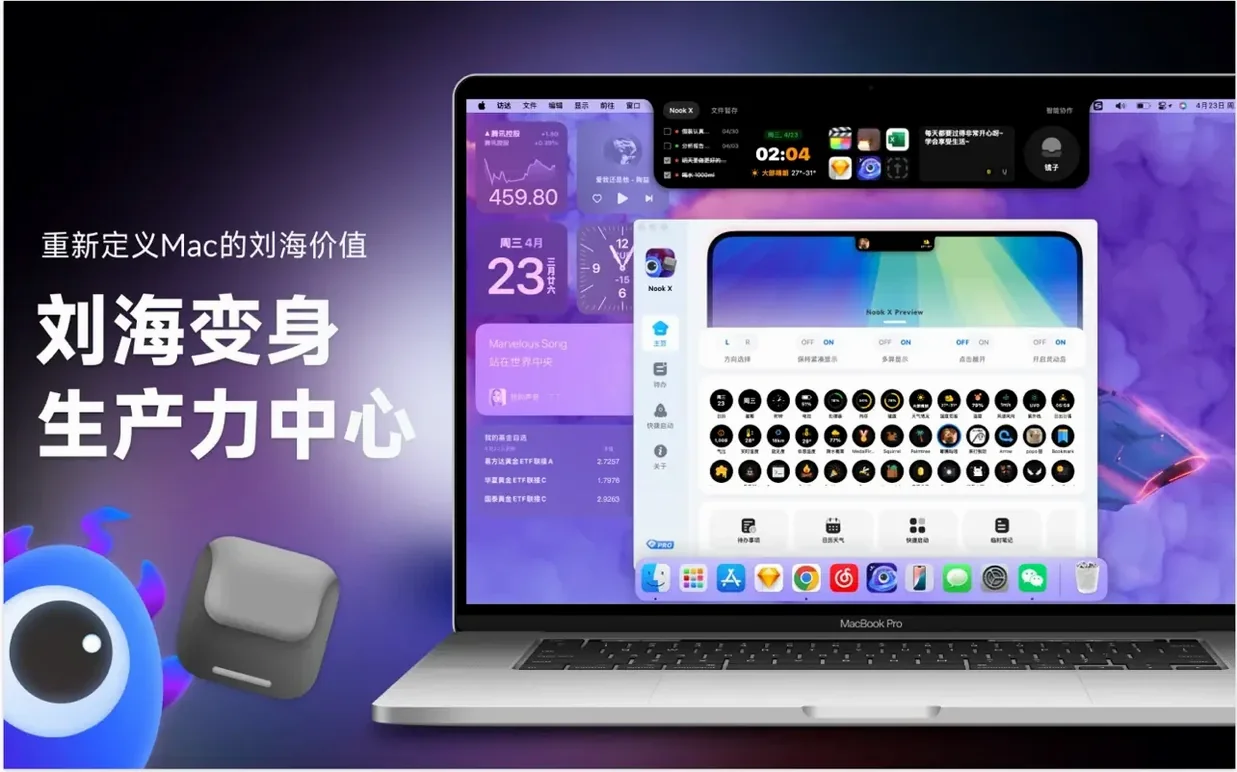
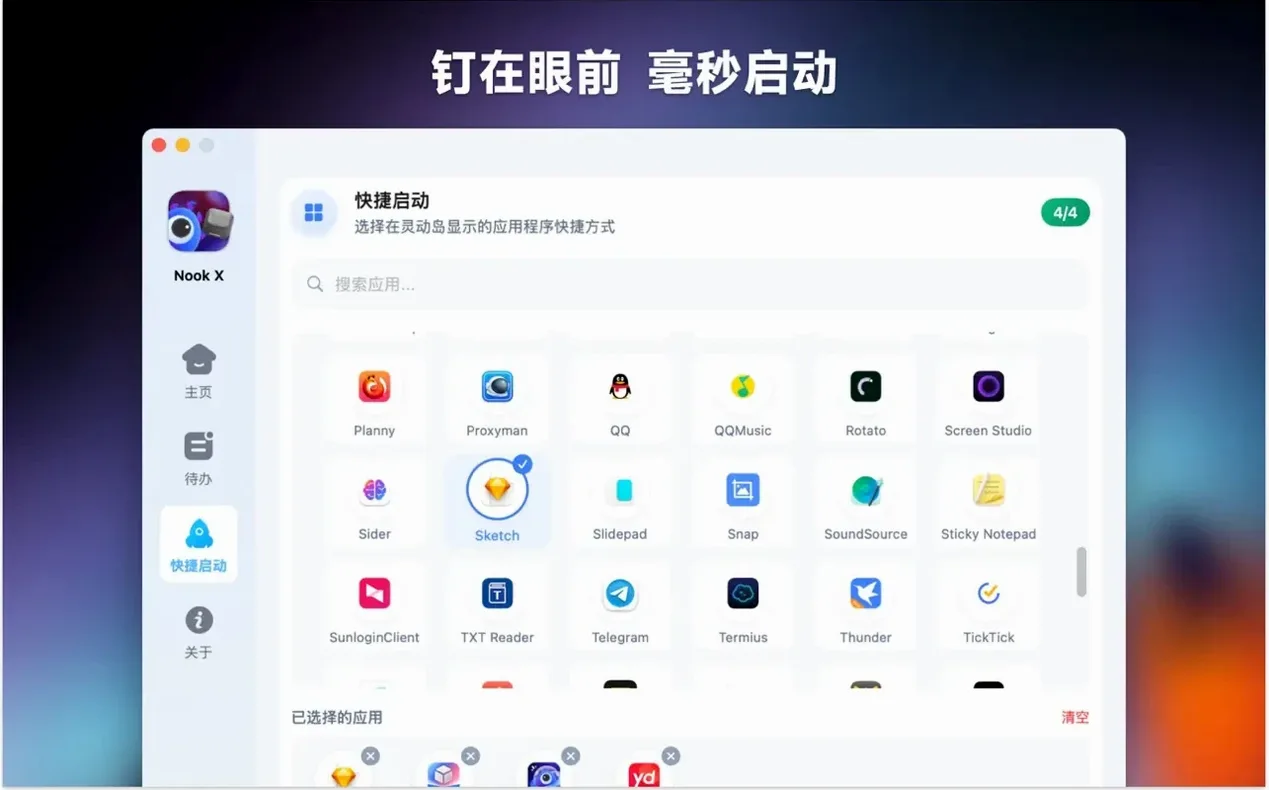
That’s the real trick here. Instead of another window to manage, Nook X tucks its tools into the notch area — to-do lists with priorities and reminders, a chat panel for quick AI prompts, and that surprisingly capable music player. It sits next to whatever else you’re doing, borrowing a sliver of screen space that usually goes unused.
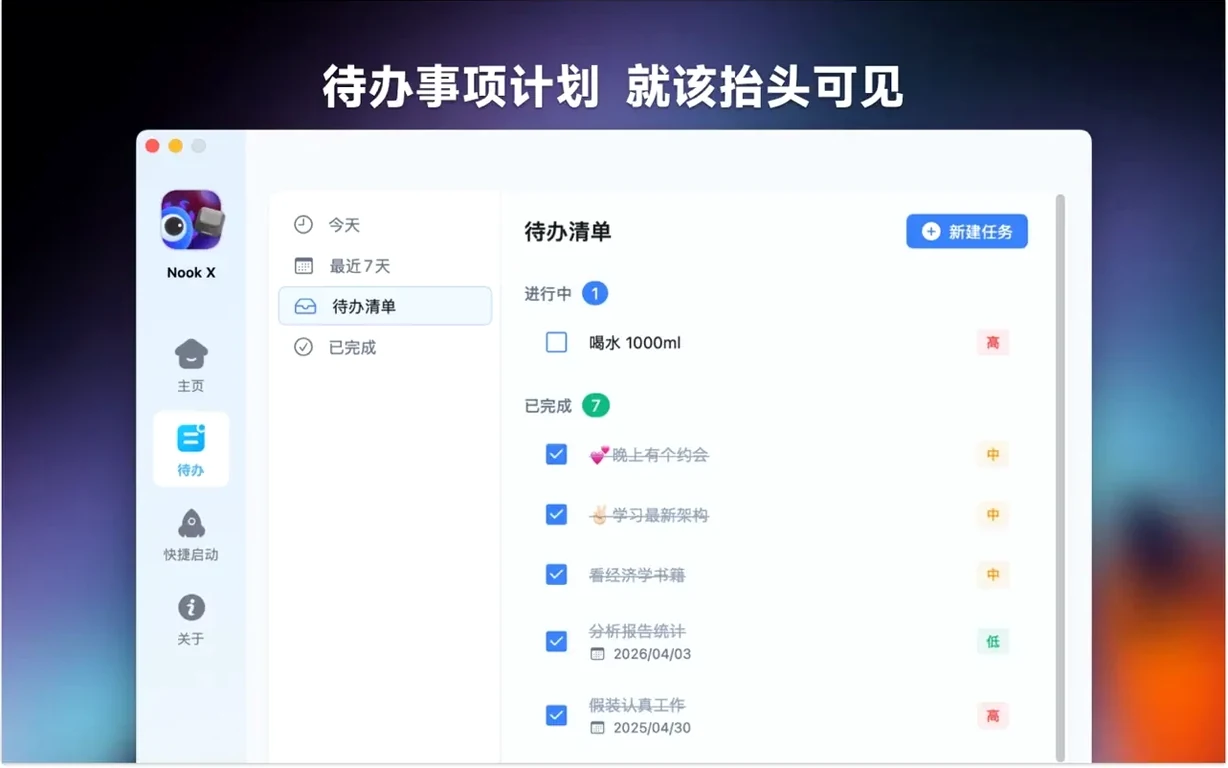
It doesn’t try to replace Things or Apple Music. The task list is snappy for daily checklists, the AI chat handles quick questions without a browser tab, and the player hums along with common audio formats while you work. On a MacBook with a notch, it feels native; on a display without one, it still parks neatly in the menu bar.
Three tweaks that made it feel like my tool
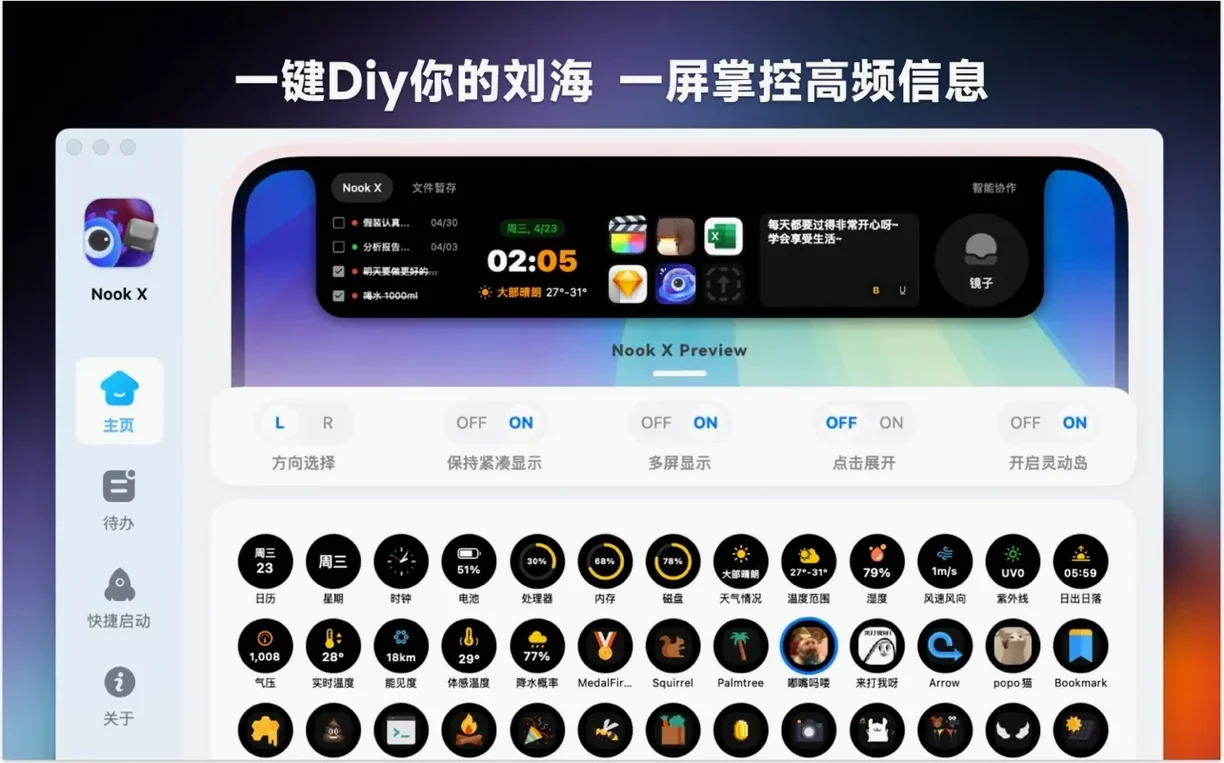
Out of the box, Nook X is eager to show everything at once. I found three tweaks that made it feel like my tool instead of a demo reel.
- Default view on launch. The app can open straight into the music player, the task list, or the chat panel. Pick the one you actually reach for most — if you’re using nookx mainly for quick AI lookups, starting in chat saves a click every single time.
- Karaoke font size. The lyrics display defaults to a fairly large size that works for casual glances. If your screen is small or you prefer the notch area to stay subtle, drop it down a couple of points in Preferences. You can still read along without it shouting over your code editor.
- Hotkey for voice input. The AI chat supports voice, but clicking the mic icon breaks your flow. Assign a keyboard shortcut in the Shortcuts pane, and you can dictate a quick translation or brainstorm an idea with your hands still on the keys. I bound mine to
Ctrl+Opt+Vand it’s become second nature.
One more thing: if you work on an external display without a notch, toggle the menu bar mode so the panel doesn’t float awkwardly mid-screen. A quick flip in the Appearance tab pins it neatly against the top edge.
A quick real-world scenario: the language learner
Imagine someone studying Vietnamese — a friend of mine, actually, who moved to Hanoi last year. She keeps the nook x mac app open during morning study sessions. The AI chat sits on standby for on-the-fly translations: she types a phrase she heard in a podcast, Nook X gives her back the Vietnamese and English side by side, and she saves it as a task for later review.
Then she switches to the music player, loads a folder of Vietnamese pop tracks, and lets the karaoke mode highlight each syllable. She reads along, matching tone marks to what she hears — a drill that flashcards alone can’t replicate. During breaks, she dictates a grocery list in Vietnamese through voice input, and the app turns it into a checklist. Three tools, one strip of screen, zero tabs open. It’s a focused little loop that fits neatly into a morning routine.
Treating the task list like a full project manager
The first week with Nook X tends to follow a pattern. Here’s what I see people trip over — and what to do instead.
- Treating the task list like a full project manager. It handles checklists and reminders beautifully, but nested subtasks and dependency tracking aren’t its thing. Use it for daily must-dos and quick captures; leave the Gantt charts somewhere else.
- Expecting the AI to know your files. The chat panel answers questions, translates, and brainstorms, but it doesn’t index your Mac or read documents. If you ask it to summarize a PDF on your desktop, you’ll get a polite refusal. Feed it text directly instead.
- Ignoring the audio format filter. The player supports common formats, but a stray FLAC with an unusual encoding might not play. Before assuming the app is broken, check whether the file plays in a dedicated player — it’s usually a codec quirk, not a bug in nookx mac.
- Forgetting to clear the chat before a new topic. The assistant carries context across messages. If you switch from debugging Python to asking about dinner recipes, the thread gets confused. A quick clear button tap keeps the answers relevant.
A Tuesday afternoon writing session
Here’s how a Tuesday afternoon with nook x often plays out for me.
I’m writing, and a sentence isn’t landing. I click the notch panel — or tap the hotkey, muscle memory now — and the task list slides open. I add “rewrite intro paragraph” with a priority flag, then swipe over to the AI chat. I type “make this sentence less stiff” and paste the offending line. Three suggestions come back. I pick one, tweak it, and close the panel. Total interruption: maybe forty seconds.
An hour later, I need a break. I open the music player and pull up a folder of ambient tracks I’ve been meaning to listen through. The karaoke mode isn’t relevant here, so I collapse the lyrics and let the mini player sit in the notch while I stretch and make coffee. The playback controls are right there when I return — no switching apps.
After lunch, a reminder pings: the priority task from earlier. I check it off, then dictate a follow-up idea through voice input while pacing the room. The AI transcribes it cleanly, and I tap “create task” to save the thought. By the end of the day, the panel has handled a handful of small jobs that would otherwise have pulled me into separate apps — and the notch area goes quiet until I need it again.
- macOS 13 or later
- Apple Silicon or Intel 64-bit
Questions people ask
Does Nook X only work on MacBooks with a notch?
It works on any Mac running macOS 13 or later, both Apple Silicon and Intel. On screens without a notch, the tools still live in the menu bar area.
What languages does the interface support?
Nook X speaks 14 languages, including English, Spanish, French, German, Japanese, Korean, Russian, and both Simplified and Traditional Chinese.
Can I manage reminders inside the app?
Yes, the to-do list lets you create tasks with priorities and set reminders, all accessible from the notch or menu bar.
Also on readers' docks
Sign in or create an account to leave a comment.
No comments yet. Tell me how it got on with your other devices.
More in Mac Apps
See all NotchBox
1.1.71 Mac Apps
7 MB
NotchBox
1.1.71 Mac Apps
7 MB
 Updated NotchNook
1.6.12 Mac Apps
41 MB
Updated NotchNook
1.6.12 Mac Apps
41 MB
 Nik Collection
9.0 Mac Apps
3.5 GB
Nik Collection
9.0 Mac Apps
3.5 GB
 Navicat Premium
17.3.12 Mac Apps
333 MB
Navicat Premium
17.3.12 Mac Apps
333 MB
 OmniGraffle Pro
7.26 Mac Apps
73 MB
OmniGraffle Pro
7.26 Mac Apps
73 MB
 OmniPlayer: MKV Video Player Pro
2.1.22 Mac Apps
78 MB
OmniPlayer: MKV Video Player Pro
2.1.22 Mac Apps
78 MB
 Musify
5.3.0 Mac Apps
68 MB
Musify
5.3.0 Mac Apps
68 MB
 ON1 Photo RAW
2026.5.2 v20.5.2.19304 Mac Apps
1.1 GB
ON1 Photo RAW
2026.5.2 v20.5.2.19304 Mac Apps
1.1 GB