








Download OmniGraffle Pro for macOS
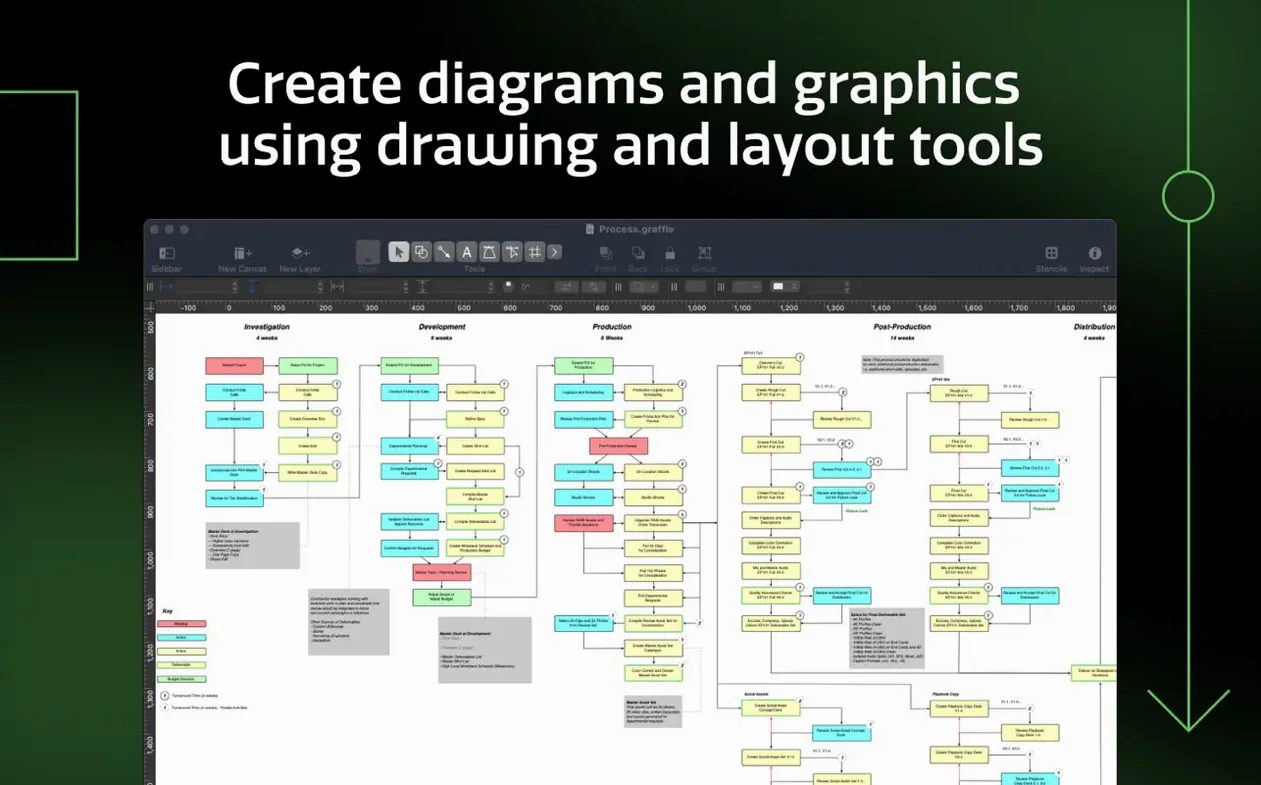
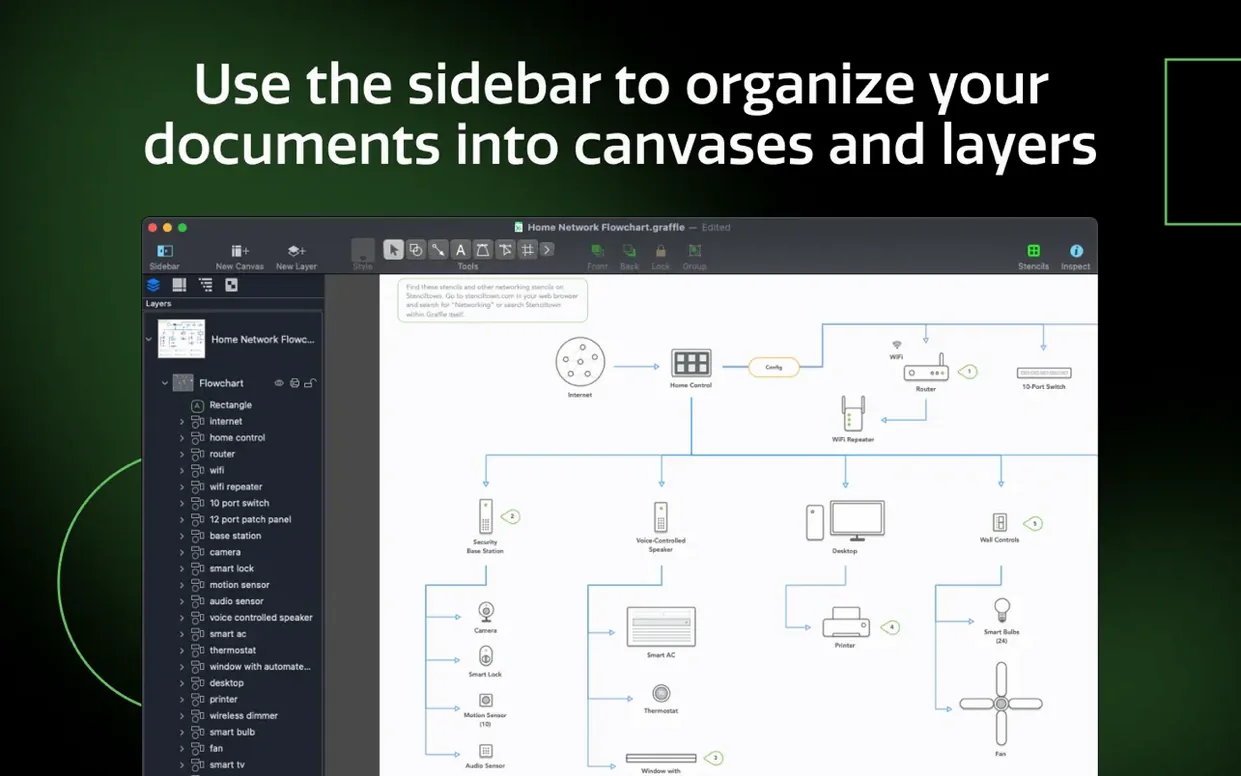
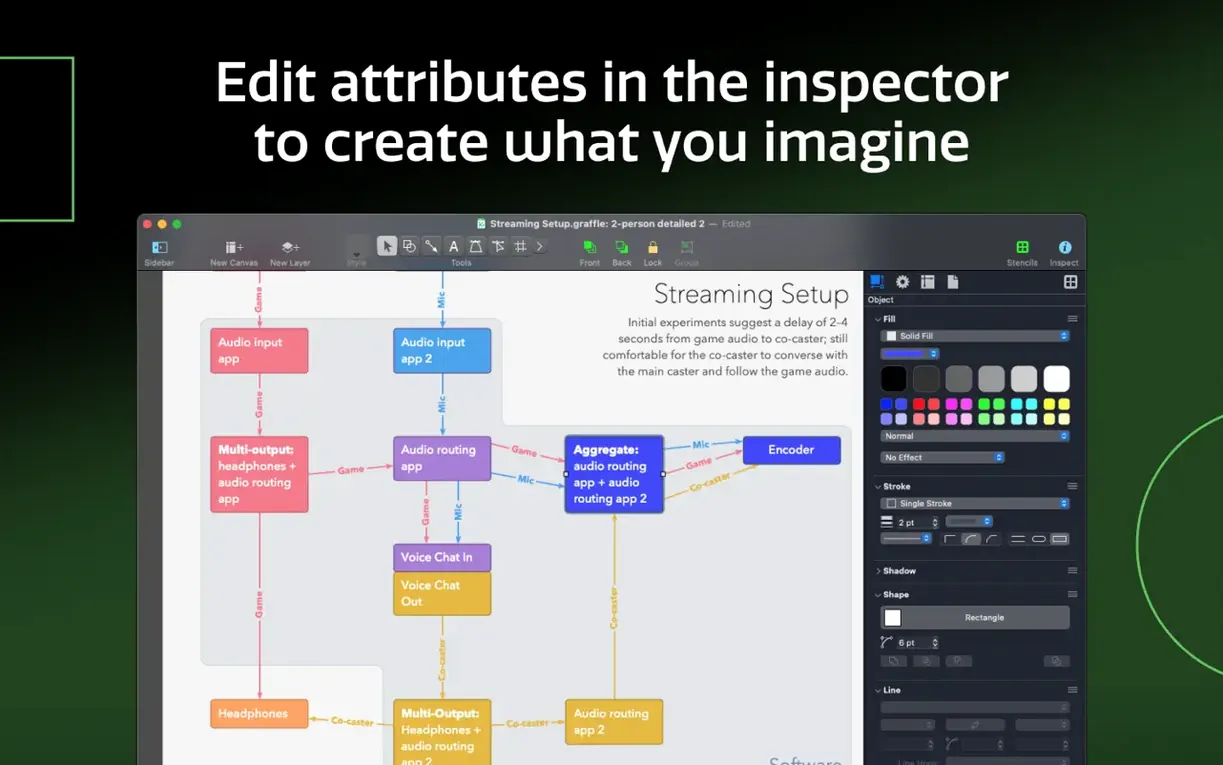
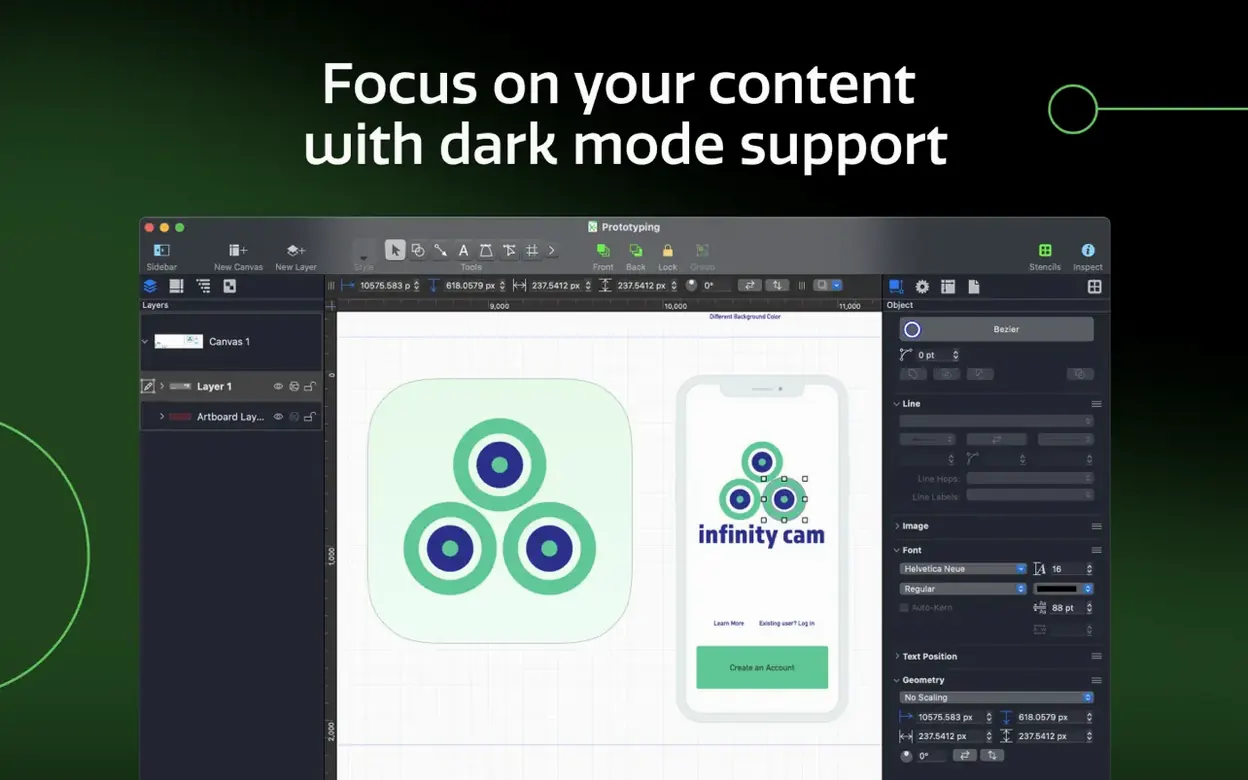
Smart Guides snap into view as you drag a text label toward a flowchart box, turning a rough idea into a tidy org chart with a single nudge. That tiny moment of alignment has been OmniGraffle’s signature for years, and version 7.26 keeps it front and centre while tidying things up for macOS Golden Gate 27.
Create wireframes from a wall of text
Select a bullet list and OmniGraffle converts it into a nest of connected shapes — ideal when a client sends a rambling email and you need a sitemap in seconds.
Build Xcode diagrams without leaving your chair
The automatic diagram feature reads an Xcode project and maps its structure, so you can explain your architecture in a meeting without drawing a single box by hand.
Hand off layers to a designer
Export your OmniGraffle layers as a Photoshop file and a colleague can style every element without re-tracing a thing — the artboards and layer names carry straight over.
Stop Shapes Jumping to the Wrong Object
Smart Guides are brilliant until they latch onto the wrong object three layers deep. When a shape keeps jumping toward something you don't want, hold the Command key while dragging — it temporarily disables snapping so you can place things exactly where your eye wants them. Let go of the key, and the guides wake up again.
Imported Visio files sometimes arrive with mangled fonts because Windows typefaces don't exist on macOS. Instead of manually swapping every label, open the Font Inspector, select all offending shapes at once, and apply a system font in one hit. The layout stays intact; only the lettering changes.
Shared layers can trip people up when they edit a shape they thought was local. If a shape won't select the way you expect, glance at the Layers sidebar — objects on a shared layer have a subtle badge. Double-click the layer to lock or unlock it, or move the shape to a regular layer if it needs independent treatment on one canvas only.
One Infinite Canvas Makes Exporting a Mess
The biggest early misstep is ignoring artboards entirely. New users often dump every diagram onto a single infinite canvas, then wonder why exporting gets messy. Artboards give you clean, named export regions — one for each screen, page or slide — and keep file sizes manageable when you need to hand off a specific deliverable.
Another classic slip: treating the Line tool like a pen. A line between two shapes should actually connect to their connection points — those little blue magnets that appear when you hover near a shape edge. If you just draw a line into empty space near a box, it won't move with the box later. Drag the line endpoint onto a magnet and it will stick for good.
Beginners also overlook the Outline Editor for quick restructuring. Instead of re-drawing a flowchart when the hierarchy changes, open the outline view, drag rows up or down, and the diagram rearranges itself. It saves half an hour of shuffling boxes on a Friday afternoon.
Large Visio Files Open Without Choking
Does OmniGraffle handle large Visio documents without choking? Yes — the Pro edition imports multi-page VSD and VDX files and maps Visio stencils to OmniGraffle styles. Complex diagrams with hundreds of shapes open in a few seconds on Apple Silicon, and the fidelity is high enough that you can roundtrip a document as VDX if a Windows colleague needs to touch it afterward.
Will it feel slow on an older Intel Mac? Version 7.26 runs on both architectures, and while Apple Silicon gives the snappiest zooming and canvas panning, Intel machines handle typical wireframes and org charts without stutter. The app leans on Metal for rendering, so a Mac that supports macOS 14 already has the graphics backbone it needs.
Can two people work on the same file? OmniGraffle isn't real-time collaborative, but shared layers and the multi-canvas sidebar let one person build the structure while another polishes the visual layer on a copy. Exporting layers to Photoshop also splits the workload cleanly between a diagrammer and a designer.
Dense Diagram Loads in Two Seconds
Launching OmniGraffle 7.26 on a Mac with Apple Silicon feels immediate — the icon bounces once and the template chooser is ready. Loading a dense diagram with dozens of artboards and embedded tables takes about two seconds; after that, panning across canvases is butter-smooth even at 200% zoom.
Memory usage sits around 300–400 MB for a typical multi-artboard project, which is restrained for a tool handling vector data, bitmaps and live text conversion simultaneously. The app releases memory cleanly when you close a document, so it doesn't accumulate bloat over a long working day.
Stability under 7.26 has been uneventful in the best way. The update focused on macOS Golden Gate 27 compatibility, and in daily use there are no crashes when invoking the font panel, exporting large Photoshop files or converting lines to shapes. The only quirk I've noticed is that the Convert Text to Shape command occasionally needs a second nudge if the text runs wide — hitting undo and re-running it sorts things out instantly.
If you've been hunting around for an omnigraffle download to tackle a messy Visio file or prototype a dozen screens, version 7.26 runs like a tool that has settled into its strengths. It won't bother you with background processes once you quit, and it plays nicely with Stage Manager on a laptop display — the sidebar inspectors stay out of your way until you need them.
OmniGraffle 7.26 is a compatibility release:
- Improves compatibility with macOS Golden Gate 27.
- Now requires macOS 14 or newer.
- macOS 14 or newer
- Intel or Apple Silicon Mac
- Languages: English, German, Spanish, Italian, Simplified Chinese, Korean, Dutch, Portuguese, French, Japanese, Russian
Questions people ask
Can OmniGraffle open Microsoft Visio files?
Yes, it can import both VSD and VDX documents from Visio.
What macOS version does OmniGraffle 7.26 require?
It requires macOS 14 or newer and runs natively on both Intel and Apple Silicon Macs.
Also on readers' docks
Sign in or create an account to leave a comment.
No comments yet. Tell me how it got on with your other devices.
More in Mac Apps
See all OmniPlayer: MKV Video Player Pro
2.1.22 Mac Apps
78 MB
OmniPlayer: MKV Video Player Pro
2.1.22 Mac Apps
78 MB
 ON1 Photo RAW
2026.5.2 v20.5.2.19304 Mac Apps
1.1 GB
ON1 Photo RAW
2026.5.2 v20.5.2.19304 Mac Apps
1.1 GB
 One Switch
1.35.4 Mac Apps
7 MB
One Switch
1.35.4 Mac Apps
7 MB
 OpenIn - Advanced Link Handler
4.5.1 Mac Apps
16 MB
OpenIn - Advanced Link Handler
4.5.1 Mac Apps
16 MB
 Updated NotchNook
1.6.12 Mac Apps
41 MB
Updated NotchNook
1.6.12 Mac Apps
41 MB
 Pacifist
4.1.4 Mac Apps
38 MB
Pacifist
4.1.4 Mac Apps
38 MB
 NotchBox
1.1.71 Mac Apps
7 MB
NotchBox
1.1.71 Mac Apps
7 MB
 Updated Nook X
2026.10.24 Mac Apps
36 MB
Updated Nook X
2026.10.24 Mac Apps
36 MB