Download Radio Silence for macOS
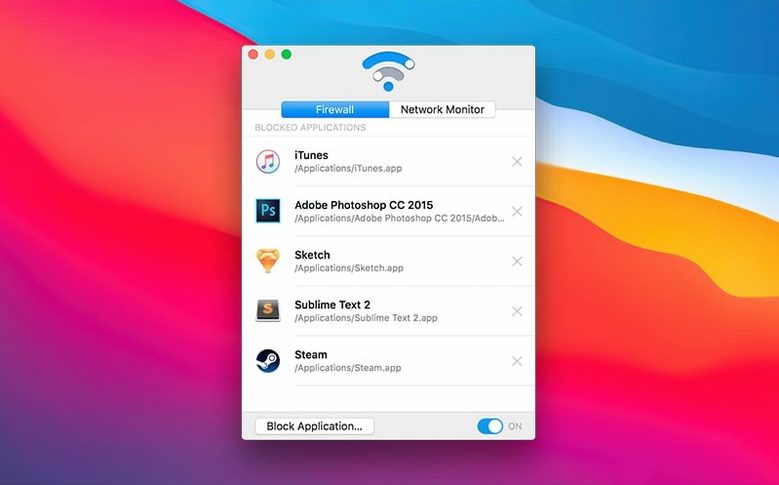
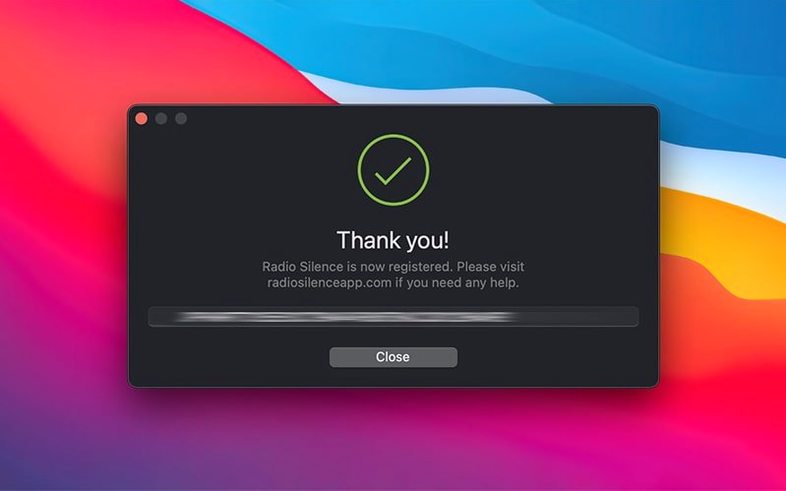
If you’ve ever used Little Snitch, you know the noise — an endless stream of connection alerts that demands constant decisions. Radio Silence flips that model. It’s a quiet firewall built around one core idea: you decide which apps never get to talk, and everything else connects without a peep. For anyone who already knows which apps they don’t trust, it’s the faster, less intrusive tool.
- Zero-alert blocking — pick an app, click Block, and it’s done. No pop-ups, no rules to babysit.
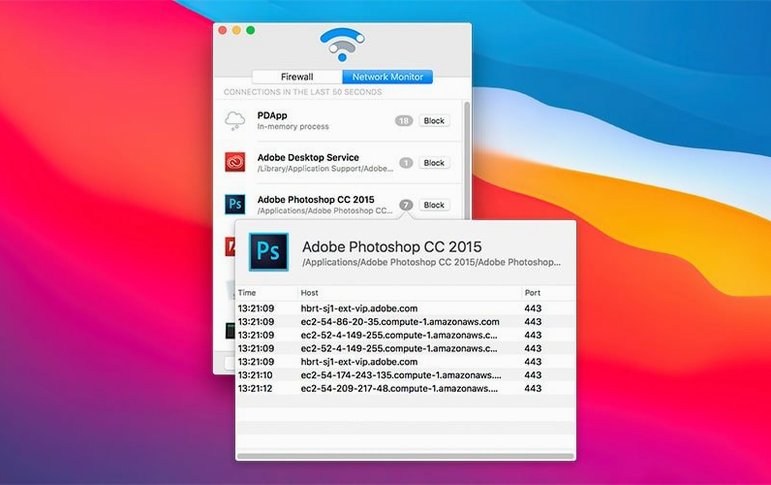
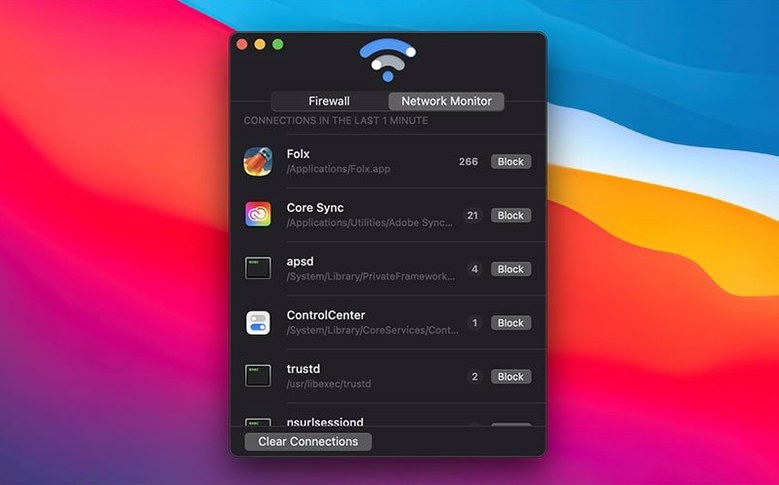
- Hidden network monitor — watch live traffic from all apps without the interface getting in your way.
- Quick pause toggle — temporarily lift all blocks when you need to let a usually-silenced app phone home.
- Clean block list management — remove apps from the block list at any time, right from the main window.
- macOS Tahoe ready — version 3.4 ships with explicit installation guidance for the latest macOS, plus smarter handling of permissions errors.
- Built-in rescue view — a troubleshooting panel now appears if the app fails to launch, so you’re not left guessing.
Radio Silence won’t replace a full packet-level monitor, and it doesn’t try to. It earns its spot by doing one job with almost no interface at all — the kind of tool you set once and forget is even running.
One thing that often surprises people is that Radio Silence doesn’t live in the menu bar. There’s no little icon up top, no dock badge — nothing. The app sits in your Applications folder and you launch it when you need to check something or tweak a block. That design choice throws a few folks at first, but it makes sense once you realize the blocking engine runs in the background regardless. You can quit the app entirely and every rule you set stays active.
No conflict with the built-in macOS firewall
A few concerns tend to surface right before someone pulls the trigger on a download. The most common one is whether Radio Silence conflicts with the built-in macOS firewall. It doesn’t — they operate at different layers and don’t step on each other’s toes. You can leave Apple’s firewall enabled and run Radio Silence alongside it without any drama. In fact, the two complement each other nicely: Apple’s firewall controls incoming connections from the network, while Radio Silence handles outbound traffic on a per-app basis.
Another question worth addressing is how the block list survives system updates. Because Radio Silence uses the network kernel extension framework, macOS treats its configuration as a system-level setting. Through every point update from Catalina to Tahoe, blocked apps stay blocked. Version 3.4 specifically improved how installation errors get surfaced if something does go sideways — previously a silent failure could leave you wondering why nothing worked.
People also ask whether the app phones home itself. It doesn’t make network requests, and the developer’s privacy policy reflects that. The network monitor only shows your other apps’ traffic, never its own. If you’re looking for an extra layer of verification, you can block Radio Silence with Radio Silence — it’s a fun little paradox, but it changes nothing about how the firewall operates.
A real blocking workflow, end to end
Let’s walk through a typical scenario: you’ve installed a photo editor that works perfectly offline, but you notice it keeps pinging analytics servers in the background. Here’s how you’d silence it.
First, leave the photo editor running for a minute or two so it generates some traffic. Launch Radio Silence and switch to the Network Monitor tab. You’ll see a live list of connections — each row shows the app name, the remote address it’s talking to, and the amount of data transferred. Scroll until you spot the photo editor’s entries. You might see connections to something like telemetry.photosuite.io or a bare IP address with a note about the process.
Once you’ve confirmed the app is the culprit, switch to the Firewall tab and click the Block Application button. A standard file browser opens — navigate to your Applications folder, select the photo editor, and confirm. That’s it. The app now appears in your block list with a red indicator, and every connection attempt it makes from that moment forward gets dropped silently. No alert interrupts you, no dialog asks for confirmation. The photo editor still works fine for editing; it just can’t reach the outside world.
Need to let it through temporarily for an update? Hit the pause button in the Firewall tab, launch the app, let it do its thing, then unpause. The block list stays intact — you’re just lifting the enforcement for a moment.
Click any column header to reorder connections
A few touches in Radio Silence are easy to overlook but make daily use smoother. The network monitor sorts connections by app name by default, but you can click any column header to reorder by data volume or connection count. If you’re hunting for a bandwidth hog, sorting by bytes transferred surfaces the culprit instantly.
The block list itself supports drag-and-drop. Rather than clicking through the file browser, just grab an app from your Applications folder and drop it onto the Firewall tab. It takes about two seconds. You can also drop apps directly from a Finder window or even from the Dock — Radio Silence resolves the bundle path without complaint.
Another hidden gem: if the app fails to launch after an OS update, version 3.4 includes a help view that pops up automatically. It walks you through granting full disk access and checking kernel extension approval in System Settings, so you’re not left digging through support forums. This replaced the older behavior where the app simply wouldn’t open and you had to guess why.
For anyone who prefers keyboard navigation, the main window responds to standard shortcuts. Cmd-W closes the window but leaves the engine running, Cmd-Q quits entirely, and the tab key cycles through the blocked apps list. Nothing flashy — just enough to keep your hands on the keyboard.
Blocking only the parent app, not its helpers
The most common stumble is blocking an app too broadly. Some applications bundle multiple helper processes — a browser might have a separate network daemon, or a creative suite might use background services for licensing checks. If you block only the main binary, those subprocesses can still phone home. The fix is simple: use the network monitor to spot all related processes, then block each one individually. Look for entries sharing a bundle identifier prefix or a developer name.
Another frequent mix-up involves the pause toggle. Pausing the firewall lifts every block globally, not just for one app. I’ve seen people hit pause to let a single app update, then forget to unpause for hours. During that window, every previously blocked app reconnects freely. A quick glance at the Firewall tab tells you the current state — if the pause indicator is highlighted, enforcement is off. Make checking it a habit before you close the window.
Some users also assume Radio Silence filters incoming connections the way a traditional firewall does. It doesn’t — it’s strictly about outbound requests initiated by apps on your Mac. Incoming traffic from external machines still follows whatever rules your router or Apple’s firewall enforce. Understanding that distinction prevents confusion when you see an app receiving data despite being blocked. The block only stops the app from starting a conversation, not from responding to one already in progress.
Finally, a handful of people expect the network monitor to log history. It’s a live view — close the window and the data resets. If you need persistent records, you’ll want a separate tool. Radio Silence shows you what’s happening now, which is usually enough to identify the noisy apps you want to silence.
If you’ve been searching for a straightforward way to handle radio silence mac network blocking without the complexity of rule-based firewalls, or you’ve looked at a radio silence mac torrent option and want to make sure you grab a build that runs smoothly with Tahoe support baked in, the current version is worth a look. A quick radio silence download gets you a utility that settles into the background and stays there — exactly how a quiet firewall should behave.
Version 3.4 focuses on smooth sailing from the moment you install. Here’s what changed:
- Installation guidance tuned for macOS Tahoe.
- Smarter recovery when installation errors or missing permissions get in the way.
- A new help view that kicks in with troubleshooting info if the app fails to launch.
- macOS: 10.15 or later
- Architecture: Intel and Apple Silicon
- Languages: English
Also on readers' docks
Sign in or create an account to leave a comment.
No comments yet. Tell me how it got on with your other devices.