









Download Mp3tag for macOS
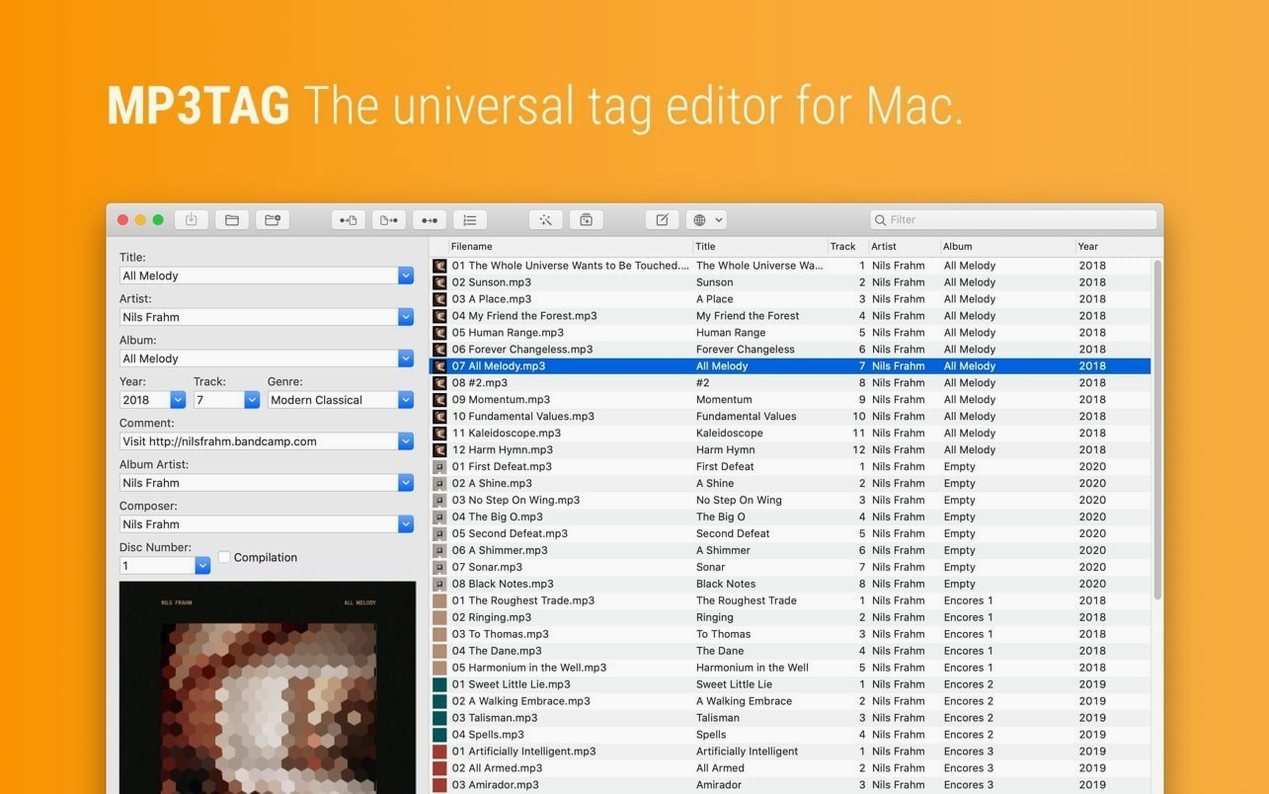
Think of Mp3tag as the power user mode for the column view you already use in Finder to skim artist names. It turns that passive browsing into a full editing desk.
- Batch editing
- Change artist, album, and title fields across an entire collection in one go, not file by file.
- Online lookups
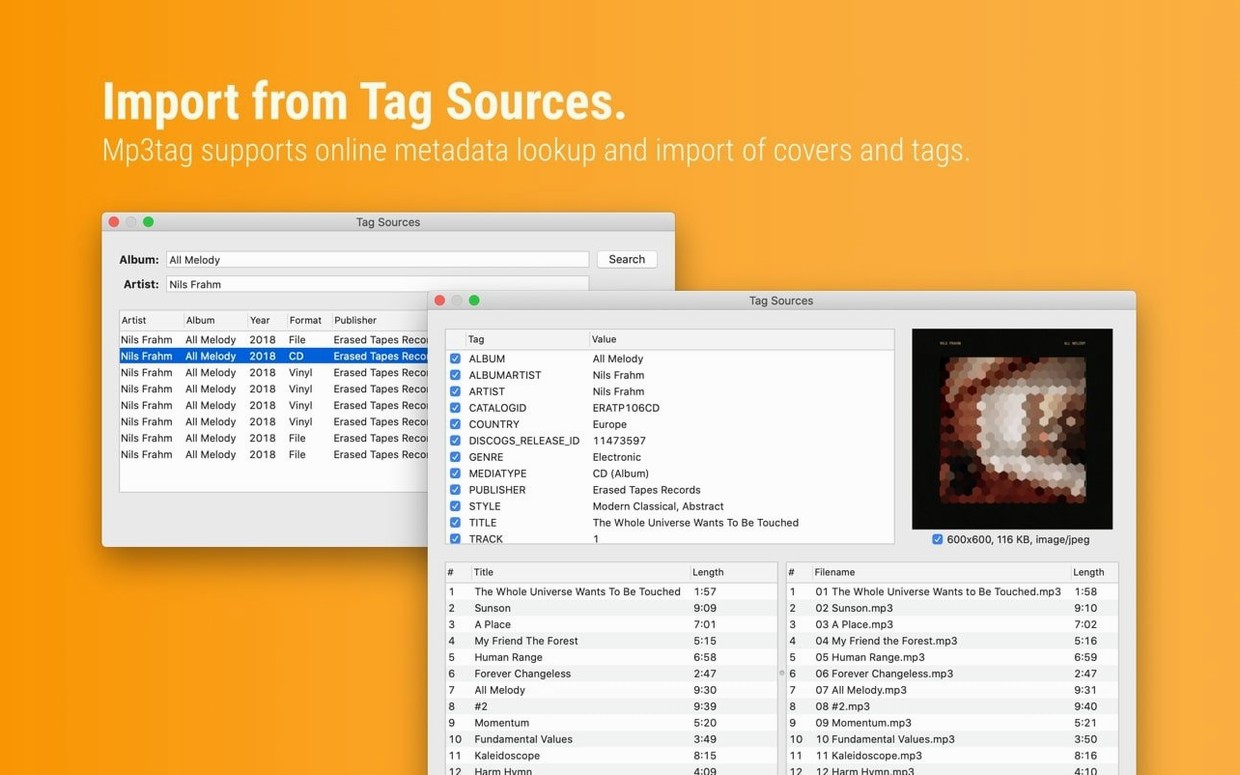
- Pull rich tag data and cover art straight from Discogs and MusicBrainz, filling in gaps Finder can't touch.
- Cover art tools
- Adjust embedded artwork right inside the app, resizing and reformatting images to keep your library neat.
- Text transformations
- Swap words, fix capitalization, or renumber tracks across filenames and tags with simple rules.
- Format support
- Works naturally with MP3, FLAC, MP4, WAV, OGG, and more, matching whatever sits in your Music folder.
Finder tag checks vs. the dock-worthy editor
Not every Mac owner needs a dedicated tag editor, and that's fine. Finder's column view gets basic artist-name checks done, and Music.app covers casual listeners who let iTunes Match tidy things up. Mp3tag earns its spot on the dock for three crowds in particular.
Music collectors with messy libraries are the obvious audience. If you've been ripping CDs since the early 2000s, your folders probably hold a mix of half-tagged FLACs, MP3s with "Track 01" still in the title field, and album art that looks like a postage stamp. Mp3tag's batch editing means you select an entire album folder, punch in the album artist once, and watch every file snap into shape. The Discogs lookup alone saves hours of manual typing — pick the right release, and the app pulls credits, genres, and even the exact cover variant you own.
DJs and live performers lean on it differently. When you're prepping a set, consistent BPM tags and clean filenames keep rekordbox or Serato from showing gibberish on the CDJ screen. The character replacement tools let you strip out weird Unicode symbols that club gear chokes on, and the action groups mean you can run the same cleanup routine — normalize artist caps, embed 600×600 art, rename files to "Artist - Title.mp3" — across a fresh USB export in seconds.
Podcast producers get a quieter win. Episodes often arrive from different recorders with inconsistent MP3 tags, missing show titles, or author fields that don't match the RSS feed. Mp3tag makes it easy to select a season's worth of WAV or MP3 files and stamp them with the same podcast name, episode numbering, and cover square, so your hosting platform pulls the right metadata on upload.
If you only stream music and never touch local files, or you've got a few dozen albums you ripped once and never revisit, the app is probably overkill. Finder and Music.app handle that life just fine.
The crash fix when adding action groups
The jump to version 1.14.1 isn't a feature splash — it's a stability pass that patches real annoyances people hit during editing sessions. If you used earlier builds, you might remember a crash when adding action groups in the Actions Groups window on macOS 27. That's now gone, and the fix matters if you build multi-step workflows: first rename files, then embed art, then adjust BPM precision. Losing a configured action group mid-edit used to mean reconstructing it from memory.
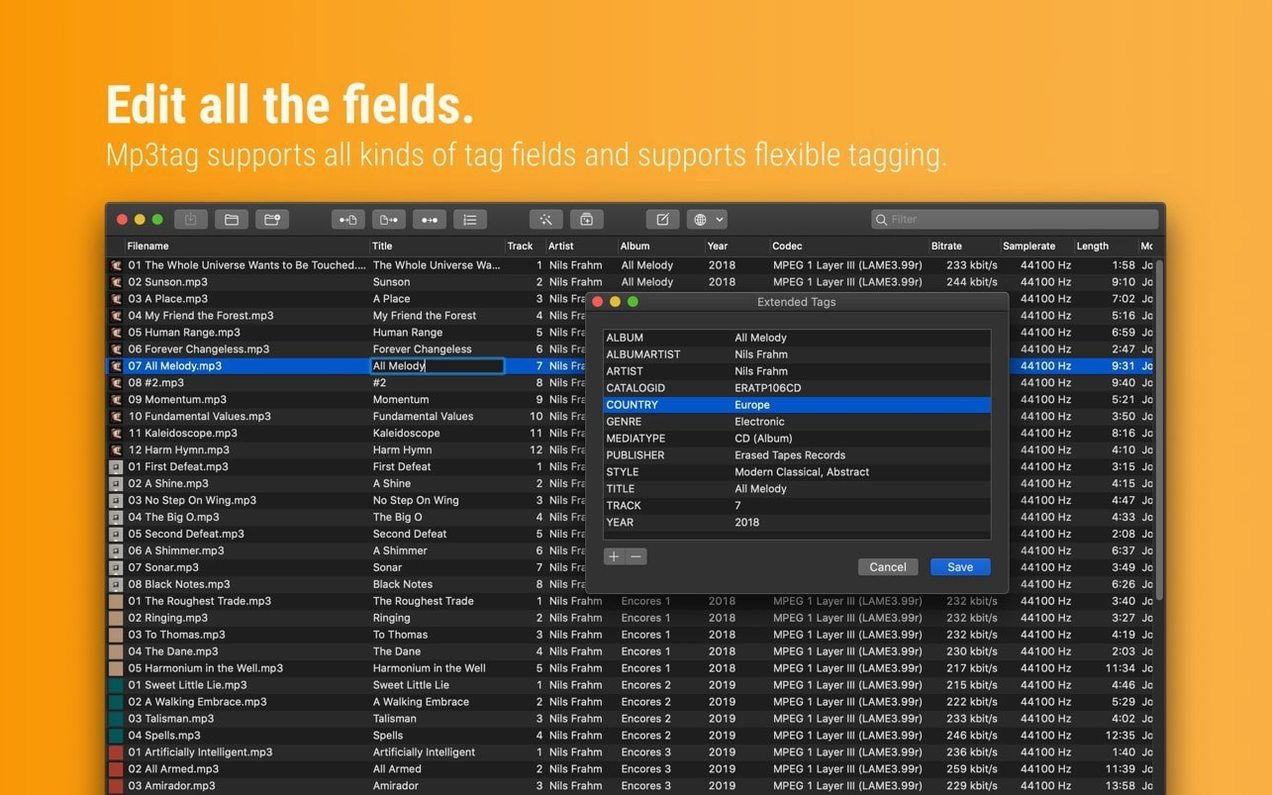
Another fix covers a subtle data-loss scenario. In past releases, any cover art changes you made in the Tag Panel would silently vanish if you opened the Extended Tags window before hitting save. You'd think you swapped out a blurry cover for a sharp Discogs pull, then find the old image still embedded later. Version 1.14.1 holds those panel changes until you explicitly save or discard them, even if you bounce between editing windows.
The same logic extends to unsaved Tag Panel edits being ignored when you jumped into Cover Search, Tag Sources, Converters, Auto-Numbering, or Actions. Previously, starting one of those tools before committing your tag panel work meant Mp3tag would proceed with the last saved state of the file, not the edits sitting on screen. Now the app warns you or carries pending changes forward, depending on context, so you don't lose a freshly typed album title because you got curious about a MusicBrainz lookup.
For DJs and anyone who deals with precise tempo data, there's a quiet fix for MP4 files: decimal BPM values no longer get truncated to integers when writing tags. If a track genuinely clocks at 128.5 BPM, the tag now stores 128.5 instead of rounding to 128. It's a small change that keeps libraries accurate for software that reads fractional tempos.
First days with Mp3tag: where to start and what to avoid
Opening a tag editor for the first time can feel like staring at a spreadsheet. Here's a path that keeps the first afternoon productive rather than overwhelming.
Start with one album you know well. Pick something you can hum start to finish. Point Mp3tag at its folder and let the file list populate. Before touching any tags, right-click a track and choose Tag Sources — try Discogs first if your music skews toward physical releases, or MusicBrainz for broader digital catalog coverage. Watch how the fields map across. You'll quickly see which tags you care about (artist, album, year, genre, cover) and which you can ignore for now.
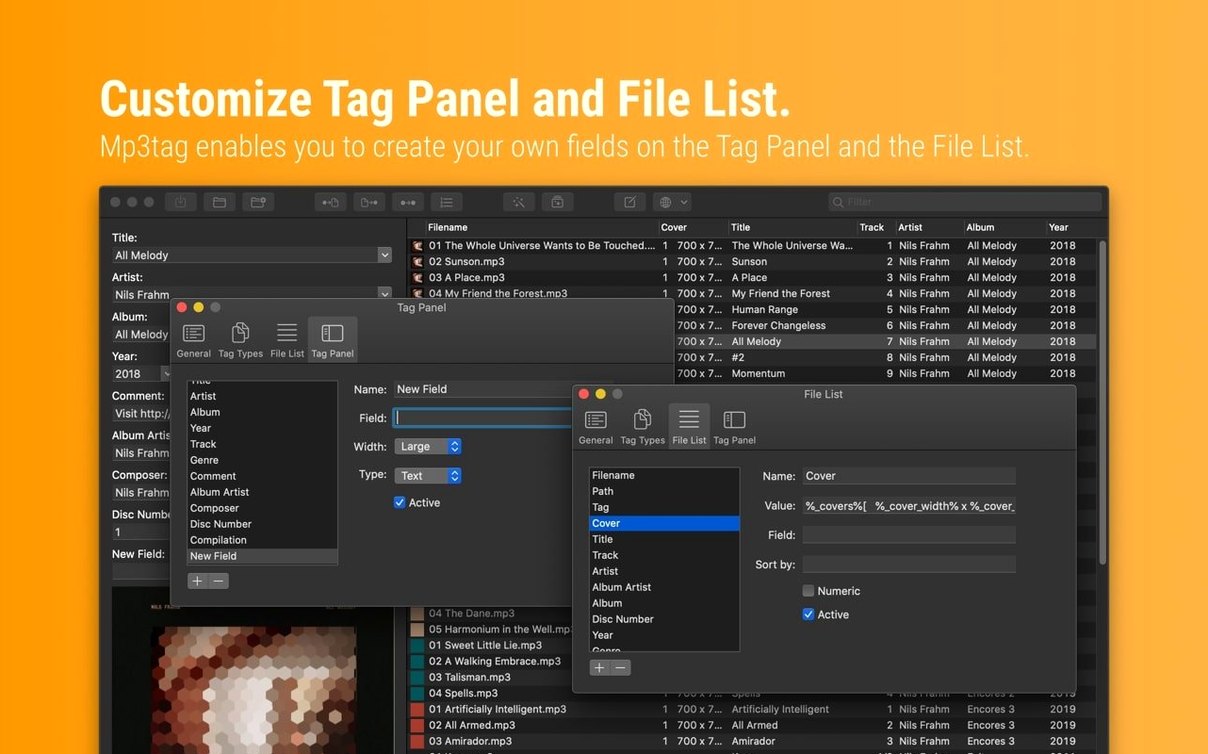
Learn the action system early. Actions are Mp3tag's secret weapon, and they're buried in a menu newcomers miss. Head to Actions in the menu bar and open the Actions Groups window. The app ships with a few presets — like "Remove all tags except..." or "Format value" — and you can clone one to study how it works. A safe first custom action: create a group that renames files to "TrackNumber - Title" using the Format value and Rename steps. Run it on a test folder of copy files, not your originals, until you trust the output.
Resist the urge to batch-edit everything at once. It's tempting to point Mp3tag at your entire Music folder and run a global artist-name capitalization pass. Don't. Batch operations are powerful and fast, which means mistakes propagate just as quickly. Work in chunks — a genre at a time, or a single artist's discography — and keep a backup handy for the first week. Once you've built a handful of trusted action groups, you can widen the net.
Set your cover art preferences immediately. Under Preferences, find the cover settings and decide on a maximum resolution and preferred format. If your library lives on a Mac with limited SSD space, capping embedded art at 600×600 pixels and JPEG format keeps file sizes reasonable. Mp3tag's cover tools will then automatically resize and convert any art you pull from online sources or drag in manually.
Metadata backstage pass, not an iTunes replacement
Does this replace Music.app or iTunes? No, and it doesn't want to. Mp3tag edits the metadata baked into your audio files, which Music.app then reads. Think of it as a backstage pass — you fix tags before the library software sees them. Some people find their Music.app library suddenly looks cleaner after an Mp3tag session, but the app itself never touches playlists, playback, or syncing.
Will it mess up files I've already tagged in other apps? It reads whatever tags are already there, so existing metadata shows up in the columns and panels. The risk comes from batch actions applied blindly. If you've carefully tagged a thousand songs in something else, Mp3tag won't overwrite anything unless you tell it to. Sticking to manual edits or previewing action results before committing keeps your old work intact.
Is it safe on Apple Silicon? The app runs natively on Apple Silicon, and the official build supports it directly. If you're grabbing a copy from places where terms like mp3tag free mac or mp3tag mac torrent float around, the architecture support stays the same — Intel 64-bit and ARM both work. The Gatekeeper bypass step during installation is normal for software distributed outside the App Store, and the current 1.14.1 build has no known conflicts with recent macOS releases.
Can I undo a batch edit if I make a mistake? Mp3tag has an undo function for the last operation, but it's not an infinite history. If you run five actions in sequence, only the most recent one can be reversed. This is why working on copies of files, or at least keeping a Time Machine backup current, is the real safety net during the first few days. Once you're comfortable with the action preview — which shows exactly what will change before you commit — the risk drops significantly.
What's the deal with different file formats? The tag fields you see vary by format. FLAC uses Vorbis comments, MP3 uses ID3v2, and MP4 uses its own atoms. Mp3tag handles the translation behind the scenes, so you see "Artist" as a single field regardless of what's underneath. If you're moving files between formats — say, converting FLAC to MP3 for a portable player — having consistent tags in both makes the transition smoother. The app's converter tools can even apply tags during that workflow.
Version 1.14.1 squashes a few workflow bugs:
- Fixed a crash on macOS 27 when adding action groups.
- Cover changes made in the Tag Panel are no longer discarded if you tweak Extended Tags first.
- Unsaved Tag Panel edits now stick when you jump to Cover Search, Tag Sources, or Converters before saving.
- macOS 10.14 or later
- Intel (64-bit) or Apple Silicon Mac
Questions people ask
Can Mp3tag find tags for a track I ripped myself?
Yes, it can search Discogs and MusicBrainz to match your files with online databases and fill in the correct metadata and cover art automatically.
Also on readers' docks
Sign in or create an account to leave a comment.
No comments yet. Tell me how it got on with your other devices.
More in Mac Apps
See all Updated Movist Pro
2.21.0 Mac Apps
60 MB
Updated Movist Pro
2.21.0 Mac Apps
60 MB
 m’s HalfTone
1.5.3 Mac Apps
6 MB
m’s HalfTone
1.5.3 Mac Apps
6 MB
 Musify
5.3.0 Mac Apps
68 MB
Musify
5.3.0 Mac Apps
68 MB
 Movavi Video Suite
22.4.1 Mac Apps
294 MB
Movavi Video Suite
22.4.1 Mac Apps
294 MB
 Movavi Video Editor
22.4.1 Mac Apps
126 MB
Movavi Video Editor
22.4.1 Mac Apps
126 MB
 Movavi Video Converter
22.5.0 Mac Apps
79 MB
Movavi Video Converter
22.5.0 Mac Apps
79 MB
 Movavi Screen Recorder
23.1.1 Mac Apps
110 MB
Movavi Screen Recorder
23.1.1 Mac Apps
110 MB
 Updated MouseBoost Pro
5.3.0 Mac Apps
17 MB
Updated MouseBoost Pro
5.3.0 Mac Apps
17 MB