









Download Movavi Video Converter for macOS
What exactly does it do?
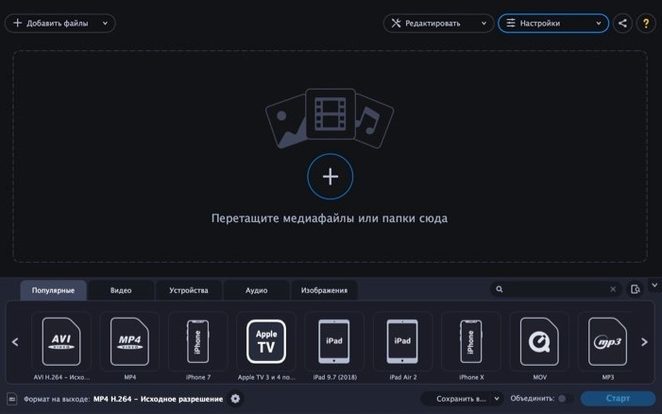
It changes media files from one format to another. That means you can turn an MKV into an MP4, make a GIF from a video clip, or pull the audio out of a movie file to save as an MP3. It also converts images between common still formats.
Who is it really for?
Anyone who needs a file to play nicely on a specific device. It’s handy when a video won’t open in QuickTime or you need to shrink something for a messaging app. The batch conversion helps if you have a whole folder to work through.
Built-in trim, crop, and stabilization tools
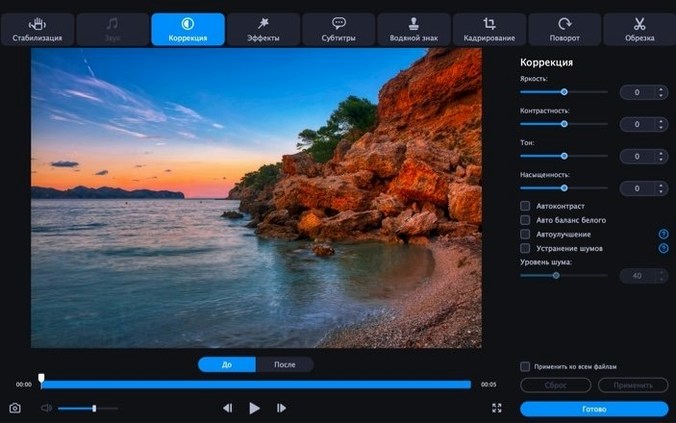
You get a small set of editing tools built in. Trim clips, crop the frame, tweak volume, or add a simple text overlay or watermark. There’s also a stabilization slider for shaky footage and a noise removal option for audio.
A real-world workflow: camcorder footage to phone-ready clips
I recently dug an old camcorder out of a drawer and pulled off a dozen AVCHD files — all the messy, unedited clips from a family trip. The goal was simple: get these onto my iPhone so people could actually watch them without complaining about file sizes or weird formats. Here’s how Movavi Video Converter handled the whole job from start to finish.
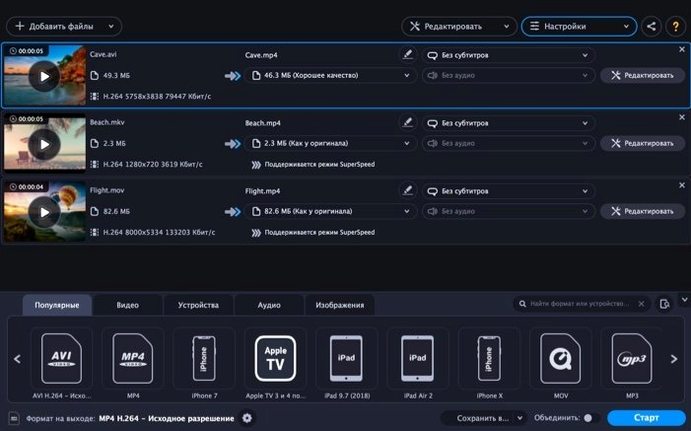
First, I dragged the whole folder of MTS files into the app. The batch list populated instantly, showing each clip’s duration and original size. No stalling, no beachball. I selected all of them and picked the Apple device profile for iPhone — one click, rather than me guessing about resolution or codec. The preset chose H.264 in an MP4 container at a sensible bitrate, and I could see the estimated output size drop by about 60% right in the list.
One clip had shaky handheld footage that made me wince, so I opened the edit panel for just that file. The stabilization slider is a single control — you drag it right and watch a small preview window update. I settled around 70% and let it do its thing. Another clip needed ten seconds trimmed off the end where I’d forgotten to stop recording. Drag the handles on the timeline, confirm, and back to the queue.
I toggled on SuperSpeed conversion for the batch, which leans on Intel Quick Sync on my older Mac, then hit Convert. Twelve clips finished in under four minutes. The stabilized clip took noticeably longer — maybe an extra minute on its own — but the rest flew through. I AirDropped the resulting MP4s to my phone and everything played smoothly in the Photos app. If you need movavi video converter for exactly this kind of one-and-done batch job, the preset system saves you from codec guesswork that QuickTime Player simply won’t help with.
A cleaner device preset list with less clutter
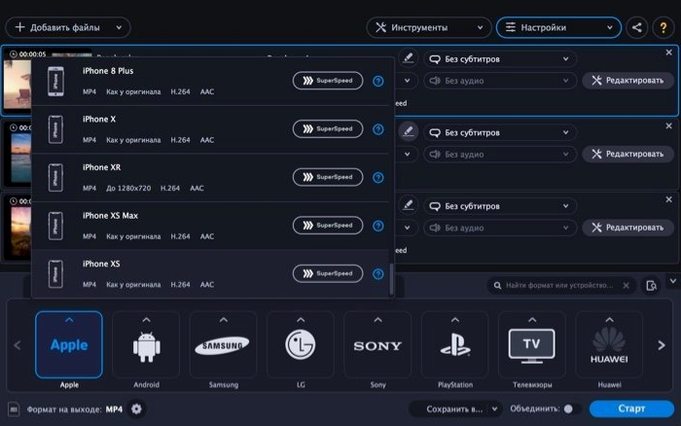
Version 22.5.0 doesn’t shout about itself, but a few quiet improvements make the app feel less fussy than builds from a couple of years ago. The most noticeable change is how the device preset list got cleaned up. Older versions had a sprawling, slightly chaotic tree of phone models — some of them long discontinued. The current list groups sensibly by brand and category, so finding “Samsung” or “Apple TV” doesn’t involve scrolling past five nearly identical entries.
Another change that matters in daily use: the edit panel opens faster now. In earlier 22.x releases, clicking the edit icon on a file sometimes came with a half-second pause while the interface loaded its controls. That lag is gone in 22.5.0, which makes quick trims feel more like they belong in the flow rather than being a separate detour. The stabilization preview also renders more smoothly — previous versions could get choppy when you dragged the slider, making it hard to judge the result until you committed.
Under the hood, the app handles some MKV files with odd subtitle tracks more gracefully. I used to see occasional failures on MKVs that mixed SRT and PGS subtitles in the same container; those now convert without needing to manually strip the subtitle stream first. It's a small thing, but if you regularly pull files from various sources — and some of those sources are a bit messy — you'll trip over fewer errors. If you're hunting for a Movavi Video Converter torrent that's actually current, this build reflects fixes users had been requesting for a while.
HandBrake’s power vs. Movavi’s lower friction
Mac users have a few obvious alternatives when they need format conversion, and the differences aren’t always about feature checklists — they’re about how much friction you’re willing to tolerate for a given task.
HandBrake is the free, open-source workhorse everyone tries first. It gives you granular control over every encoding parameter, and its presets are excellent for archival rips. The trade-off: HandBrake doesn’t do images, doesn’t extract audio to MP3 in a straightforward way, and has no built-in trimming or stabilization. If you only need video-to-video conversion with deep settings access, HandBrake is great. If you need to quickly turn a clip into a GIF, crop something, and send it off — Movavi covers that in one app without opening three different tools.
Permute is closer in spirit to Movavi Video Converter. It’s a drag-and-drop converter with a clean, minimal interface and good format coverage. Permute excels at being unobtrusive — it lives in the menu bar if you want, and its simplicity is its strength. What it doesn’t offer is the editing layer. No crop, no stabilization, no text overlay, no noise reduction. If your files arrive ready to convert, Permute is faster to use. If they need even minor adjustments first, you’ll end up pairing Permute with something else, whereas Movavi keeps it all in one window.
Adapter is another free option with a friendly interface and broad format support, but it hasn’t seen a meaningful update in a long time. It can occasionally choke on newer codec variants, and it lacks the hardware-accelerated SuperSpeed mode that makes Movavi feel snappy on Intel Macs. For someone downloading a movavi torrent to try before committing, the speed difference on large batches becomes obvious within the first few conversions.
Skipping the device preset list costs you time
Watching someone use Movavi Video Converter for the first time, you see the same stumbles repeat. Here are the ones worth knowing about before you click Convert.
Ignoring the device preset list entirely. New users often jump straight to the format dropdown and manually pick MP4, AVI, or MKV without scrolling down to the device section. The generic MP4 preset uses a middle-of-the-road bitrate that might be larger than necessary or not quite right for a specific phone. The iPhone or Samsung preset dials in resolution, codec, and bitrate matched to that hardware, often producing smaller files that play more reliably. If your destination is a device, use the device preset — that’s why it exists.
Assuming SuperSpeed always works. The SuperSpeed toggle accelerates conversion only when the source and target codecs are compatible with your Mac’s hardware encoder. If you’re converting from an unusual input format or to a software-only codec, the app falls back to standard encoding without much fanfare. Beginners sometimes check the box, see no speed difference, and assume the app is broken. It’s not — check whether your format pair actually supports Intel Quick Sync before blaming the toggle.
Over-editing in the conversion app. The built-in editing tools are genuinely useful for quick fixes, but they aren’t a replacement for a dedicated editor. I’ve seen people try to assemble multi-clip sequences with text overlays and crossfades entirely inside Movavi, then wonder why it’s cumbersome. Trim, crop, stabilize, add a watermark — that’s its sweet spot. For anything involving multiple tracks or complex timelines, do the edit elsewhere and bring the finished file here for final format conversion.
- macOS 10.13 or later
- Intel-based Mac
Questions people ask
What video formats does it open?
It handles common input types including AVI, MKV, MOV, MP4, MPEG, WebM, and WMV, and can output to image formats like GIF, JPEG, and PNG.
Also on readers' docks
Sign in or create an account to leave a comment.
No comments yet. Tell me how it got on with your other devices.
More in Mac Apps
See all Movavi Screen Recorder
23.1.1 Mac Apps
110 MB
Movavi Screen Recorder
23.1.1 Mac Apps
110 MB
 Movavi Video Editor
22.4.1 Mac Apps
126 MB
Movavi Video Editor
22.4.1 Mac Apps
126 MB
 Updated MouseBoost Pro
5.3.0 Mac Apps
17 MB
Updated MouseBoost Pro
5.3.0 Mac Apps
17 MB
 Movavi Video Suite
22.4.1 Mac Apps
294 MB
Movavi Video Suite
22.4.1 Mac Apps
294 MB
 Mountain Duck
5.3.2 Mac Apps
187 MB
Mountain Duck
5.3.2 Mac Apps
187 MB
 Updated Movist Pro
2.21.0 Mac Apps
60 MB
Updated Movist Pro
2.21.0 Mac Apps
60 MB
 Mp3tag
1.14.1 Mac Apps
13 MB
Mp3tag
1.14.1 Mac Apps
13 MB
 m’s HalfTone
1.5.3 Mac Apps
6 MB
m’s HalfTone
1.5.3 Mac Apps
6 MB