









Download MouseBoost Pro for macOS
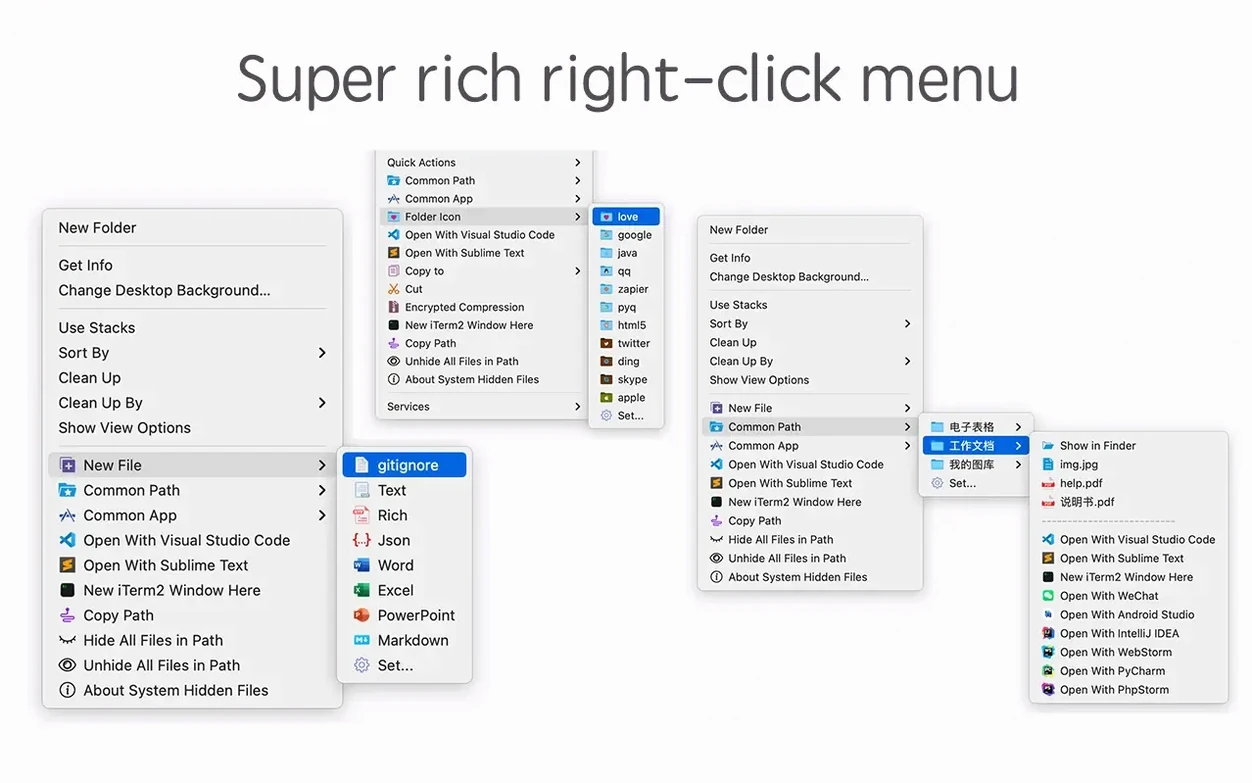
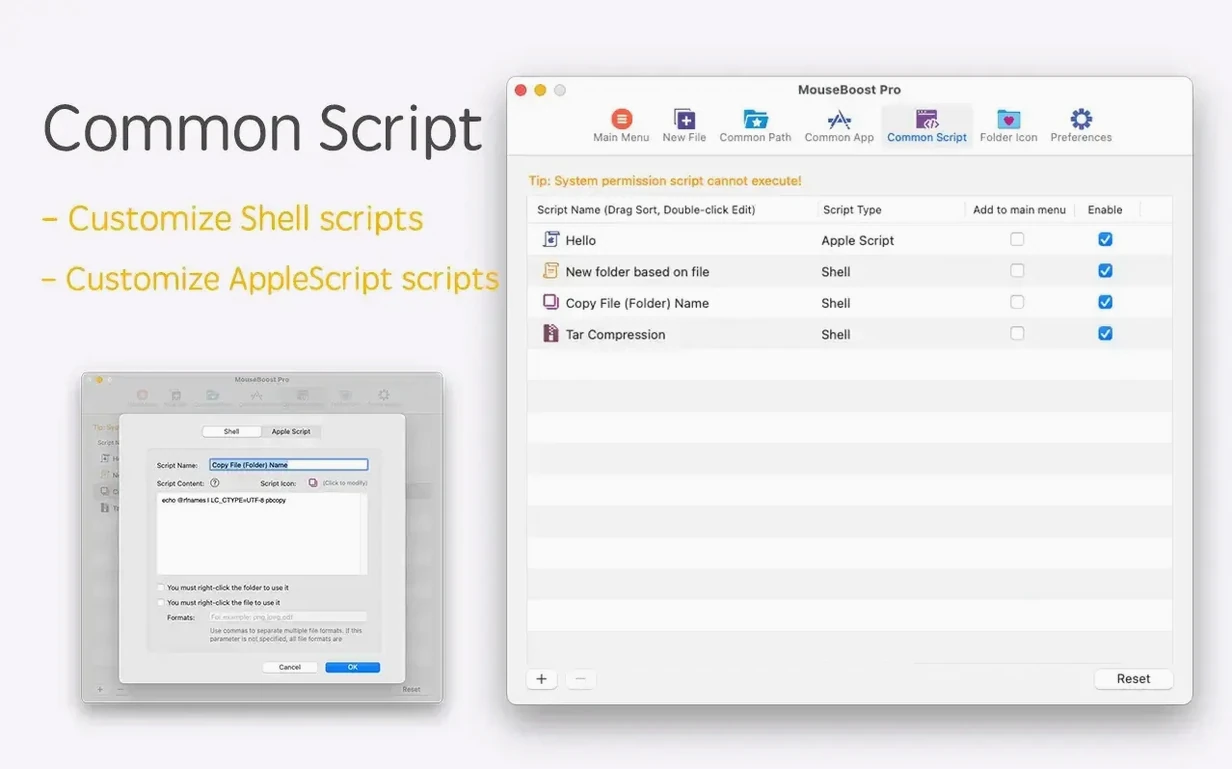
Thirty-something. That's how many small utilities MouseBoost Pro tucks into your right-click menu. The first time you install it, the list feels almost too generous—so here's where I'd start.
Right-click any file and pick a hash. MD5, SHA1, SHA256, and a handful of others are right there. No Terminal, no dragging files into a separate app. It's the kind of thing you don't realize you need until you're verifying a download three times a week.
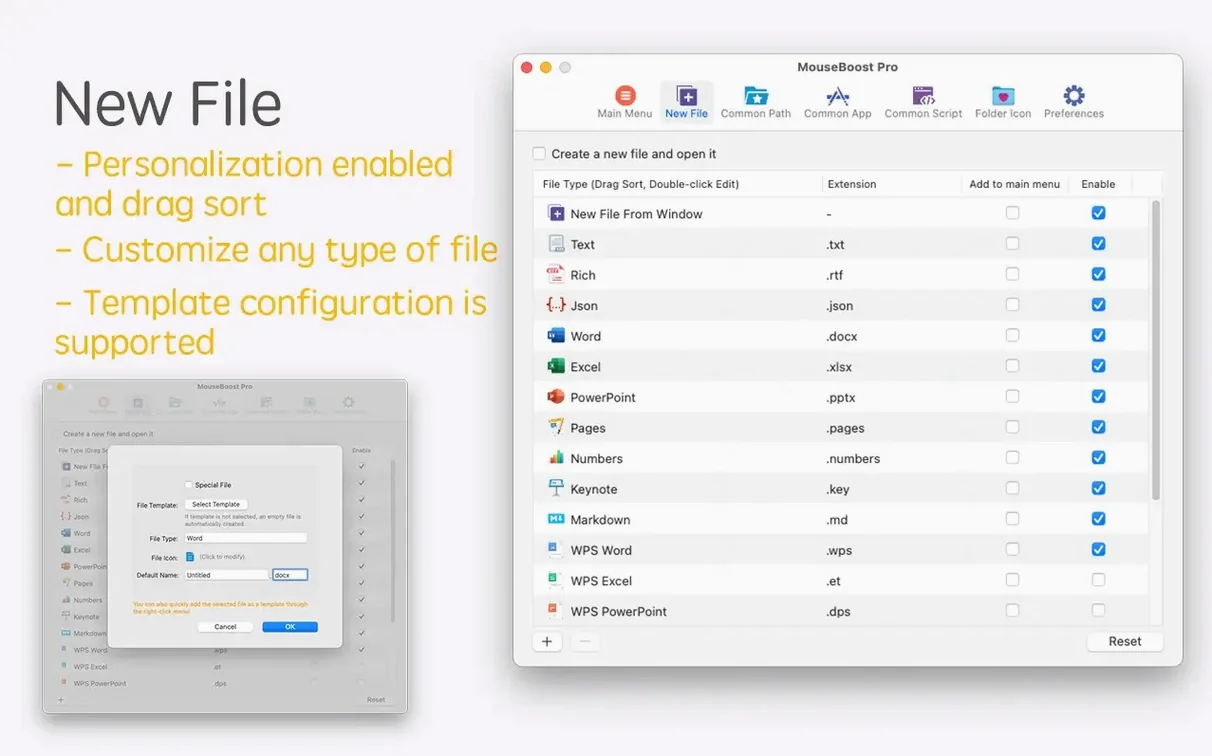
Next, try creating a new file from the menu. You can whip up a plain text file, a Word doc, or a custom type you define yourself—say, an empty SCSS partial or a README.md—straight from Finder. Pair that with the "hide/show specified files" toggle, and you've got a quick way to tidy a project folder without playing dotfile peekaboo.
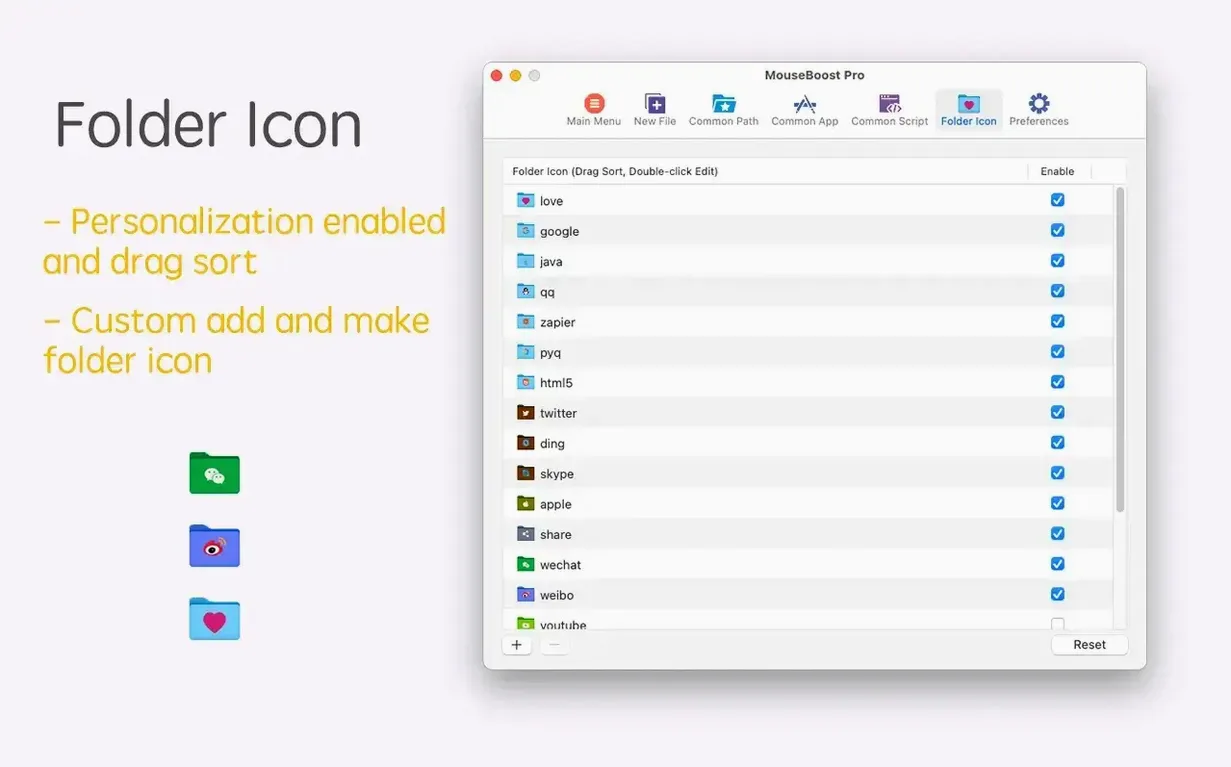
The encrypted archive option deserves an early look too. Select a few files, compress them with a password, and you're done. It's a thin wrapper around system tools, sure, but the convenience of skipping a trip to the Share menu or a dedicated archiver makes it stick. Once you've tried those three, the other twenty-seven tools—batch renaming, folder icon changes, quick folder previews—start calling your name.
First menu clean-up I recommend
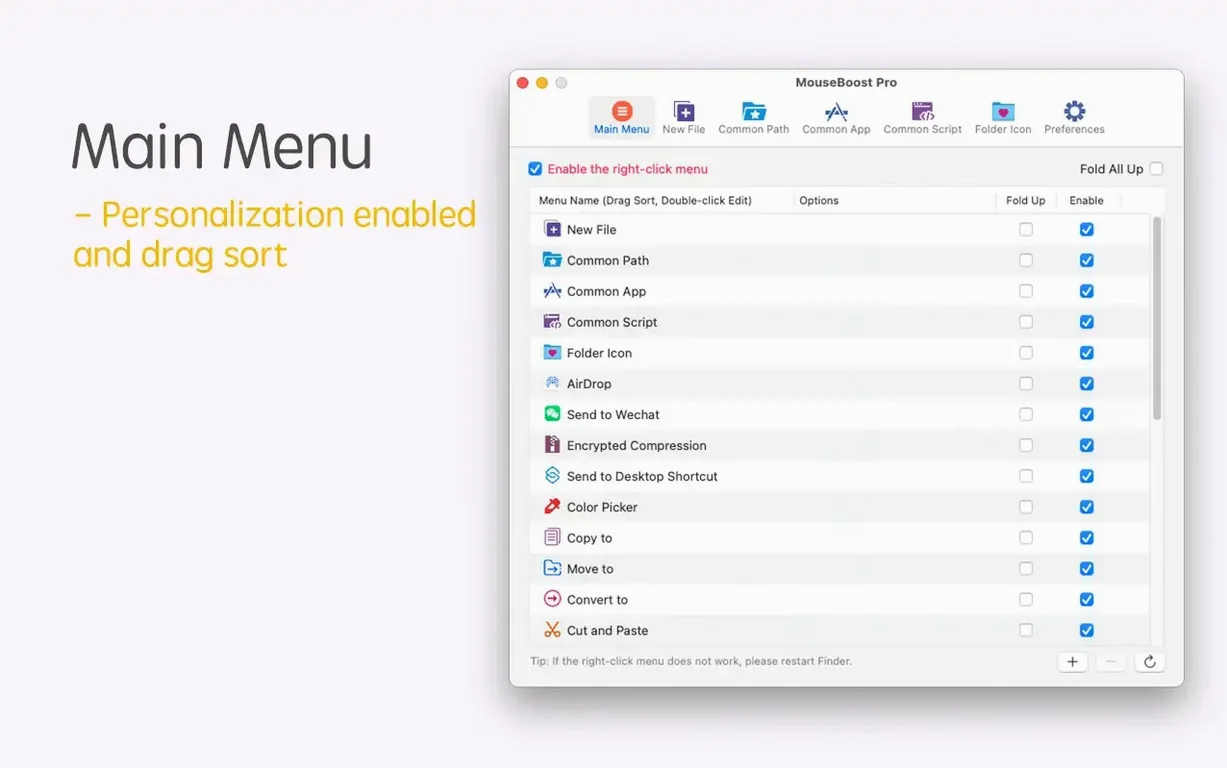
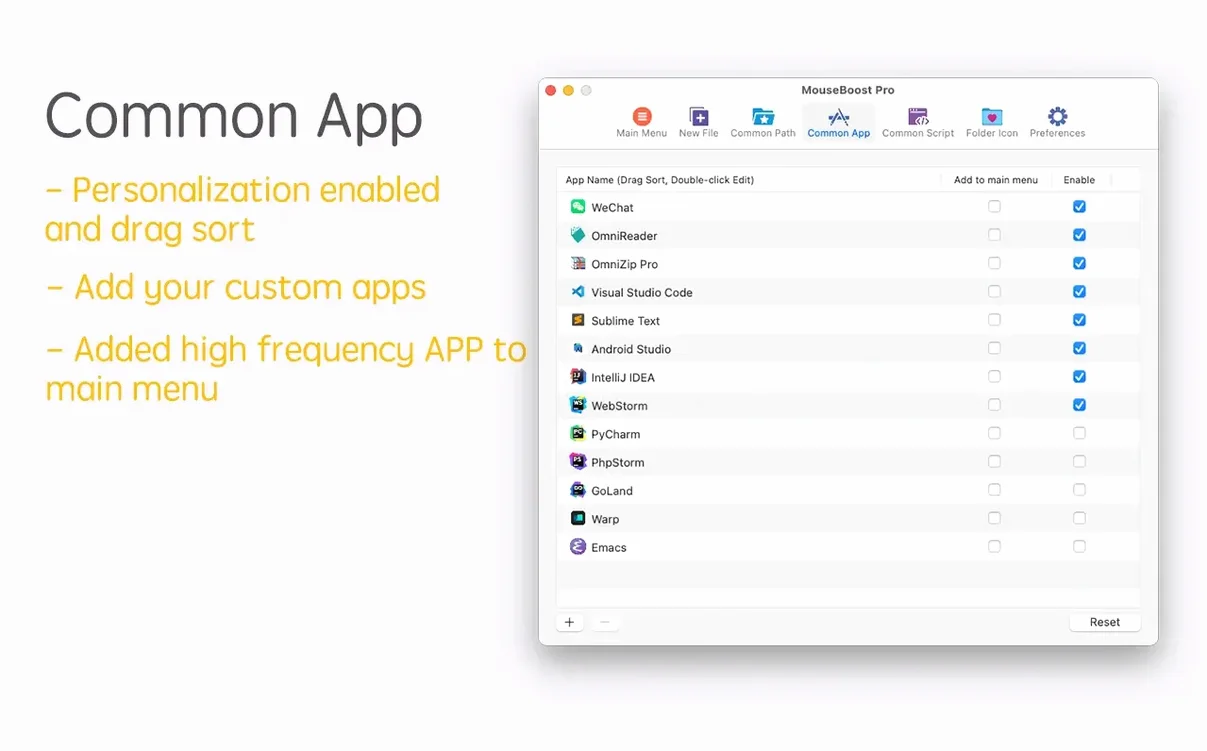
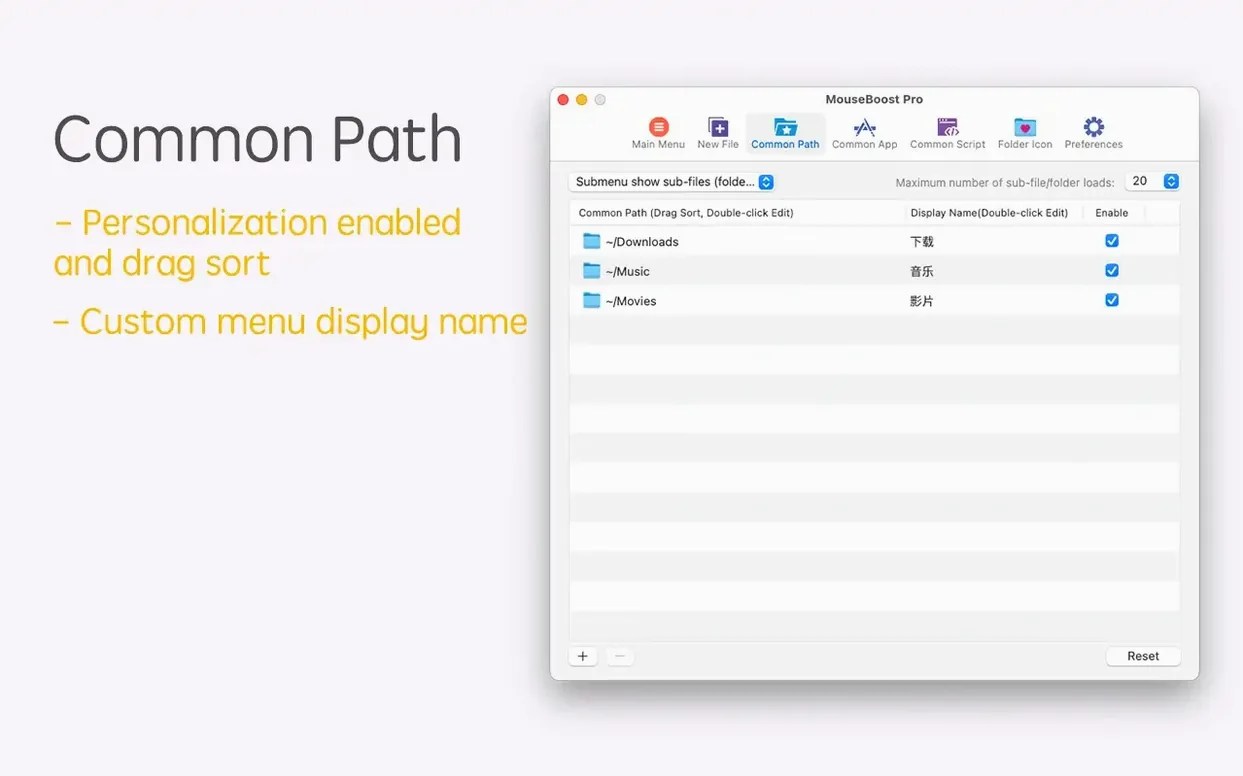
Out of the box, MouseBoost Pro shows nearly everything, and that's a lot. Open preferences and scroll to the menu list. I'd recommend unchecking actions you'll never touch—like the code-editor shortcuts if you live in Xcode, or the image tools if you rarely touch screenshots. You can drag entries to reorder them too, which means the stuff you actually use sits at the top where a right-click lands naturally.
Next, flip the switch for "Open iTerm2 to this directory" if you've got it installed. Out of the box the Terminal command takes precedence, but iTerm users will want to swap that. Same goes for the editor entries—VSCode, Sublime Text, and Emacs all have their own checkboxes, and you'll want only your daily driver active so the menu doesn't balloon. While you're there, set a custom file type or two. I've got an empty .cursorrules and a blank justfile saved, and they've saved me from hunting down templates more times than I'd like to admit.
About 30–50 MB RAM with near-idle CPU
This is a menu extension, not a background monster. Activity Monitor puts the helper process at around 30–50 MB of RAM most days, with near-zero CPU unless you're running a batch hash or a deep folder tree preview. I've had it installed alongside other Finder extensions without a single conflict—no menu lag, no beachballing, no Finder reloads. The right-click menu appears just as fast as the stock one, which isn't always a given with context-menu plugins.
Stability has been uneventful in the best way. Version 5.2.8 fixed a handful of known issues, and in daily use across moving files, running checksums, and using the new maximum-depth setting for directory trees, I haven't seen a crash. Encrypted compression still hands off to the system's zip utility under the hood, so speed there mirrors what you'd get in Terminal—no surprises. If you're on Apple Silicon, the app runs natively and feels it.
Finder right-click menu draws instantly
Does this slow down Finder? Not that I can measure. The extension hooks into the right-click menu the same way Dropbox or iCloud shortcuts do, and the menu draws instantly. The only time you'll notice any work happening is during a multi-file checksum or a deep folder tree preview, and even that's measured in seconds, not minutes.
What does mouseboost pro give me that the free alternatives don't? Most free right-click tools cover two or three of these actions—maybe a "copy path" here, a hash calculator there. MouseBoost Pro bundles all thirty-plus into one menu, lets you reorder and hide them, and keeps adding features like the new OCR copy and batch-renaming improvements. You're paying for consolidation and ongoing updates rather than a single trick.
Can I make it work with a programmable mouse? Absolutely. Since every action lives in the right-click menu, assigning a mouse button to a right-click in something like Logi Options+ or SteerMouse means the full menu appears under your thumb. I've got a side button doing exactly that, and it's cut down file operations to barely a flick.
Version 5.3.0 [MAS] lands with a handful of smart quality-of-life upgrades. Image tinkerers get new grid layout controls for stitching photos, complete with adjustable images-per-row counts and simple add/remove buttons. Pinned screenshots now respond to the mouse wheel for quick zooming. AVIF image support arrives alongside a fix for aspect ratio distortion when converting SVG files. Under the hood, interface rendering and macOS 27 compatibility have been polished up.
- macOS 12.3 or later
- Apple Silicon or Intel 64-bit
- Also runs on OS X 10.11 or later
Questions people ask
What macOS versions does MouseBoost Pro support?
It works on macOS 10.11 and later, with native support for both Apple Silicon and 64-bit Intel Macs.
Can I create my own file types from the right-click menu?
Yes, you can set up custom file templates that appear in the new-file menu, so a right-click creates exactly the file you need.
Does MouseBoost Pro include any batch renaming features?
It does—the latest version adds insert-at-position and rename-from-list support to the batch renaming tools.
Also on readers' docks
Sign in or create an account to leave a comment.
No comments yet. Tell me how it got on with your other devices.
More in Mac Apps
See all Mountain Duck
5.3.2 Mac Apps
187 MB
Mountain Duck
5.3.2 Mac Apps
187 MB
 Movavi Screen Recorder
23.1.1 Mac Apps
110 MB
Movavi Screen Recorder
23.1.1 Mac Apps
110 MB
 Movavi Video Converter
22.5.0 Mac Apps
79 MB
Movavi Video Converter
22.5.0 Mac Apps
79 MB
 Movavi Video Editor
22.4.1 Mac Apps
126 MB
Movavi Video Editor
22.4.1 Mac Apps
126 MB
 Movavi Video Suite
22.4.1 Mac Apps
294 MB
Movavi Video Suite
22.4.1 Mac Apps
294 MB
 Updated Movist Pro
2.21.0 Mac Apps
60 MB
Updated Movist Pro
2.21.0 Mac Apps
60 MB
 Mp3tag
1.14.1 Mac Apps
13 MB
Mp3tag
1.14.1 Mac Apps
13 MB
 Motion
6.3 Mac Apps
2.6 GB
Motion
6.3 Mac Apps
2.6 GB