








Download Movavi Video Suite for macOS
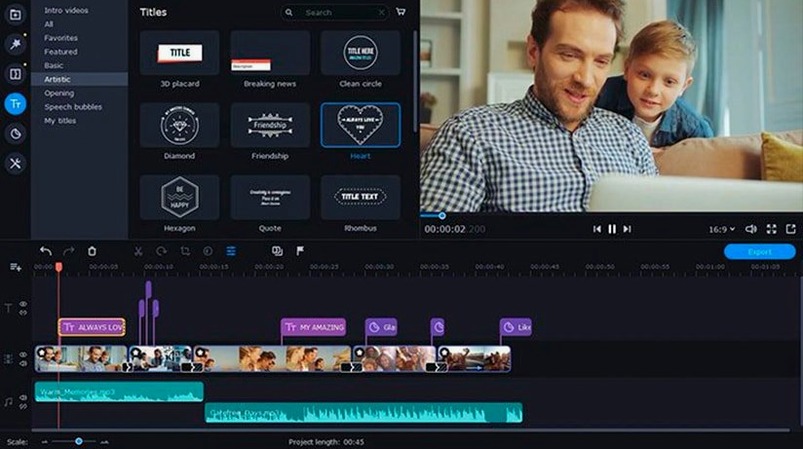
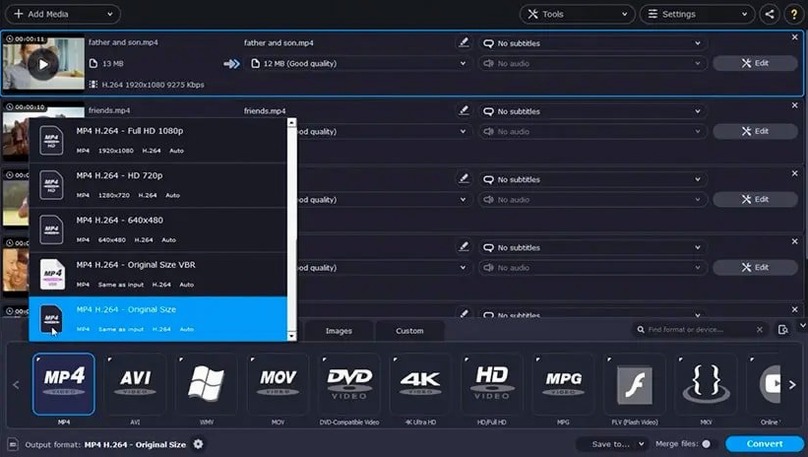
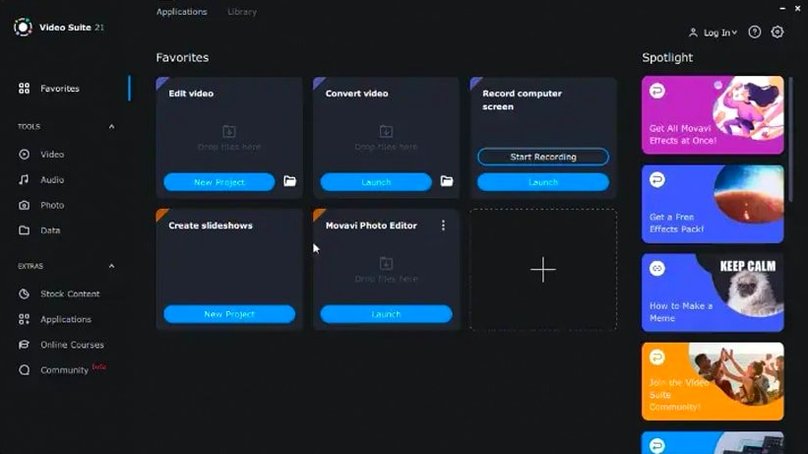
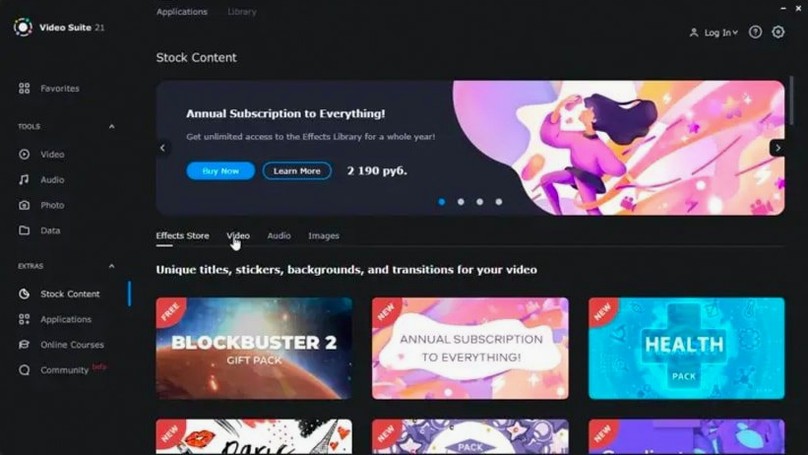
Juggling a screen recorder, a converter, and a basic editor gets old fast. Movavi Video Suite bundles all three into one window, so you can capture a tutorial, trim the fluff, and spit it out as an MP4 without opening three different apps. It supports over 180 file formats and can batch-convert files while you get on with something else. Still, people hunting for a Movavi video suite torrent usually have a handful of questions first.
- Is it genuinely one app, not a launcher? Yep — the editor, recorder, and converter live inside the same window. No separate downloads.
- What can I actually record? Your full screen, a window, or a custom area, all with system sound and an optional microphone commentary track.
- Does batch conversion really work? It does. Queue up a pile of clips, pick a target format, and let it chug through them simultaneously.
- Any rough edges in the latest build? Version 22.4.1 squashed a crash that happened while editing titles, so that particular headache is gone.
This isn't Final Cut, and it doesn't pretend to be. It's for screencast makers, casual editors, and anyone who regularly needs to wrangle a file into a different format without hunting down a dedicated converter. If that sounds like your Tuesday afternoon, it fits the bill.
Silent Screen Recordings? Check Your Audio Input
Even a straightforward suite throws a curveball now and then. Here are the hiccups I see most often, plus what actually fixes them.
- Screen recording has no sound. Nine times out of ten, the wrong audio input is selected. Before you hit record, click the gear icon and make sure the microphone is set to your actual mic, not “Internal Microphone” if you're using a headset. For system audio, check that Movavi has screen recording permission under System Preferences > Security & Privacy > Privacy > Screen Recording.
- Converted video has no subtitles. Movavi can burn subtitles into the output, but you need to tick the Subtitles box in the conversion settings and point it at an SRT or ASS file. Dragging the subtitle file onto the source clip won't do anything — you have to add it inside the conversion dialogue.
- The app feels sluggish on an older Mac. This is an Intel build, and it leans on your processor for encoding. Close other heavy apps, drop the preview resolution to half or quarter, and avoid converting 4K files while you're editing something else. It helps more than you'd think.
- Phone transfers over Wi‑Fi time out. Both devices need to be on the same network, and the Movavi mobile app has to stay open. If the connection drops, restart the transfer from the iOS or Android app rather than from the Mac side — it reconnects faster that way.
Full-Screen Capture on Retina Creates Massive Files
Newcomers often trip over the same three things. Knowing them ahead of time saves a frustrating afternoon.
Recording everything at full resolution. It's tempting to set the capture area to “Full Screen” on a Retina display, but that churns out enormous files and taxes the encoder. Unless you genuinely need every pixel, recording a 1920×1080 custom area keeps things snappy and still looks crisp on YouTube. You can tweak the capture region by dragging the dotted frame after selecting “Custom Area.”
Converting instead of editing first. The converter module is fast, but it doesn't trim. Beginners sometimes drop a long clip straight into conversion, then wonder why the output is twenty minutes of filler. Run it through the editor tab first — even just to chop the top and tail — then convert the trimmed version. The workflow takes two extra minutes and saves a ton of storage.
Ignoring the mouse cursor effects. The screen recorder can highlight clicks and add a coloured circle around the pointer. If you're making a tutorial, turning this on from the cursor pane avoids those “where did I click?” moments you'll otherwise fix in post. It's a small toggle that makes a big difference.
Recording a Walkthrough to MP4 in One Go
Here's how a Tuesday afternoon with Movavi Video Suite actually plays out. Say I need to record a short walkthrough for a colleague, drop in a title card, and hand over an MP4.
First, I open the app and switch to the Screen Recording tab. I drag the capture frame around the window I want, double‑check that system sound is on and my USB mic is selected, then flip on cursor highlighting so clicks show up as a soft yellow ring. I hit record, talk through the steps, and click Stop when I'm done. The clip lands automatically in the media bin.
Next, I hop over to the Video Editor tab. I drag the recording onto the timeline and scrub through to cut out a false start at the beginning — just a quick split and delete. Then I open the Titles library, pick a simple fade‑in card, and drop it at the start. Version 22.4.1 added a handful of new music tracks, so I grab one from the built‑in library, drop it under the voiceover, and pull the volume down to about 15 percent so it doesn't fight the commentary.
With the edit done, I switch to the Convert tab. The edited timeline appears as a source, and I pick H.264 MP4 as the output. I check the resolution (1080p, same as the recording), tick “Use original frame rate,” and queue it up. While that renders, I drag over a batch of MOV files from a camera — leftover footage I need in MKV — and add them to the queue as a separate job. Both conversions churn away side by side, and ten minutes later I've got the walkthrough ready to share and a folder of cleaned‑up archives.
Version 22.4.1 is a tidy maintenance release:
- Fixed a shutdown bug that popped up while working with titles.
- Added fresh music tracks to the built-in library.
- Updated the little symbol that marks applied effects.
- macOS 10.13 or later
- Intel-based Mac
- English interface
Questions people ask
Can I record my screen and my voice at the same time?
Absolutely. The screen recorder captures system audio and lets you add live microphone commentary in one pass.
How many files can I convert at once?
You can convert multiple files simultaneously — queue them up and Movavi processes the batch without needing them one by one.
What formats does it actually support?
It works with more than 180 file formats, covering most common video, audio, and image types you'd encounter.
Also on readers' docks
Sign in or create an account to leave a comment.
No comments yet. Tell me how it got on with your other devices.
More in Mac Apps
See all Movavi Video Editor
22.4.1 Mac Apps
126 MB
Movavi Video Editor
22.4.1 Mac Apps
126 MB
 Updated Movist Pro
2.21.0 Mac Apps
60 MB
Updated Movist Pro
2.21.0 Mac Apps
60 MB
 Movavi Video Converter
22.5.0 Mac Apps
79 MB
Movavi Video Converter
22.5.0 Mac Apps
79 MB
 Mp3tag
1.14.1 Mac Apps
13 MB
Mp3tag
1.14.1 Mac Apps
13 MB
 Movavi Screen Recorder
23.1.1 Mac Apps
110 MB
Movavi Screen Recorder
23.1.1 Mac Apps
110 MB
 m’s HalfTone
1.5.3 Mac Apps
6 MB
m’s HalfTone
1.5.3 Mac Apps
6 MB
 Musify
5.3.0 Mac Apps
68 MB
Musify
5.3.0 Mac Apps
68 MB
 Updated MouseBoost Pro
5.3.0 Mac Apps
17 MB
Updated MouseBoost Pro
5.3.0 Mac Apps
17 MB