









Download Movist Pro for macOS
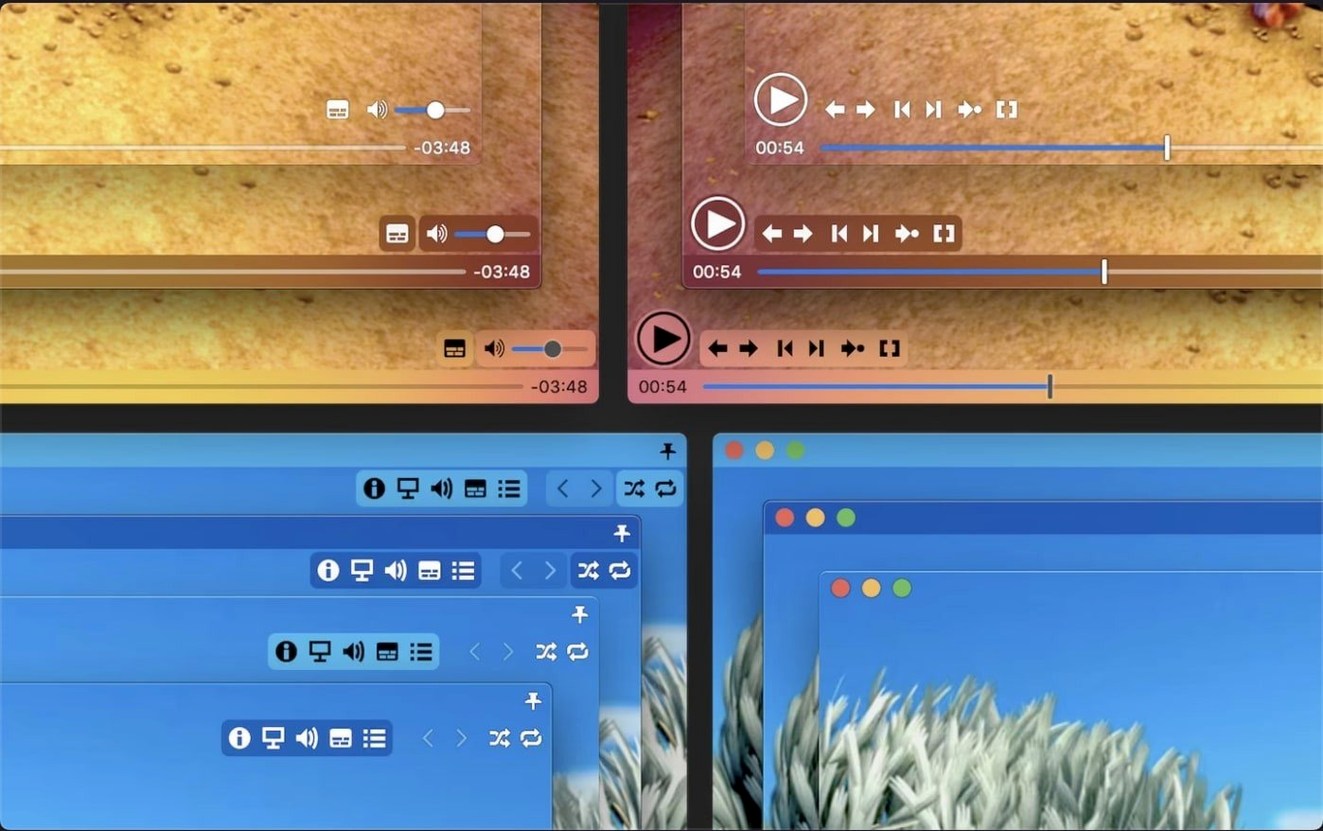
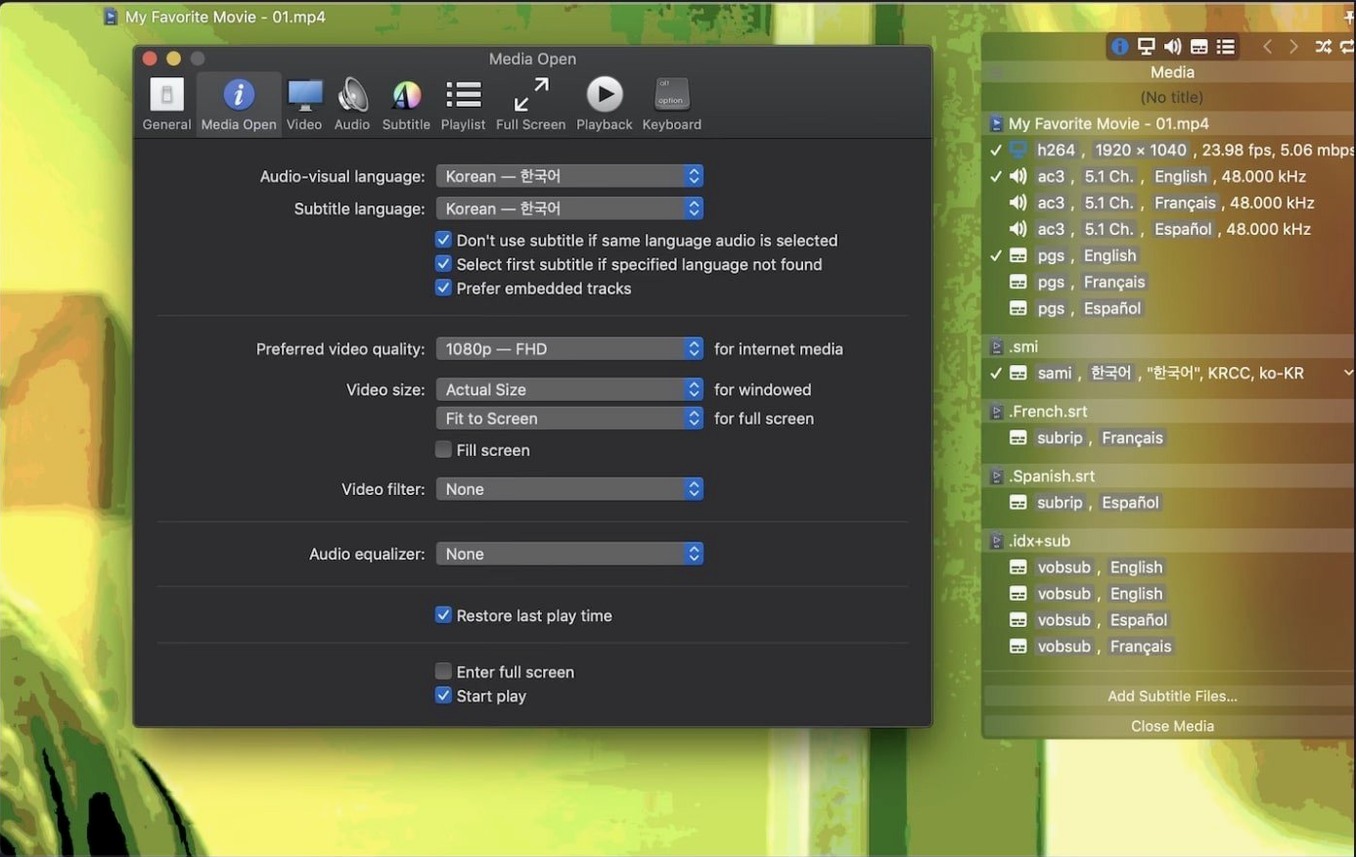
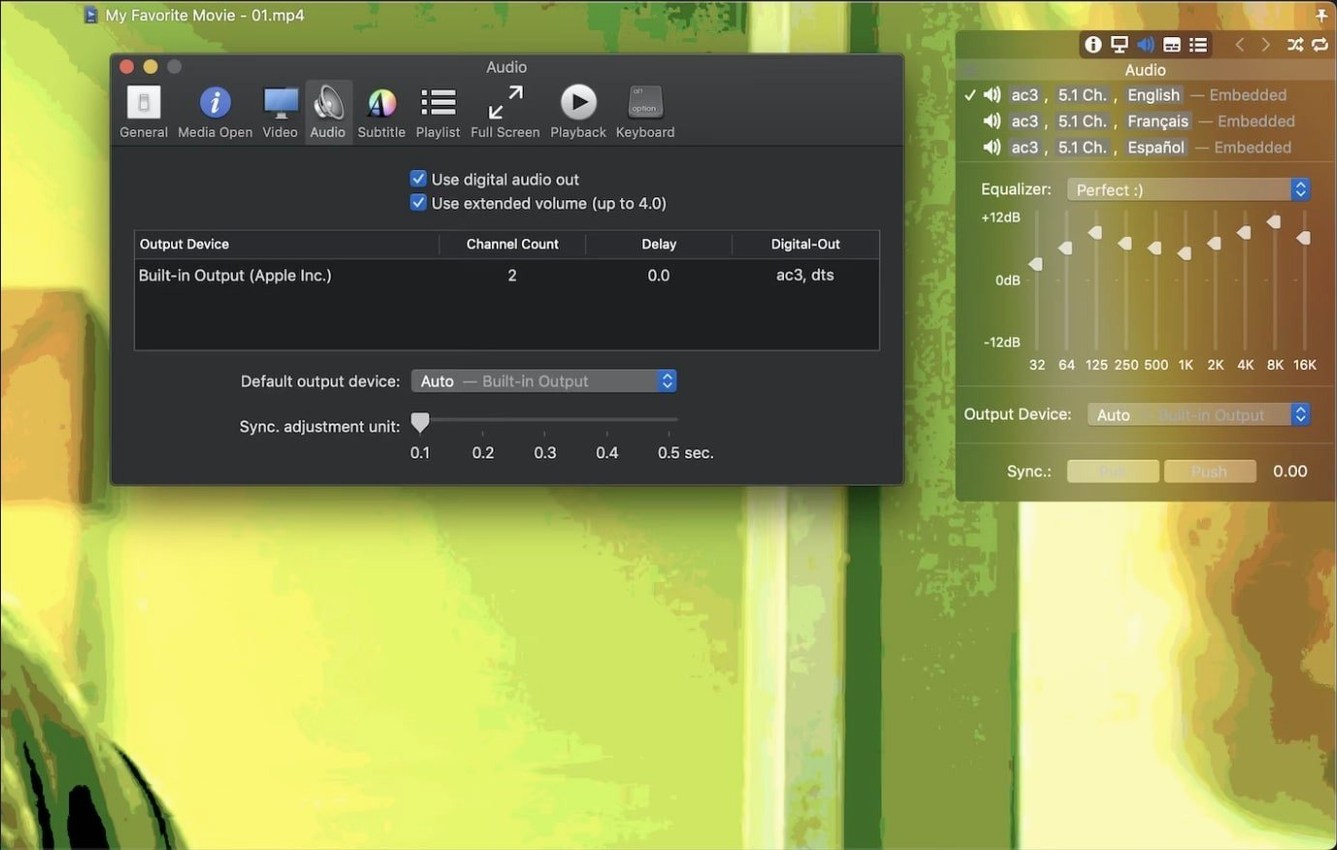
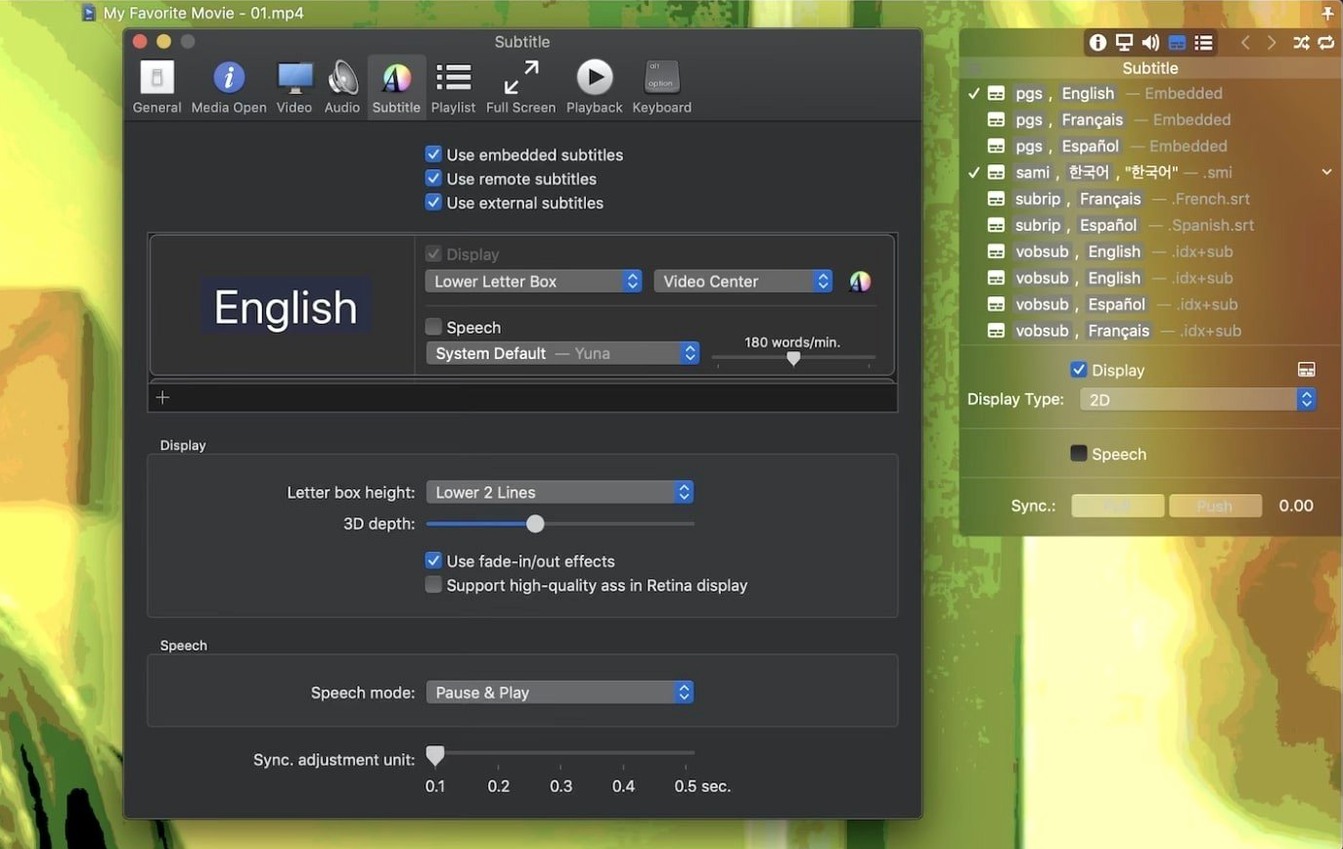
If you've ever opened a file in QuickTime Player only to get that blank stare and an incompatible-codec error, you already know why people look beyond the built-in viewer. Movist Pro slots in right where QuickTime stops — it reads the formats QuickTime understands and passes everything else through FFmpeg without you needing to pick an engine or mess with plug-in folders.
- Open your video. A single-window mode keeps one movie front and centre, or you can switch to multi-document mode when you need several clips open side by side. Either way, the player leans on the right codec automatically.
- Dial in the subtitles. Embedded tracks show up right away. You can tweak font, size, colour and position — even run multiple subtitle streams at once or switch on 3D subtitles if the file carries the depth data.
- Adjust for the display. HDR tone mapping keeps bright highlights from blowing out on a standard screen. On a Retina Mac, the picture stays sharp rather than soft.
- Grab a frame. Use the built-in screenshot capture when you need a reference still or a quick thumbnail without reaching for a separate tool.
- Save the lineup. Playlists can be saved and reloaded, so a batch of clips or a series you're working through stays organised across sessions.
It's a player that feels native to macOS — sandboxed app mode, retina-aware, and familiar enough that you reach for it the way you used to reach for QuickTime, only now you're not crossing your fingers about whether the file will actually play.
Daily speed and resource feel
On an Apple Silicon Mac, Movist Pro launches in a single bounce and settles at around 120–180 MB of RAM with a 1080p H.264 file playing. Switch to a 4K HEVC clip with hardware decoding active and the CPU stays almost flat while the GPU handles the heavy work. Intel machines run a little warmer with the same files — perfectly playable, though the fans might wake up on a 2018 MacBook Air with a high-bitrate encode.
What I appreciate most is how it handles back-to-back file changes without accumulating memory. I've jumped through a dozen MKV episodes in a row and the memory footprint barely crept up — no slow leak that forces a restart after an hour. Playlist shuffle and repeat modes work without introducing micro-stutters between tracks, which isn't something every FFmpeg-based player gets right.
HDR tone mapping adds a small but noticeable GPU bump. On an M1 it's negligible; on an older Intel with integrated graphics you'll see the render time tick up slightly, though frame pacing stays smooth. The TS playback fix in 2.17.2 is real — I had a batch of recorded broadcast streams that stuttered in the previous build, and they now open cleanly.
Swap the decoding engine to FFmpeg first
The defaults are sensible, but a few tweaks make the player feel properly yours:
- Set FFmpeg as the first-choice engine. Head into playback preferences and bump FFmpeg above QuickTime. You'll sidestep the occasional format quirk where QuickTime claims support but delivers audio sync drift.
- Enable "Continue playback from last position." It's off by default. Turn it on and Movist Pro remembers where you left off in every file — especially useful if you're working through a series or long recordings.
- Adjust the subtitle fallback encoding. The auto-detection is good, but if you watch a lot of content with Cyrillic or East Asian subs, set the preferred encoding manually so you never see garbled characters on first load.
- Customise the screenshot format and destination. PNG is the default. Switch to JPEG at 90% quality if you're grabbing reference frames for notes and don't need lossless files eating up space.
- Map a shortcut for subtitle sync. The sync adjustment sliders are in the menu, but binding a key combo lets you nudge timing while the video plays — far quicker when a rip is half a second off.
Fix stubborn TS files that refuse to open
No player handles every file perfectly, and Movist Pro has a few recurring hiccups worth knowing about:
Some TS files still won't open. The 2.17.2 update fixed a specific TS parsing issue, but heavily fragmented transport streams — especially those with multiple program streams muxed together — can still trip it up. Remux the file with a tool that rewrites the container headers and it'll usually play fine.
Black screen with audio only on HDR content. This usually means the display isn't being told to switch colour space. Check that HDR tone mapping is enabled in preferences; if it's already on and the screen stays black, toggle the hardware decoder off and back on. On Intel Macs with dual GPUs, forcing the discrete GPU can also clear it up.
Subtitles from .rar archives aren't loading. Movist Pro supports compressed subs in .zip and .rar, but split .rar archives (file.r00, file.r01 and so on) aren't always detected. Extract the subtitle file first and load it manually — the multi-subtitle display still works fine once it's added.
Audio drops when using S/PDIF output. The digital output works reliably with PCM and standard AC3, but some DTS-HD bitstreams confuse the handshake. Switching the audio output device in macOS Sound preferences and then switching back usually resets it. If not, setting Movist Pro to decode to PCM before sending to S/PDIF avoids the issue entirely.
Crash on launch with SIP disabled. This was the other fix in 2.17.2, so if you're running the current version you shouldn't see it. If you do encounter a launch crash, check that you're not carrying over old preference files from a previous version — wiping the plist in ~/Library/Preferences/ clears most stubborn startup failures.
- macOS 11 or later
- Apple Silicon and Intel 64-bit Macs
Questions people ask
Can Movist Pro display more than one subtitle track at a time?
Yes, it allows unlimited simultaneous subtitle display, so you can layer multiple language tracks or commentary streams together.
Does Movist Pro handle HDR content on a standard monitor?
Yes, it includes HDR tone mapping to keep highlights and shadow detail looking natural on non-HDR displays.
Can I save a list of videos to play later?
Yes, the app supports loading and saving playlists, so you can line up a sequence of files and come back to it anytime.
Also on readers' docks
Sign in or create an account to leave a comment.
No comments yet. Tell me how it got on with your other devices.
More in Mac Apps
See all Movavi Video Suite
22.4.1 Mac Apps
294 MB
Movavi Video Suite
22.4.1 Mac Apps
294 MB
 Mp3tag
1.14.1 Mac Apps
13 MB
Mp3tag
1.14.1 Mac Apps
13 MB
 Movavi Video Editor
22.4.1 Mac Apps
126 MB
Movavi Video Editor
22.4.1 Mac Apps
126 MB
 m’s HalfTone
1.5.3 Mac Apps
6 MB
m’s HalfTone
1.5.3 Mac Apps
6 MB
 Musify
5.3.0 Mac Apps
68 MB
Musify
5.3.0 Mac Apps
68 MB
 Movavi Video Converter
22.5.0 Mac Apps
79 MB
Movavi Video Converter
22.5.0 Mac Apps
79 MB
 Movavi Screen Recorder
23.1.1 Mac Apps
110 MB
Movavi Screen Recorder
23.1.1 Mac Apps
110 MB
 Updated MouseBoost Pro
5.3.0 Mac Apps
17 MB
Updated MouseBoost Pro
5.3.0 Mac Apps
17 MB