









Download Mountain Duck for macOS
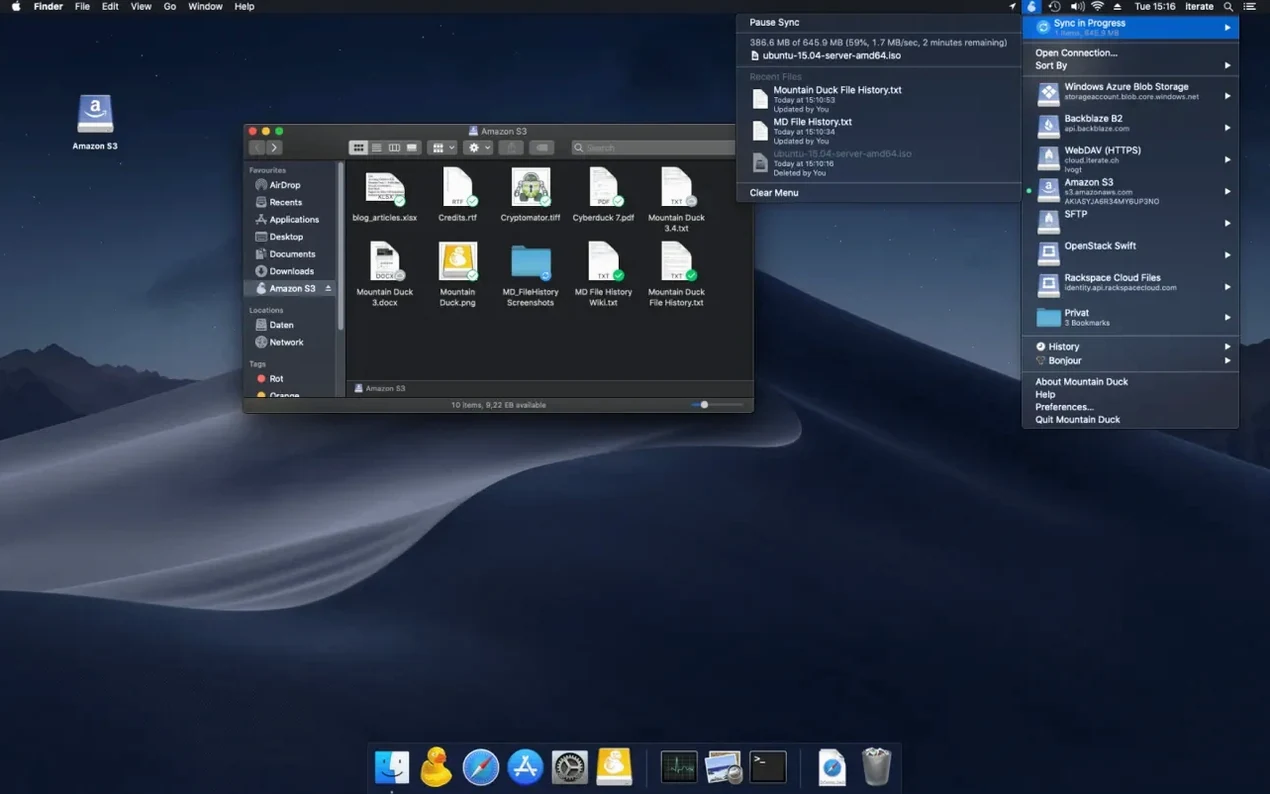
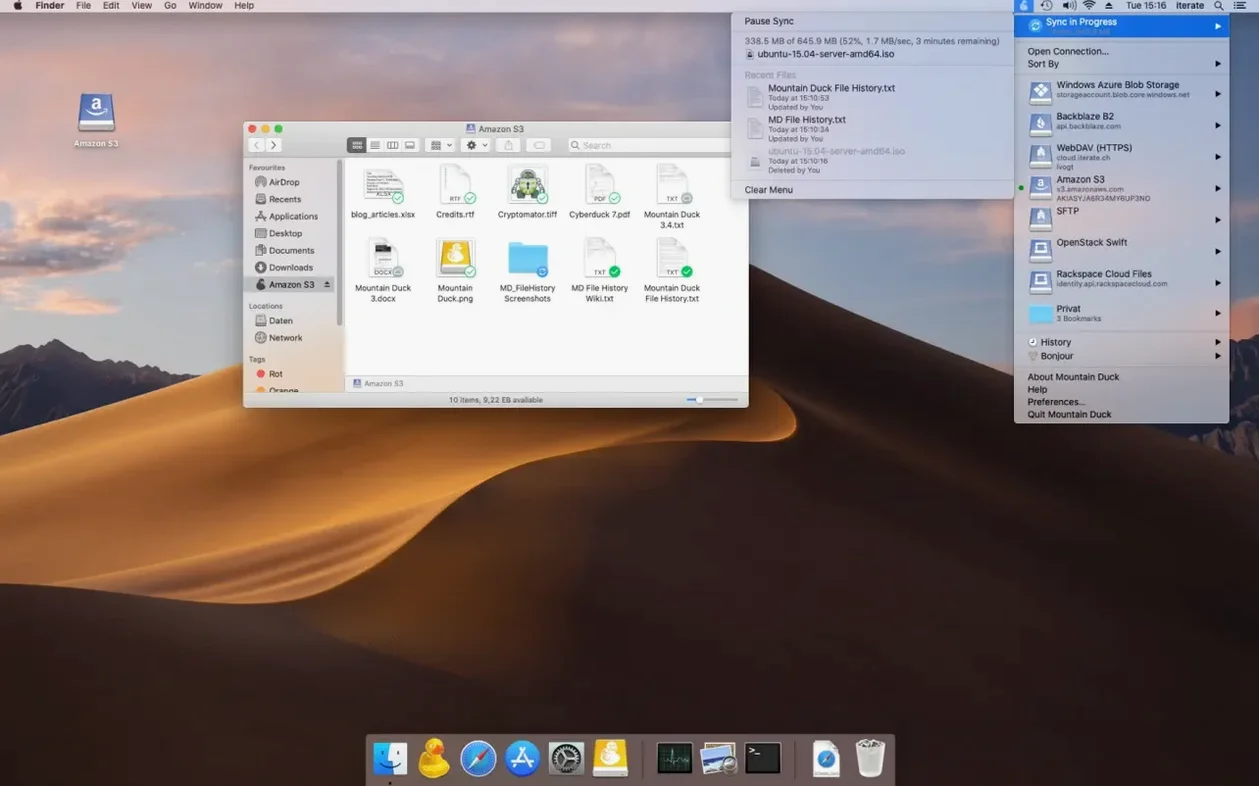
You've got a folder of raw photos sitting in Backblaze B2 that a client needs retouched by Friday. Downloading individual assets through a web browser feels sluggish, but you also don't want to sync the entire bucket to your internal drive. Mountain Duck solves this by making that remote bucket appear as a plain Mac volume on your desktop.
Editing files straight from the cloud
Here's how a typical editing workflow looks when a remote server acts like a local disk.
- Connect the storage. Click the Mountain Duck tray icon, pick your protocol (in this case, Backblaze B2), and enter your credentials. The bucket pops up in Finder immediately.
- Grab the assets. Browse the remote volume like any external drive. Drag the folder of RAW files to a local directory. Mountain Duck queues the transfers and shows progress in the menu bar.
- Mark for offline. For the files you'll revisit all week, right-click and choose "Keep Offline." A green badge confirms they're cached on your Mac's disk, so you can keep editing even if the Wi-Fi drops.
- Edit in place. Open the cached files directly from the mounted volume using Lightroom or Capture One. Changes save back as if the files were local.
- Enable versioning. Flip on file versioning in preferences before making bulk edits. Every save writes a timestamped backup to a hidden .duck folder on the remote storage, without touching your original RAWs.
Because Mountain Duck shares bookmarks with Cyberduck, switching to a full transfer browser for a big sync job later doesn't mean re-entering server details. The app keeps your connection list consistent between both tools. It supports just about every major protocol and cloud service you'd expect, from Google Drive and Dropbox to SFTP and Azure, so the same Finder-mounting habit carries across personal projects and client servers alike.
A session with versioning, step by step
Let me walk you through a real afternoon. I'm tightening a manuscript in Affinity Publisher, and the chapter files live on a WebDAV share hosted by a small press. I don't want a slip-up to overwrite three hours of layout tweaks.
First, I connect to the share from the menu bar icon. The remote folder appears as a volume on the desktop almost before I've finished typing the path. I right‑click the manuscript folder and mark it "Keep Offline" — the green badge pops up, and a subtle progress ring in the menu bar tells me the caching is underway. Once it settles, I open the .afpub file straight from the mounted volume. Publisher doesn't know it's remote; it just sees a file path.
Before touching a single text frame, I flip on file versioning in Mountain Duck's preferences. From that moment, every manual save — and I save a lot — writes a timestamped duplicate into a hidden .duck folder on the server. I make a messy edit, change my mind, and close without saving. No panic: I can still grab the version from twenty minutes ago. At the end of the session, I unmount the volume, and the local cache stays put. Next morning, I pick up right where I left off, even before my coffee-shop Wi‑Fi connects.
From a photographer's desk
Think of a wedding photographer who arrives home with two full SD cards and a promise to deliver a sneak peek within 48 hours. She dumps the selects into a local folder, but the full backup lives on an SFTP server at the studio. With Mountain Duck, that server isn't a distant repository she has to fetch files from — it's a pinned folder in her Finder sidebar.
She mounts the SFTP volume, drags the ceremony selects to her Mac, and marks the album exports folder "Keep Offline." While she edits, the finished JPEGs sync back to the server in the background. If a second shooter messages her from the studio asking for a specific RAW, she doesn't have to pause and upload it manually; she just drops it into the mounted volume and keeps culling. The encrypted-at-rest option means the studio's off‑site backup stays compliant with the couple's privacy agreement, all without her thinking about Cryptomator keys after the initial setup.
Sits Quietly in the Menu Bar on an M1 Air
On an M1 MacBook Air with 16 GB of RAM, Mountain Duck is the kind of tool you forget is running. The menu bar helper sits quietly, and the background uploads don't fight for bandwidth when I'm on a video call. Smart Synchronization means a mounted volume with thousands of files doesn't trigger a recursive download — it only grabs what I actually double‑click. Opening a 200 MB layered TIFF from a mountain duck mac‑mounted SMB share feels about as snappy as opening it from the internal SSD once the initial fetch completes.
I've left it connected to a Google Drive volume for days while the Mac cycled through sleep and different networks. Reconnects happen without complaining, and I've never had a Finder lock‑up that required a force‑quit. Memory pressure stays low: even with four volumes mounted, the app rarely pushes past 180 MB of RAM on Apple Silicon. That's a stark contrast to some sync clients that insist on indexing everything upfront. If you've ever searched for a Mountain Duck torrent to try it before committing, the real build's stability is the first thing that stands out — it just doesn't trip over unstable connections.
- macOS 13 or later
- Apple Silicon or Intel Mac
Also on readers' docks
Sign in or create an account to leave a comment.
No comments yet. Tell me how it got on with your other devices.
More in Mac Apps
See all Updated MouseBoost Pro
5.3.0 Mac Apps
17 MB
Updated MouseBoost Pro
5.3.0 Mac Apps
17 MB
 Movavi Screen Recorder
23.1.1 Mac Apps
110 MB
Movavi Screen Recorder
23.1.1 Mac Apps
110 MB
 Movavi Video Converter
22.5.0 Mac Apps
79 MB
Movavi Video Converter
22.5.0 Mac Apps
79 MB
 Movavi Video Editor
22.4.1 Mac Apps
126 MB
Movavi Video Editor
22.4.1 Mac Apps
126 MB
 Movavi Video Suite
22.4.1 Mac Apps
294 MB
Movavi Video Suite
22.4.1 Mac Apps
294 MB
 Motion
6.3 Mac Apps
2.6 GB
Motion
6.3 Mac Apps
2.6 GB
 Updated Movist Pro
2.21.0 Mac Apps
60 MB
Updated Movist Pro
2.21.0 Mac Apps
60 MB
 Mp3tag
1.14.1 Mac Apps
13 MB
Mp3tag
1.14.1 Mac Apps
13 MB