Download MediaMate for macOS
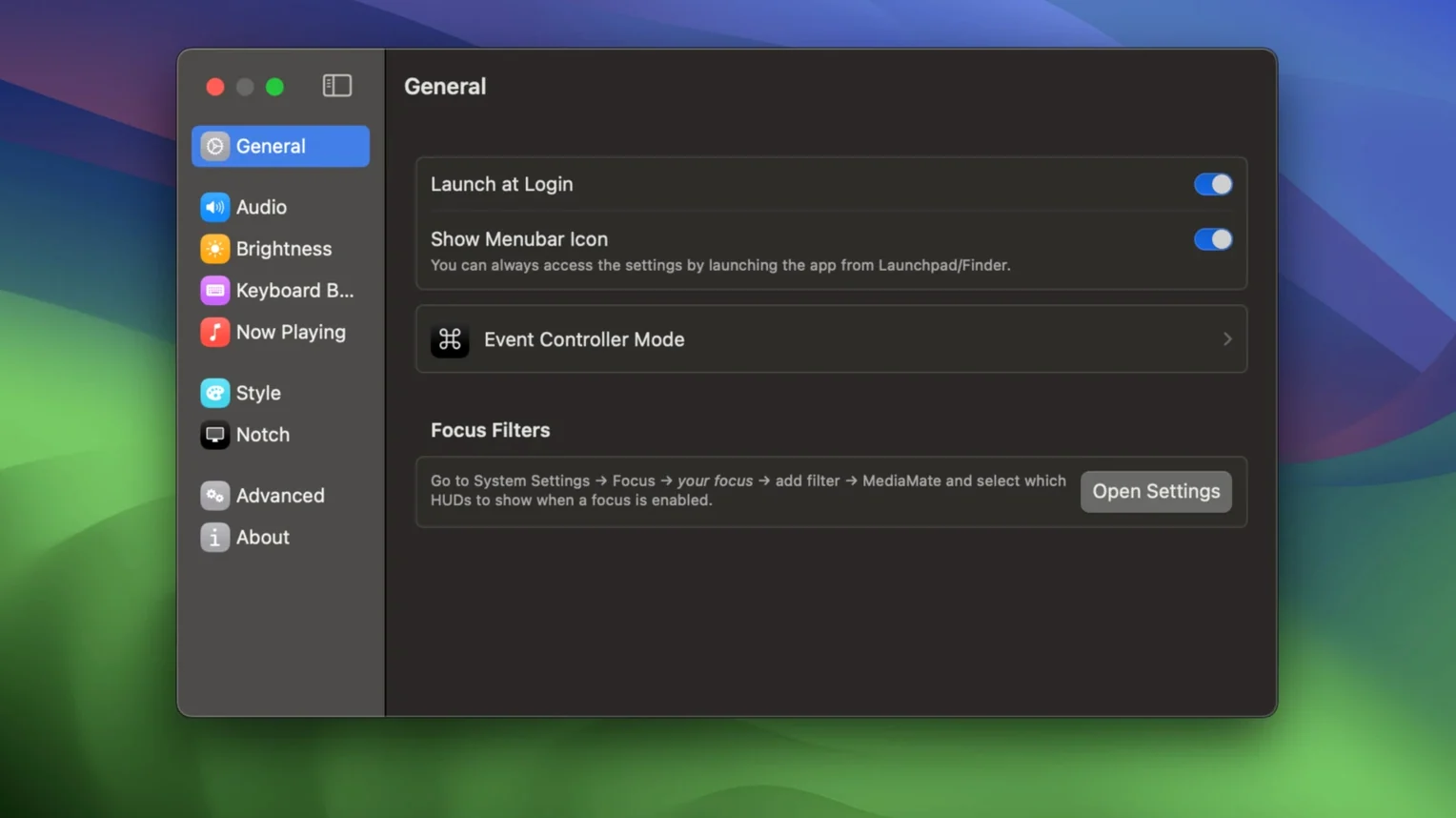
If you’ve ever cringed at the massive, screen-blocking bezel that appears whenever you adjust your Mac’s volume, MediaMate is the antidote. It’s a straightforward utility from Wouter Hennen that swaps those dated overlays for a set of refined, compact heads-up displays you barely notice.
The Volume and Brightness HUDs
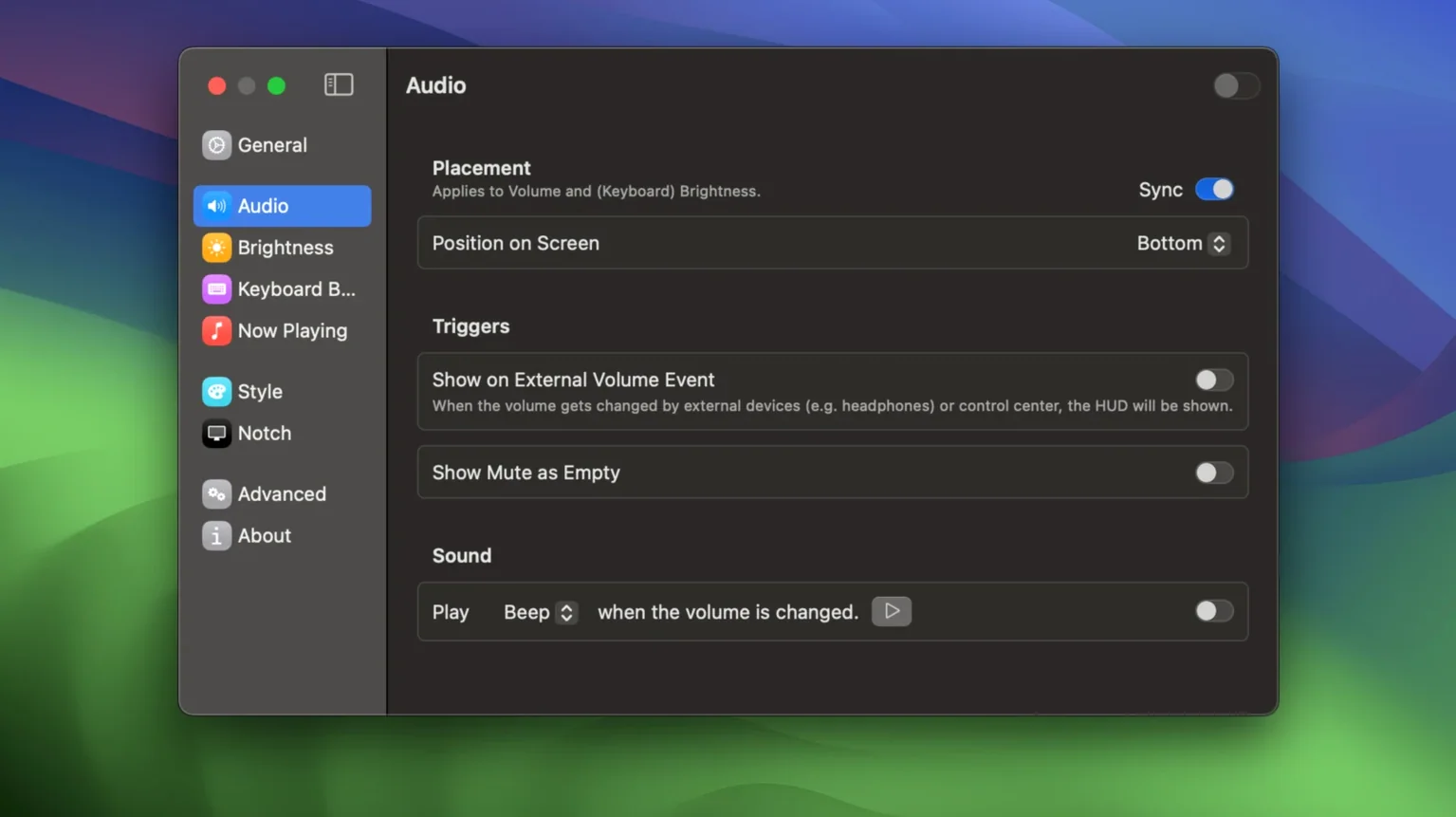
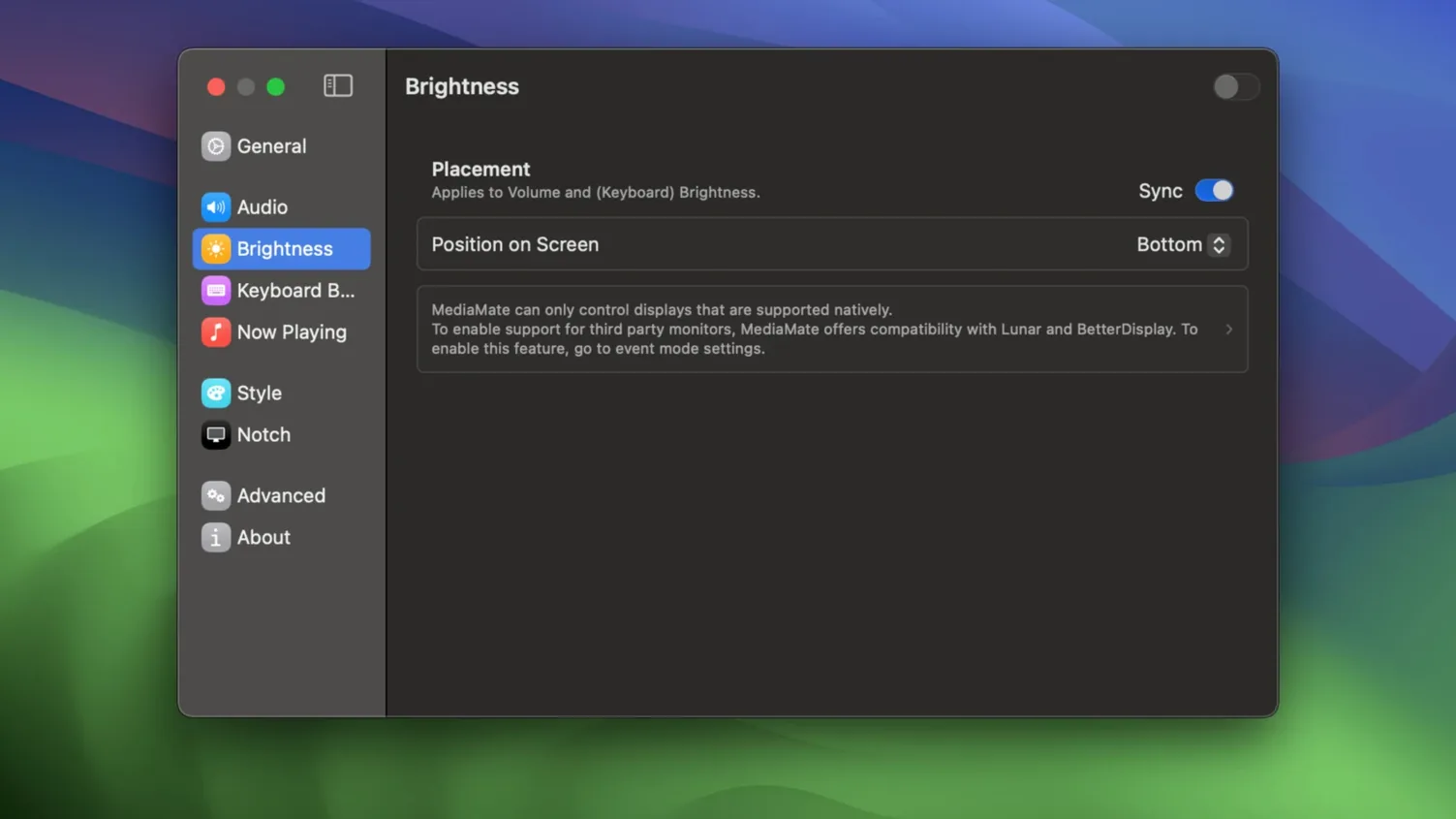
The core job here is replacing the standard macOS volume and brightness indicators with something leaner. Instead of a big square in the middle of your screen, you get a slim bar that slides in from the edge. The same treatment applies to keyboard backlight brightness, so you keep a consistent, minimal look across all adjustments without breaking the system’s built-in controls.
Now Playing Integration
That’s not all it does. MediaMate also brings in a handy “Now Playing” HUD that pops up whenever a track changes, showing you the artist, title, and artwork. It’s a small touch that keeps you connected to what’s playing without having to glance at a docked music app. The whole experience feels native but far more polite than what ships with macOS 13 and later.
Skipping Accessibility Permissions Breaks the Overlay
Newcomers often launch MediaMate, tweak a slider or two, and assume everything’s working — only to wonder why the old macOS bezel still appears. The most common slip is forgetting to grant the app accessibility permissions. Without them, the system has no way to intercept and replace the native overlays, so you’ll keep seeing Apple’s chunky squares until you flip that switch in System Settings.
Another hiccup happens on Touch Bar Macs. The HUDs don’t appear on the little strip by default; you have to enable a dedicated mode in MediaMate’s preferences. People skip that setting, then scratch their heads when nothing changes. It’s a one-click fix, but it trips up plenty of first timers.
Some users also crank every slider expecting instant feedback and miss the subtle preview tucked into the preference pane itself. You can test the look right there without touching your keyboard — a small detail that saves you from adjusting brightness fifty times just to see how rounded the corners are.
Nighttime Mac Users Finally Get a Dim HUD
Mac users who work in dark rooms or at night bond with this app immediately. The standard volume indicator blares white across a dimmed display, and MediaMate’s understated HUD feels like someone finally turned down the visual noise. If you write, code, or edit late into the evening, that alone justifies keeping it running.
People who switch between headphones and speakers constantly also find their groove here. The Now Playing HUD gives you an at-a-glance track check without pulling focus from a full-screen editor or a browser tab. It’s especially handy if you stream music while working and want confirmation that the right song queued up.
Touch Bar Mac owners get a quiet bonus. The keyboard backlight HUD doesn’t just look cleaner — it finally gives you an on-screen counterpart to keys that otherwise adjust silently. And if you’ve ever accidentally blinded yourself tapping the brightness key in a dark room, you’ll appreciate how the slim bar appears at the edge instead of dead center.
Tapping a Key Summons a Thin Capsule Overlay
You sit down at your desk around ten at night, the room lit only by a small lamp. After opening a writing app in full screen, you tap the volume key to nudge a podcast down. A thin capsule slides in from the right edge, shows the level for a second, and disappears — no interruption, no visual weight.
Half an hour later, you switch to a music playlist. The first track kicks in, and a small artwork thumbnail floats up near the corner with the song title and artist name. You glance at it, nod, and keep typing. When the room cools down later, you tap the keyboard brightness key and watch an identical slim bar confirm the backlight dimming — same design language, same placement. Nothing fights for your attention, and nothing breaks the flow you’ve settled into.
It Only Changes the Display, Not the Controls
Does it mess with the system’s actual volume or brightness controls? Not at all. MediaMate only changes how those adjustments are displayed. The underlying macOS sliders, key repeat behavior, and granularity all stay exactly as Apple designed them. You’re just swapping the window dressing, not the mechanism.
Will it slow down an older Intel Mac? It draws almost nothing in terms of resources. The HUDs appear briefly, render without any heavy animation framework, and vanish. On both Apple Silicon and 64-bit Intel machines running macOS 13 or later, you won’t feel it in daily use.
What happens if I use multiple monitors? The HUD appears on the screen where your pointer lives. If you adjust brightness on a MacBook’s built-in keyboard, it’ll show on the main display. The behavior is consistent and predictable — no chasing indicators across mismatched panels.
Can I try an older build if something breaks? Some folks dipping into a mediamate download search for a previous version like 3.8.3 when troubleshooting, but the current 3.8.4 handles Ventura and up smoothly. Most issues trace back to permissions or Touch Bar settings rather than the version itself.
- macOS: macOS 13 Ventura or later
- Architecture: Apple Silicon and 64-bit Intel
- Languages: English
Also on readers' docks
Sign in or create an account to leave a comment.
No comments yet. Tell me how it got on with your other devices.