
Download MAMP PRO for macOS
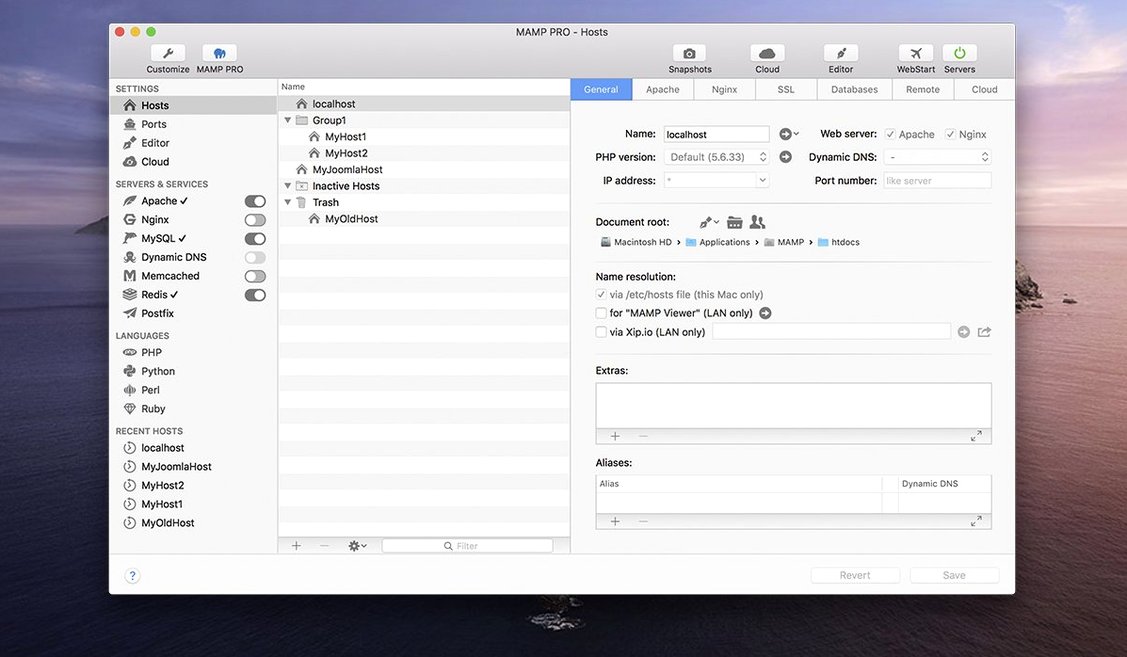
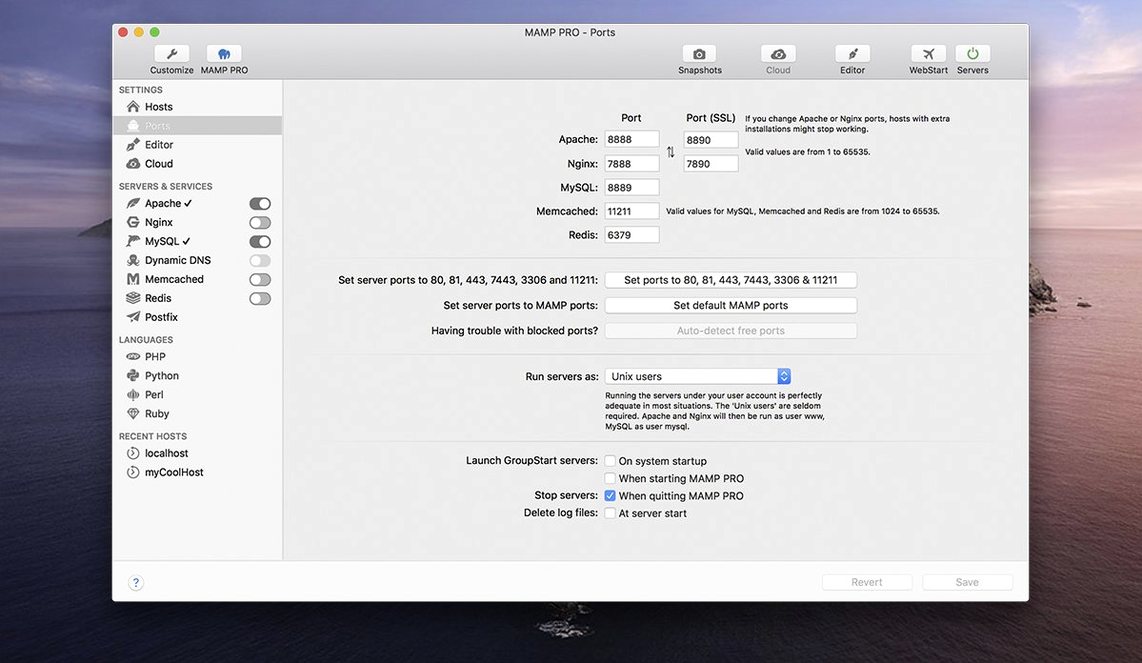
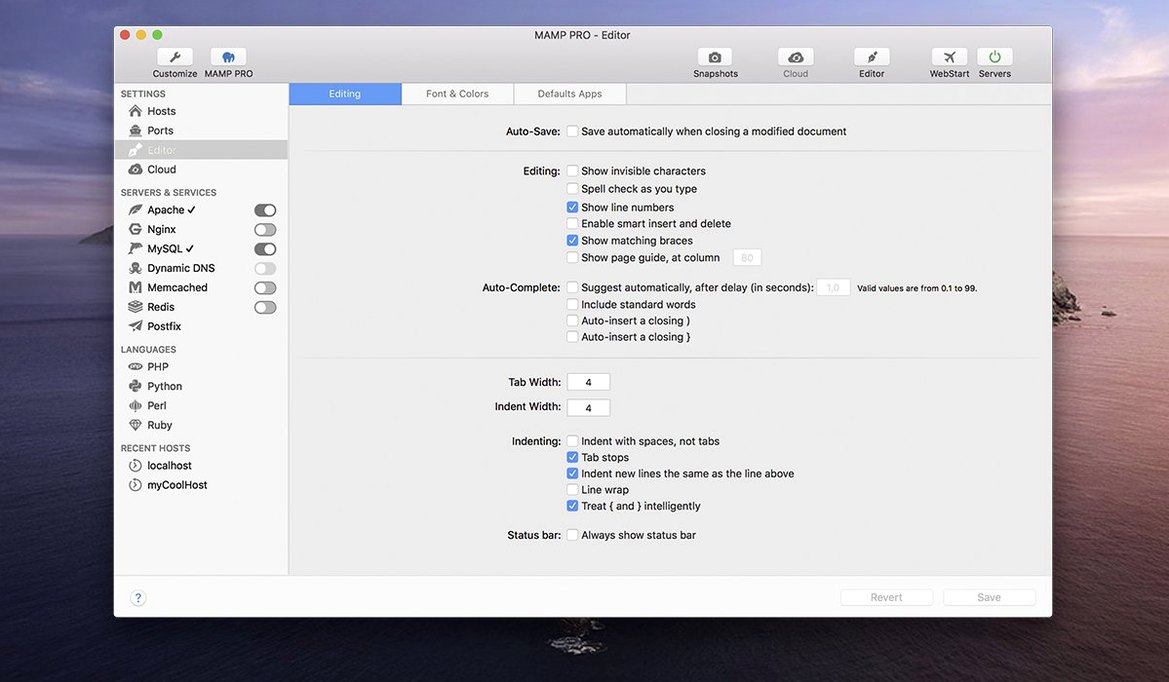
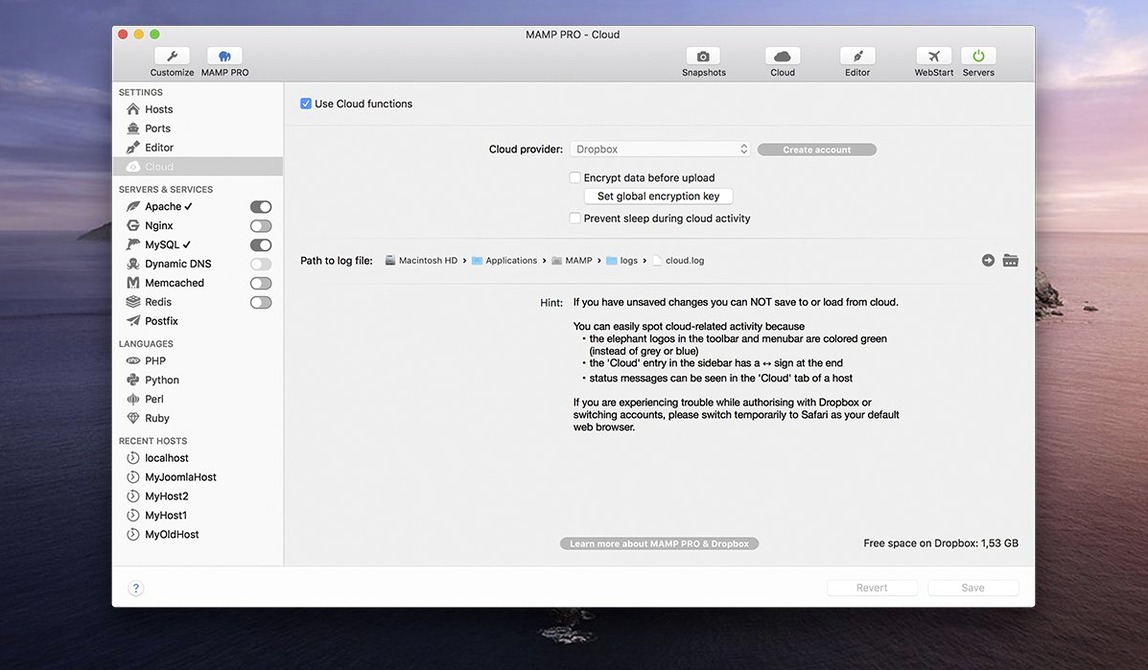
You’re hashing out a client’s WordPress theme and don’t want to push half-baked changes to a live server. You spin up a local host with a couple of clicks, match the production PHP version, and get to work. That’s the daily reality MAMP PRO 6 delivers on macOS.
Run Apache or Nginx with one host
Create a new host and pick your web server — Apache or Nginx — without touching a config file. MySQL 5.7 and 8.0, Redis, and Memcached are all available to switch on per project.
Match the PHP version your project expects
The app manages multiple PHP and Python versions side by side, and version 6.9.0 improved how those PHP installations land. It makes catching a legacy site bug a lot less painful.
Migrate a WordPress site without breaking a sweat
MAMP PRO includes a migration tool that moves a WordPress site from one server to another — great for pulling a live site down for local tinkering or pushing a finished build up to its real home.
PHP versions added to your command-line PATH
MAMP PRO doesn't live in a bubble. When you install a new PHP version, it lands where the command line can see it, which means tools like Composer or WP-CLI just work in Terminal. The mysql command is a single PATH tweak away, and you can point Sequel Ace or TablePlus at any host's database with the credentials shown right in the main window.
Spotlight integration is a small but honest-to-goodness timesaver. Each host you create gets a folder inside your user directory — usually /Users/yourname/Sites/hostname — so you can summon a project folder with a quick ⌘Space and drop into it without hunting through Finder. If you work across devices, you can symlink that Sites folder into iCloud Drive and pick up where you left off on another Mac, though you'll need to keep host configs in sync manually.
On the macOS side, the app respects Dark Mode and sits quietly in the menu bar when you'd rather it stay out of your dock. Its local DNS resolver means you type myproject.local into Safari, Firefox, or Chrome, and the request never leaves your machine. No editing /etc/hosts, no hunting down a MAMP PRO torrent to get started — just a checkbox per host that says "add to hosts file," and it's done.
The built-in Mailhog integration catches outbound email from your local WordPress installs, so password-reset tests and WooCommerce order notifications end up in a web inbox rather than accidentally spamming real customers. That ties neatly into any SMTP-testing workflow you already run with tools like Mailpit.
Juggling three client sites on different PHP versions
Imagine a freelance WordPress developer juggling three client sites, a personal blog, and a plugin she's building for the WordPress.org repo. Each project runs a different PHP version — one client is stuck on 7.4, another runs 8.2, the plugin needs 8.3 to stay current.
She opens MAMP PRO and sees all five hosts listed in the sidebar, each with its own PHP version and web server choice. The client who needs an urgent WooCommerce fix gets Apache with MySQL 8.0 to match the production server at SiteGround. The plugin project runs Nginx with Redis enabled, because she's testing an object-cache drop-in before shipping. She can start and stop hosts individually — no need to spin up all five when she's only working on one — and the menu bar indicator tells her at a glance what's running.
When the WooCommerce fix is ready, she uses the built-in publishing tool to push the host directly to the live server. The migration wizard handles the database URL replacements automatically, so she doesn't have to run a search-and-replace script or mess with wp-config.php by hand. Twenty minutes later, the client's store is updated, and she's already switched back to her plugin project without breaking stride.
Fixing the 'port 80 already in use' conflict
Like any tool that juggles servers, databases, and network ports, MAMP PRO has its friction points. The good news is most of them have straightforward fixes.
Port 80 or 443 already in use. This one bites people who also run Docker, a standalone Apache install from Homebrew, or even Skype. The app will tell you the port is busy and refuse to start. The quick fix: check what's hogging the port with sudo lsof -i :80 in Terminal, quit the offending process, or change MAMP PRO's default ports to something like 8888 and 8890 in the settings. If you don't need the standard web ports for a project, the custom port route is painless.
PHP version won't install or shows as "unavailable." The 6.9.0 release smoothed out a lot of PHP installation hiccups, but network interruptions or leftover files from a previous attempt can still trip it up. Head to /Library/Application Support/appsolute/MAMP PRO/ in Finder, locate the PHP version folder, delete it, and let the app fetch a fresh copy. If you're behind a corporate proxy, the download can time out — try a direct connection or a different network if possible.
MySQL won't start after a crash. An improper shutdown can leave a stale PID file or corrupt the InnoDB log. Navigate to /Applications/MAMP/db/mysql56/ (or the relevant MySQL version folder), look for a *.pid file, and delete it. If that doesn't do the trick, check the MySQL error log from within the app's server log viewer — it'll usually point you to the exact table or file causing trouble.
Local DNS not resolving. You type myproject.local and Safari shrugs. The hosts-file checkbox might have missed a beat. Open /etc/hosts in a text editor and confirm the line 127.0.0.1 myproject.local is present. If it's missing, add it manually and flush the DNS cache with sudo dscacheutil -flushcache; sudo killall -HUP mDNSResponder. Restart the host in MAMP PRO, and the domain should resolve.
Migration tool strips serialized data. WordPress stores theme options and widget settings in serialized arrays, and a simple find-and-replace on the SQL dump can break the character counts. MAMP PRO's migration tool handles serialized strings correctly when it replaces URLs, but if you have to do a manual search-and-replace, use a tool like WP-CLI's search-replace command instead of a raw SQL query — it understands serialized data.
Mirroring a live Nginx, Redis, PHP 8.2 stack
You sit down with a coffee at 9 AM and need to build a landing page for a product launch. The live site runs WordPress on Nginx with PHP 8.2, MySQL 8.0, and Redis caching. Here's how the next hour unfolds.
First, you click the plus button in the toolbar and name the host launch-page. The create dialog — streamlined in recent releases — lets you pick Nginx as the web server and PHP 8.2 from a dropdown before the host even appears in your list. You check "Add to hosts file" and hit save. The app spins up the server and creates a folder in your Sites directory.
Next, you click the WordPress icon next to the host name. MAMP PRO downloads the latest WordPress core, creates the database, fills in wp-config.php, and hands you the admin URL and credentials. The whole one-click install takes about forty seconds. You log in, install your preferred theme, and start building.
Around 9:40 AM you want to test how the page looks on the client's staging server. You select the host, click the "Remote" tab, and enter the staging server's FTP or SFTP details. The publishing tool compares your local files with what's on the server and pushes only the changes. You can preview the result at the staging URL before anyone else sees it.
By 10 AM, the landing page is approved. You switch the publishing target to the live server, hit publish once more, and the new page is live. You stop the launch-page host with a single click, and it sits in your list ready for the next product launch — database, files, and server config all preserved exactly as you left them.
Version 6.9.0 tidied up a few rough edges:
- Fixed a crash when editing host-specific server configurations.
- Improved the installation of PHP versions — fewer hiccups getting the right version in place.
- Opening phpMyAdmin 5 via alias now works more reliably.
- Resolved several network-related issues with the MAMP Cloud feature.
- macOS 10.12 or later
- 64-bit Intel build (runs on Apple Silicon via Rosetta 2)
Questions people ask
Does MAMP PRO support Apple Silicon Macs?
The current build is 64-bit Intel, so it runs on Apple Silicon through Rosetta 2. No native ARM build is listed yet, but performance is solid for local dev work.
Can I use Redis with my local sites?
Yes, Redis integration is included. You can enable it per host alongside Memcached, which is handy when you're testing caching setups that mirror a production environment.
Also on readers' docks
Sign in or create an account to leave a comment.
No comments yet. Tell me how it got on with your other devices.