Download MacWhisper for macOS
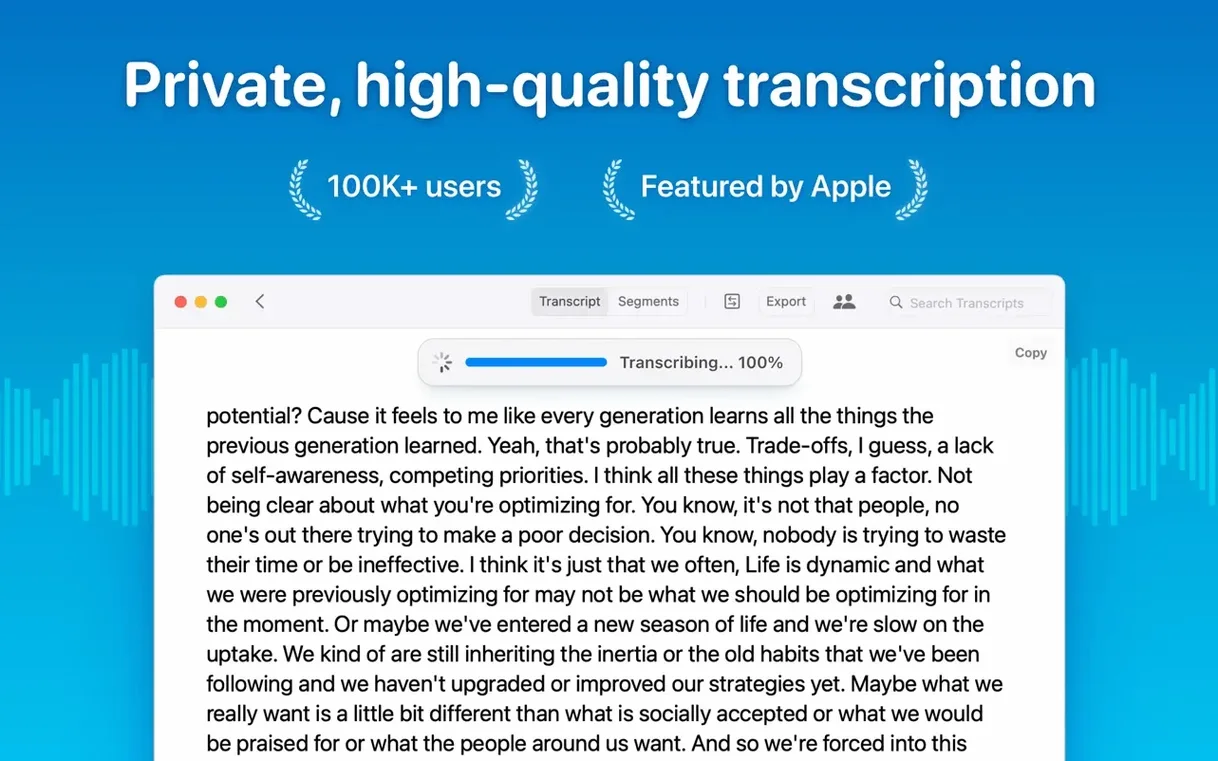
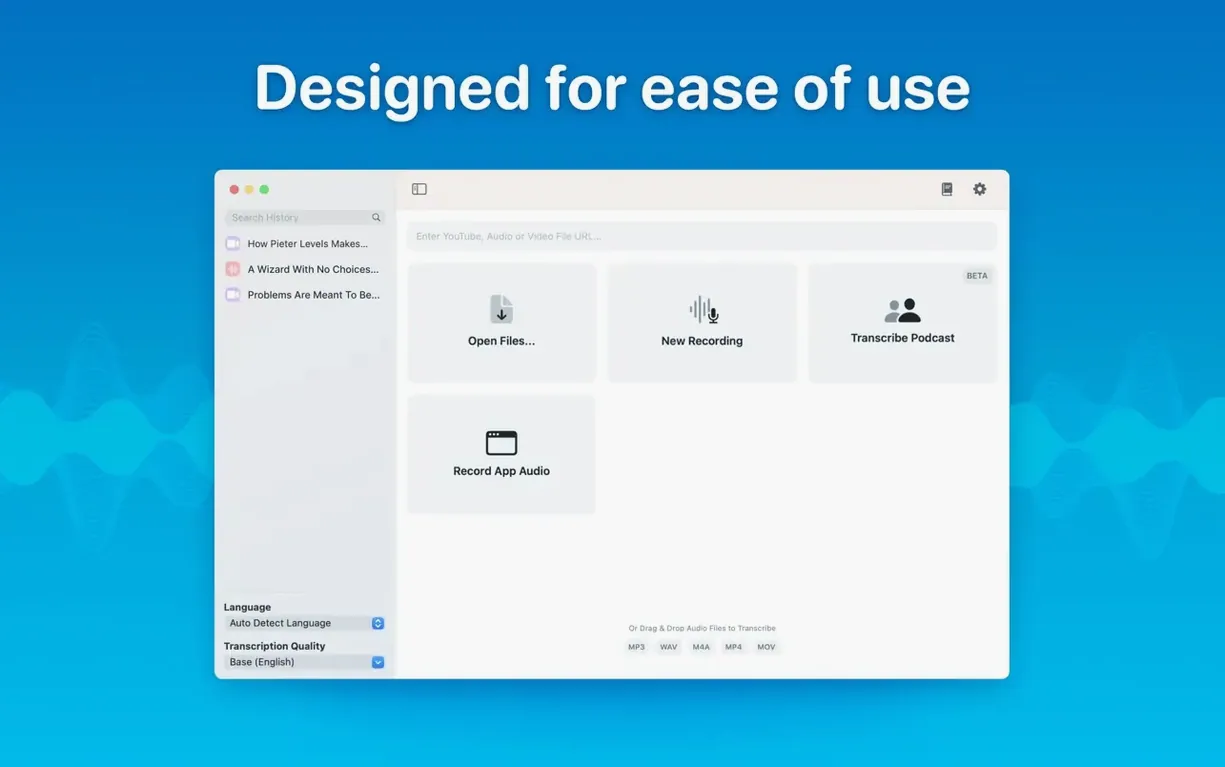
You've got an hour-long podcast recording and a deadline for the show notes, but the thought of playing, pausing, and typing for an afternoon makes you wince. MacWhisper handles this entirely on your Mac, no cloud required.
Drag and drop — Pull in mp3, wav, m4a, mp4, mov, ogg, or opus files straight from the Finder.
Auto-detect language — Let the app spot the spoken language, or choose one yourself from the list.
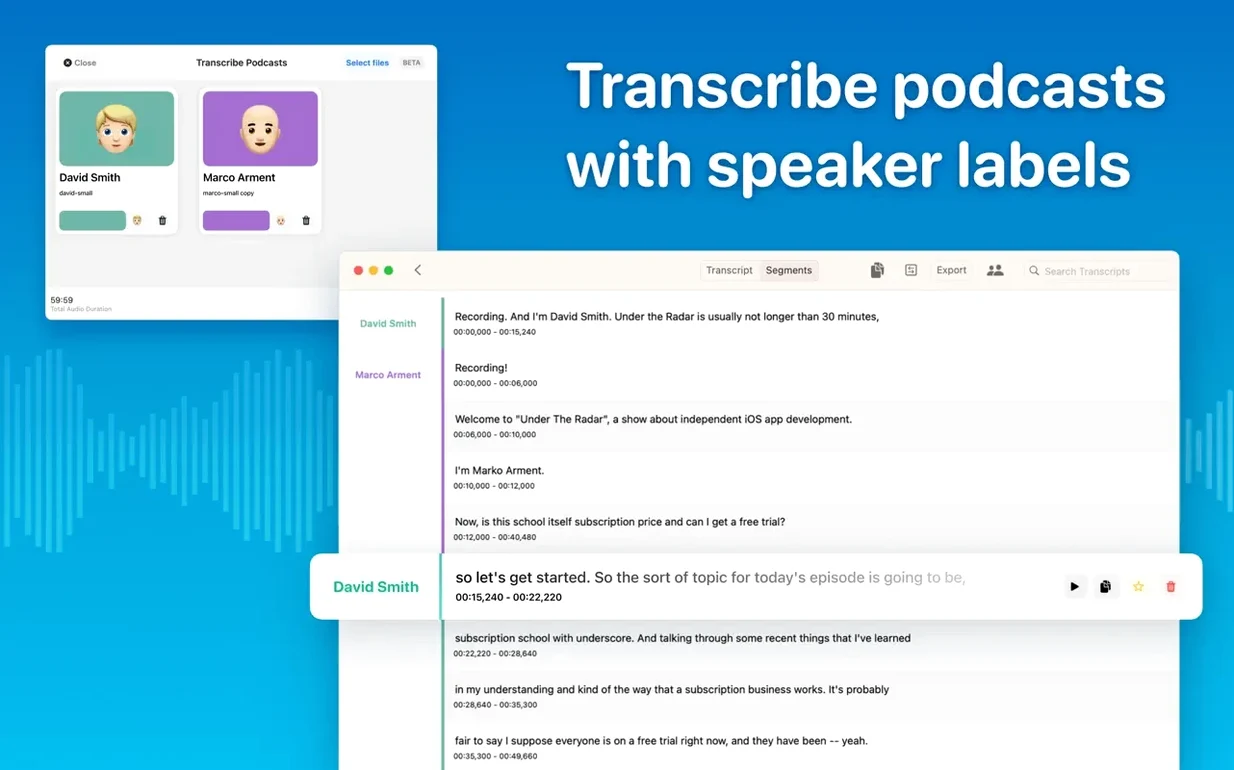
Speaker separation — The current model identifies different voices, so your Q&A podcast transcript isn't one wall of text.
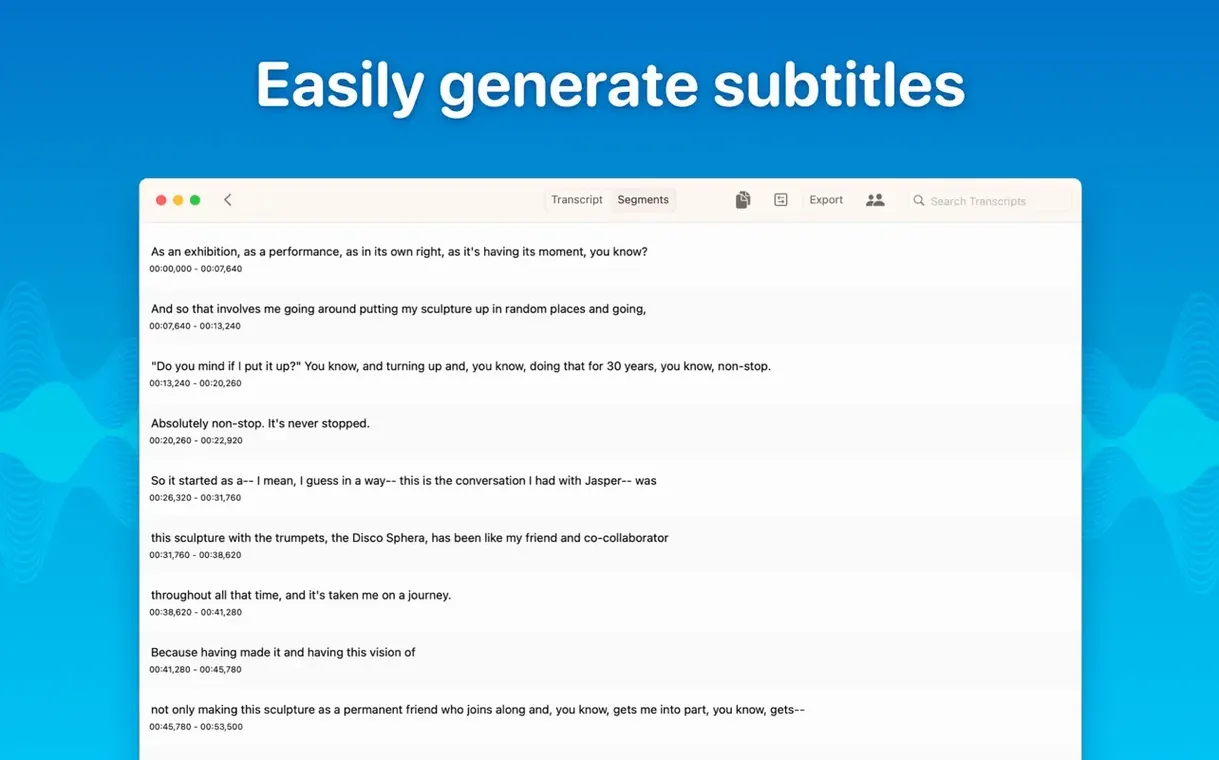
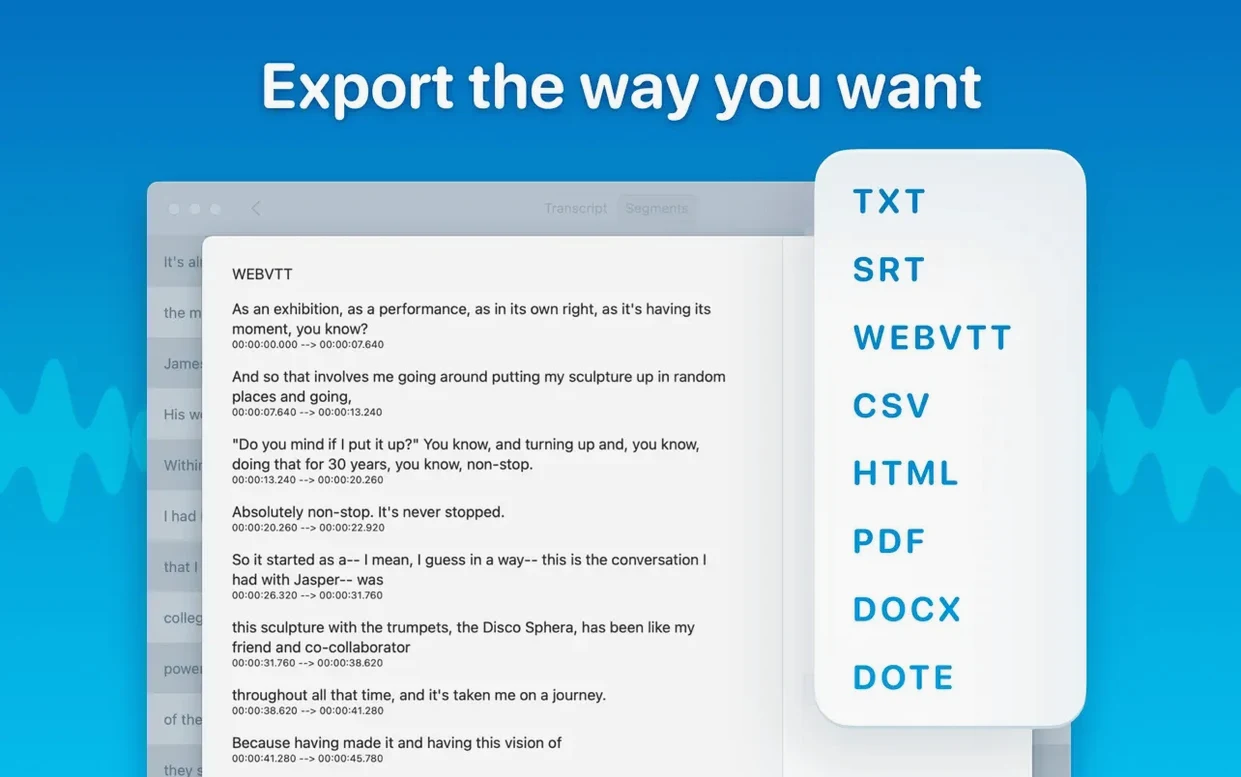
Export to subtitles — Grab SRT or VTT files for your video editor, or push the whole thing to Word, PDF, or HTML.
Copy what you need — Select a chunk of text and copy it, or grab the whole transcript at once.
Reading mode — A clean, distraction-free view for proofing what the engine heard.
Words Appear While People Still Speak
Version 15.2 brought two additions that shift how the app fits into a real workday. The first is real-time meeting transcripts. Instead of waiting until the recording stops, you see words appear as people speak. For live brainstorming sessions or interviews you're running solo, this means you can glance at the transcript to catch a mumbled phrase without asking someone to repeat themselves.
The second is folders and subfolders. Before this, every transcript lived in one flat list. If you juggle client calls, lecture recordings, and personal voice memos, things got messy fast. Now you can set up a folder per project or per week, nest subfolders however you like, and actually find last Tuesday's interview without scrolling through forty other items. Speaker recognition also improved under the hood — the diarization model labels voices more reliably, especially when people talk over each other.
Swap the Default Model to the Largest Your Mac Can Handle
Out of the box, MacWhisper picks sensible defaults, but a few tweaks make it feel more like your tool. Hit ⌘, to open preferences and look at these early:
- Default transcription model. The app defaults to a smaller, faster model. If your Mac has an Apple Silicon chip and enough RAM, switch to Large-V3 before transcribing anything with accents, background noise, or multiple speakers. The accuracy jump is noticeable. On Intel Macs, Medium is the sweet spot between speed and correctness.
- Language detection behavior. In the Transcription tab, decide whether you want auto-detection on by default. If you consistently work in one language, lock it — auto-detection can occasionally guess wrong on short clips.
- Export format defaults. If you always send transcripts to Word, set that as the default so you're not clicking through the export dialog every time.
- Save location for recordings. The app records straight to its own library by default. If you'd rather recordings land in a specific project folder, point the recording location there.
Click Any Word to Jump the Playhead There
A few things I didn't notice until weeks in, but now use constantly:
- Double-click a segment to edit it. The waveform view and the text panel stay in sync. Click a word in the transcript and the playhead jumps to that spot in the audio — great for checking a name or technical term the engine fumbled.
- Batch export with
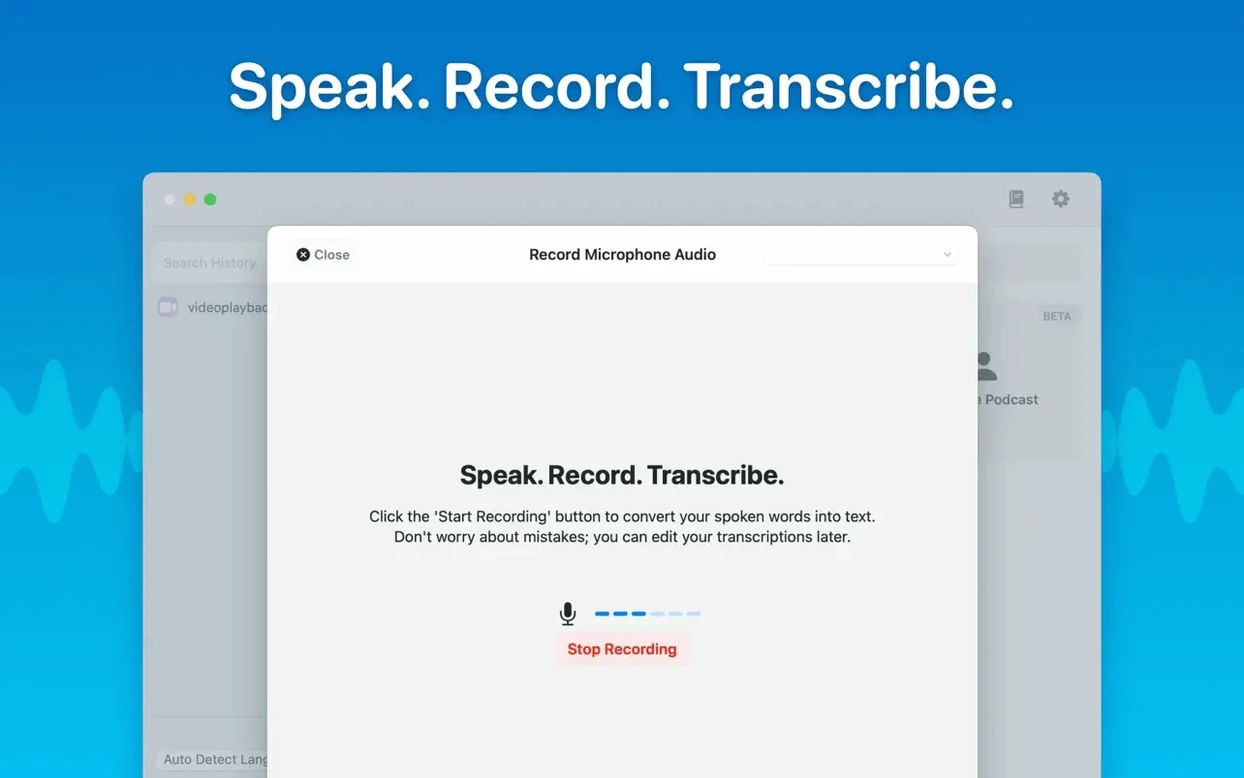
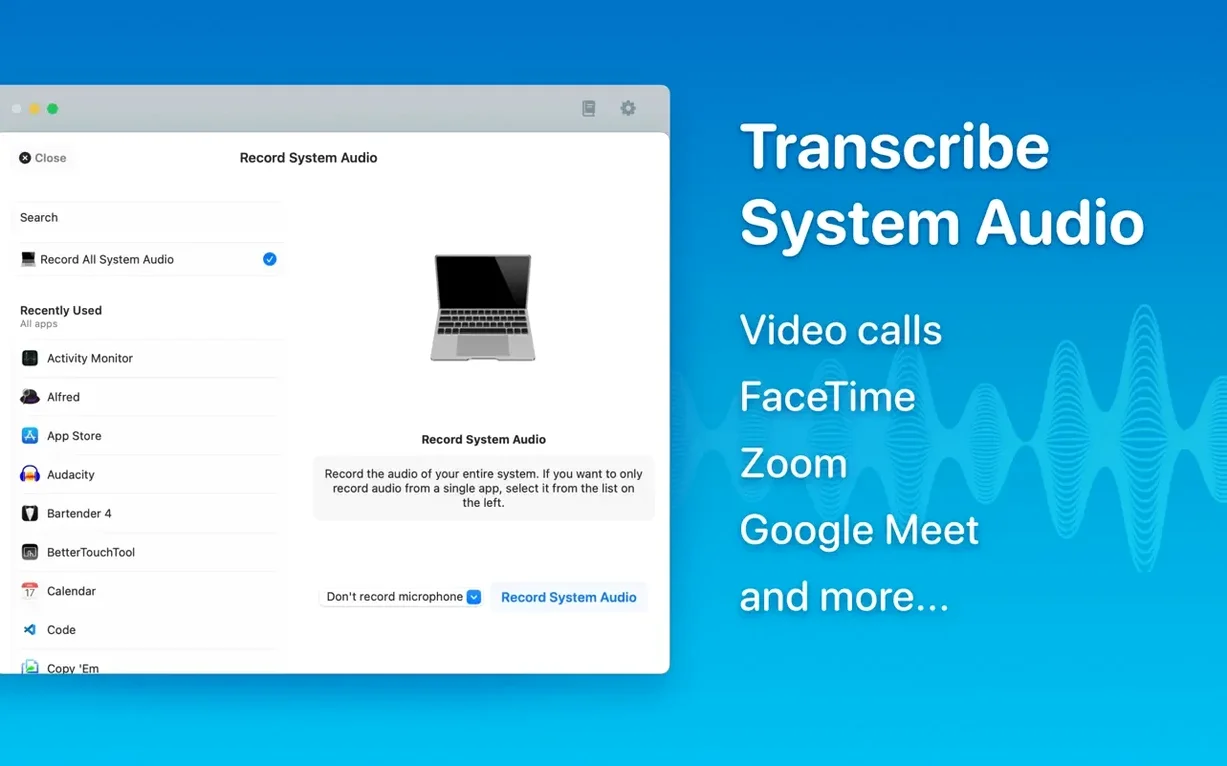
⇧-click. Select multiple transcripts in the sidebar, right-click, and export them all to the same format at once. No opening each file individually. - System audio capture. Under the Record menu, you can grab audio playing from another app — a webinar in your browser, a video call, anything. The transcription stays local the whole time.
- Drag from the waveform. You can drag across the waveform to select a portion of audio, then transcribe only that section. Handy when someone sent you a two-hour recording and you need minutes 34 through 41.
- Reading mode toggle. Tap
⌘\to flip between the full editor and the clean reading view. It's a small thing, but proofing a transcript without the waveform and sidebar in your face helps you catch errors. - Right-click a segment for timestamps. Need to note when a specific quote happens? Right-click any segment to copy its start time, end time, or both.
A Full Workflow: Field Recording to Finished Notes
Here's how I handle a typical scenario — an in-person interview recorded on my phone, turned into notes I can actually use.
Step 1: Get the audio onto the Mac. I AirDrop the m4a file from Voice Memos on my iPhone straight to the desktop. The file lands as a single clip, usually around 40 minutes long.
Step 2: Create a home for it. Inside MacWhisper, I've already got a folder called Interviews with a subfolder for the current month. I right-click that subfolder, choose New Transcript, and give it the interviewee's name and the date.
Step 3: Drag and drop the file. I pull the m4a from the desktop onto the transcript window. The app reads the file and asks which model to use. For interviews, I pick Large-V3 and leave language on auto-detect since we sometimes switch between English and another language.
Step 4: Wait a few minutes. On an M-series Mac, a 40-minute file takes roughly three to five minutes with the large model. The progress bar fills, and then chunks of text appear with speaker labels — Speaker A, Speaker B, and so on.
Step 5: Clean up the speaker labels. I listen to the first thirty seconds of each voice, double-click the label, and rename them to actual names. The app remembers this for the rest of the transcript.
Step 6: Proof with the waveform. I click through segments while the audio plays at 1.5x speed, fixing any names or jargon the engine missed. The waveform view makes it easy to spot long pauses or cross-talk sections that need a closer listen.
Step 7: Export what the editor needs. I select the transcript in the sidebar, hit Export, and send one copy to Word for the writer and one to SRT for the video editor who's cutting a highlight reel. Both exports happen at once from the batch dialog.
That entire process, from AirDrop to two finished exports, runs under ten minutes — and none of the audio ever touched a server.
- macOS 14 or later
- Apple Silicon or Intel 64-bit Mac
Questions people ask
Can MacWhisper transcribe meetings in real time?
Yes, version 15.2 added real-time meeting transcripts alongside the existing audio recording and file transcription.
Which file formats does MacWhisper accept for import?
You can drag in mp3, wav, m4a, mp4, mov, ogg, and opus files for transcription.
Also on readers' docks
Sign in or create an account to leave a comment.
No comments yet. Tell me how it got on with your other devices.