Download MacCleaner Pro for macOS
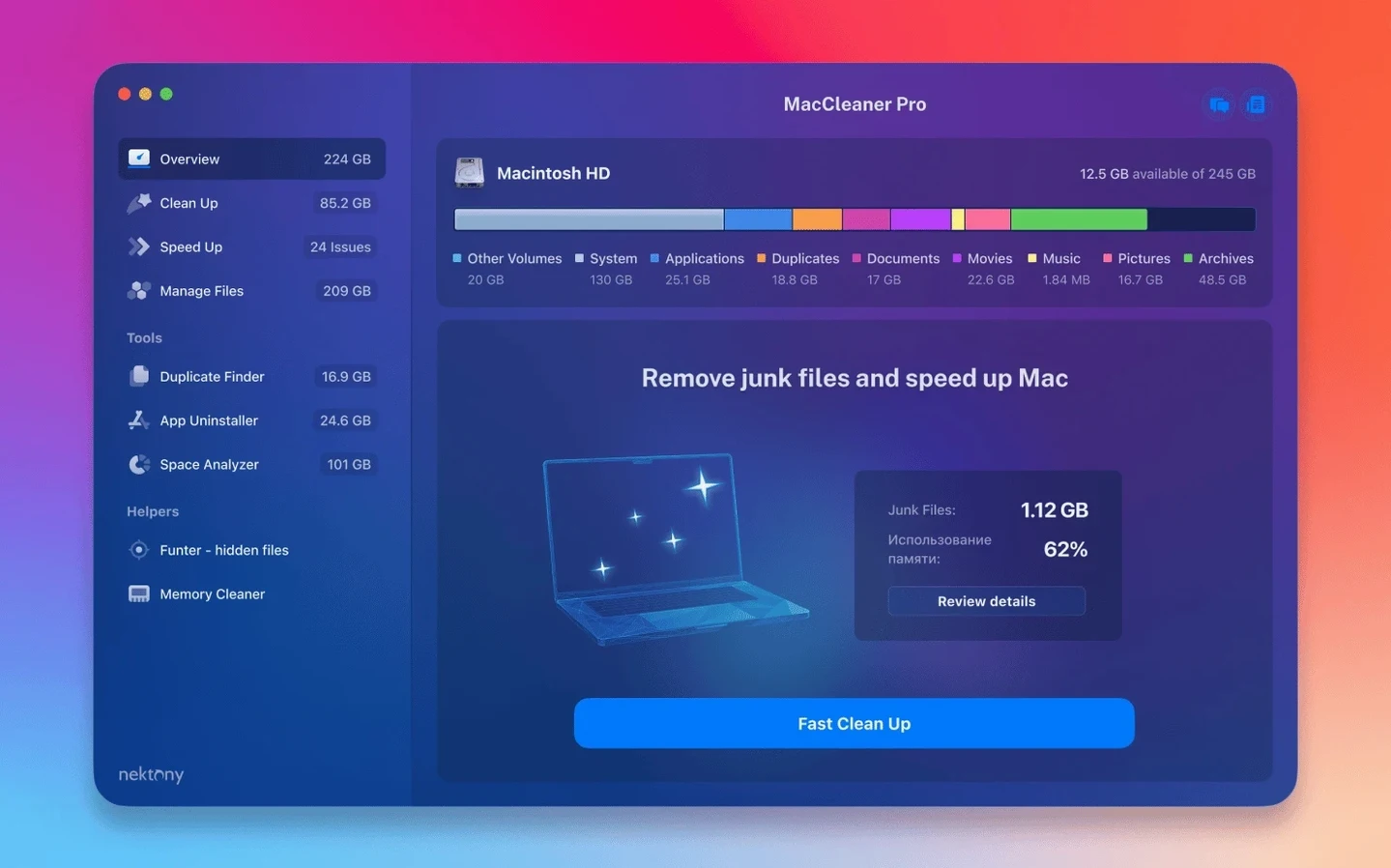
Memory Cleaner had just popped into my menu bar with a gentle nudge that RAM was running low. Instead of just purging inactive memory, I decided it was time for a deeper clean—so I launched the full MacCleaner Pro 4 bundle. My goal was simple: find and reclaim a chunk of disk space that had mysteriously vanished over the last few months.
Where did all the space go?
I started with Disk Space Analyzer. It scanned my drive and gave me a sunburst map that made the culprits immediately obvious—a massive, forgotten folder of raw video files from an old project was hogging nearly 90GB.
How do you safely remove a stubborn app?
Next, I wanted to ditch a video editor I hadn't used in years. Dragging it to the Trash leaves leftovers, so I opened App Cleaner & Uninstaller. It found the app and all its scattered caches, preferences, and support files in seconds, letting me wipe everything in one go.
What about the duplicate clutter?
To finish up, I ran Duplicate File Finder on my documents folder. It surfaced dozens of redundant PDFs and images, including a few sneakily stored in an iCloud folder that version 4.0.2 now detects more reliably. A quick review and cleanup was all it took.
Mistakes Beginners Make That Turn a Cleanup into a Headache
I see it all the time. Someone grabs a tool like MacCleaner Pro, fires up every module at once, and starts deleting anything with a large file size or a "suggested for removal" flag without a second glance. That's the fastest route to a bad Tuesday.
The most common slip-up is treating Duplicate File Finder results as gospel without checking where those duplicates live. A file inside a Photos Library or a Mail folder might look identical to one on the desktop, but deleting the wrong copy can break an entire app's database. Always expand the path column before you tick the checkbox.
Another classic: beginners run Memory Cleaner obsessively, watching the green bar drop and thinking they're turbocharging the machine. macOS manages memory intelligently—those "inactive" megabytes are often cached data the system keeps around for speed. Purging them right before launching a heavy app is smart. Purging them every ten minutes just forces the Mac to reload everything from scratch, which slows things down.
With App Cleaner & Uninstaller, the rookie move is nuking every "remaining file" without reading the list. Some leftovers are shared components—a font, a plugin, a helper tool—that another application still uses. The app highlights the safe stuff, but a quick manual scan of the list before hitting Remove saves a lot of head-scratching later.
And Funter? People forget it exists, then accidentally hide a folder they needed visible. The app toggles visibility with a single click, which is powerful but means a stray tap can make a work project vanish from Finder. If something goes missing, Funter shows it with a dotted outline—don't panic, just unhide it.
A Photographer's Sunday Cleanup Ritual
A wedding photographer I know keeps a 2019 iMac that constantly flirts with the "Startup Disk Full" warning. Her workflow dumps thousands of RAW files onto the internal drive during editing season, and culling them manually takes hours she doesn't have.
Her Sunday routine now goes like this: she opens Disk Space Analyzer and scans only her working drive. The sunburst map instantly shows which client folders have ballooned. She spots a finished September project still sitting in the main workspace, drags the whole folder to an external archive, and watches 130GB free up. Then she switches to Duplicate File Finder, targeting her exports folder, and discovers she accidentally exported the same set of JPEGs three times while testing print crops. A single click deletes the extras.
Before wrapping up, she runs App Cleaner & Uninstaller to remove a trial version of a tethering tool she tested and forgot about. It pulls out the app, its background agent, and a leftover plist file. Memory Cleaner gets a quick tap to flush RAM before she opens Lightroom again. In fifteen minutes, her iMac breathes freely—no restart required, no digging through Library folders by hand.
Glossy Dashboard vs. Modular Tool Set
Plenty of people searching for a maccleaner pro 4 solution also stumble across CleanMyMac X, Onyx, and DaisyDisk. They overlap in some areas but feel completely different in daily use.
CleanMyMac X wraps its tools in a glossy, single-window dashboard. It's more approachable for someone who wants a "scan everything, fix everything" button, and it adds malware scanning and a system-health monitor that MacCleaner Pro doesn't include. Where MacCleaner Pro pulls ahead is depth—each tool opens as a standalone app with more granular controls. Its App Cleaner & Uninstaller digs deeper into leftover files than CleanMyMac's equivalent, especially for apps that scatter support folders across hidden directories.
DaisyDisk is essentially just Disk Space Analyzer, done beautifully. Its animated sunburst map is more fluid than MacCleaner Pro's, and the interface feels a touch more refined for pure disk visualization. But DaisyDisk stops there. It doesn't remove apps, hunt duplicates, or manage memory. If the only thing you need is to find what's eating your drive, DaisyDisk is lovely. If you want to actually fix the problem across multiple fronts without buying four separate utilities, the Nektony bundle makes more sense.
Onyx is the old-school powerhouse—free, dense with maintenance scripts and cache purging options, and absolutely intimidating for anyone who doesn't know what a "dyld shared cache" is. It runs deep system tasks that MacCleaner Pro doesn't touch, like rebuilding LaunchServices or verifying disk structures. But Onyx offers zero visual file browsing, no duplicate detection, and no app uninstaller. It's a system maintenance tool, not a disk cleanup companion. The two actually complement each other well for advanced users, but for everyday space reclamation, MacCleaner Pro is far more direct.
When Media Libraries Outgrow Internal Drives
This bundle clicks best for Mac users who juggle large media libraries and feel uneasy poking around system folders manually. Video editors, photographers, and designers who keep multiple project iterations on the internal drive will use Disk Space Analyzer and Duplicate File Finder constantly. The visual sunburst map alone spares them from squinting at folder sizes in Finder's list view.
Developers and power users who install and discard beta tools, SDKs, and helper utilities every few weeks lean heavily on App Cleaner & Uninstaller. It catches the daemons and launch agents that regular uninstalls leave behind, which matters when you're trying to keep a development environment clean. Funter's hidden-file toggle also saves them from terminal commands just to peek at a .env or .gitignore file.
Casual users with smaller drives—MacBook Air owners running 128GB or 256GB of storage—benefit from the all-in-one nature. They don't need every module daily, but when the low-space warning hits, having one launcher that covers cleanup, duplicates, and memory pressure means they solve the problem without hunting for multiple downloads. And because MacCleaner Pro doesn't require activation, it's ready to go the moment it's installed.
- macOS 10.13 or later
- Apple Silicon or Intel 64-bit Mac
Also on readers' docks
Sign in or create an account to leave a comment.
No comments yet. Tell me how it got on with your other devices.