Download Luminar AI for macOS
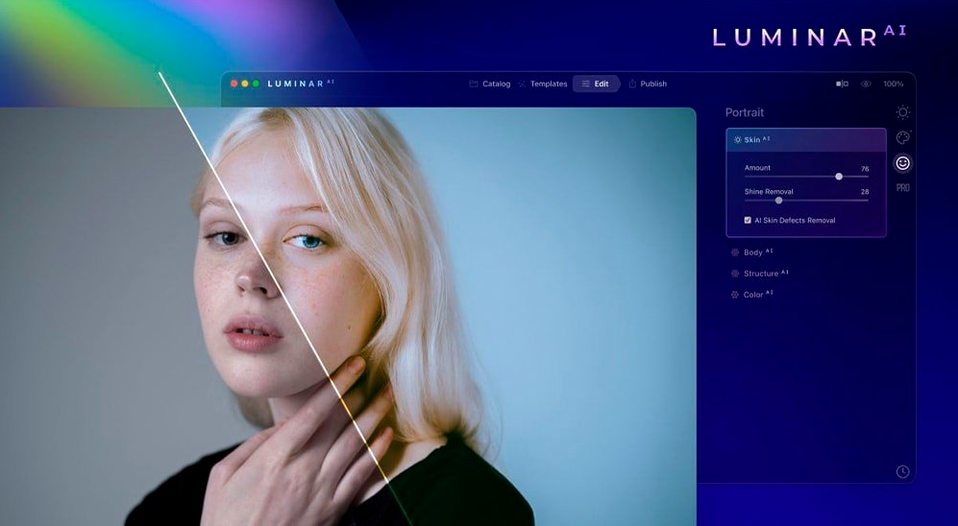
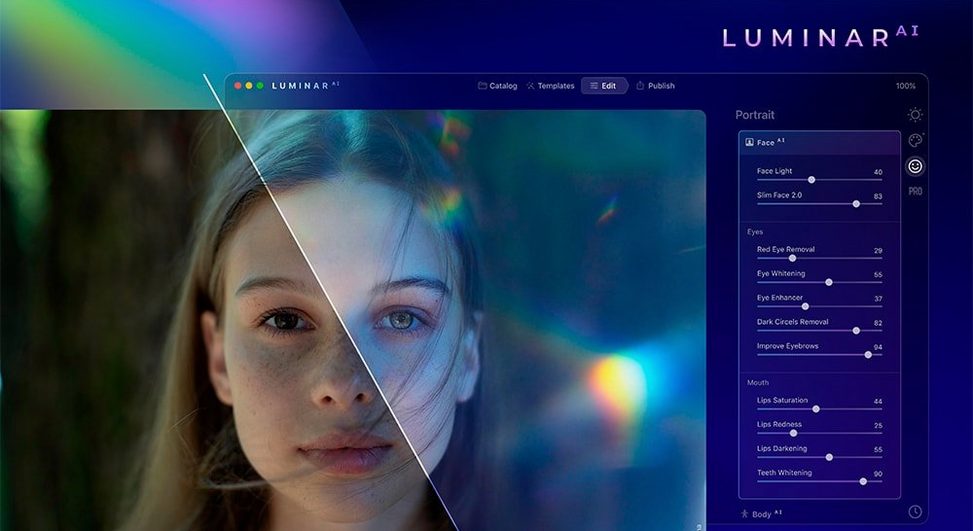
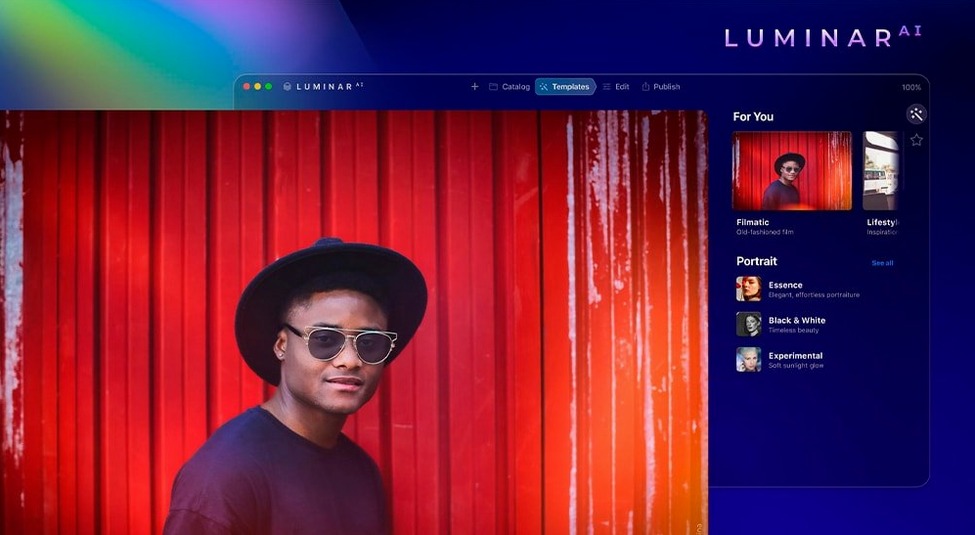

Face AI doesn’t just smooth skin — it actually maps a face, letting you tweak lips, eyes, and even remove dark circles with a couple of sliders. That level of task-specific help defines the whole app. Here’s what stands out:
- Face AI and Skin AI: Skin AI clears blemishes yet keeps pores and fine hair intact. Face AI adjusts facial features naturally, without turning people into porcelain mannequins.
- Atmosphere AI: Drop in fog, haze, drizzle, or soft clouds. It blends the effect into the depth of the scene rather than just laying a texture on top.
- Structure AI: Sharpens detail in specific subjects — people, water, skies, objects — without adding noise to areas meant to stay smooth.
- Accent AI: One slider analyzes lighting and color together, fixing exposure and tone in a move that usually takes half a dozen manual adjustments.
- Bokeh AI: Simulates genuine background blur, even on portraits shot with a wide-angle phone lens.
The whole app is built around AI that targets one job at a time, so you spend less time masking and more time experimenting. It feels like a toolkit of shortcuts you actually want to use.
Common Questions Worth Answering
Most people downloading luminar ai mac for the first time ask the same handful of things, so here's the honest version.
Does it replace Lightroom or Photoshop? Not exactly — think of it as a different animal. Luminar AI doesn't do cataloguing or heavy compositing, and it won't manage a library of tens of thousands of RAW files the way Lightroom does. What it replaces is the twenty-minute edit where you're building three adjustment layers just to fix a sky and soften skin. Plenty of folks run it as a plugin alongside their existing editor for exactly that reason.
Will it feel sluggish on an older Mac? It depends entirely on which tool you're using. Sky AI and Atmosphere AI are surprisingly light — they apply in a couple of seconds even on Intel machines because most of the heavy lifting is computational, not brush-based. Face AI and Skin AI take a beat longer since they're analyzing the image. On Apple Silicon the whole thing is snappy, but the app remains usable on an older iMac if you're not batch-processing dozens of portraits in one session.
Does the AI overdo things? That's the worry, and it's fair. The sliders default to subtle — Structure AI at 25% adds bite without looking crunchy, and Skin AI starts gentle. You can absolutely push Atmosphere AI into looking fake if you crank fog to maximum on a sunny beach shot, but the tools don't force a heavy hand. The app assumes you'll dial things in, not just accept what it suggests.
A Portrait Retouch Walkthrough
Here's how a typical quick portrait session flows from import to export. It shows how the tools stack without getting in each other's way.
Open a backlit portrait — someone standing near a window with bright daylight behind them, face a little underexposed. First stop: Accent AI. Pull the single slider to about 40, and the whole image lifts — shadows on the face brighten, the window light doesn't blow out, colors stay balanced. That one move replaces what would normally be a curve adjustment, a shadow lift, and a touch of vibrance.
Next, switch to Face AI. The app detects the face automatically and shows controls for lips, eyes, and facial structure. Reduce dark circles by half — not to zero, because removing them entirely looks unnatural. Lighten the iris just a fraction. The beauty here is you're not painting masks or selecting anything; the face mesh is already mapped.
Then Skin AI. The default setting removes small blemishes while leaving pores visible. Slide it up to maybe 30, enough to clean up but not to plasticize. Zoom in to 100% — you'll still see fine hair on the cheek, which is the whole point.
Finally, Bokeh AI. The background behind the subject is a messy bookshelf. Apply the blur, set the subject distance roughly, and the app masks the person cleanly. It's not perfect around stray hair — no automated blur is — but for a social-media-ready portrait it takes about ten seconds. Export as JPEG or TIFF and you're done. The whole edit ran under two minutes.
Hidden keyboard shortcuts and a template organiser
Luminar AI has a handful of quiet touches that aren't obvious on a first click-through. Here are a few worth knowing.
- Tool search: The toolbar has a search field. Instead of hunting through the Templates or Edit panels, type "fog" and Atmosphere AI pops up immediately. Works for every tool by name.
- Opacity per tool: Every AI tool has its own opacity slider, not just a global one. Drop Sky AI to 70% and the replacement blends with the original sky — subtle enough that nobody questions the weather.
- Before/after with a click: Hold the spacebar or click the eye icon in the toolbar to toggle the original. Faster than digging into a menu, and it works while you're mid-edit on any tool.
- Edit history is non-destructive: Every slider move sits in a history stack. You can step back through individual adjustments, not just undo the last action. Close the app, reopen the file, and the history is still there if you saved as a .luminarai document.
- Drag-and-drop templates: The Templates panel accepts images dropped straight from Finder. Drag a RAW file onto a template thumbnail and it applies the look without opening a dialog.
Sky replacement now catches wispy branches
Version 1.5.5 is a maintenance release, but the updates leading up to it quietly refined how several tools behave in daily use. The most noticeable change is Sky AI getting better at edge detection around thin branches and hair — earlier versions would sometimes leave a faint halo where the new sky met the subject, and that's been dialled back significantly. It's not perfect, but side-by-side with older builds the improvement is clear.
Structure AI now applies its sharpening with less noise in shadow areas, which matters when you're enhancing water or dark foliage. Previously you'd often need to follow it with a noise reduction pass; now the default settings stay cleaner. Face AI received a detection update that handles profiles and three-quarter angles more reliably — earlier versions occasionally missed a face if it wasn't looking straight at the camera.
Performance-wise, the Apple Silicon native support has been stable for a while, but the latest build reduced the initial launch time on Intel Macs by a few seconds. It's a small thing, but if you're opening the app a dozen times a day it adds up. Template previews also render faster, especially when you're browsing the full collection rather than just your favorites.
- macOS 10.13.6 or later
- Intel and Apple Silicon Macs
Questions people ask
Does Luminar AI work as a standalone editor or just a plugin?
It works as a fully standalone AI-based image editor on macOS 10.13.6 and later, and can also function as a plugin for other hosts.
Which interface languages are available in Luminar AI?
The app supports English, German, Spanish, Italian, French, Portuguese, Dutch, Japanese, Korean, and both Traditional and Simplified Chinese.
Also on readers' docks
Sign in or create an account to leave a comment.
No comments yet. Tell me how it got on with your other devices.