
Download MacBooster for macOS
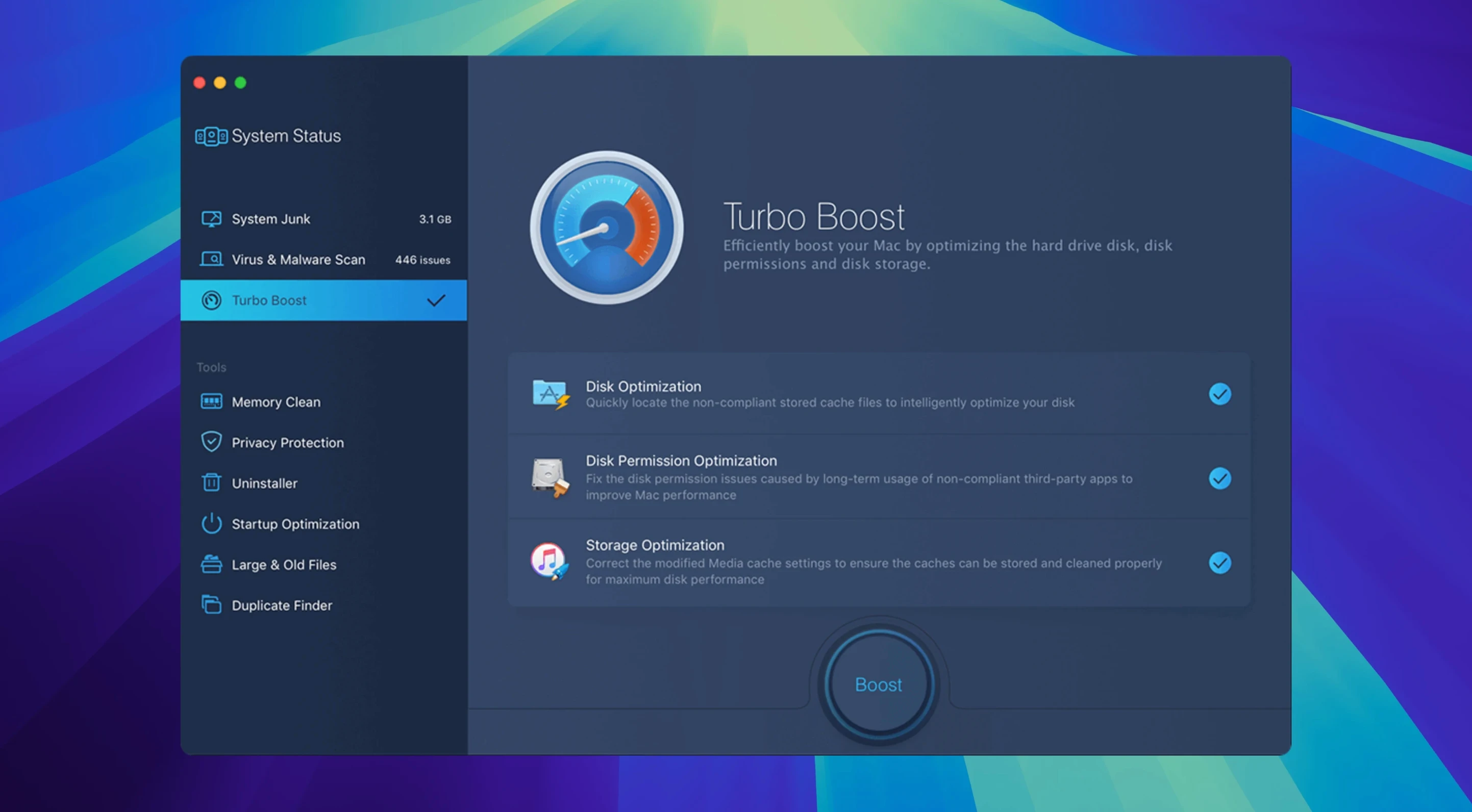
Over time, every Mac accumulates digital clutter — system logs, browser caches, forgotten large files, and sometimes sneakier things like adware. That slow-down or odd behavior often has less to do with hardware age and more to do with what is running under the hood. MacBooster 8 Pro steps in as a one-stop maintenance tool that scans for junk, viruses, and memory issues, then offers a single click to tidy things up.
The current version sticks to a well-worn playbook. You launch the app, hit a big scan button, and watch it tally up problems across three buckets: system junk, malware, and performance bottlenecks. The malware scanner targets Mac-specific threats, while the memory cleaner frees up RAM when things feel sluggish. Disk permission repairs are tucked in there too, which can quietly solve odd app behavior.
Not much has changed under the hood in version 8.3.0 — no headlining new features, no interface overhaul. It still runs on both Intel and Apple Silicon Macs, still asks for macOS 11.5 or later, and still speaks fourteen languages from Russian to Japanese. If you have used a MacBooster release in the last couple of years, the layout and logic will feel instantly familiar.
That consistency works in its favor if you just want a predictable cleanup routine without learning anything new. The tool remains squarely aimed at people who prefer one button over digging through Finder folders or Activity Monitor — a straightforward system utility that does its job and gets out of the way.
Reviewing Safe-to-Remove Items Before Cleanup
One worry I hear often is whether a cleanup tool will delete something important. MacBooster 8 Pro organizes its findings into clear categories before you commit to any fix — you can uncheck individual items, so that old DMG in your Downloads folder stays put if you are not ready to part with it. The junk scanner covers twenty different file types, from browser caches to broken app leftovers, but nothing gets wiped without your say-so.
Another frequent question: does the malware scanner clash with macOS built-in protections? It runs alongside XProtect without stepping on its toes, focusing on adware, browser hijackers, and other Mac-specific annoyances that slip past Apple's net. Think of it as a second opinion rather than a replacement. As for performance impact during scans, you will notice the fan might spin up briefly, but on a recent Mac the whole process wraps up in a few minutes.
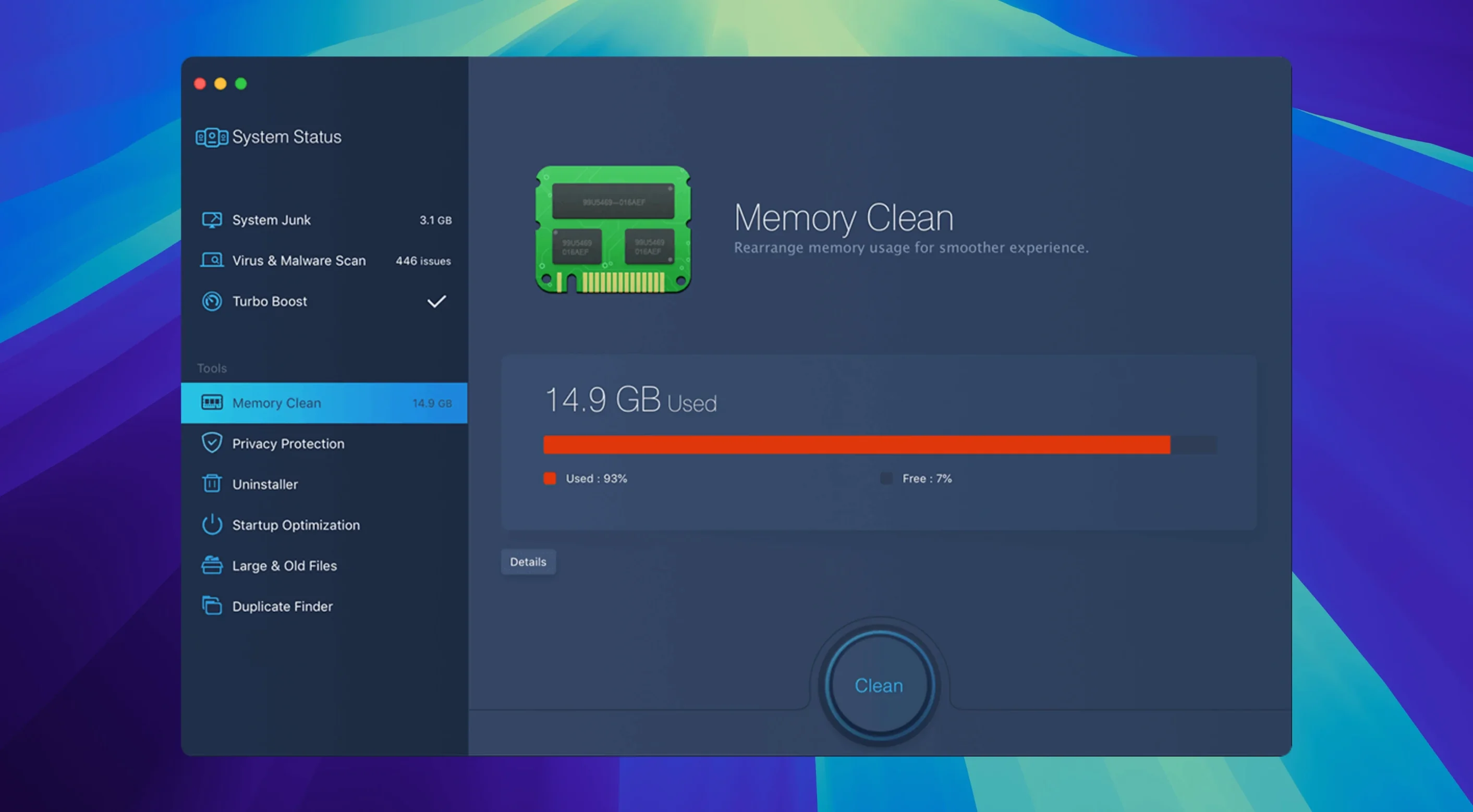
People also ask about the memory cleaner, and honestly, this one splits opinions. Modern macOS manages RAM well on its own, but I have found the one-click memory release handy right after closing a massive photo edit or a virtual machine — it snaps the system back to responsiveness faster than waiting for automatic swapping to settle. It is a convenience, not a necessity.
Startup Manager With Full File Paths and Toggles
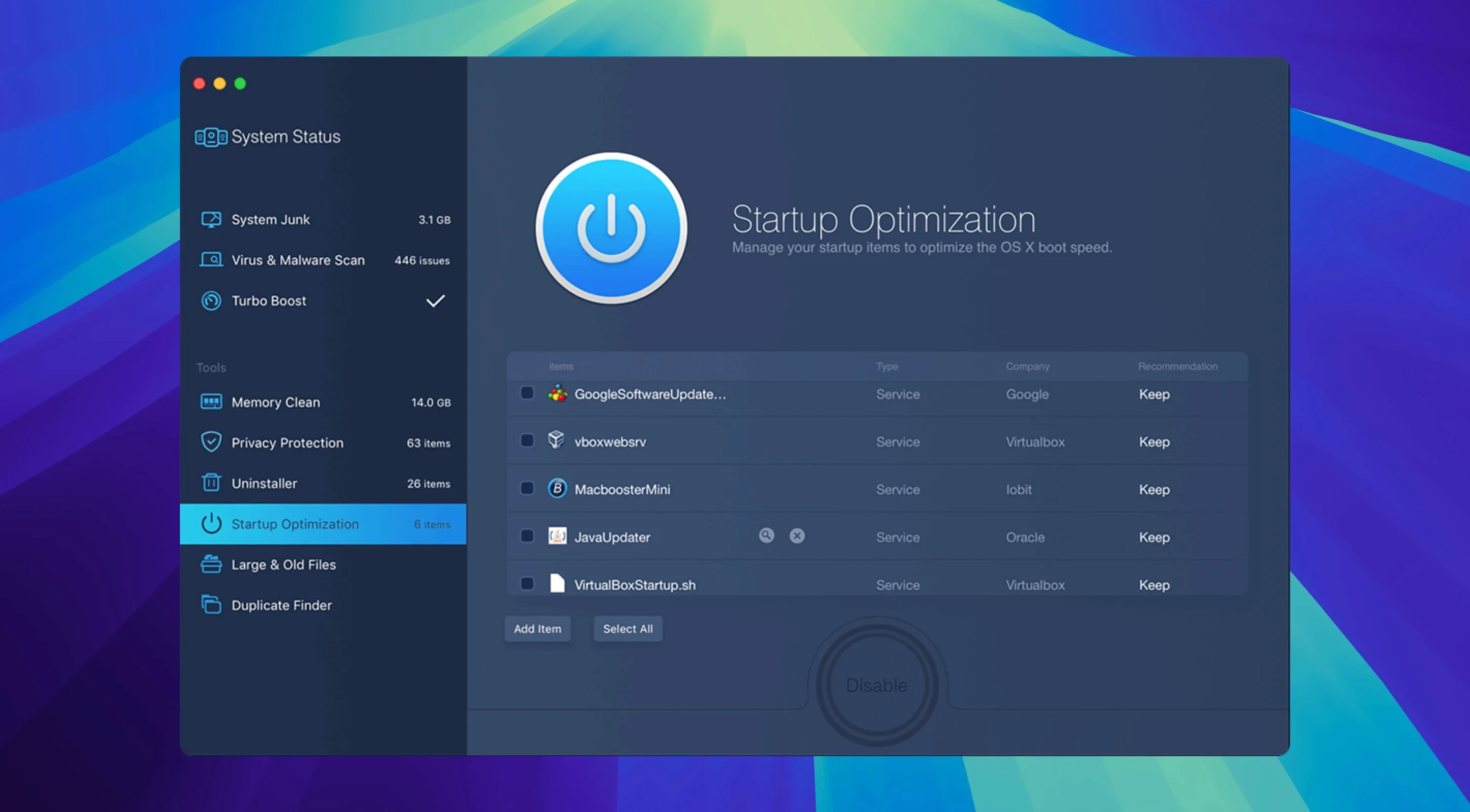
A few touches in macbooster 8 are easy to overlook. The startup optimizer, for instance, lists login items with their exact file paths and a toggle for each — something macOS System Settings buries under multiple clicks. You can spot an old helper daemon from an app you uninstalled months ago and kill it in one swipe.
The duplicate finder works on both files and photos, and it is smarter than a basic filename match. It compares actual content, so two copies of the same image with different names still get flagged. A little checkbox lets you automatically select all but one copy per group, which saves a lot of manual clicking when you are clearing out a messy photo library.
Keyboard shortcuts are sparse but useful. Command-R re-runs the last scan type, and the main window tabs — System Status, Clean, Protect, Boost — switch with Command-1 through Command-4. If you run the same cleanup sequence every weekend, muscle memory kicks in fast.
Quit Completely After a Scan — No Background Agents
MacBooster 8 Pro does not demand a permanent menu bar presence or a background agent that runs constantly. After a scan and cleanup, you can quit it entirely and nothing lingers — unlike some system utilities that install kernel extensions or launch daemons. That makes it friendly to pair with other tools; I often use it alongside DaisyDisk for storage visualization, letting MacBooster handle the actual removal while DaisyDisk shows me where the big culprits live.
The privacy module ties into Safari, Chrome, and Firefox, clearing browsing traces across all three in one pass. It respects macOS sandboxing, so it asks for Full Disk Access permission the first time you run a deep scan — standard stuff for any utility poking into Mail attachments or Messages caches. Grant it in System Preferences and it handles the rest quietly.
If you are already comfortable with the built-in Storage Management pane or the tmutil command for Time Machine snapshots, MacBooster sits one layer above those — it does not replace them, but it saves you from remembering which Terminal flag does what. For anyone who has typed sudo purge more than once, the memory cleaner button feels like a civilized shortcut.
One last fit tip: the large file scanner pairs well with iCloud Drive optimization. When macOS starts offloading files to free space, macbooster 8 Pro can surface the local copies you forgot about — old zipped projects, cached installers — so you can decide what to delete before the system pushes things to the cloud on its own schedule.
- macOS 11.5 or later
- Intel and Apple Silicon Macs
- 70+ MB of free disk space
Also on readers' docks
Sign in or create an account to leave a comment.
No comments yet. Tell me how it got on with your other devices.