Download Luminar Neo for macOS
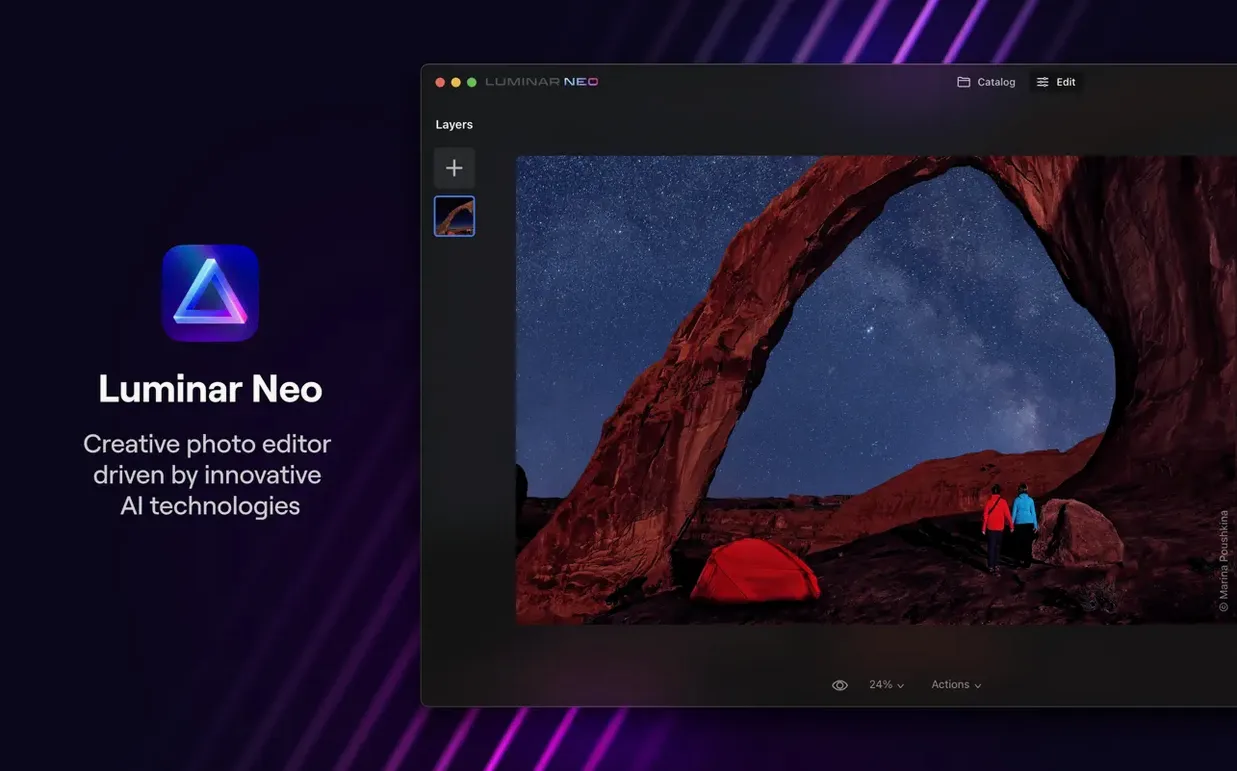

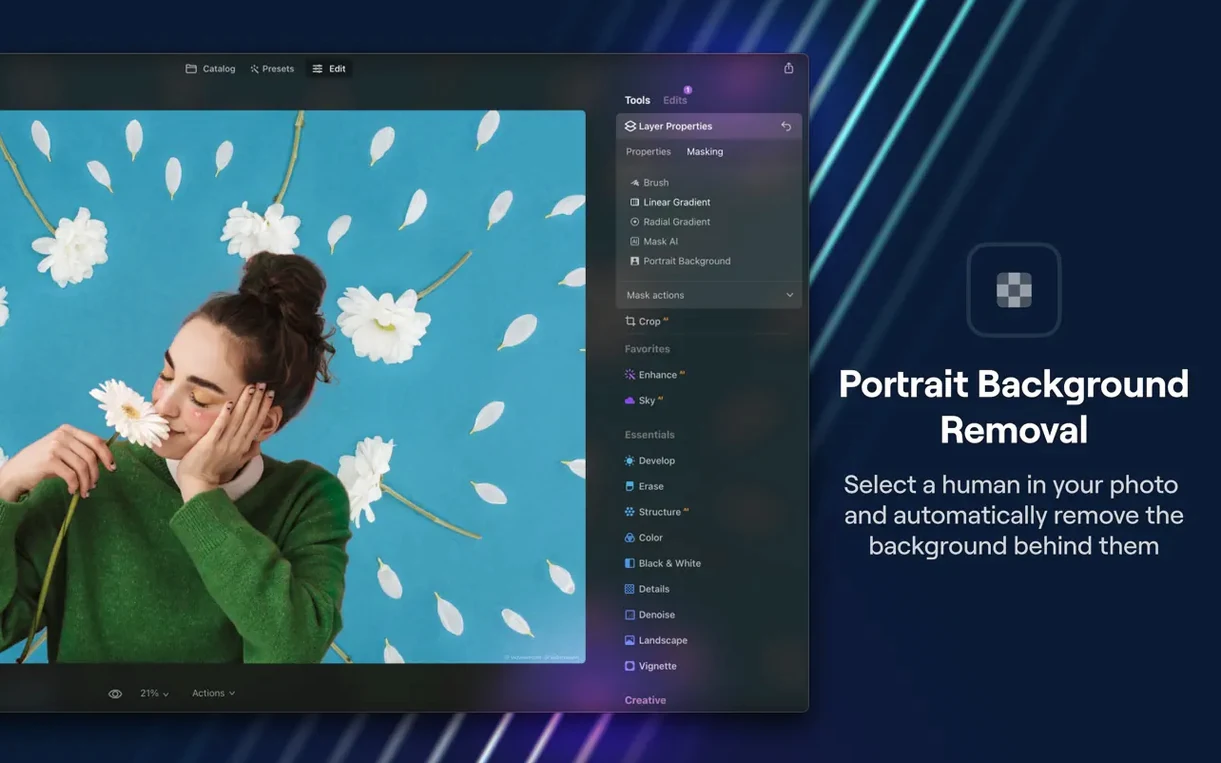
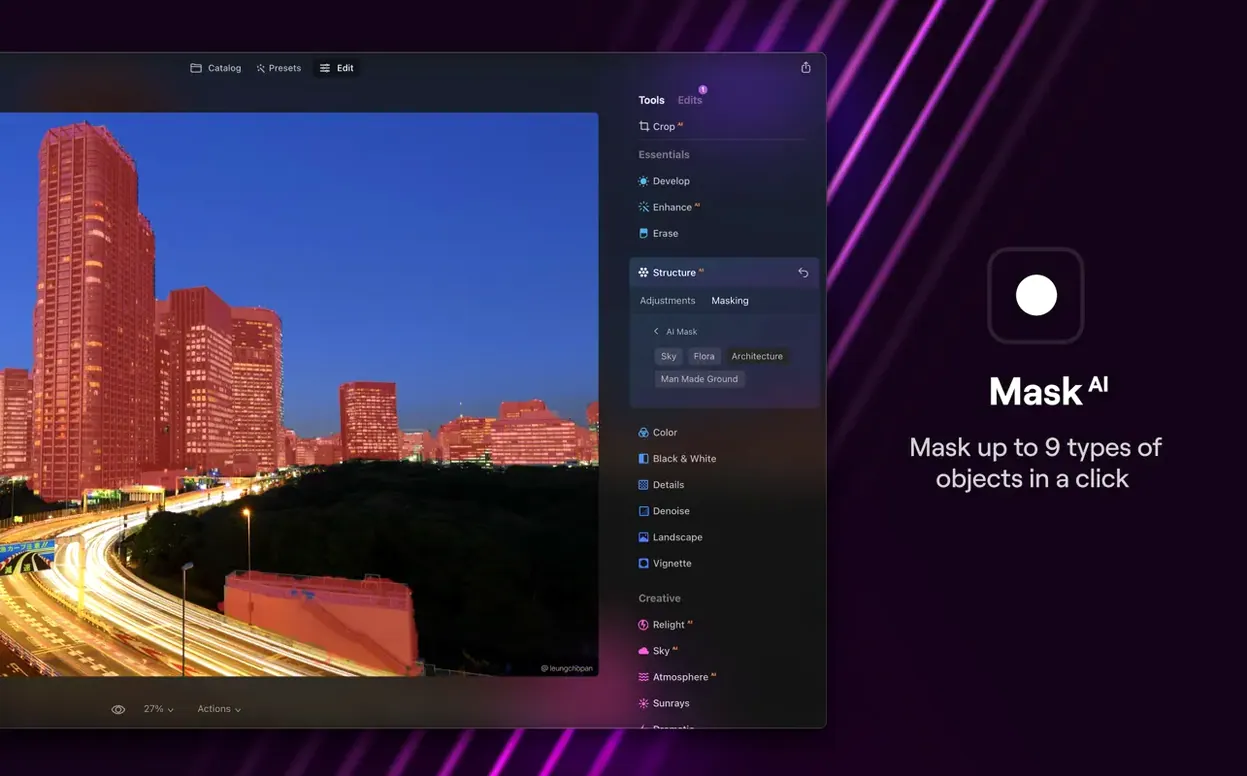
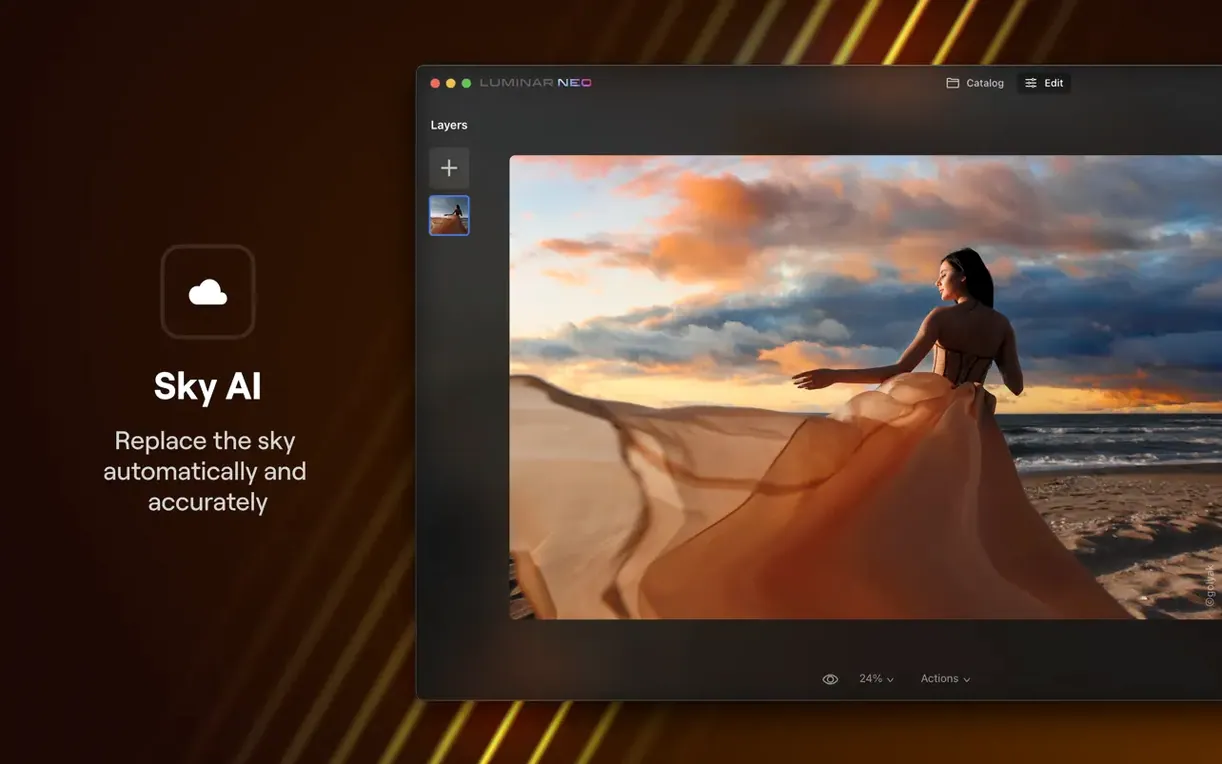
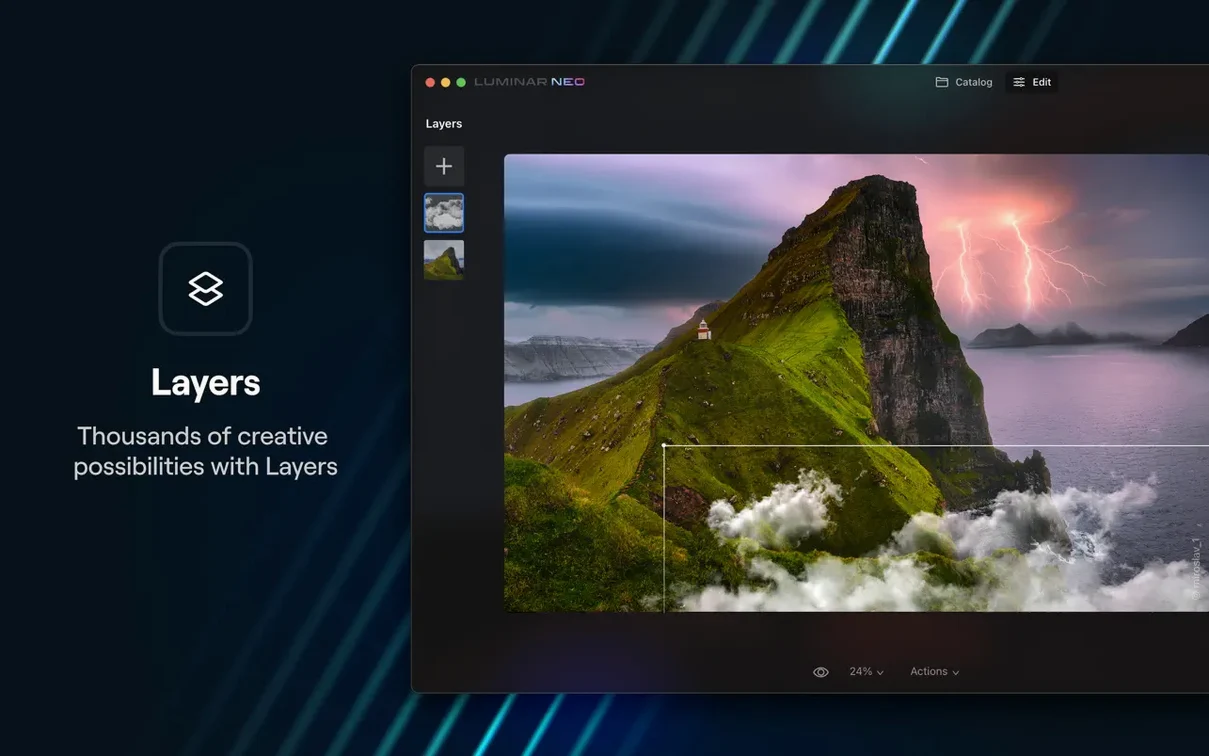
A landscape shot from last weekend has a dull sky, a sensor spot in the corner, and flat light across the hills. Here's how one pass through Luminar Neo 1.26.0 handles all three.
Terms for This Walkthrough
RelightAI — adjusts lighting based on scene depth, not just brightness sliders.
Dust Removal — automatically finds and fixes sensor spots and lens dust.
AI Assistant — suggests edits after analyzing the image content.
I opened the raw file and clicked the Edit tab. The AI Assistant now lives here and in Presets, so it offered a starting look right away. I accepted the suggestion, then moved to RelightAI. Sliding the Depth control warmed the foreground hills without blowing out the clouds behind them—Luminar Neo had already mapped the scene's layers.
Next, I zoomed in and spotted a tiny dust speck near the top edge. The new dust removal tool found it with one click and cleaned two others I hadn't noticed. A final crop and the image was ready to export. The whole sequence felt less like technical correction and more like guiding an editing companion that already understands the photo.
Editing Pass for Photos You Already Culled Elsewhere
Luminar Neo works best as a dedicated editing space, not a library manager. I keep my photos in Apple Photos or a Finder folder structure, then open individual shots in Luminar Neo when they need more than quick adjustments. The app launches fast on Apple Silicon, and dragging a raw file onto the dock icon gets me editing in seconds.
It plays well with the Finder's Quick Actions too. Select a batch of images, right-click, and send them through Luminar Neo's batch processing without opening the full editor. For people who live in the Shortcuts app, you can build automations that pass images from Photos or Files into Luminar Neo and save the results back to a specific folder. I have one that pulls my last five imported shots, runs a preset, and drops them into a "quick edits" folder on the desktop.
The extensions system hooks into Apple Photos as well. You can edit directly from Photos using Luminar Neo as the external editor, which means your library stays intact and you get non-destructive editing inside Photos' own interface. The round-trip is smooth: click edit, switch tools, save changes, and your original stays untouched in the Photos library. On the clipboard side, copying a flattened image from Luminar Neo and pasting into Pages or Keynote works just as you'd expect—no format gymnastics required.
Switch Off the Hidden Data-Collection Toggle
The defaults are sensible, but a few tweaks make the app feel more like yours. Open Preferences before your first real session and check these.
- Turn off "Send anonymous usage data." It's on by default. I switch it off unless I'm actively beta testing something.
- Set your external editor. Under the General tab, you can specify another app for round-trip editing. I point it at Pixelmator Pro for pixel-level work Luminar Neo doesn't cover.
- Adjust the catalog location. By default, Luminar Neo stores its catalog in your user Library folder. If you work across multiple drives, move it to a location that makes sense for your storage setup. The catalog can grow, so don't leave it on a cramped internal drive without checking.
- GPU settings. On the Performance tab, make sure hardware acceleration is enabled. On M-series Macs, the app flies. On older Intel machines, you might want to dial back preview quality for smoother brushing.
- Color profile handling. Under Color Management, set your preferred working color space. I use Display P3 for images destined for Apple devices and sRGB for anything heading to the web. Luminar Neo respects embedded profiles, so setting this upfront avoids surprises on export.
A Pixel Editor Without the Cataloging Bulk
Luminar Neo vs. Pixelmator Pro
Pixelmator Pro feels like a Mac app first and foremost—tight integration with iCloud, Photos, and Shortcuts, plus a one-time purchase model that suits people tired of subscriptions. Its machine learning tools are excellent for color matching and super resolution, but they're more technical than Luminar Neo's approach. Where Luminar Neo gives you sliders named after what you want to achieve—relight, enhance sky, remove dust—Pixelmator Pro gives you curves, levels, and channel mixers dressed in a beautiful interface. If you enjoy the craft of manual editing, Pixelmator Pro rewards that. If you want the app to read the photo and propose a direction, Luminar Neo's AI Assistant has no real equivalent there.
Luminar Neo vs. Adobe Lightroom Classic
Lightroom Classic is a library with an editor attached. Its cataloging, keywording, and batch workflow are decades-deep, and nothing else on macOS matches that organizational muscle. But as a pure editor, Lightroom requires you to know what you're after. Luminar Neo flips that: the editing tools are more imaginative—RelightAI, SkyAI, the portrait background removal—and they're designed for single-image creative work rather than hundred-photo wedding batches. I use Lightroom when I need to sort and lightly adjust a memory card full of shots. I open Luminar Neo when one of those shots deserves proper attention.
Luminar Neo vs. Photomator
Photomator is the closest comparison in terms of philosophy. Both apps lean on machine learning for color grading, denoising, and subject detection. Photomator embeds deeper into the Apple ecosystem—it's essentially a Photos extension with a full editor bolted on—and its batch color matching across a whole shoot is genuinely smart. Luminar Neo counters with layers and creative tools that Photomator doesn't attempt, like relighting based on depth maps and generative-style background replacement. For a photographer who stays inside Apple Photos, Photomator might feel more natural. For someone who wants to composite, relight, and creatively transform single images, Luminar Neo goes further.
Not a Lightroom Catalog Replacement
Does it replace Lightroom or Photoshop? Not entirely—and it doesn't try to. Luminar Neo is an editor, not a digital asset manager. If you maintain a catalog of thousands of client photos with star ratings, keywords, and smart collections, you'll still want Lightroom or a dedicated DAM. As a Photoshop replacement, it covers the creative retouching side well but lacks advanced compositing, precise masking tools, and plugin support. Think of it as the editor you reach for when the image needs interpretation, not just correction.
Will it run on my older Mac? Version 1.26.0 requires macOS 12 Monterey or later. Skylum has announced that the next release will drop Monterey support and require Ventura. If you're on an Intel Mac with 8 GB of RAM, Luminar Neo runs but will feel sluggish on large raw files—16 GB is the recommendation. Apple Silicon Macs handle it effortlessly, especially the M2 and M3 series.
Does Luminar Neo work offline? Yes. The AI models download during installation and run locally on your Mac. You don't need an internet connection for editing, generating previews, or exporting. The only online requirement is for account activation on first launch.
What file formats does it handle? It opens raw files from all major camera manufacturers, plus TIFF, JPEG, PNG, and PSD files. Layers and masks from Photoshop PSDs come across intact, which makes it usable as part of a multi-app workflow. Export options include JPEG, TIFF, PNG, and PSD, with full color profile control.
Beachballs When the Catalog Sits on a NAS
Catalog slowdowns on network drives. Luminar Neo's catalog expects local storage. If you point it at a NAS or an external drive that spins down, you'll see beachballs when browsing. Keep the catalog on your internal SSD and store image files wherever you like. The catalog itself is a database file, not copies of your photos, so it doesn't duplicate storage.
Brushing performance on Intel Macs. On Intel machines with integrated graphics, the masking brush can lag behind your cursor. Dropping the preview quality in Preferences helps, as does working at 50% zoom for detailed masks. This isn't an issue on M-series Macs, where the neural engine handles the heavy lifting.
Presets looking different across images. Because Luminar Neo's presets are AI-aware, the same preset applied to a portrait and a landscape will change different things. This is by design but catches people off guard. If you want consistent batch looks, build a preset with specific tool values rather than relying on the adaptive ones.
"Open Gatekeeper friendly" install step confusion. Since Luminar Neo 1.26.0 is distributed outside the App Store, macOS will block it on first launch. The workaround is straightforward: mount the disk image, then open Terminal and run the command to bypass Gatekeeper before dragging the app to Applications. If you're working with a Luminar Neo Mac torrent or a Luminar Neo Mac crack, the Gatekeeper behavior is the same regardless. Once you've run the terminal command once, the app launches normally every time after.
AI Assistant suggestions feeling repetitive. The AI Assistant learns from the image content, not your editing history. If you shoot similar scenes repeatedly—pet portraits, golden-hour landscapes—the suggestions can feel samey. The fix is to accept the suggestion as a baseline, then tweak. The assistant gets you to a sensible starting point; it's not meant to replace your taste.
Version 1.26.0 brings the AI Assistant into more corners of the app, plus a few practical cleanup tools.
- The AI Assistant now appears in both the Presets and Edit tabs, so you get suggestions faster wherever you start.
- New relighting options give you finer control over scene depth and light direction.
- A dust removal feature automatically detects and fixes sensor spots.
- macOS 12.0 (Monterey) or later
- 8 GB RAM minimum (16 GB recommended)
- Intel or Apple Silicon Mac
Questions people ask
Which macOS versions does Luminar Neo 1.26.0 support?
It requires macOS 12.0 Monterey or later, though Skylum notes that the next release will drop support for Monterey.
How much RAM does Luminar Neo need on a Mac?
Skylum lists 8 GB of RAM as the minimum, but recommends 16 GB or more for smoother performance.
Does Luminar Neo 1.26.0 work on Intel and Apple Silicon Macs?
Yes, this version runs natively on both Intel and Apple Silicon Macs.
Also on readers' docks
Sign in or create an account to leave a comment.
No comments yet. Tell me how it got on with your other devices.