
Download Little Snitch for macOS
Little Snitch is a macOS firewall that tells you whenever an app tries to phone home — and lets you allow or deny it on the spot.
See what your apps are doing right now
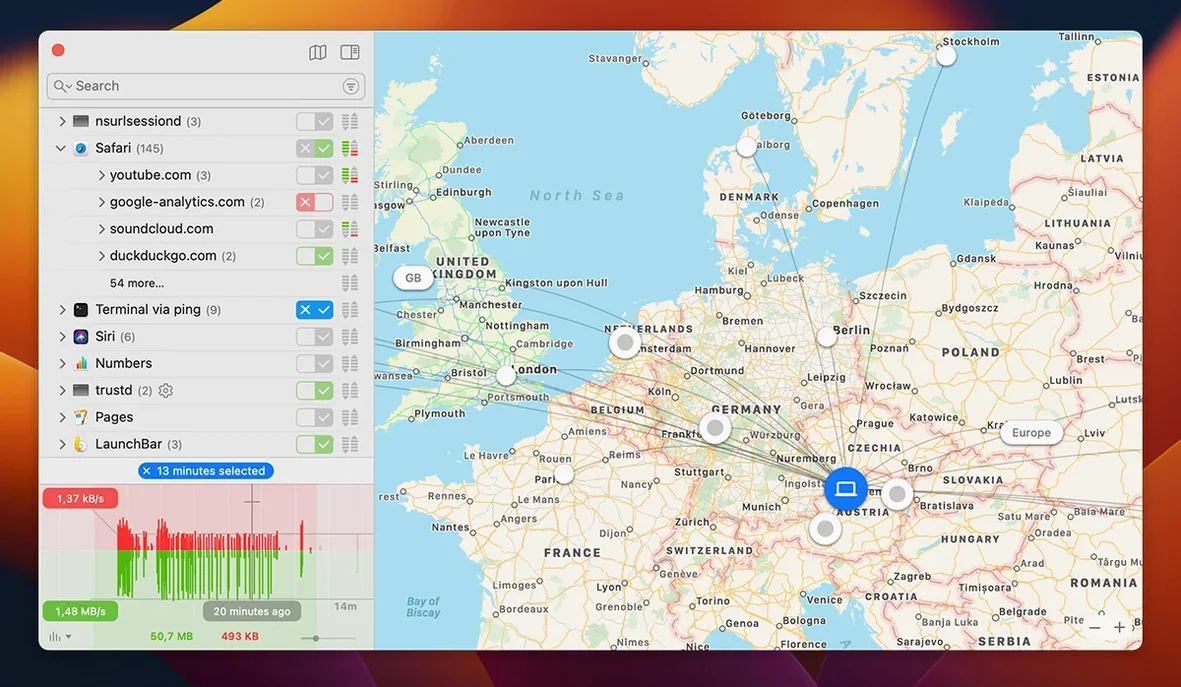
The Network Monitor gives you a live map of every connection, with the process name, server address and protocol. It’s the fastest way to spot a background updater you forgot about or a helper tool talking when it shouldn’t.
Decide connection by connection
An alert pops up the moment an app attempts to reach a server. You can approve it once, deny it, or build a permanent rule so that decision sticks. Over time, you shape a ruleset that fits how you actually work.
Postpone decisions without distractions
Quiet Mode holds all connection alerts until you’re ready to deal with them, so a sudden flurry of notifications doesn’t break your concentration during a meeting or a focus session.
Curveballs in the first days — and what actually fixes them
Little Snitch is straightforward once you settle in, but the first few days can throw a few curveballs. Here are the ones I hear about most often — and what actually fixes them.
Too many alerts right after installing
The initial flood is normal. Every background helper, sync agent and updater wants to talk, and Little Snitch doesn't know them yet. Don't try to craft permanent rules for everything in the first hour. Instead, use the Allow Once button liberally for a day or two while you work normally. Once the noise settles, open the rules window and convert the repeat offenders into permanent decisions. The Silent Mode toggle in the menu bar is your friend during that first afternoon too — it lets connections through while you observe, then you can switch back to alert mode when you're ready to be the judge.
An app breaks and you can't figure out which rule did it
This one stings. An app suddenly stops syncing, a website won't load, or a helper tool times out. Open the Network Monitor and watch for red entries while you repeat the action. Those are denied connections. Click one to see which rule blocked it, then tweak or delete that rule. A quicker diagnostic: right-click the Little Snitch menu bar icon and pick Stop Network Filter temporarily. If the app works now, you know a rule was the culprit. Don't forget to turn filtering back on.
iCloud and system services acting up
macOS relies on a web of system processes — trustd, nsurlsessiond, cloudd — that trip people up when they get blocked. If iCloud Drive stalls or FaceTime can't connect, check your rules for anything denying Apple's servers. The Network Monitor's process list is the quickest way to spot a denied system service. One practical habit: when you see a system process prompt, allow it to Apple's domains but keep an eye on it. Blocking trustd entirely, for example, breaks certificate checks across every app.
Rules that seemed smart but now feel messy
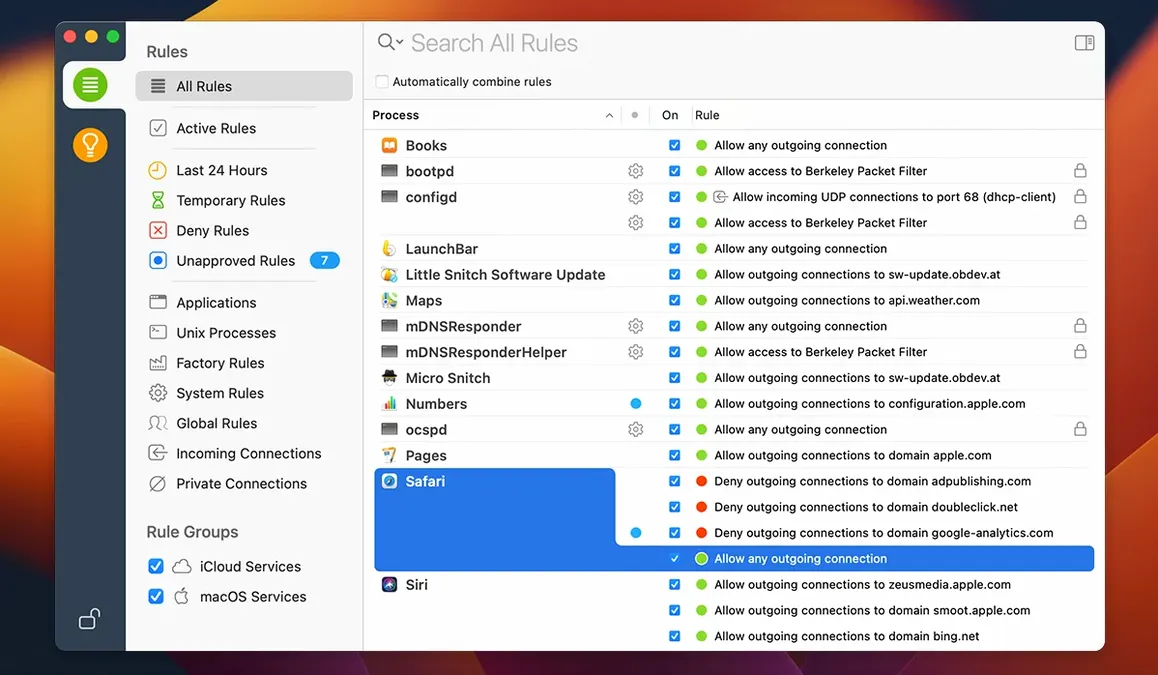
After a few months, everyone's rule list gets crufty. Temporary rules expire but permanent ones hang around. Open the rules window, click the Suggestions section and look for expired rules that never got cleaned up — version 6.5 fixed a bug where they sometimes didn't appear, so they should show reliably now. Sort by last used date and delete anything you haven't seen in weeks. A trim rule list is faster to scan when you need to troubleshoot.
Fifteen-minute setup for a quieter first hour
Before you do anything else, take fifteen minutes to set yourself up for a quieter experience. These moves pay off fast.
- Let Silent Mode carry you through setup. Turn it on from the menu bar icon for the first few hours. Apps will connect, you'll get work done, and Little Snitch will log everything without interrupting you. Later, review the log and decide what matters.
- Pre-approve your core toolkit. Open your browser, email client, messaging app and any other daily driver. Approve them permanently with a broad rule — allow connections to any server on ports 80 and 443, for example. You can tighten the rules later, but getting your essentials working smoothly from day one stops the frustration.
- Spend five minutes with the Network Monitor map. The world map isn't a gimmick — seeing a dot appear in a country you don't expect is a fast way to notice something odd. Click any connection on the map and it jumps to the process that made it.
- Set Quiet Mode to activate on a schedule. If you have deep-focus blocks in your calendar, configure Quiet Mode to turn on automatically during those hours. You'll still collect logs but won't see a single pop-up.
Morning flow after the noise settles
Here's how a morning with Little Snitch actually flows once the initial noise has settled down.
You wake the Mac and unlock it. Little Snitch's menu bar icon pulses once — a background sync agent just tried to reach its server. Since you already approved it last week, the rule fires silently and you never see an alert. No interruption.
You launch a new beta of a writing app. Within seconds, a connection alert slides in from the top right of the screen. The alert names the process, shows the server address and the port, and waits for you. You recognize the domain as the developer's analytics endpoint. You click Allow Once because you're curious about the beta but haven't decided on permanent rules yet. The alert vanishes and the app connects.
Mid-morning, you open the Network Monitor out of curiosity. The traffic history graph shows a spike you didn't expect — a menu bar weather app has been polling every two minutes. Two minutes is overkill. You open its rules, change the permanent rule to deny, and switch the app to manual refresh. Traffic drops.
Later, you connect to a coffee shop Wi-Fi. Little Snitch notices the network change and automatically switches to a stricter profile you set up for untrusted networks — blocking all inbound connections and tightening the rules for file-sharing daemons. You don't have to remember to do it yourself.
By evening, you've seen maybe three alerts all day. The rest was handled by rules you built over time. That's the rhythm: a busy first week, then mostly silence, punctuated by an occasional decision when something new appears.
When a freelancer must block design apps from phoning home
Meet Sam, a freelance designer who juggles projects for four clients. Some contracts require confidentiality about which tools they use, and Sam doesn't want a design app quietly uploading screenshots or crash reports that contain client work.
Sam installs Little Snitch and spends the first two days in learning mode — allowing connections while taking notes on which apps talk to which servers. By day three, the rules start taking shape. The design suite gets permanent approval to reach its activation server and font-syncing service, but everything else is set to ask. A project-management app wants to connect to an analytics service Sam has never heard of; that gets denied permanently.
One afternoon, a screen-recording tool tries to reach an unfamiliar domain on a high port. The alert stops Sam cold. A quick search shows the domain belongs to a telemetry aggregator. Sam denies it and emails the tool's developer to ask what data it sends. No client material leaked, and Sam now has a paper trail of the decision.
For Sam, Little Snitch isn't about paranoia — it's about keeping professional obligations. The ruleset grows organically, project by project, and the Network Monitor's hourly traffic history becomes a lightweight audit log. When a client asks whether any third party saw their work in progress, Sam can answer with confidence.
Hostname lookups vanish from inbound connections
Version 6.5 doesn't overhaul the interface, but the changes under the hood shift how the app behaves day to day. The most noticeable is the move away from hostnames for inbound connections — if you used to see hostname lookups in your inbound rules, those are gone now, replaced by IP-based handling. For most people, that means fewer DNS-related delays when rules are evaluated, especially on spotty networks.
The experimental NAT64 implementation matters if you work on IPv6-only networks — certain corporate VPNs and mobile hotspots use them — and were seeing connection failures that didn't make sense. With NAT64 support, apps that only speak IPv4 can now reach servers through an IPv6 gateway without Little Snitch getting in the way. It's experimental, so it's off by default, but worth toggling on if you roam across networks a lot.
Encrypted DNS handling got a quiet improvement. If you use DNS-over-HTTPS or DNS-over-TLS, earlier versions sometimes classified those packets oddly or let them slip past rules. Version 6.5 handles them more predictably, so your filtering stays coherent even when DNS itself is encrypted.
App bundle integrity monitoring is the kind of feature you won't notice until it saves you. While an app is running, Little Snitch now keeps an eye on whether its bundle has been tampered with. If something modifies the app's code on disk while it's active, Little Snitch can react — useful for catching a certain class of malware that swaps out trusted binaries after launch.
The small fix for expired temporary rules not appearing under Suggestions means manual cleanup is easier now. Before 6.5, some expired rules lingered invisibly, cluttering the rules engine without a way to see them. Now they surface where they belong, and a quick pass through the Suggestions pane every few weeks keeps the rule list honest.
For anyone still running an earlier build, the jump to 6.5 also brings the newer filtering engine that replaced the old kernel-extension approach. That change happened in an earlier release, but combined with 6.5's refinements, the whole stack feels snappier — alerts appear faster, the Network Monitor scrolls without stutter, and rule evaluation adds less overhead to connection setup.
- Adds compatibility with macOS 27 Golden Gate.
- Monitors app bundle integrity while running.
- Adds an experimental NAT64 implementation.
- Improves handling of encrypted DNS.
- macOS 14 or later
- Intel or Apple Silicon Mac
- Languages: English, German
Questions people ask
Does Little Snitch work on Apple Silicon Macs?
Yes, version 6.5 runs natively on both Intel and Apple Silicon Macs and requires macOS 14 or later.
Can I control Little Snitch from the Terminal?
Absolutely. It includes a command-line interface for scripting and configuration, which is handy for automation and remote management.
What happens to alerts when I don’t want to be interrupted?
Quiet Mode postpones all notifications and decisions, letting you review and handle them later without losing any connection data.
Also on readers' docks
Sign in or create an account to leave a comment.
No comments yet. Tell me how it got on with your other devices.