Download LaunchOS for macOS
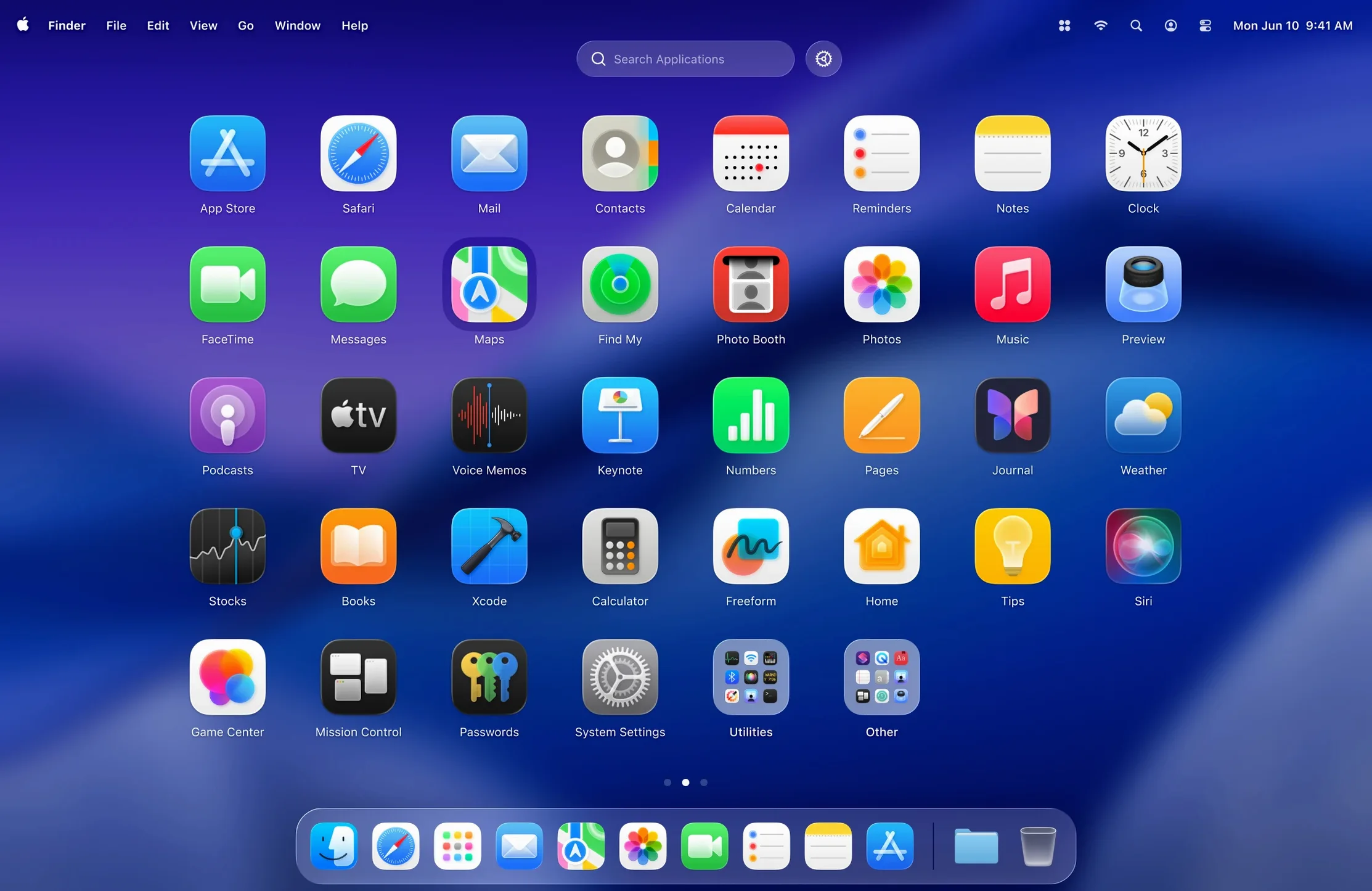
Launchpad was a good idea that Apple never quite finished. Over time it becomes a messy grid of every helper tool and utility you’ve ever installed, with no way to tidy it up. LaunchOS from Remix Design Studio steps in to fix exactly that, giving you a familiar-looking app launcher that actually respects how you want to work.
Hiding the apps you never want to see
Not every app belongs in your launcher. LaunchOS lets you hide selected apps so you only see what matters, keeping the grid clean without uninstalling anything.
Launching with a gesture or keystroke
You can trigger the launcher with a trackpad gesture or a custom keyboard shortcut, so your most-used software is always a flick or keystroke away.
Making it look like part of the system
Picking up where Finder leaves off
Finder handles files beautifully but treats apps as folders you happen to double-click. LaunchOS bridges that gap by acting as a dedicated app switcher that coexists with Spotlight, Stage Manager, and the Dock. You can still search for a document in Spotlight while keeping a grid of just your creative tools pinned to a hot corner. The app doesn’t try to replace every macOS launcher — it specifically improves the one Apple left to gather dust, and it plays nicely with the rest of the system. Notifications, Mission Control spaces, and full‑screen split arrangements all remain completely intact because LaunchOS operates at the app‑launch level, not as a window manager overlay.
The status bar menu added in version 2.1.0 makes this integration even smoother. A quick click gives you Restart without digging through Apple menus, and the right‑click context menu mirrors what you’d expect from Finder without cluttering the grid itself. If you’ve trained yourself to right‑click a Dock icon to quit or hide an app, the same muscle memory carries over here.
A student’s morning in three swipes
Consider someone juggling a research paper, a part‑time design gig, and the usual messaging chaos. Their Mac came loaded with GarageBand, Stocks, and a handful of chess apps they’ll never open, but uninstalling them feels drastic. With LaunchOS they hide those distractions once and never see them again. They set a four‑finger swipe to bring up a 5×4 grid, the top row reserved for Pages, Safari, Keynote, and Figma. The bottom corner holds Slack and Music. A single tap from the trackpad launches whatever they need, and the Liquid Glass background shifts subtly as they move between a dark dorm room and a sunlit library, keeping the launcher readable without looking like a pop‑up from a different operating system.
When a group project demands they share a screen recording, they right‑click QuickTime Player from the grid and hit Restart to clear a sluggish background process before recording — all without opening Finder or System Settings. That little workflow shaves off maybe fifteen seconds, but multiplied across a semester it means they spend less time managing the Mac and more time doing the actual work.
Alfred lacks LaunchOS’s visual grid
Three other launchers tend to come up in the same conversation. Alfred is a keyboard‑driven powerhouse that indexes files, runs workflows, and performs calculations. It’s brilliant for people who live on the keyboard, but it doesn’t give you a visual grid or gesture‑based app browsing. LaunchOS takes the opposite approach — it’s for when you want to see your apps laid out like icons on a shelf, not type the first three letters of a name.
LaunchBar leans even harder into text‑based navigation and file manipulation, and it’s been around long enough to feel native to the Mac. It’s also dense to learn. If you’ve ever watched someone new to macOS stare at a blinking cursor in a launcher and wonder what to type, you’ve seen the gap LaunchOS fills. The visual grid is self‑explanatory in a way no keyboard launcher can match.
uBar reimagines the entire Dock and task‑switching experience as a Windows‑style taskbar. It’s a much larger overhaul that affects how you interact with windows and running apps minute to minute. LaunchOS keeps things narrower — it only replaces the app‑launching grid, leaving the Dock and window management untouched. That restraint makes it a lighter lift for people who like most of macOS 26 but just want a saner Launchpad.
Fans of iPad home screens take to it instantly
Visual organizers get the most out of LaunchOS. Designers, illustrators, and anyone who arranges their physical desk into zones will naturally sort app icons into a grid and remember positions faster than names. Students who grew up on iPad home screens find the gesture‑triggered grid immediately intuitive — the jump from swiping between SpringBoard pages to swiping up a Mac launcher is almost nonexistent.
Users running macOS 26 on a MacBook Air or a desktop Studio alike benefit because the Liquid Glass effect isn’t a heavy compositing tax; it uses the system’s own rendering pipeline rather than bolting on a custom transparency engine. That keeps battery impact low on laptops while still looking cohesive on a big external display. If you’ve ever hesitated to replace a built‑in macOS feature because third‑party alternatives tend to feel janky or out of place, LaunchOS is built to sidestep that worry entirely — it targets the one Apple utility that already needed a rethink and leaves the rest of the experience alone.
With full support for macOS 26’s Liquid Glass effect, LaunchOS doesn’t feel like a bolt-on. The translucent, depth-aware design blends right into the desktop.
- macOS 26 or later
- Apple Silicon or 64‑bit Intel processor
Questions people ask
Does LaunchOS work on Intel Macs?
Yes, it runs on both Apple Silicon and 64-bit Intel Macs, as long as you’re on macOS 26 or later.
Can I uninstall apps directly from LaunchOS?
Version 2.1.0 introduced app uninstallation via long-press and right-click triggers, so you can remove software without hunting through Finder.
Also on readers' docks
Sign in or create an account to leave a comment.
No comments yet. Tell me how it got on with your other devices.