Download Keyboard Maestro for macOS
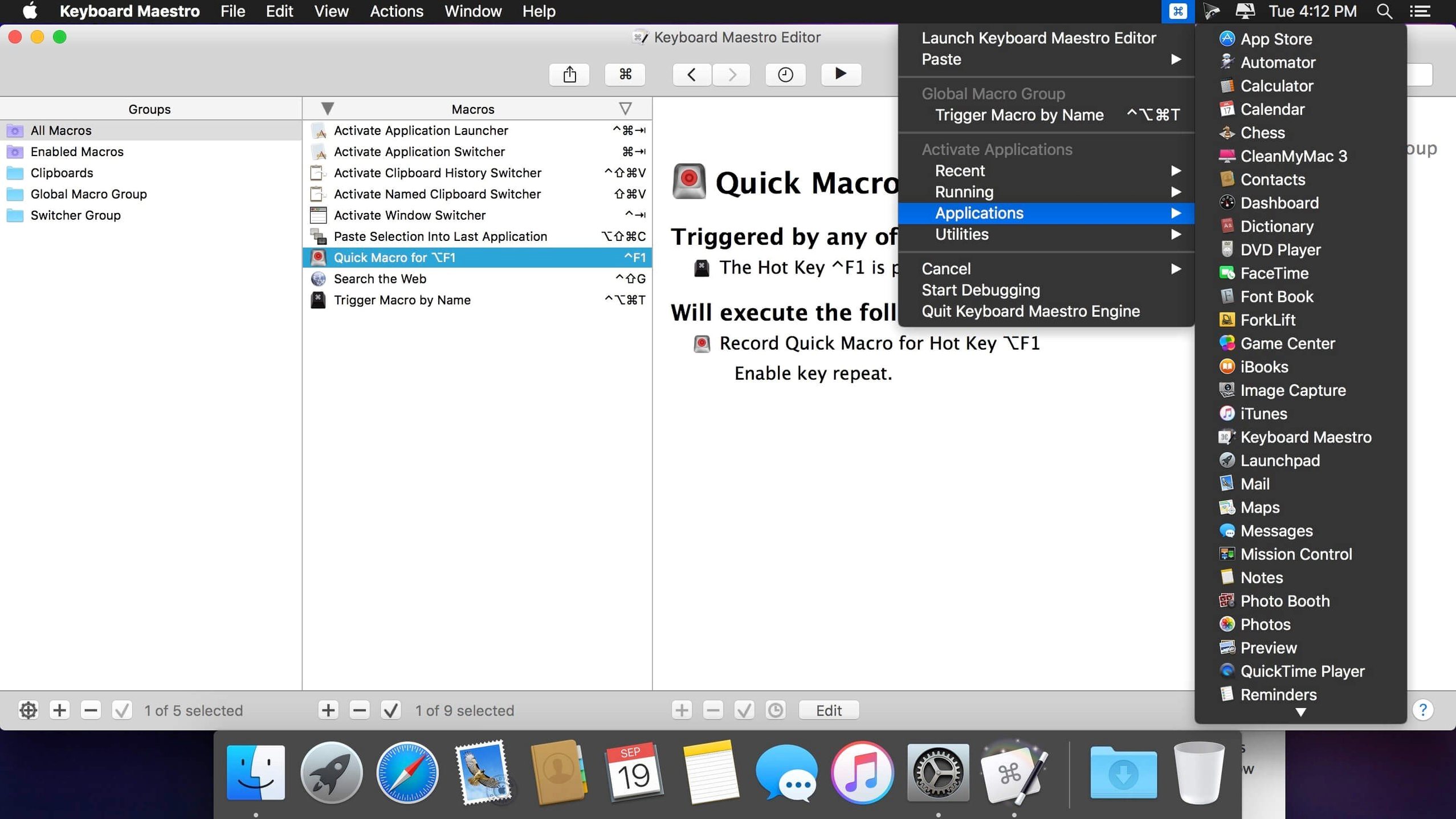
Your MIDI controller has knobs, pads, and faders sitting idle while you mouse through Ableton’s menus. Keyboard Maestro lets you map that hardware to almost anything on your Mac—launching apps, rearranging windows, or pasting a multi-clip clipboard history, all without touching the trackpad.
Runs on 10.13 High Sierra and Apple Silicon with no extras
It runs on macOS 10.13 High Sierra or newer, works natively on both Intel and Apple Silicon, and asks for nothing beyond a standard drag-to-Applications install.
Build a trigger
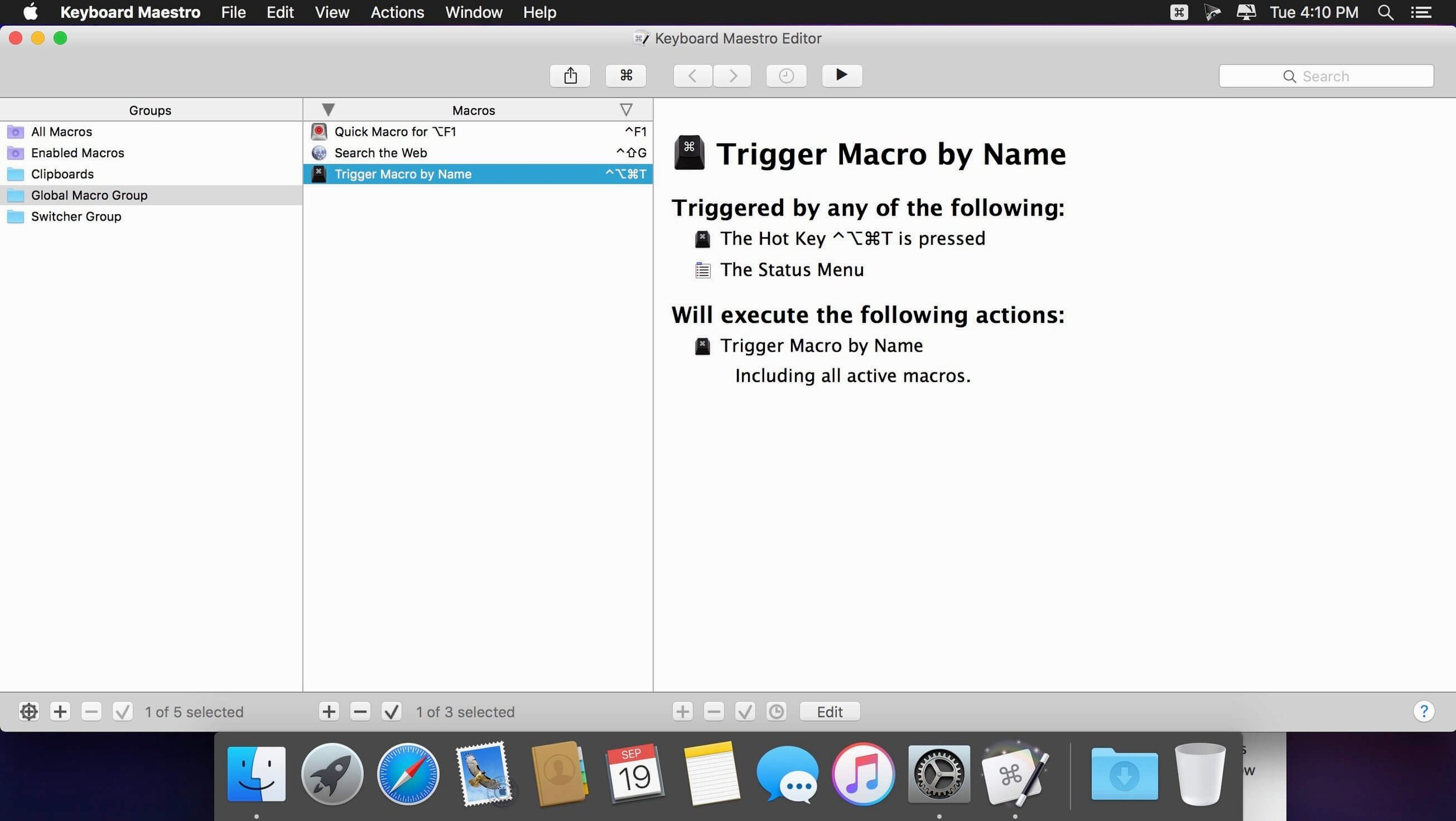
Pick a MIDI note, a keyboard shortcut, or even a time of day, then chain together hundreds of built-in actions with flow control, conditions, and loops that span your browser, Finder, and Ableton Live.
Filter and paste
Grab multiple clipboard entries, filter them on the fly, and paste exactly what you need—great for managing sample names, patch notes, or forum posts while a session is open.
Squeezing more from a cheap MIDI controller across apps
Musicians and producers who split time between a DAW, a browser, and Finder are the obvious crowd—especially anyone who's ever Googled ableton keyboard midi hoping for a way to make a cheap controller do more than trigger clips. But the utility stretches well past the studio.
Writers and editors who juggle multiple style guides, research tabs, and submission forms find the text-expansion and clipboard-filtering tools quietly life-changing. Developers lean on it for launching project-specific terminal setups, rearranging windows across monitors, and automating build steps that would otherwise be a dozen manual clicks. Anyone who repeats the same three-to-eight-step sequence more than twice a day—resizing images for a newsletter, filling a timesheet, pulling reports from a web dashboard—will feel the payback within the first week. The common thread is this: if you already think in terms of workflows rather than individual clicks, Keyboard Maestro speaks your language.
Clipboard history size and other defaults to change first
Out of the box the engine is capable but polite. A few tweaks make it significantly more useful, especially if you plan to build macros that touch multiple apps.
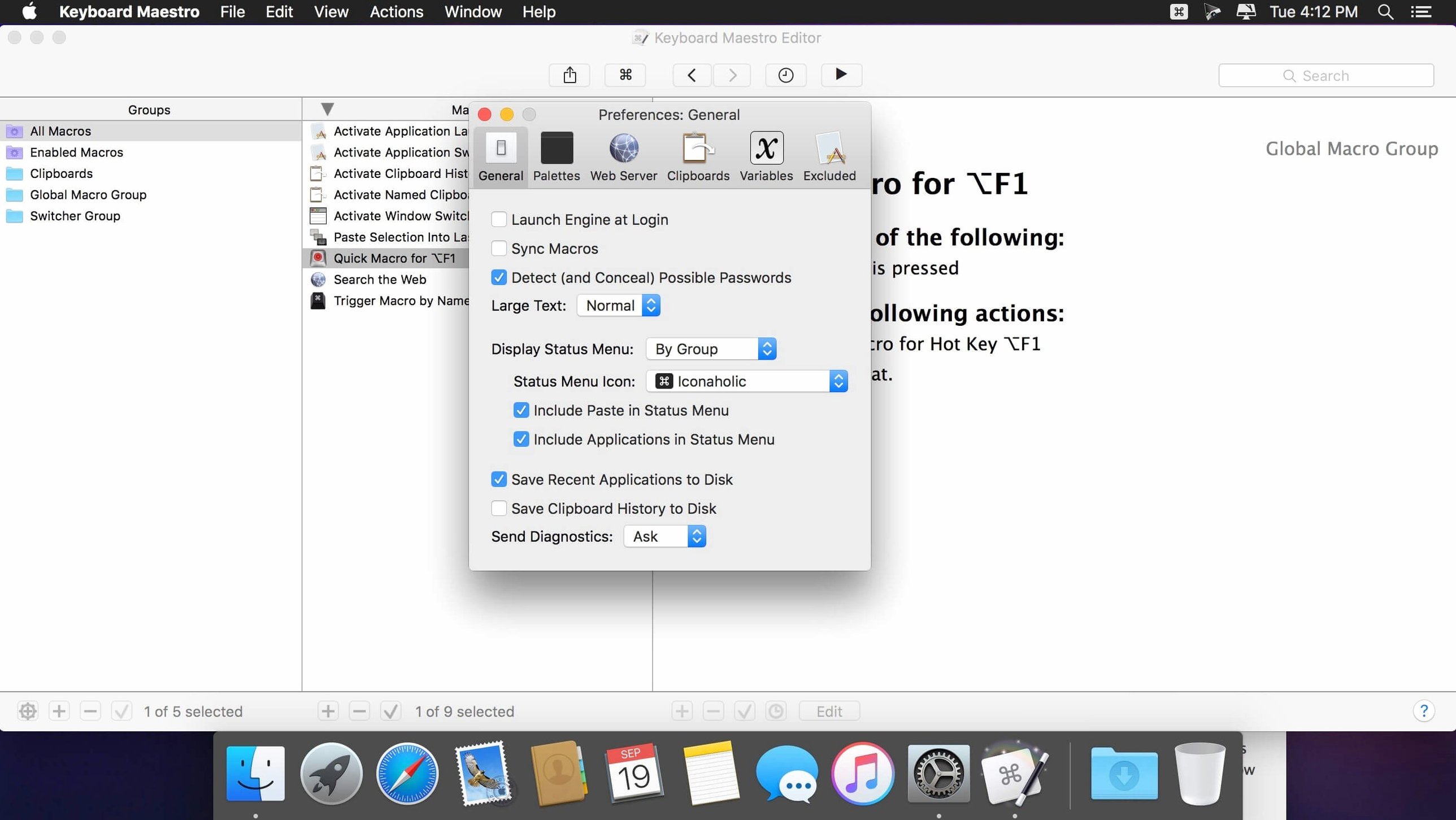
- Clipboard history size. The default stores a modest number of entries. Bump it up under Preferences > Clipboard if you regularly copy sample names, patch settings, or chunks of markup you might need again an hour later.
- Conflict palette behavior. When two macros share the same hotkey, the default behavior is to do nothing. Switch it to show the conflict palette so you can pick the right action on the fly rather than wondering why nothing happened.
- Enable the status menu icon. It gives you one-click access to the macro list, the clipboard history, and a quick disable toggle—handy when you're recording in a DAW and don't want stray shortcuts interfering.
- Editor font size. The macro editor uses a compact default. If you're building long chains with conditions and loops, bumping the font up a point or two in Preferences > Editor reduces eye strain during heavy editing sessions.
Why recorded macros replay literal coordinates and keystrokes
Most early frustration comes from three habits that are easy to fix once you spot them.
Recording a macro and expecting it to be smart. The record button captures exact mouse coordinates and literal keystrokes. Play that back on a window that moved three pixels or an app that loaded slower than last time, and it falls apart. Record to learn what actions you need, then rebuild the macro with semantic actions like "Click button with name" or "Insert text by pasting" instead of raw clicks.
Ignoring the scope selector. Every macro has a "Available in" setting that defaults to all applications. Beginners build a shortcut that types an email template, then wonder why it triggers inside Ableton and pastes half a signature into a track name. Set the scope per macro—it's the dropdown right at the top of the editor—and save yourself the cleanup.
Stacking too much into one macro. It's tempting to build a single mega-macro that launches your entire morning setup: apps, window positions, a browser dashboard, and a clipboard clear. When one step changes—say a website URL shifts—the whole thing breaks and debugging becomes a detective job. Break big workflows into smaller named macros and chain them with the "Execute Macro" action. You'll thank yourself later.
Workflow: turning a controller knob into a window manager
Here's a practical build that connects an inexpensive MIDI controller to macOS window management, no DAW required. The goal: twist one knob to cycle through window arrangements on a single display.
Start by opening Keyboard Maestro and creating a new macro group scoped to "All Applications." Click the plus button to add a new macro, then in the trigger section choose MIDI Trigger. Twist the knob you want to assign—Keyboard Maestro catches the CC number and channel immediately. Set the trigger to fire on any value change.
Now build the action chain. Add an "If Then Else" condition block. For the condition, use a variable check: create a local variable called WindowLayout and test if it equals 0. In the "Then" branch, add a "Manipulate Window" action set to move the front window to the left half of the screen, then a "Set Variable" action that sets WindowLayout to 1. In the "Else" branch, add another condition checking for 1, move the window to the right half, and set the variable to 2. Add a final else that moves the window to full screen and resets the variable to 0. The knob now cycles left-half, right-half, full-screen with each twist.
Test it by clicking a Finder window and turning the knob. If the window jumps to the wrong position, check that the variable is initialized—add a "Set Variable" action at the very top of the macro with a value of 0 so it starts from a known state every time the engine launches. From here you can extend the chain to handle multiple displays, specific app layouts, or even send MIDI feedback back to a controller with lights.
The 11.0.4 update brings smarter debugging and visual feedback:
- Switch/Case actions now show which entries are true or would execute.
- OCR conditions support Apple Text Recognition.
- Tool tips appear in the Macro Debugger window.
- A search highlighting trigger issue has been fixed.
- macOS: 10.13 or later
- Architecture: Intel and Apple Silicon
Questions people ask
Does Keyboard Maestro work on Apple Silicon?
Yes, it runs natively on both Intel and Apple Silicon Macs with macOS 10.13 or later.
Can Keyboard Maestro launch applications?
Absolutely—it can start frequently used applications, visit web pages, and automate windows and documents as part of a macro.
Also on readers' docks
Sign in or create an account to leave a comment.
No comments yet. Tell me how it got on with your other devices.