Download Jump Desktop for macOS
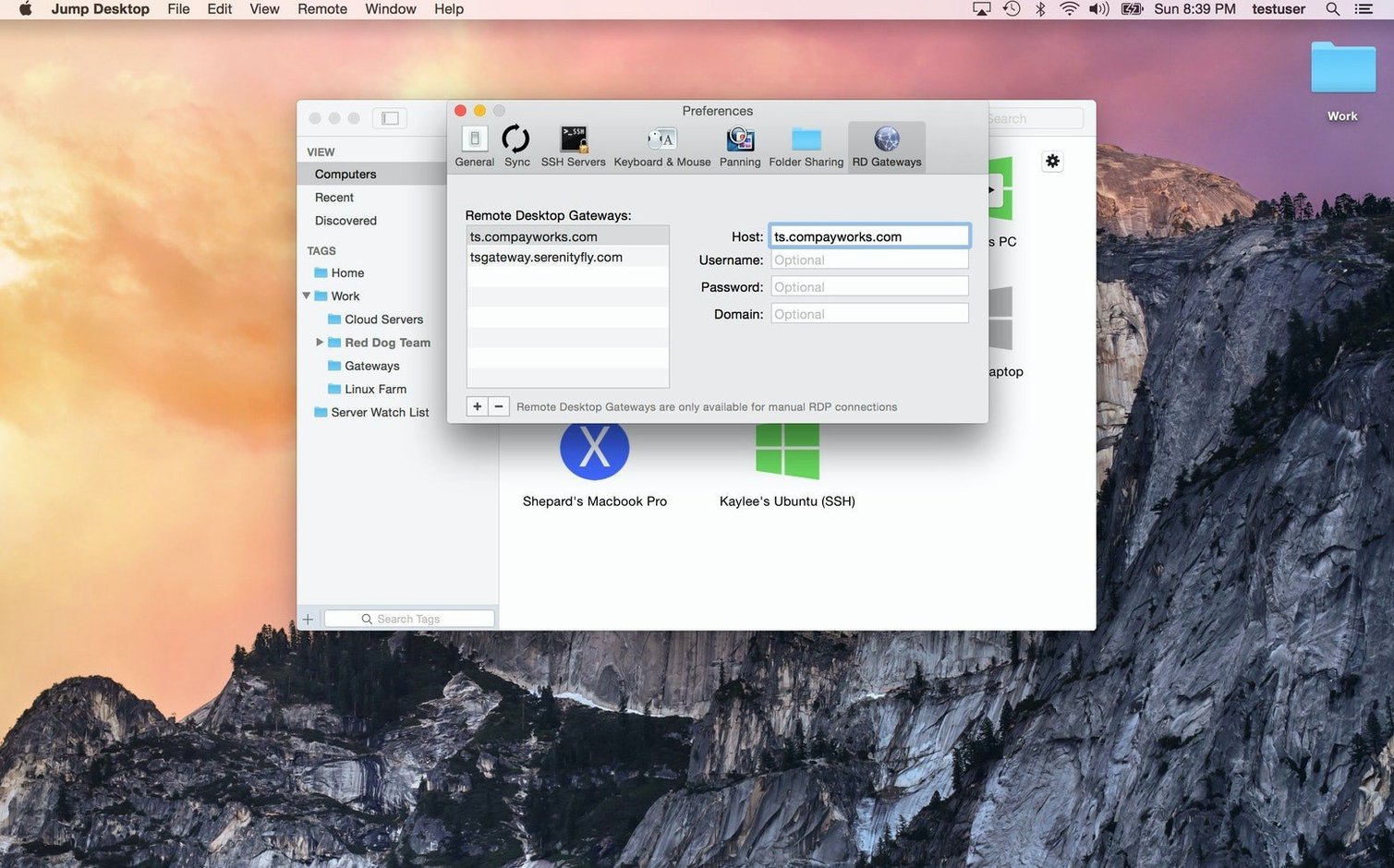
This version landed without a splashy feature list, but that quiet release is actually a good sign—Phase Five Systems tends to ship stability improvements and under-the-hood polish that keep the app feeling snappy on both Apple Silicon and Intel Macs.
Unlock Fluid’s Speed with the Connect Companion
- Set up Fluid Remote Desktop. This is Jump's own protocol and it honestly leaves plain VNC in the dust. Install the free Jump Desktop Connect companion on the Mac or PC you want to reach, link it with your account, and you get a buttery-smooth desktop that adapts to your local screen. It's the feature that makes you forget you are remote.
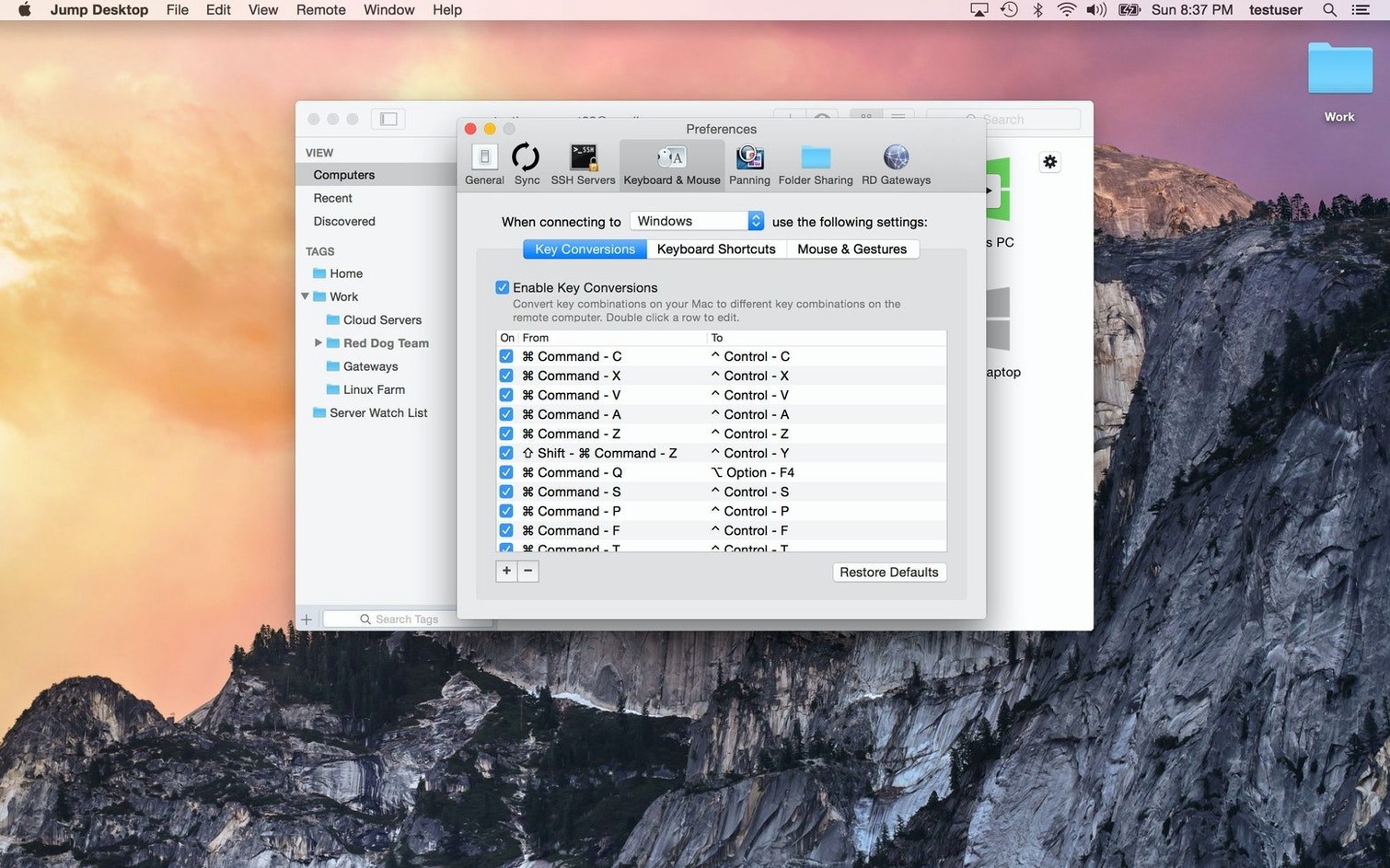
- Remap a key right away. Jump lets you tweak the keyboard mapping per connection. If you are hopping from a Mac to a Windows machine and keep hitting Alt instead of the Windows key, fix it once in the session settings. Muscle memory wins.
- Drag a file across. With Fluid or RDP, you can copy a file on your local Mac and paste it straight onto the remote desktop. It uses the clipboard, so the transfer feels invisible until you need it—then it is the only thing that matters.
Newcomers who juggle a Mac alongside a PC or a headless server will feel at home fastest. Start with Fluid, fix one key, and send a file. Those three moves cover most of what makes Jump worth keeping on your Dock.
Settings Worth Tuning Before You Do Anything Else
Jump Desktop ships with sensible defaults, but a few quick changes make it feel like a different app—especially if you bounce between multiple remote machines.
- Switch the default quality to "Smooth" for Fluid connections. Out of the box it leans toward sharpness, which looks crisp on text but can stutter on weaker Wi‑Fi. Smooth prioritizes frame rate over pixel‑perfect rendering and keeps the remote desktop feeling local even on a coffee‑shop connection.
- Disable "Show remote cursor" when you are the only one connected. Seeing two pointers—yours and the host's—gets confusing fast. In the session editor, under Display, uncheck that box and you get a single, responsive cursor that behaves like it belongs to the machine in front of you.
- Lock the keyboard mapping to a specific layout. Jump can auto‑detect, but if you regularly connect to the same Windows box from your Mac, set it to "Windows (PC)" manually in the Keyboard section of the connection settings. No more guessing which modifier does what.
- Turn on "Reconnect automatically." Found under Advanced, this one is easy to overlook. If your connection drops for a few seconds—hotspot handoff, router hiccup—Jump quietly re‑establishes the session instead of leaving you staring at a frozen screen.
Green Dot, Instant Access from a Café
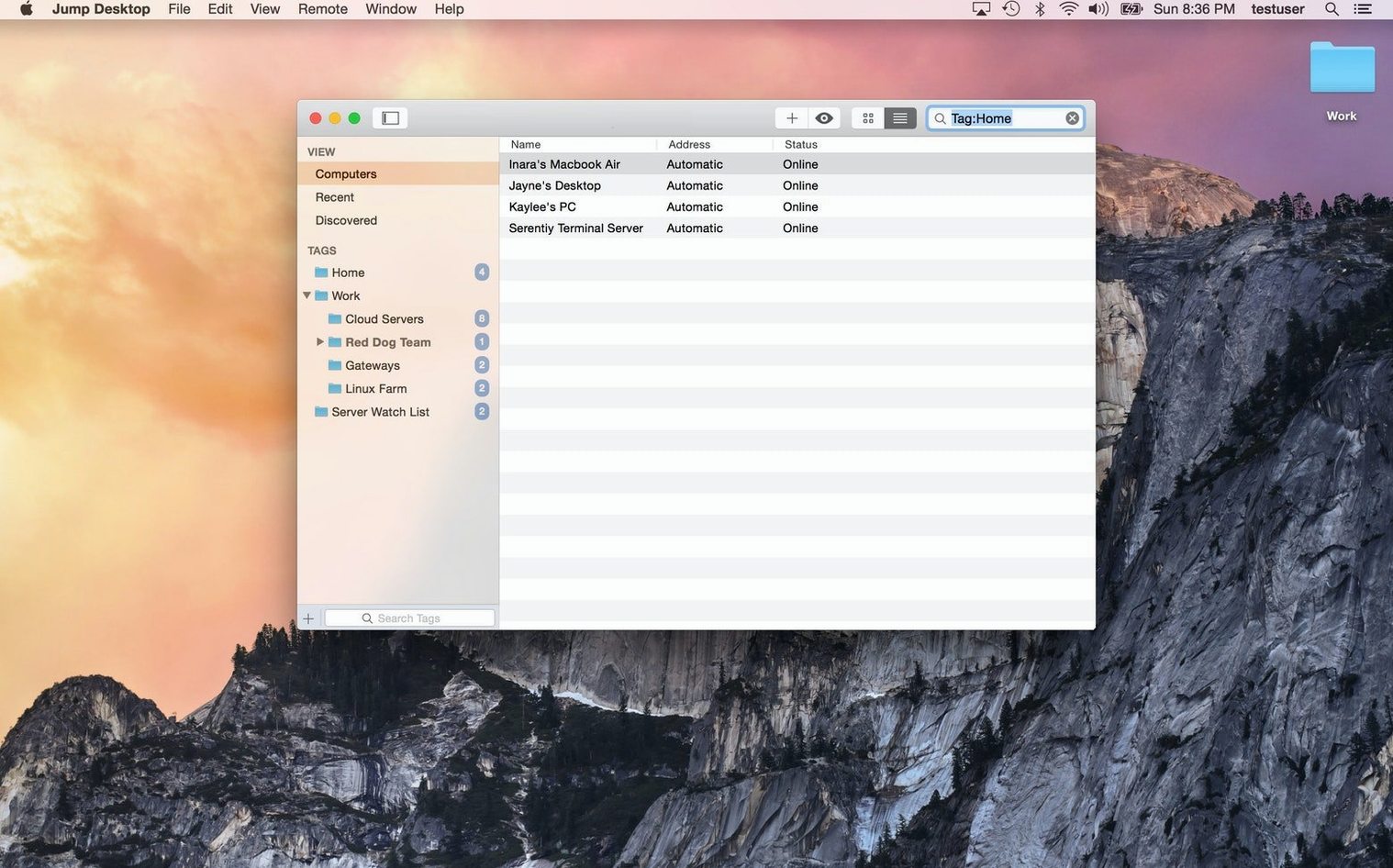
You are at a café with your MacBook, but the modeling project you need lives on the iMac back at the office. You open Jump Desktop and see a grid of saved connections. The office iMac shows a green dot—Jump Desktop Connect is running and reachable—so you double‑click it.
Within three seconds the remote desktop fills your screen, scaled cleanly to the MacBook's resolution. You launch Blender on the remote machine, and the viewport pans smoothly under Fluid, with barely a hint of compression artifacts on the wireframe edges. You need a reference image from your local Downloads folder, so you copy it on the MacBook, switch back to Jump, and paste it right onto the iMac's desktop. The file slides across as if both machines share a clipboard.
Halfway through, you realize a shortcut you use constantly—Cmd+Z in Blender—is sending an unwanted Windows‑style undo because the keyboard mapping drifted after a host reboot. You open the session menu while still connected, click the Keyboard tab, and force the mapping to Mac layout. The next Cmd+Z works perfectly, and you keep working without restarting the session.
Before packing up, you drag the exported render from the iMac's desktop to your MacBook's Finder. Jump Desktop treats it like a local copy, and you walk out with the file you came for.
Reviving a Fluid Link Stuck on ‘Connecting’
Even a polished app like Jump Desktop has a few rough edges that trip people up, especially during the first week.
- Fluid connections stuck on "Connecting…" Almost always a firewall or router issue on the host side. If you just installed Jump Desktop Connect on the remote machine, give it a minute to punch through UPnP; if your router does not support that, you will need to forward port
5900manually. The Connect app's status panel spells out exactly what is blocking it. - Clipboard sharing works one way but not the other. This usually means the remote machine is running an older VNC server that does not support bidirectional clipboard. Switch that host to Fluid or update its RDP configuration. With Fluid, clipboard sync is practically instant in both directions.
- Blurry text on a Retina display when using RDP. RDP sessions do not always negotiate HiDPI correctly. In the connection's Display settings, bump the resolution to "Native" and check "Use Retina resolution" if the remote host runs a recent version of Windows. The difference is night and day on a MacBook Pro screen.
- Audio playing on the remote machine instead of locally. Jump defaults to leaving sound on the host, which is awkward when you are trying to hear a notification from across the house. In the session editor, under Audio, set "Play sound on this computer" and remote audio streams to your local speakers or headphones.
If you grabbed a jump desktop dmg and the app refuses to open after dragging it to Applications, a quick Terminal detour with Gatekeeper usually sorts it—but once it is running, the connection hiccups above are the only real friction you will encounter. Many who explore a Jump torrent or Jump Desktop crack find that once the app is set up correctly, it simply works, and the smooth connectivity makes it a genuinely satisfying experience.
Jump Desktop 10 is a major release that rethinks how fluid a remote desktop can feel. The headline feature is support for up to 480 frames per second — set Framerate to Auto and games, scrolling, and fast motion finally keep up with high-refresh-rate displays. Hardware encoding joins the party too (switch to Codec > Hardware), delivering sharper detail at the same bandwidth while giving your host CPU a break and stretching your Mac’s battery life.
Virtual displays get a serious upgrade. You can now save and switch between presets with exact resolution, scale, and refresh rate, and a new Keep After Disconnect option leaves those displays alive on the host between sessions. USB device redirection arrives as well, so color grading panels and other desk peripherals can be piped straight to a Windows or Mac host. Game controller support means you can play remotely with the controller in your hands, right from your Mac.
Creative workflows benefit from two thoughtful additions: Input Trail shows stylus and mouse strokes immediately even on high-latency connections, and Color Passthrough sends the host’s colors unprocessed to calibrated displays. Everyday work gets back and forward mouse buttons, trackpad pinch-to-zoom, and more reliable Chinese, Japanese, and Korean text composition.
Improvements and fixes
- In Fluid sessions, the macOS shortcut for switching input sources (Control+Space by default) now switches the input source on your Mac instead of being sent to the host. Turn the shortcut off in macOS and the keys go to the host as before.
- Wake-on-LAN sends fewer wake packets when you connect to a host.
- Fixed automatic reconnects waking a host you had put to sleep or shut down.
- Fixed crashes when quitting Jump Desktop.
- Fixed Jump Desktop crashing every time it opened when a saved computer had no name.
- Fixed one notch of the mouse wheel scrolling or zooming too far on Mac hosts — for example, zooming a video editing timeline all the way in with Option and the scroll wheel.
- Fixed applying a saved preset again, or switching to another preset with the same number of virtual displays, leaving session windows where they were instead of in the saved arrangement.
- Fixed USB redirection not working for certain USB devices, such as color grading control panels.
- Fixed RDP sessions ignoring a custom resolution and using the window size instead.
- Fixed RDP sessions in full screen on all displays swapping displays arranged one above the other on the host, which put the Windows taskbar on the wrong display.
- Fixed the Eisu and Kana keys on Japanese keyboards having no effect in Fluid sessions.
- Security updates.
Fixed in 10.15.42: RDP connections to older Windows versions.
- macOS 11 or later
- Apple Silicon or Intel 64-bit Mac
Also on readers' docks
Sign in or create an account to leave a comment.
No comments yet. Tell me how it got on with your other devices.