
Download LanScan for macOS
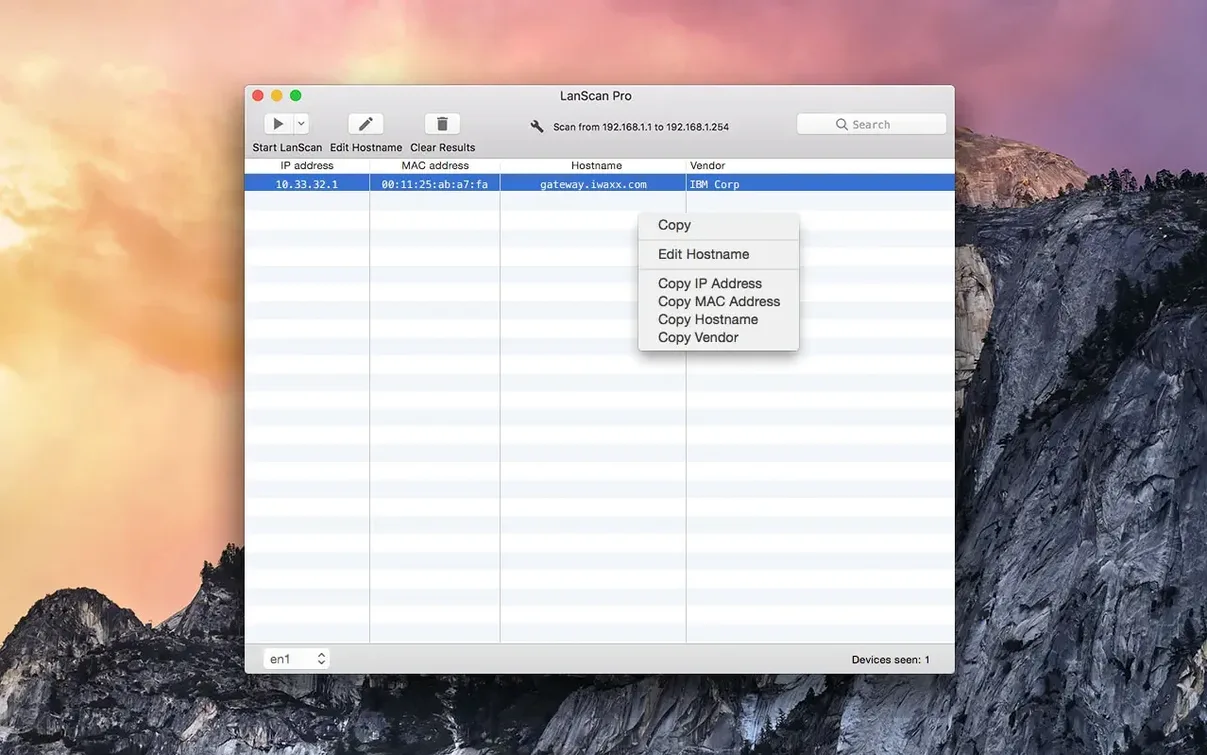
The 'Custom URL' feature is what finally made me clean up my home lab. I'd been staring at a list of IPs in LanScan for weeks, knowing one of them was a Raspberry Pi I'd forgotten about, but never bothering to investigate. With LanScan, I could right-click that mystery device and jump straight to its web interface in Safari.
Finding a Device from a List of Addresses
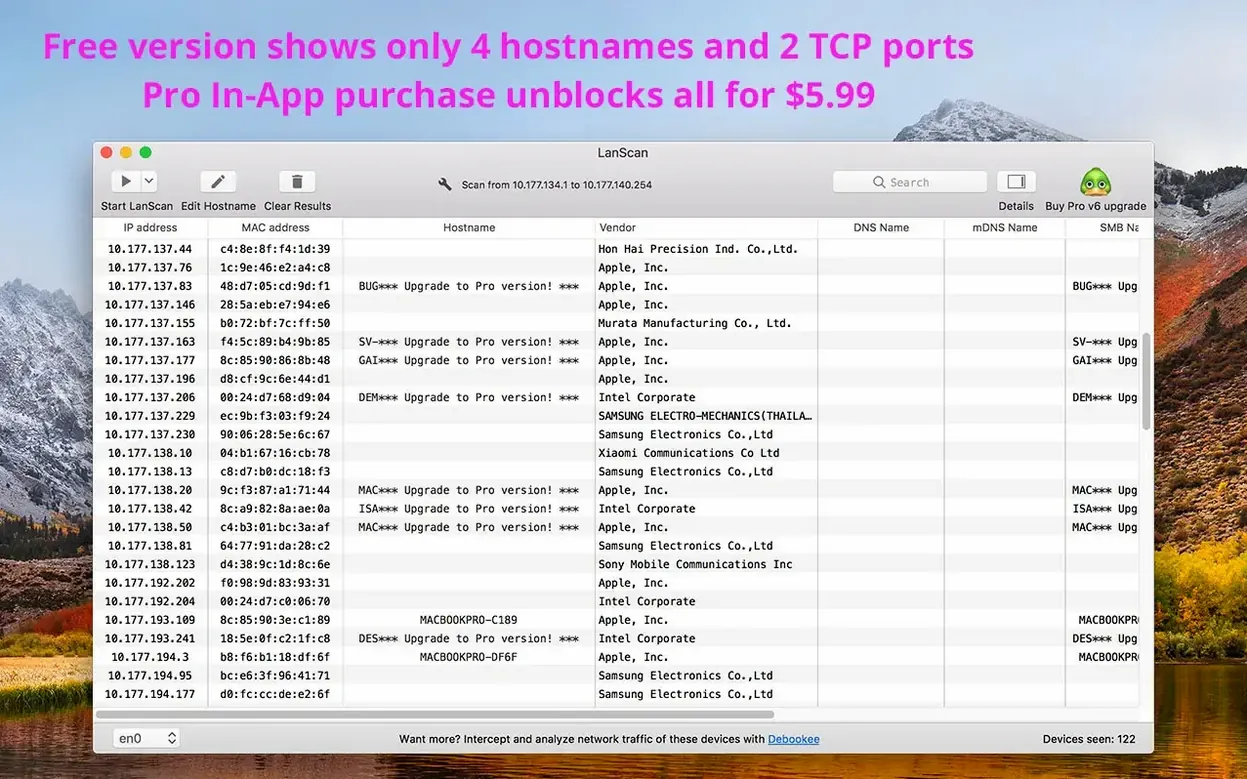
- LanScan detected my Ethernet and virtual interfaces automatically, using ARP packets for the local network.
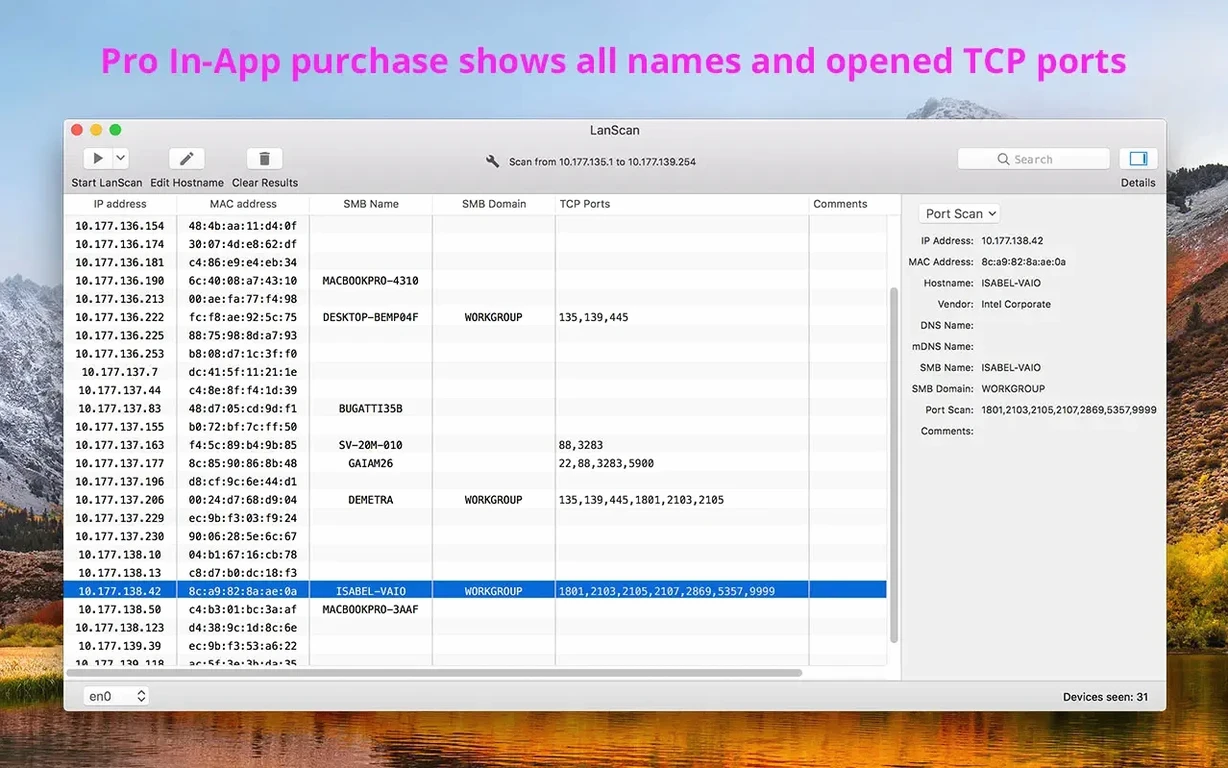
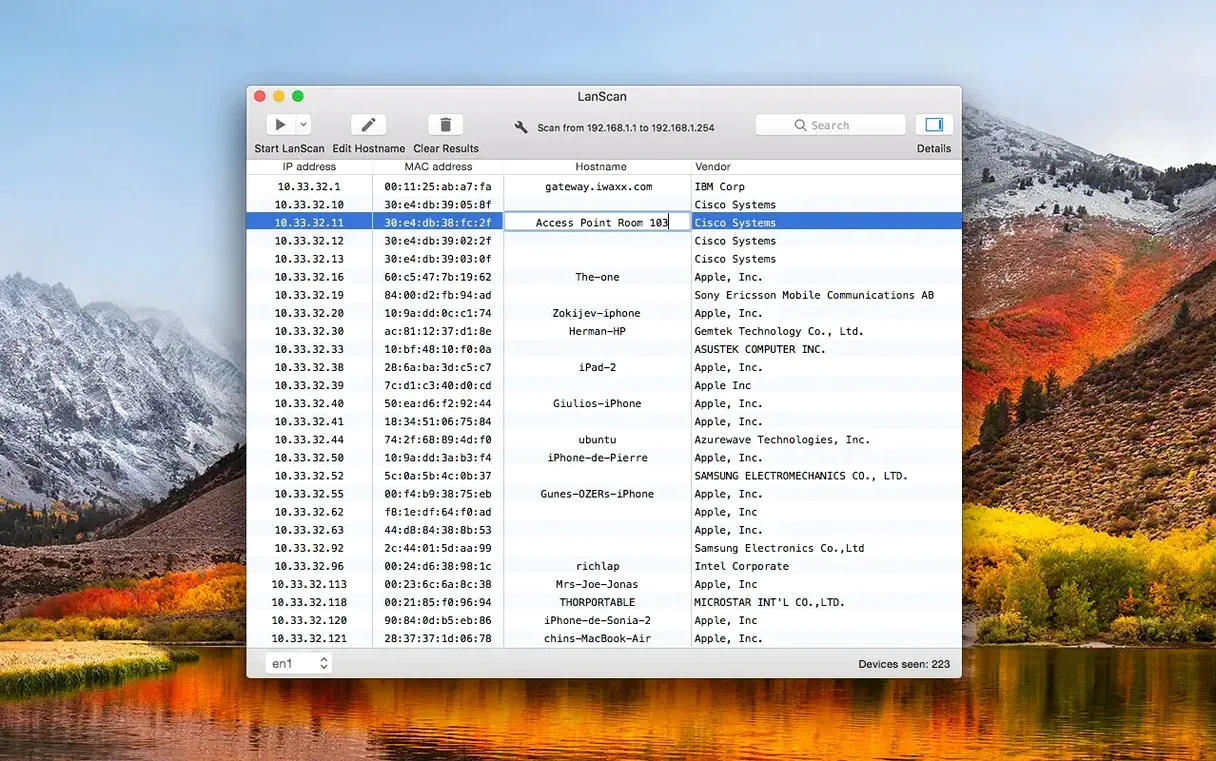
- The scan populated a table with IP address, MAC address, host name, and vendor for each active device.
- I opened a custom URL for the device I wanted to configure, launching its browser-based control panel directly.
- Afterwards, I added a custom comment to that device so it wouldn't be anonymous the next time I ran a scan.
Why the Workflow Works
Because LanScan pulls vendor information from the MAC address, the list reads like a sensible inventory instead of a wall of numbers. For a public subnet, it can lean on Ping, SMB, and mDNS packets to cover ranges from a single address up to the full IPv4 space. It's practical discovery without needing to remember a bunch of terminal commands.
Tracking 90+ Devices Before the First Coffee
Picture someone who manages the network for a shared office. Thirty people trickle in between 8 and 10 a.m., each with a laptop, a phone, and often a smartwatch tugging at the Wi-Fi. The manager needs to know whether a rogue device is chewing bandwidth or if a printer has silently grabbed a new IP after a power cycle. She opens LanScan on her MacBook Air, selects the Ethernet interface that feeds the access points, and runs a quick scan while the coffee is still brewing. Within seconds, the table fills with every active client — iPhones, ThinkPads, a forgotten Apple TV in the conference room. The vendor column turns MAC addresses into recognizable brands, so she spots a device that doesn't belong to any tenant. She flags it with a comment, exports the list to CSV for the monthly audit, and gets on with her day before the first meeting starts. It's the kind of lightweight visibility that a full-blown NMS would be overkill for, but a basic arp -a can't provide.
Snappy Scans You Forget Are Running
Over a few weeks of regular use, LanScan settles into the background like a good desk lamp — unobtrusive until you need it. Scan times are snappy on both Apple Silicon and Intel machines; a local /24 subnet resolves in a couple of seconds, and the interface stays responsive while results stream in. Memory usage hovers modestly, typically under 80 MB even with a full table of several hundred devices, so there's no guilt about leaving it open between tasks. The app leans on ARP for local scanning, which keeps things fast and reliable on wired and wireless interfaces alike. Stability is what you'd hope for from a focused utility: no crashes when switching between AirPort and virtual interfaces mid-scan, no beachballing when paging through a long device list. The only time you'll see a pause is when it reaches out over mDNS or SMB on a larger public range, and even then the interface carries on populating what it already knows while waiting for host names to resolve.
From Unknown IP to Documented Asset
Here's a practical workflow for turning a stray IP into something you won't have to investigate twice. Let's say you find a device at 192.168.1.87 with no host name and a vendor string that just says "Intel Corporate" — not exactly helpful.
- Run an ARP scan on your main interface. LanScan picks up the interfaces automatically, so you just hit the scan button. Watch the table populate with everything that responds.
- Spot the mystery device by scanning the vendor column. "Intel Corporate" next to a blank host name field stands out among a sea of "Apple" and "Samsung" entries.
- Try an SMB probe by switching the scan type to include SMB packets for that specific IP range. If the device runs Windows or has file sharing enabled, LanScan fills in its NetBIOS name and domain — suddenly you know it's the accounting team's backup NAS.
- Resolve host names through the built-in DNS and mDNS lookups. Even if SMB doesn't hit, mDNS might reveal a friendly
.localname that tells you everything. - Add a custom comment — something like "Accounts NAS, contact Sarah" — directly in the table. It persists between scans, so next month you won't have to play detective again.
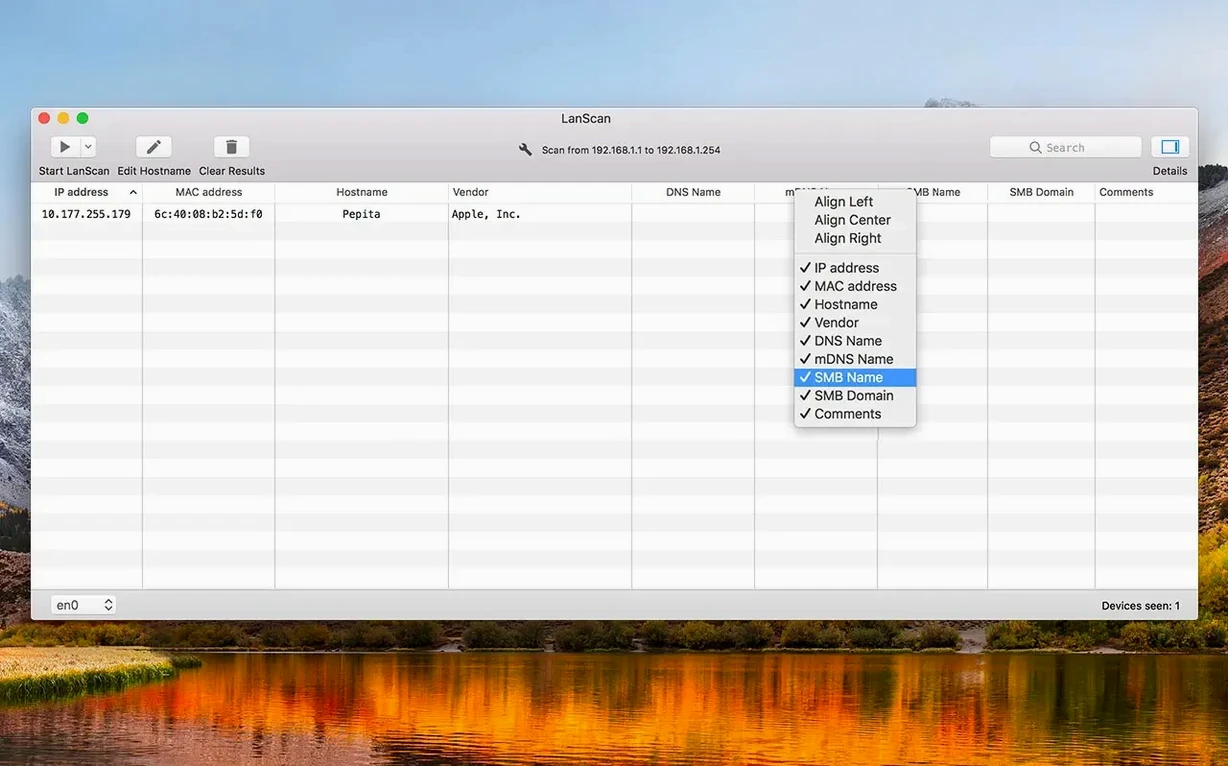
- Export to CSV if this is part of an inventory push. The columns you've chosen to show (or hide) carry over into the export, so the file is already clean before it hits your spreadsheet.
Once the comment is saved, the device effectively graduates from "unknown" to "documented." Repeat this a few times and your entire subnet becomes a readable map. If you grabbed the lanscan dmg for a fresh install, this whole routine is set up in under five minutes. For anyone hunting a straightforward lanscan mac download that doesn't come with a subscription or a web console, the disk image route keeps things refreshingly simple.
- macOS 11 or later
- Apple Silicon or Intel 64-bit
Questions people ask
Does LanScan work on older Macs?
It requires macOS 11 or later, and it runs on both Apple Silicon and Intel Macs.
Can LanScan scan IPv6 networks?
Yes, LanScan supports scanning both IPv4 and IPv6 networks.
Also on readers' docks
Sign in or create an account to leave a comment.
No comments yet. Tell me how it got on with your other devices.