Download Lunar Pro for macOS
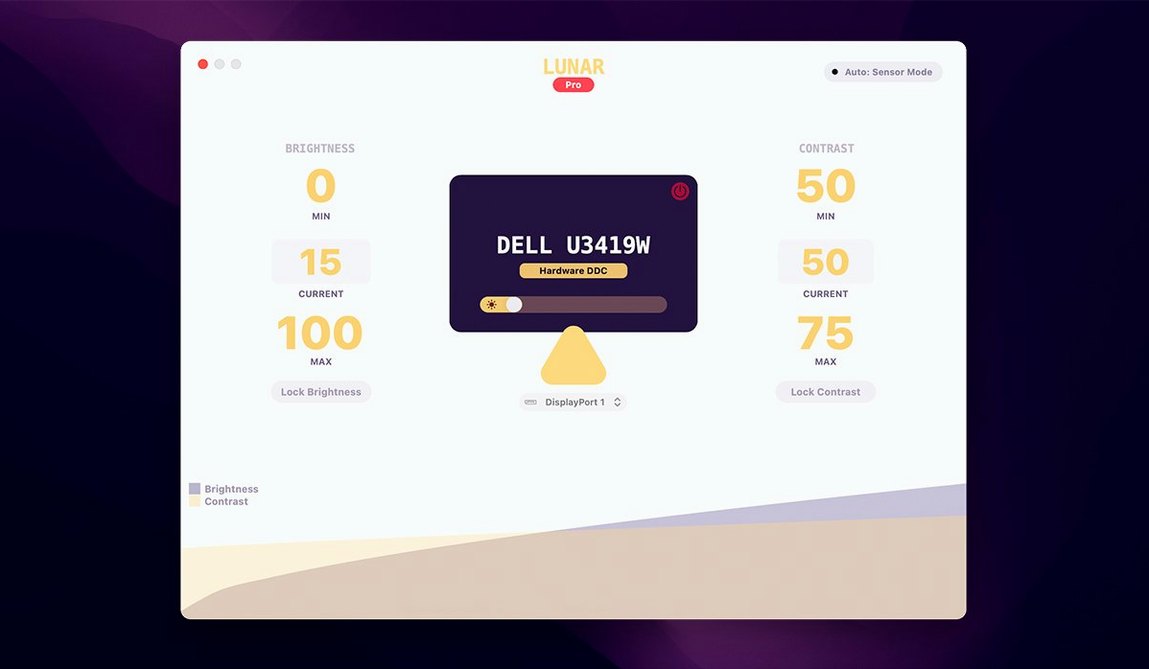
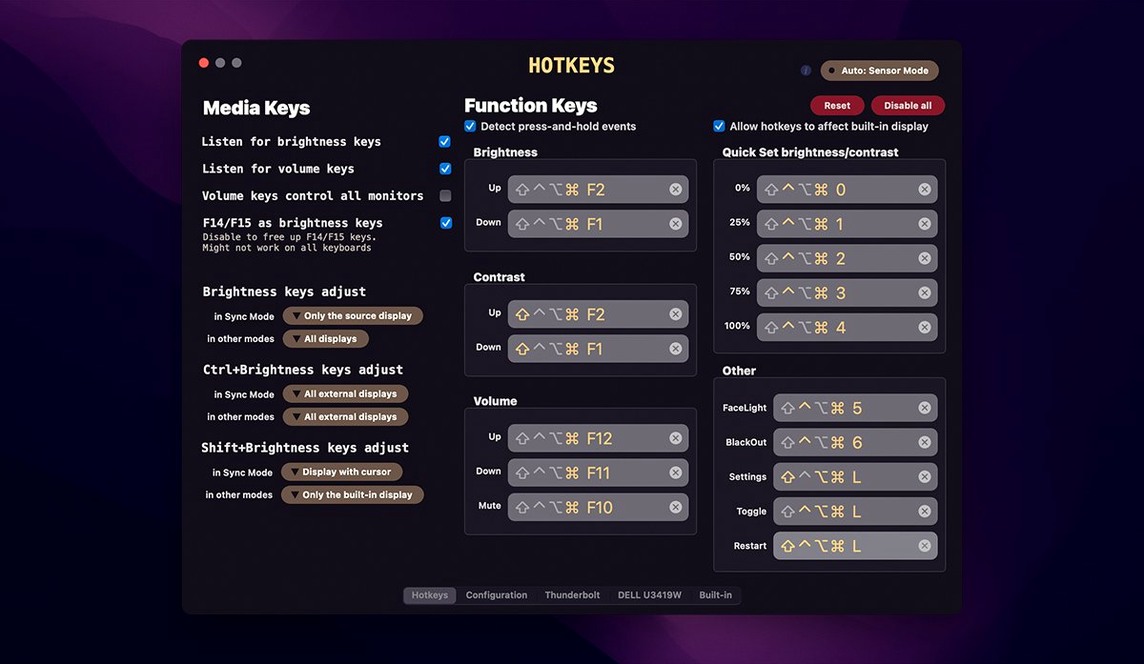
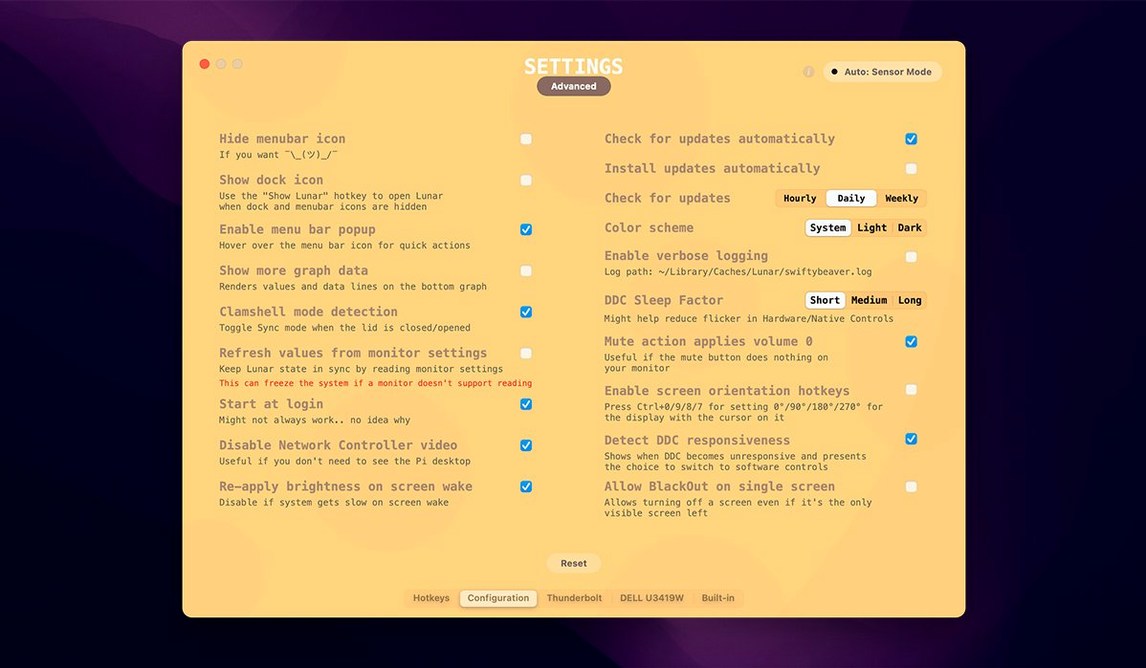
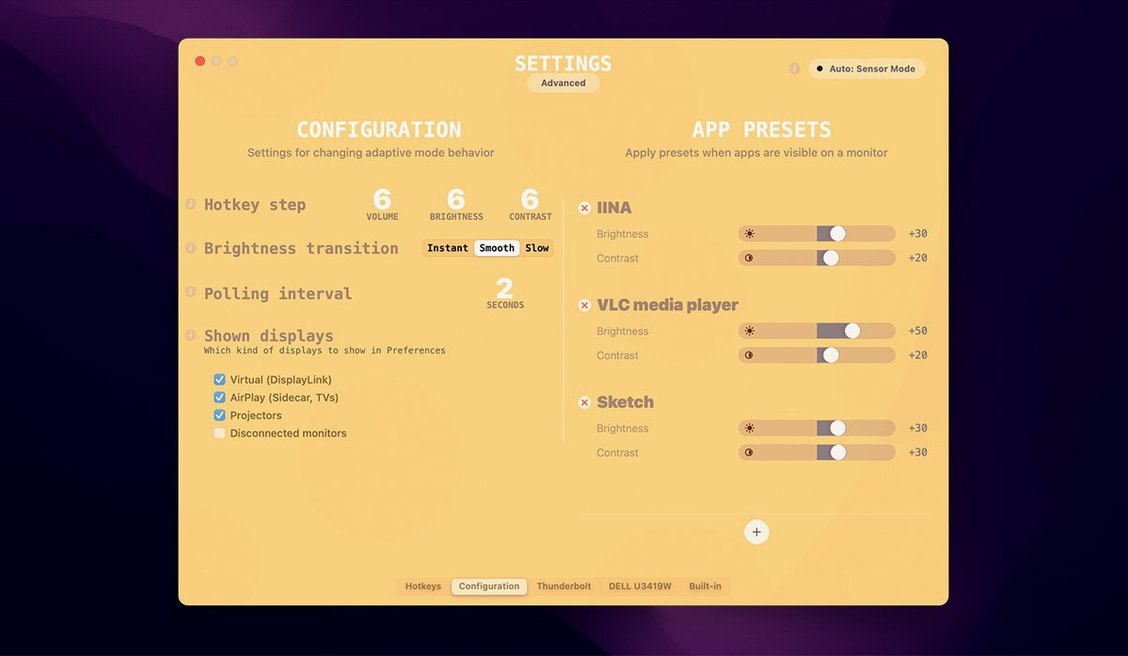
macOS handles the internal display’s brightness beautifully, but plug in an external monitor and that intelligence vanishes. Suddenly you're squinting at a blinding screen in the evening or reaching for the monitor’s clunky OSD buttons. Lunar Pro steps into that gap, bringing true adaptive brightness and contrast to every external display on your desk.
| Key detail | What you get |
|---|---|
| Adaptive source | Ambient light sensor or sunrise/sunset schedule |
| Per-display control | Separate min/max brightness and contrast for each monitor |
| macOS integration | Plays nicely with Night Shift and never overrides the internal display’s native adaptive brightness |
You pick how it adapts — an external light sensor for real-time room changes, or a location-based schedule that dims things down as the sun sets. Either way, Lunar Pro keeps your workspace comfortable without you having to think about it. It’s the kind of utility that slots right next to f.lux or Night Shift, filling a blind spot Apple left open for multi-monitor setups.
A quiet first couple of days
Don’t rush to tweak every slider the moment Lunar Pro lands in your menu bar. Let it run on defaults for a full day first. The app needs time to learn your room’s light patterns, and fiddling too early can create feedback loops you’ll just have to undo later.
In the first 48 hours I’d suggest three small moves, nothing more:
- Set per-display limits early. Open the panel for each monitor and pin down a minimum brightness you find comfortable in a dark room, plus a maximum that won’t scorch your eyes at noon. Lunar Pro respects those guardrails no matter what the sensor says, so you get adaptation without surprises.
- Pick your source consciously. If your MacBook sits off to the side and catches different light than your face, the built-in sensor works great. If it’s docked shut or you’re on an iMac in a room with variable shade, the location-based schedule often feels more predictable. Try both for a day each before committing.
- Resist the exclusion list. It’s tempting to whitelist apps that feel too dim, but wait until a genuine need appears. Premature exclusions defeat the whole point of adaptation.
Sunrise-aware brightness on a grey morning
It’s 7:30am and the study is still grey. I open the lid on my MacBook and my external 27-inch panel wakes to a gentle 35% brightness — Lunar Pro has been tracking sunrise times and knows the room won’t see direct light for another hour. The internal screen does its own thing as always; Lunar Pro doesn’t touch it.
By 10am the sun hits the desk. The app nudges the external display up to 70% over about fifteen seconds, smooth enough that I don’t notice the shift happening. I’m deep in Xcode and the contrast stays locked at 60%, exactly where I set it for coding work. No glare, no squinting.
Mid-afternoon clouds roll in. Brightness dips a little — maybe 10% — and then settles. Later, when I fire up a video player to check a render, I’ve added it to the exclusion list weeks ago. Lunar Pro bumps brightness to a flat 85% for that app alone, then slides back down when I switch to the browser. The whole dance is invisible, which is the highest compliment I can give a utility like this.
By 9pm, with only a warm desk lamp on, the monitor sits at its minimum. I close the lid for the night and the external panel goes dark a moment later. I haven’t touched a brightness key all day.
Mistakes worth skipping
Most trouble with Lunar Pro comes from over-managing it. The app is designed to fade into the background, and you work against that when you treat it like a manual controller with extra steps.
- Setting aggressive transition speeds. A half-second fade might feel snappy in testing, but during a real day it becomes a distraction. Stick to longer, gentler transitions — your eyes adjust better, and you’ll stop noticing the changes entirely.
- Forgetting that contrast matters too. Beginners often chase brightness alone while leaving contrast at a single static value. In a dim room, lowering contrast slightly alongside brightness makes text far more comfortable without losing legibility. Lunar Pro can manage both, so let it.
- Adding too many app exclusions right away. The list grows fast if you’re not careful, and soon you’ve basically disabled adaptation for half your workflow. Reserve it for genuinely brightness-sensitive tasks — video grading, photo editing, the occasional game — and trust the automatic curve for everything else.
- macOS 11 or later
- Apple Silicon and Intel Macs
Questions people ask
Does Lunar Pro affect my MacBook’s built-in display?
No, it leaves the internal display’s native adaptive brightness alone and only manages external monitors.
Can I set different brightness limits for each monitor?
Absolutely — you can assign separate minimum and maximum brightness and contrast values to every connected display.
Does it work with Night Shift?
Yes, Lunar Pro operates alongside Night Shift without any conflict, so both your brightness and color temperature adjust together.
Also on readers' docks
Sign in or create an account to leave a comment.
No comments yet. Tell me how it got on with your other devices.