









Download iTubeGo for macOS
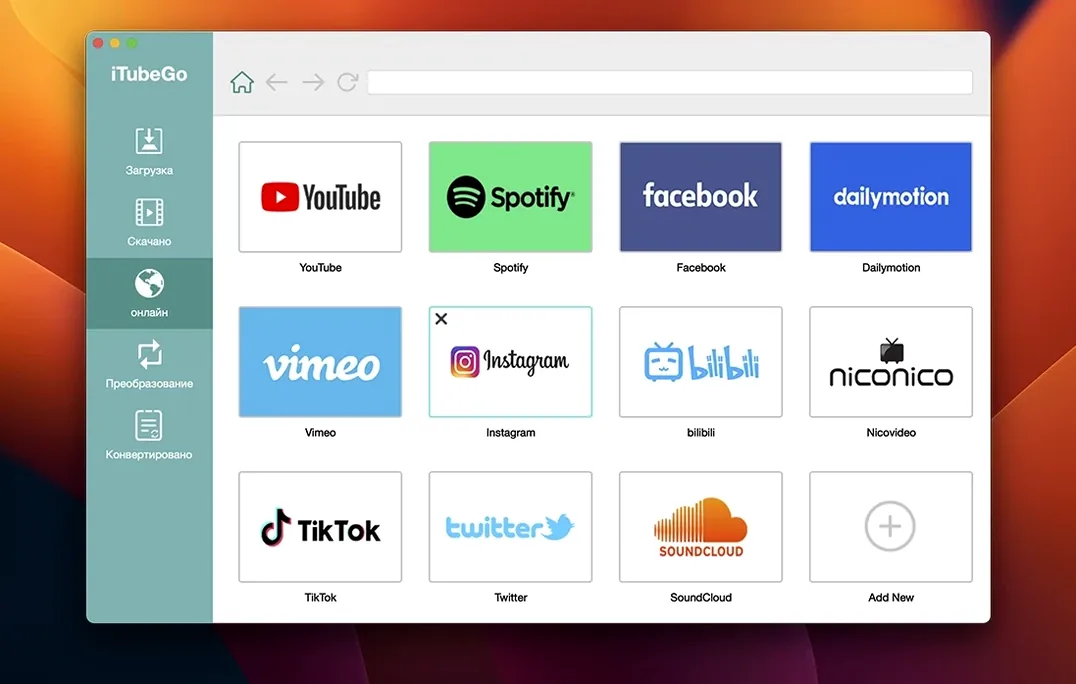
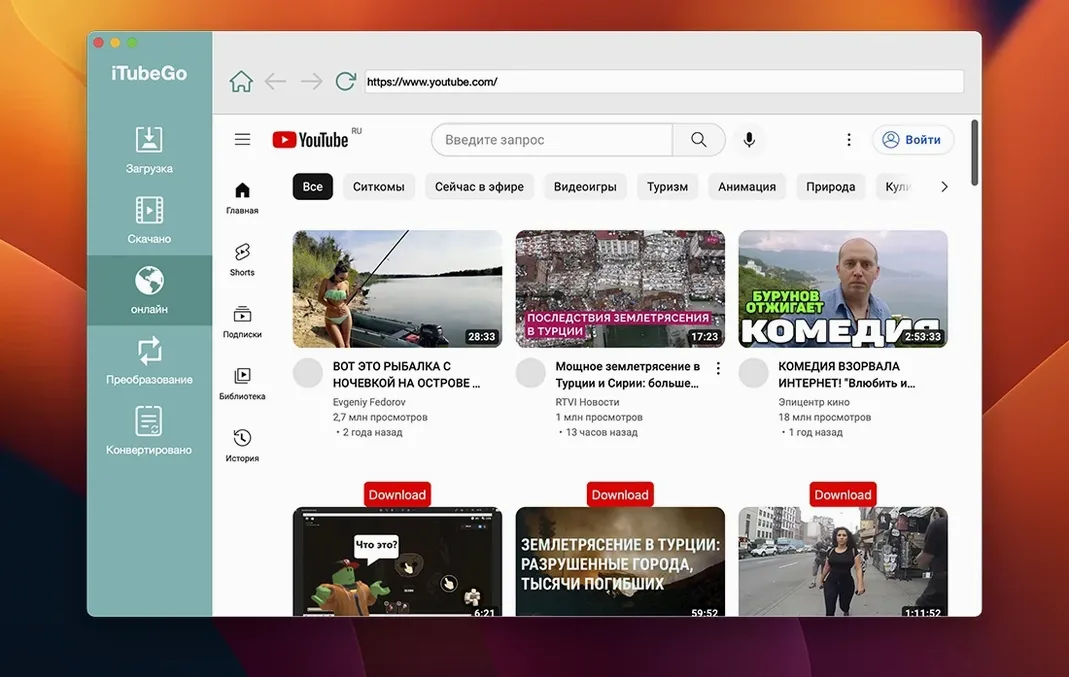
If you've used a browser extension for grabbing clips, you know the routine: it works great until the site changes a line of code. iTubeGo Pro takes a different route—it's a dedicated Mac app that handles the download and conversion from inside its own built-in browser, so the workflow doesn't fall apart when a video platform tweaks its front end.
Pulling 8K video and 320-kbps MP3s from major platforms
- Pulling Full HD, 4K, and 8K video from YouTube, Facebook, Instagram, Dailymotion, Vimeo, and TikTok.
- Grabbing MP3s at 320 kbps from most music sites, or extracting clean audio from a downloaded video.
- Working across a long list of interface languages—Russian, German, Vietnamese, Indonesian, Spanish, Italian, Traditional Chinese, Simplified Chinese, Korean, Portuguese, French, and Japanese sit alongside English.
- Running on older Intel Macs that still hum along on OS X 10.10 Yosemite.
Intel-only build requires a Terminal step to bypass Gatekeeper
- The install process asks you to press Enter in Terminal to bypass Gatekeeper; that extra step surprises first-timers.
- The current version (10.15.0) supports Intel Macs only—no native Apple Silicon build is listed.
- Adult sites (Pornhub, Xvideos, SpankBang, and xHamster) are officially supported, which isn't everyone's cup of tea but worth knowing before you recommend it to a coworker.
Turning morning tabs into local files with one downloader
I start most mornings with a handful of tabs I want to turn into local files—a guitar tutorial on YouTube, a clip a friend sent on Facebook, and maybe a track I heard in someone's Instagram story. iTubeGo Pro sits in my Dock, so a quick double-click gets things rolling.
The built-in browser opens first. I'll paste a YouTube link, and within a couple of seconds the app detects the video and throws up a floating panel with quality options—everything from 480p right up to 8K if the source allows. Tapping the MP4 button at my preferred resolution kicks off the download, and a compact progress bar tucks itself into the corner of the window.
While that runs, I'll hop over to the Facebook tab I left open. Same story: paste the URL, choose quality, and hit go. The app queues downloads side by side, so I'm never staring at a spinner waiting for one file to finish before starting the next.
When a music-heavy video comes through—say, a live session I only want as audio—I'll pick the MP3 option at 320 kbps instead of a video format. The conversion happens right after the download completes, and the resulting file lands in my chosen output folder with a clean, readable filename. No extra step, no opening a separate converter window.
By the time I've poured a coffee, I've usually got three or four files sitting on my desktop, all named sensibly and ready to drop into a project or sync to my phone.
Clara swaps browser extensions for one-click immersion clips
My friend Clara picks up languages by immersion—she'll download news clips, cooking shows, and street interviews from half a dozen countries and watch them with subtitles pulled elsewhere. Before iTubeGo for Mac, she'd juggle browser extensions, screen recorders, and the occasional sketchy converter site that made her antivirus twitchy.
Now her Sunday routine looks like this: she opens the app's built-in browser, browses a German news channel on YouTube, and grabs ten clips at 1080p in a bulk batch. The 10x faster bulk downloading isn't just marketing talk—ten short clips arrive in the time it used to take her to download three. She switches over to a French cooking channel on Dailymotion, grabs those in MP4, and then pulls an Italian music playlist as MP3s for her commute. All the files land in a single folder, organized by date, and she's done in under fifteen minutes.
The app's long list of interface languages helps too—Clara keeps hers set to Italian for a little extra practice while navigating the menus. Small touch, but she swears it counts.
Clicking download before picking a resolution lands you a 480p file
The first thing that trips people up is the quality panel. New users often click the download button before choosing a resolution, then wonder why they got a 480p file when the source had 4K available. The panel appears for a reason—give it half a second and pick your resolution deliberately.
Another common stumble: forgetting that the built-in browser is where most of the magic lives. People paste links into Safari or Chrome and expect iTubeGo to intercept them. It won't. You need to be inside the app's own browser window for link detection to work smoothly, especially on sites that use tight login walls.
Some folks also miss that the MP3 extraction isn't limited to YouTube. Any video the app can download can also be converted to audio-only—a Facebook live stream, a Vimeo documentary, even a TikTok clip. Right-click the file in the download queue or choose MP3 at the quality panel stage, and you're set.
Finally, the Gatekeeper bypass during installation catches almost everyone off guard. The disk image includes a helper that opens Terminal and waits for you to press Enter. It's a one-time step, but skipping it means the app won't launch, and the error message isn't especially friendly. Follow the instructions on screen and you'll be past it in seconds.
Right-click a completed item to swap MP4 for MP3 without re-downloading
- Right-click to re-download in a different format. Already grabbed an MP4 but now want just the audio? Right-click the completed item in the queue and pick MP3. The app re-processes the cached file instead of downloading it again.
- Custom output folders per playlist. You can set a default folder in preferences, but the app also lets you change the destination on the fly from the download panel. Handy when you're pulling music into one folder and video projects into another.
- Pause and resume mid-batch. If your connection stumbles during one of those 8K downloads, you don't lose the whole queue. Pause the stalled item, let the others finish, and resume it later.
- Keyboard-friendly navigation. Inside the built-in browser, standard shortcuts like
Command-Lfor the address bar andCommand-Rfor refresh work as expected. Less mouse time, more speed. - Filename cleanup. The app strips out most of the junk characters and tracking parameters that sites append to filenames. You get clean titles without having to rename everything by hand.
- Language switching without restarts. You can flip the interface to any of the thirteen supported languages from preferences and it takes effect immediately—no relaunch needed.
- OS X 10.10 or later
- Intel processor
Also on readers' docks
Sign in or create an account to leave a comment.
No comments yet. Tell me how it got on with your other devices.
More in Mac Apps
See all iStat Menus
7.50 Mac Apps
23 MB
iStat Menus
7.50 Mac Apps
23 MB
 Invisible
3.2.2 Mac Apps
5 MB
Invisible
3.2.2 Mac Apps
5 MB
 Intellij IDEA
2026.2.3 Mac Apps
1.5 GB
Intellij IDEA
2026.2.3 Mac Apps
1.5 GB
 Updated JixiPix Artista Impresso Pro
1.8.31 Mac Apps
122 MB
Updated JixiPix Artista Impresso Pro
1.8.31 Mac Apps
122 MB
 Updated Jump Desktop
10.15.46 Mac Apps
62 MB
Updated Jump Desktop
10.15.46 Mac Apps
62 MB
 JustStream PRO
2.14 Mac Apps
101 MB
JustStream PRO
2.14 Mac Apps
101 MB
 Infuse Pro
8.5.5 CRACKFIX Mac Apps
90 MB
Infuse Pro
8.5.5 CRACKFIX Mac Apps
90 MB
 Keyboard Maestro
11.0.4 Mac Apps
35 MB
Keyboard Maestro
11.0.4 Mac Apps
35 MB