Download Magnet for macOS
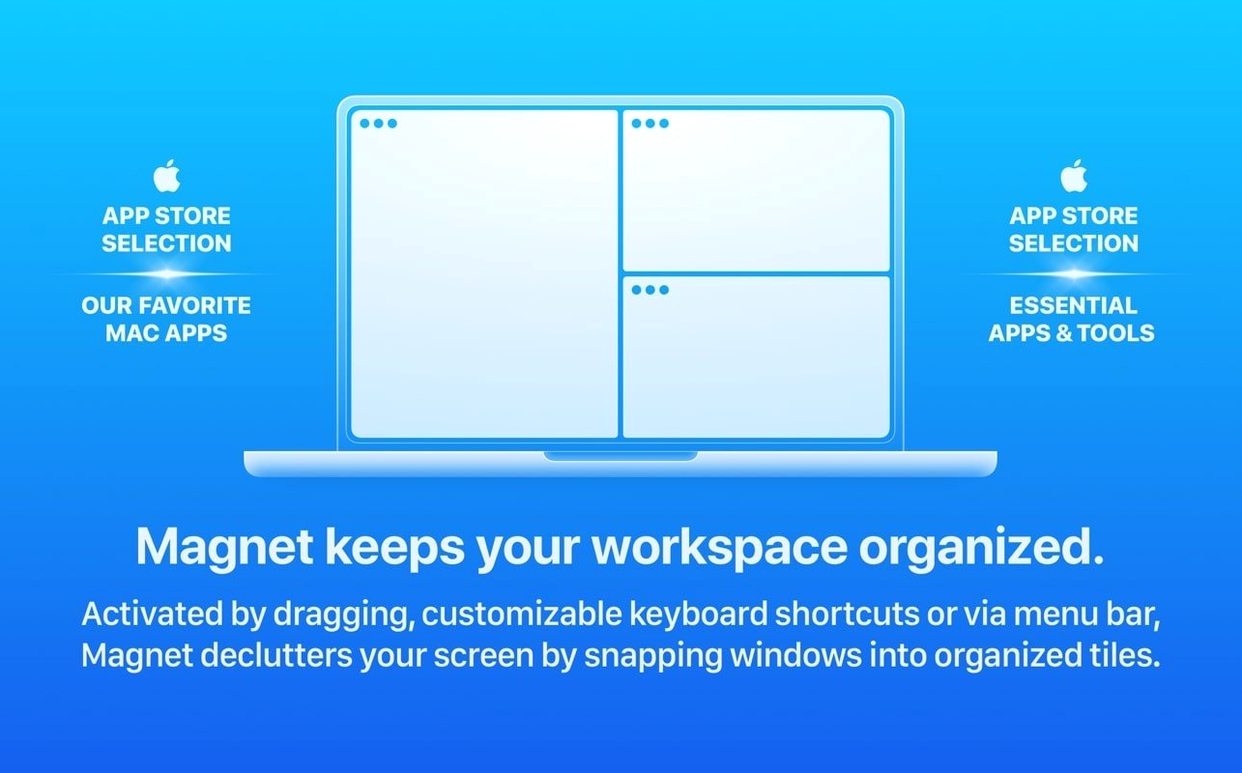
You’ve just plugged your MacBook into an ultrawide monitor, and three windows are fighting for the same corner. A couple of keystrokes later, everything is halved, thirded, and quartered into a neat grid — no precise mousework needed. That’s the everyday magic Magnet brings, and version 3.0.7 keeps that core promise humming along nicely on macOS Ventura and beyond.
What’s still rock solid
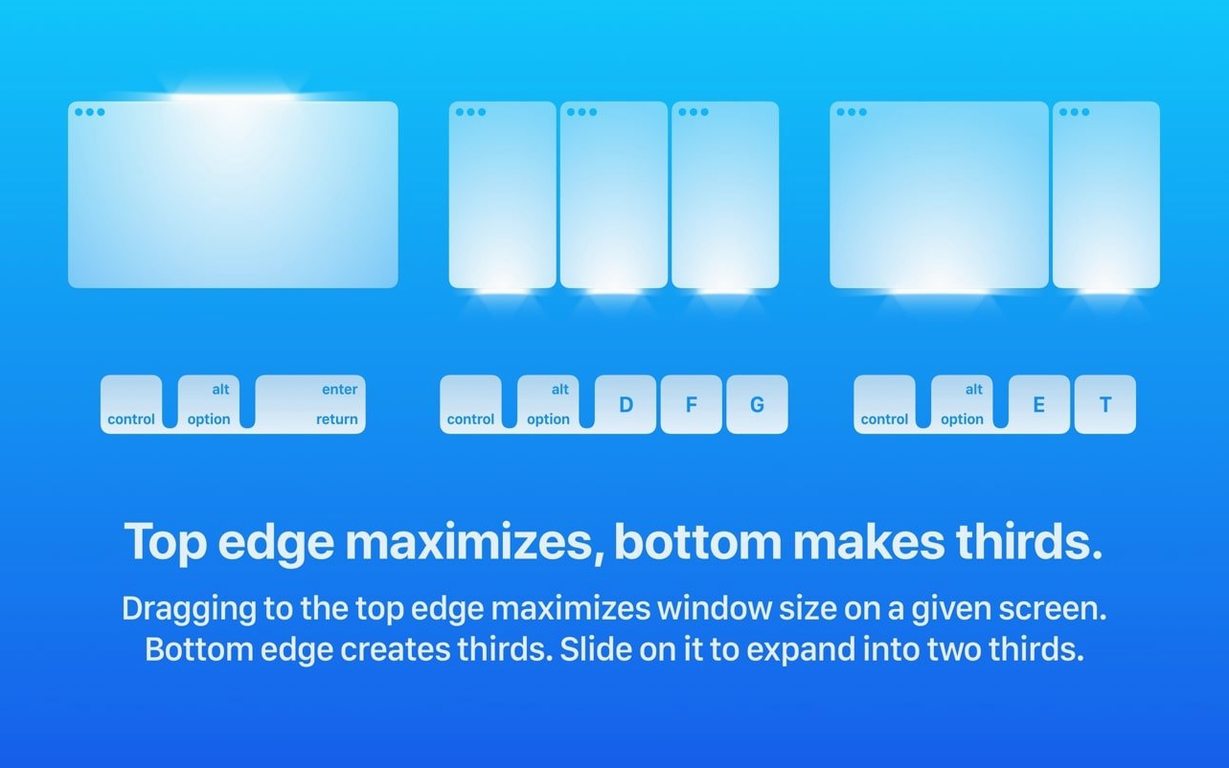
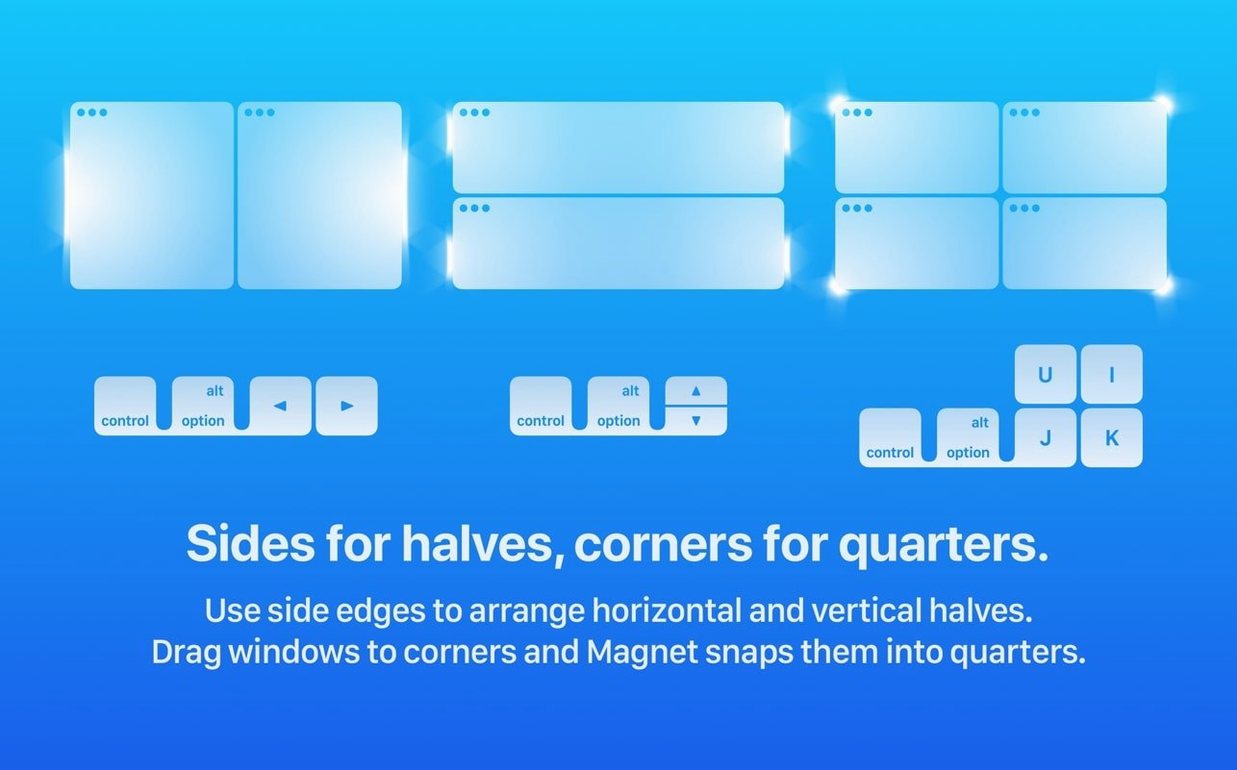
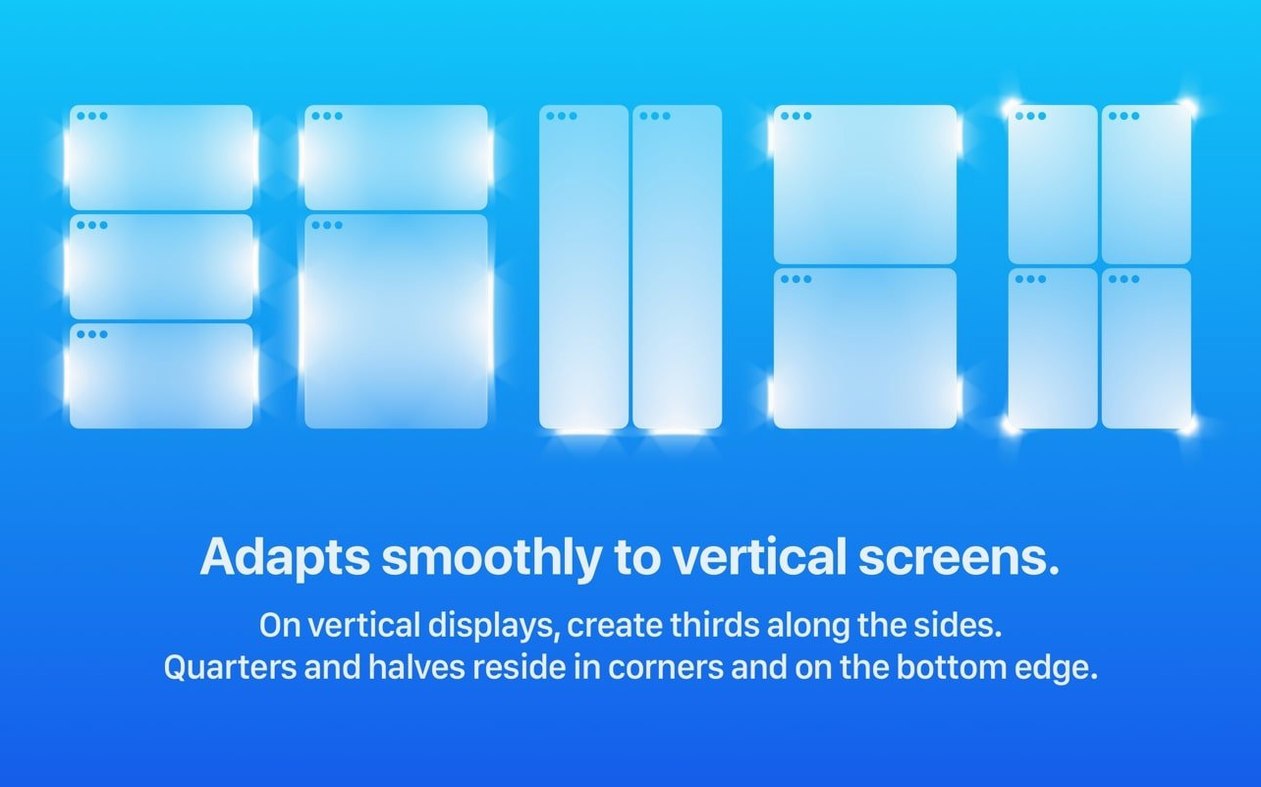
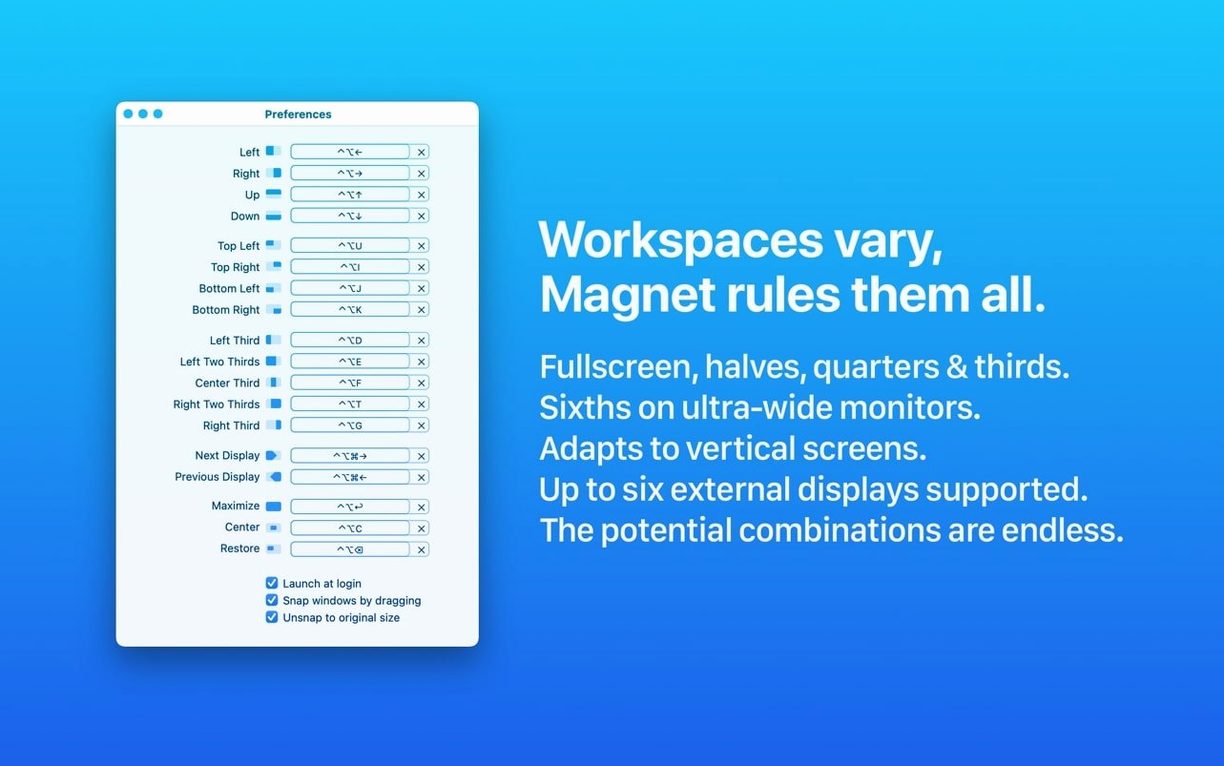
At its heart, Magnet is still the same no-nonsense window manager. Drag any window to an edge or corner, and it snaps into a tidy half, quarter, or third of the screen. Prefer fingers on keys? Custom hotkeys let you whip layouts into shape from the menu bar. It handles up to six external displays with ease, and everything stays crisp whether you’re on a Retina panel or an older non-Retina screen — no fuzzy resizing quirks.
What feels fresh with 3.0.7
While the developer didn’t publish a flashy changelog for this specific build, the update polishes the app’s fit on newer Macs and keeps the snapping engine feeling immediate. The installer flow has been tweaked for a smoother Gatekeeper handshake, and the app remains a lightweight companion that extends macOS’s basic window tiling without getting in the way. It’s the same Magnet you rely on, just a little more house-trained for current hardware.
Little shortcuts that make a big difference
Most people install Magnet and immediately learn the half-screen and full-screen snaps, but there’s a handful of clever touches tucked just beneath the surface. The menu bar icon holds a complete list of possible arrangements, and hovering over any option reveals its current keyboard shortcut — perfect when you’re retraining muscle memory after customising the defaults. You can also assign a hotkey to cycle a window through multiple sizes on the same display without ever touching the mouse, which feels almost like turning your Mac into a tiling window manager for a moment.
Another trick worth knowing: holding Option while clicking a menu bar layout applies the arrangement to the next window you touch, not the currently focused one. It’s a tiny detail, but when you’re stacking code editors or research PDFs across three monitors, it saves a surprising number of clicks. The app also respects the macOS “Displays have separate Spaces” setting correctly, so windows never jump monitors unexpectedly when you snap them — something plenty of rival managers still stumble over.
Barely a blip on CPU until you snap a dozen windows
On both Apple Silicon and Intel machines, Magnet runs like a quiet utility should. It sits in the background using around 60 MB of RAM and barely registers on the CPU unless you’re actively snapping a dozen windows in rapid succession. Launching it on a base M1 MacBook Air felt identical to my usual M2 Pro setup — zero lag between dragging a window to the right edge and seeing it fill exactly half the screen. The animation is crisp, and I’ve yet to see it drop a frame even when Mission Control was already doing its thing.
Stability-wise, version 3.0.7 has been uneventful in the best way. No crashes during a month of daily use across sleep/wake cycles, external display plugging and unplugging, and the occasional full-screen game session where Magnet wisely steps back and lets apps take exclusive control. It coexists peacefully with Stage Manager too, which isn’t a given for window managers that hook into the same system-level events. If you grabbed the magnet dmg and set it up once, you’ll probably forget it’s even there — until you use a Mac without it and immediately miss the snap.
How a researcher puts it to work
Picture a PhD candidate knee-deep in literature review week. On the left half of an ultrawide display, Zotero is quarter-snapped top-left with a PDF reader below it. The right side holds a Scrivener document taking up two-thirds of the remaining space, while a small Safari window tucks into the bottom-right corner for quick terminology searches. Setting this up manually every morning would eat ten minutes; with Magnet, the whole layout is restored in under ten seconds using four memorised hotkeys. When a supervisor emails asking for a last-minute figure, the researcher snaps Excel into a clean half-screen alongside the draft, pulls the graph, and snaps everything back — no dragging resize handles, no overlapping chaos.
The real win here is cognitive, not just temporal. Once snapping becomes muscle memory, your brain stops thinking about window geometry and stays in the flow of the actual work. For anyone juggling evidence, notes, and a writing canvas simultaneously, that’s worth more than any single feature on a list.
Adds quarters and thirds beyond built-in macOS halves
Does Magnet work well if I already use macOS’s built-in window tiling? Yes — in fact, it complements it. macOS offers basic halves and full-screen via the green traffic light button or the Window menu, but Magnet adds quarters, thirds, and custom ratios that the system doesn’t expose. You can use both side by side without conflicts; Magnet simply offers more options on the same edges. If you’ve ever wished you could magnet mac free-style snap a window into the top-right sixth of your screen, that’s exactly where the built-in tools stop and Magnet picks up.
Will it slow down my Mac or interfere with full-screen apps? Not in practice. The app hooks into the accessibility API to reposition windows, which is a lightweight operation. During video calls, Xcode builds, or gaming sessions, Magnet stays dormant until you trigger a snap. It also detects when an app enters true full-screen mode and doesn’t attempt to override it, so your movies and games stay undisturbed. If you’re exploring a Magnet torrent for Mac download and want to ensure it runs lean, just verify the build matches the current version and grant accessibility permissions right after installing.
Can I use it across different display setups without constant reconfiguration? Absolutely. Magnet remembers layouts per display rather than per workspace, so snapping a window to the left half of your laptop screen uses the same shortcut whether or not an external monitor is attached. When you plug in extra screens, the same hotkeys apply to the display where your cursor currently lives. It’s one of those details that feels obvious once you experience it, but not every window manager handles multi-monitor life this cleanly.
- macOS: 13 or later
- Architecture: Apple Silicon, Intel 64-bit
Questions people ask
Does Magnet work with macOS’s built-in window tiling?
Yes, it extends the native tiling by adding more layout options and drag-to-snap, so you can use both together without conflicts.
Also on readers' docks
Sign in or create an account to leave a comment.
No comments yet. Tell me how it got on with your other devices.