
Download HitPaw Watermark Remover for macOS
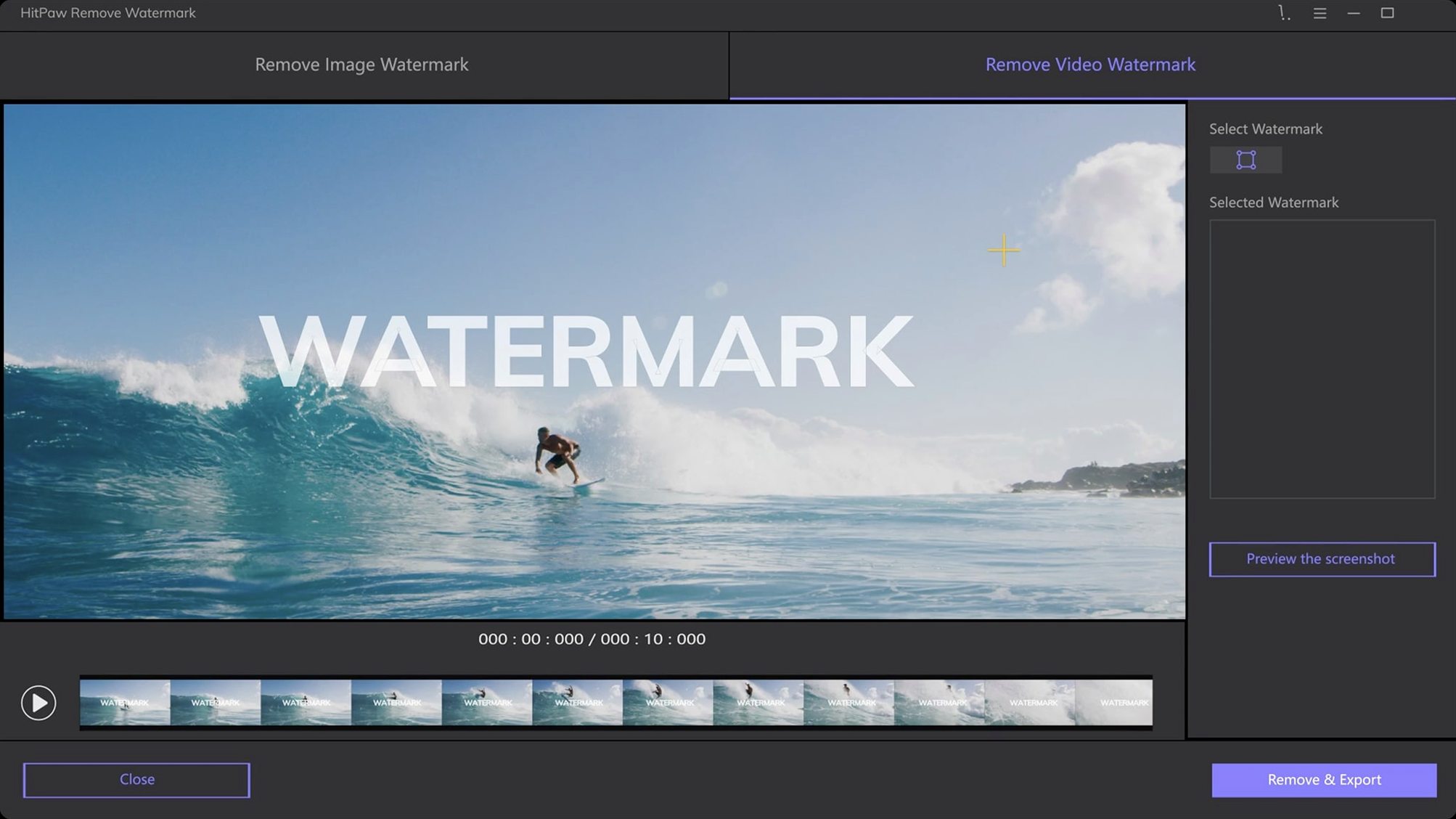
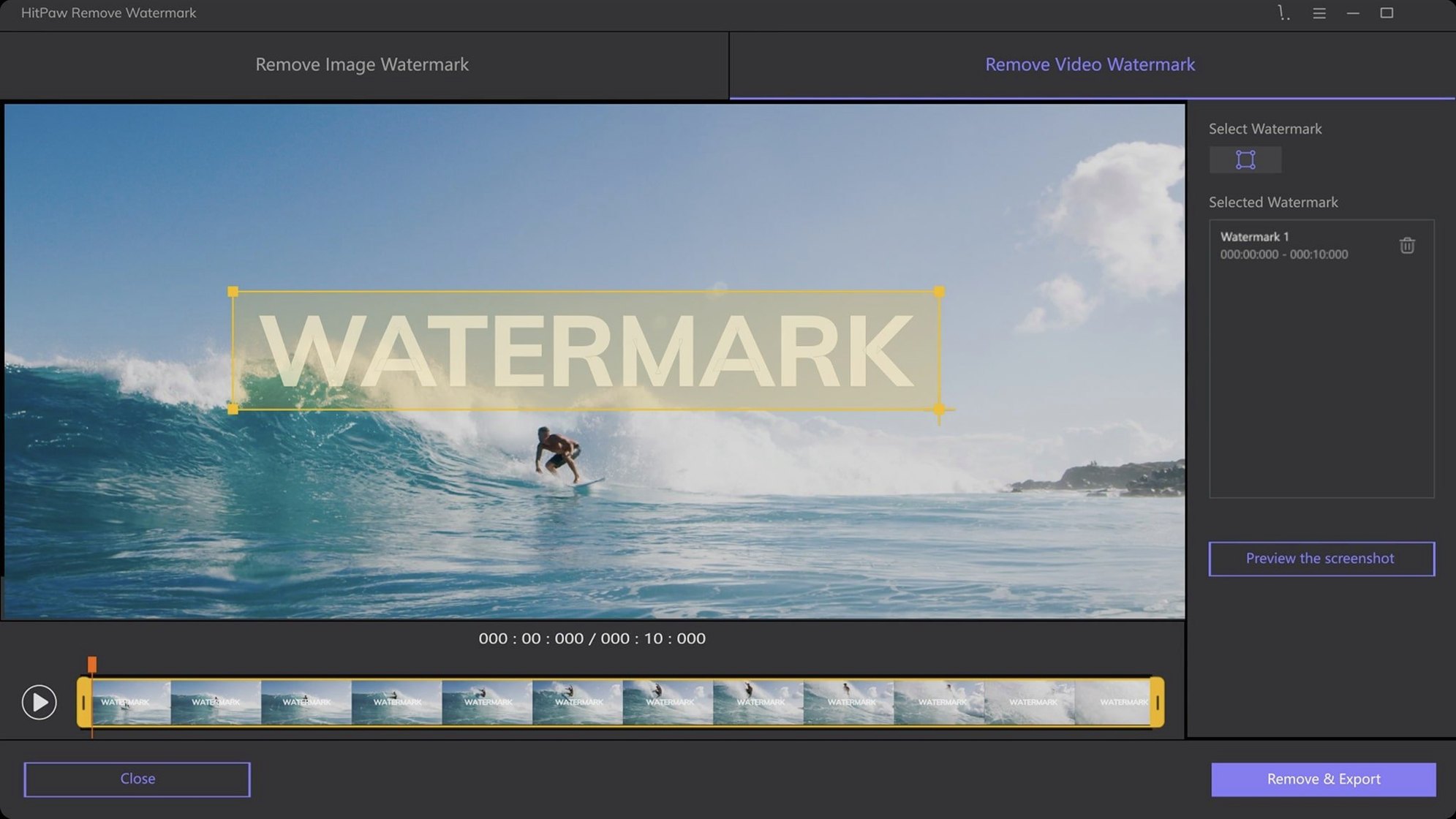
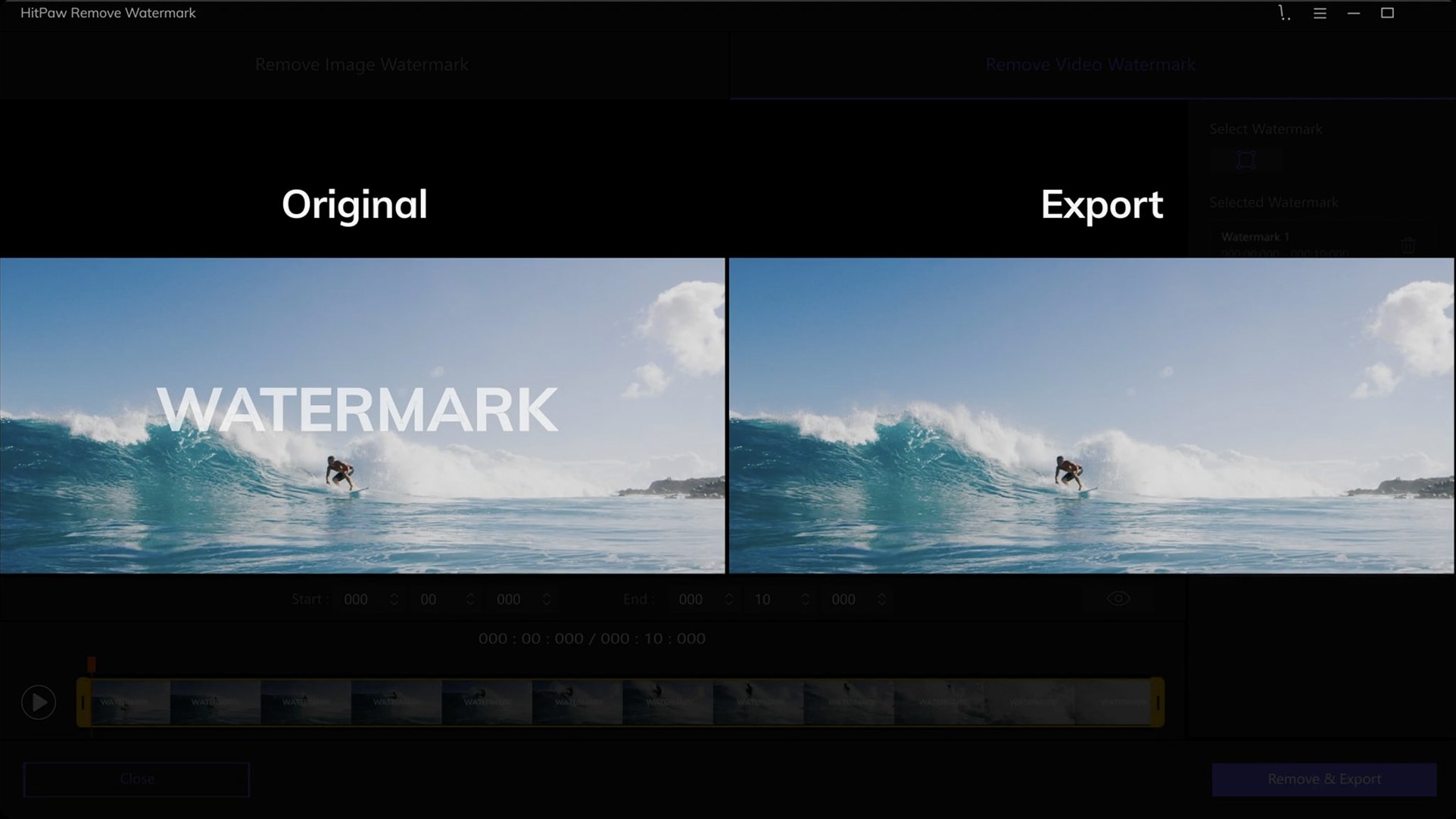
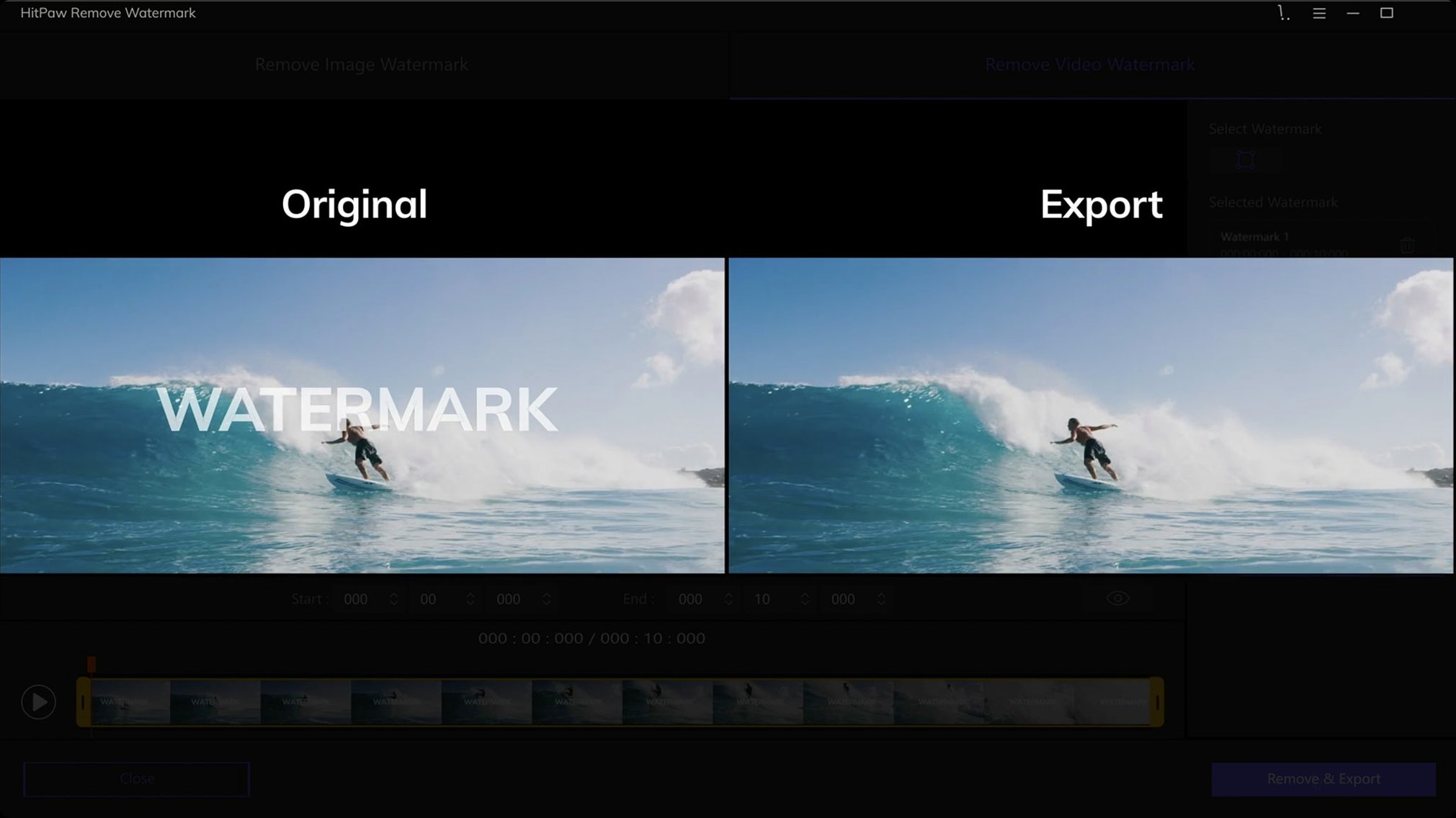
It handles over a dozen video formats — from the common MP4 and MOV to WebM, TS, and FLV — because watermarks don't announce themselves in a single container. I often pull clips from different cameras and editors, and it's nice not to transcode first. The interface gives you simple removal modes like smooth filling and edge blending, which works better than trying to paint out a mark frame by frame in a full video editor.
| Key Details | |
|---|---|
| Developer | HitPaw |
| Current Version | 2.4.7 |
| Video Formats | AVI, MKV, MP4, FLV, MOV, WMV, WebM, 3GP, and more |
| Removal Modes | Smooth filling, edge filling, texture repair |
What I appreciate is where this sits in a mixed toolkit. If you already use iMovie or QuickTime Player for trimming and basic cuts, HitPaw handles the one task those tools can't: removing a static logo or timestamp. You don't have to open a massive timeline-based editor just to clean up a ten-second clip. It's a focused utility — it scrubs a watermark from a video or image, then you export and drop the clean file into whatever app you're actually editing in. The Mac version runs on Intel hardware and needs Catalina or later. It feels like a companion piece to lightweight editors, not a replacement for them.
A Start-to-Finish Workflow: Cleaning a Talking-Head Clip
Let's walk through a real scenario. I had a short interview clip — MP4, about 90 seconds — where the subject's name and a tiny channel logo sat in the bottom-left corner for the entire shot. The clip was destined for a slide deck, and that watermark had to go without cropping into the speaker's hands.
I opened HitPaw, dragged the MP4 straight onto the interface, and used the rectangle selection to draw a box around both the text and the logo. The video preview updated immediately, scrubbing to a mid-clip frame where the background behind the mark was a fairly static dark bookshelf. I switched the removal mode to texture repair — it sampled the surrounding wood grain and blended it across the selection, frame by frame. For a 90-second clip on my Intel Mac, the processing took under a minute. I exported as MP4, dropped the clean file into my presentation, and moved on. That's the whole pitch: identify the mark, pick a mode that matches the background, and let the app do the brute work. If the background shifts abruptly — say, the speaker leans forward and the mark overlaps their sleeve — switching to edge filling mid-clip and processing in two passes keeps the repair from smearing.
Educators Cleaning Legacy Course Footage
Not everyone needs a dedicated watermark remover, but a few groups will reach for it constantly.
- Educators and trainers who repurpose older screencasts or course videos. Timestamps and branding from legacy recordings can make material look dated. Cleaning them up before re-uploading makes the content feel current without reshooting.
- Social media creators pulling clips from multiple sources. A talking-head reel stitched from three interviews often carries three different corner bugs. HitPaw unifies the look in minutes — way faster than learning the clone-stamp tools in DaVinci Resolve just for a 30-second story.
- Mac users with lightweight editing habits. If your toolkit is iMovie plus QuickTime Player, you've probably hit the wall where there's simply no watermark removal option. HitPaw slots in as the missing button without forcing you into a subscription-based editor you don't otherwise need.
Photographers fall into this too, especially when recovering old scans or stock comps where a subtle signature or date stamp breaks an otherwise clean composition. The still-image side supports JPEG, PNG, WebP, BMP, and TIFF — drag in a photo, lasso the mark, and apply smooth filling on a gradient sky or texture repair on a patterned tablecloth. It's not a full retouching suite, but it nails one repetitive task.
Switch Removal Modes to Avoid Obvious Patches
Out of the box, HitPaw picks sensible defaults, but a couple of tweaks make the difference between an obvious patch and an invisible fix.
- Removal mode per project. The default is usually smooth filling, which works beautifully on flat or gently shaded backgrounds. For anything with repeating detail — brick walls, grass, fabric, wood grain — texture repair samples adjacent patterns and reconstructs the area more convincingly. Edge filling shines when the watermark sits right on a high-contrast boundary, like a shirt hem against a wall. Cycling through the three modes on the first frame of a clip saves re-processing later.
- Selection shape matters more than it seems. The freeform tool (a lasso-style selector) lets you trace irregular marks, like a translucent timestamp over a face. A tight selection means the algorithm has less area to guess at, which produces cleaner results. For rectangular logos, the rectangle tool is obvious, but I often shrink the box a pixel or two inside the mark's actual edge — over-selecting drags in background detail that confuses the fill.
- Export format and quality. After processing a video, HitPaw offers a quality slider and format choice. Staying in the original container (MP4 to MP4, for instance) and keeping the slider near the top avoids re-compression artifacts that look worse than the watermark ever did. The extra few megabytes are worth it.
- macOS: 10.13 or later
- Architecture: Intel
- Languages: English, Russian, German, Spanish, Italian, Korean, Portuguese, French, Czech, Japanese
Questions people ask
Can I use HitPaw Watermark Remover to add a watermark in iMovie?
No, HitPaw is built to remove watermarks, not add them. To add watermark in iMovie, you'd use iMovie's own title or overlay features.
Which removal mode should I choose for a logo on a complex background?
Texture repair mode usually works best for busy backgrounds. It analyzes the surrounding area to rebuild the texture behind the watermark.
Also on readers' docks
Sign in or create an account to leave a comment.
No comments yet. Tell me how it got on with your other devices.