
Download Hazel for macOS
Version 6.1.2 tightens a few screws that make Hazel feel more at home on modern Macs. The remote server file browser now shares the same conveniences you expect from a regular Finder dialog, tag colors display properly again, and the resume icon in the menu got a small polish. It is the kind of update you appreciate most when everything just works alongside the other tools you already rely on.
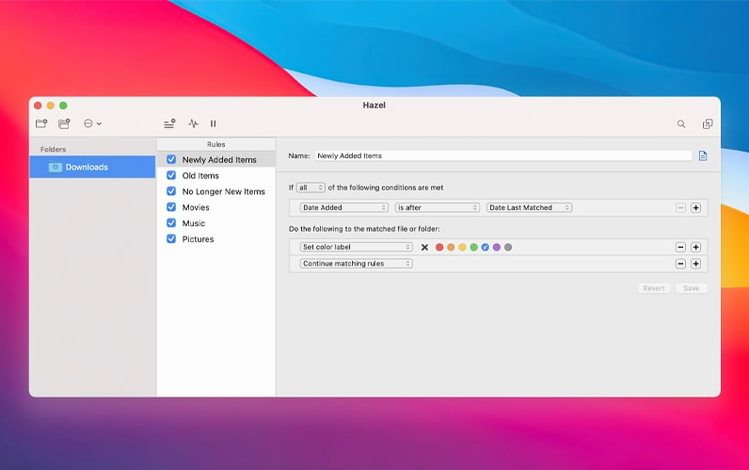
Hazel lives where few automation apps dare to tread — right inside System Settings as a preference pane. You build rules that watch folders like Desktop and Downloads, then sit back while files sort themselves. A downloaded invoice can rename itself with a date stamp and slip into a client folder. A screenshot cluttering the desktop can vanish into a subfolder after a day. It plays nicely with the Mac you already know, pulling songs into Music and photos into Photos without asking you to learn a new scripting language.
What makes it stick is how naturally it extends built-in behaviors. Spotlight tags, folder structures, and file naming conventions are things you probably use already. Hazel picks them up and runs with them, adding conditions and actions that feel like the smart filters you wish Finder came with. You can even have it back up a document and append a note to the filename before you move it, so nothing gets lost in the shuffle.
For anyone who has ever stared at a chaotic Downloads folder wondering where the afternoon went, Hazel slots in quietly and earns its keep. It is the automation neighbor that borrows no drama and always returns what it borrowed in better shape.
Start with a quiet folder or two
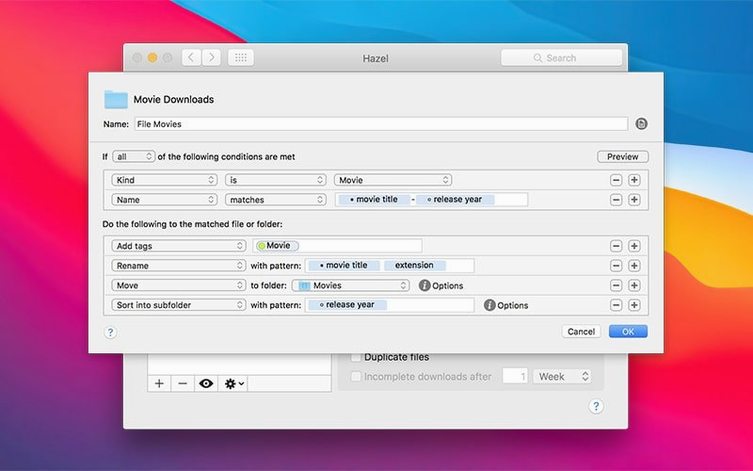
Dropping Hazel onto a mountain of unsorted files on day one is a recipe for confusion. Pick a low-traffic folder first — something like ~/Documents/Invoices or a dedicated screenshots directory. Create one simple rule and watch it fire for a few hours before you build out a bigger system. The preview button in the rule editor shows exactly which files would match without committing anything, so you can tweak conditions until the blue dots line up with what you expected.
Settings that pay off immediately
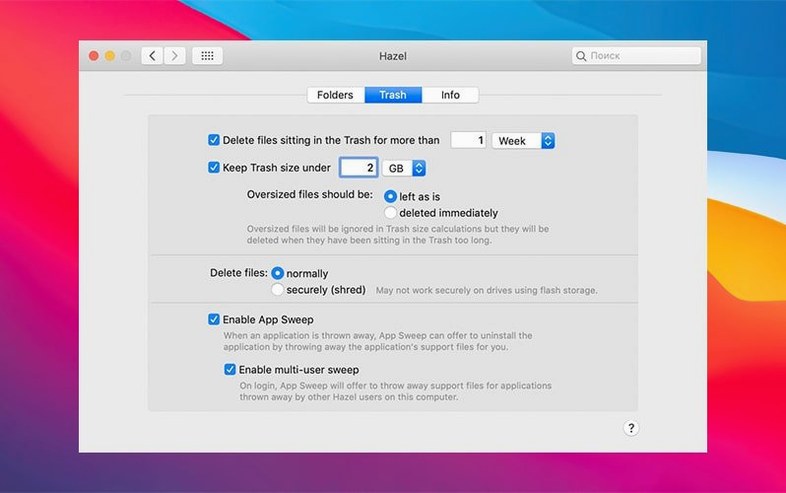
- Trash management. Open the Trash tab in Hazel's preference pane and set a sensible age limit. Files older than 30 days get deleted automatically, which stops the Trash from quietly eating tens of gigabytes. If you are nervous, start with 60 days and dial it down later.
- App Sweep. Turn it on. When you drag an app to the Trash, Hazel hunts down its leftover preference files and offers to toss them too. It is a small checkbox that saves manual Library-diving later.
- Rule status visibility. Keep the status menu icon enabled during the first week. A quick glance tells you whether Hazel is running, paused, or stuck on a folder that needs attention — helpful while you are still building trust in the automation.
- Export your rules early. Once you have a handful of rules you like, right-click a folder and choose "Export rules." A tiny backup file means you will not have to reconstruct logic if you move to a fresh Mac or want to share a setup with someone who found a hazel mac download and is just getting started.
Hazel's preference pane also holds a logging section that is easy to overlook. Flip the log level to "Detailed" for a day or two while you are learning how rules behave. The log spells out exactly which conditions triggered and why a file moved (or did not), and it is the fastest way to debug a rule that seems to sleep through its job.
Hazel 6.1.2 brings a handful of refinements with full Ventura compatibility:
- Remote server file browser now matches the experience of regular file dialogs.
- Tag colors display correctly on the Tahoe theme again.
- Custom table attribute editing is back to normal.
- The ssh/scp port field in the server connection window is properly sized now.
- Upload view in the remote server file browser got a visual update.
- macOS 13 Ventura or later
- Intel or Apple Silicon Mac
- English interface
Questions people ask
Does Hazel work with macOS Ventura?
Yes, Hazel 6.1.2 requires macOS 13 Ventura or later and runs natively on both Intel and Apple Silicon Macs.
Also on readers' docks
Sign in or create an account to leave a comment.
No comments yet. Tell me how it got on with your other devices.