
Download Haptyk for macOS
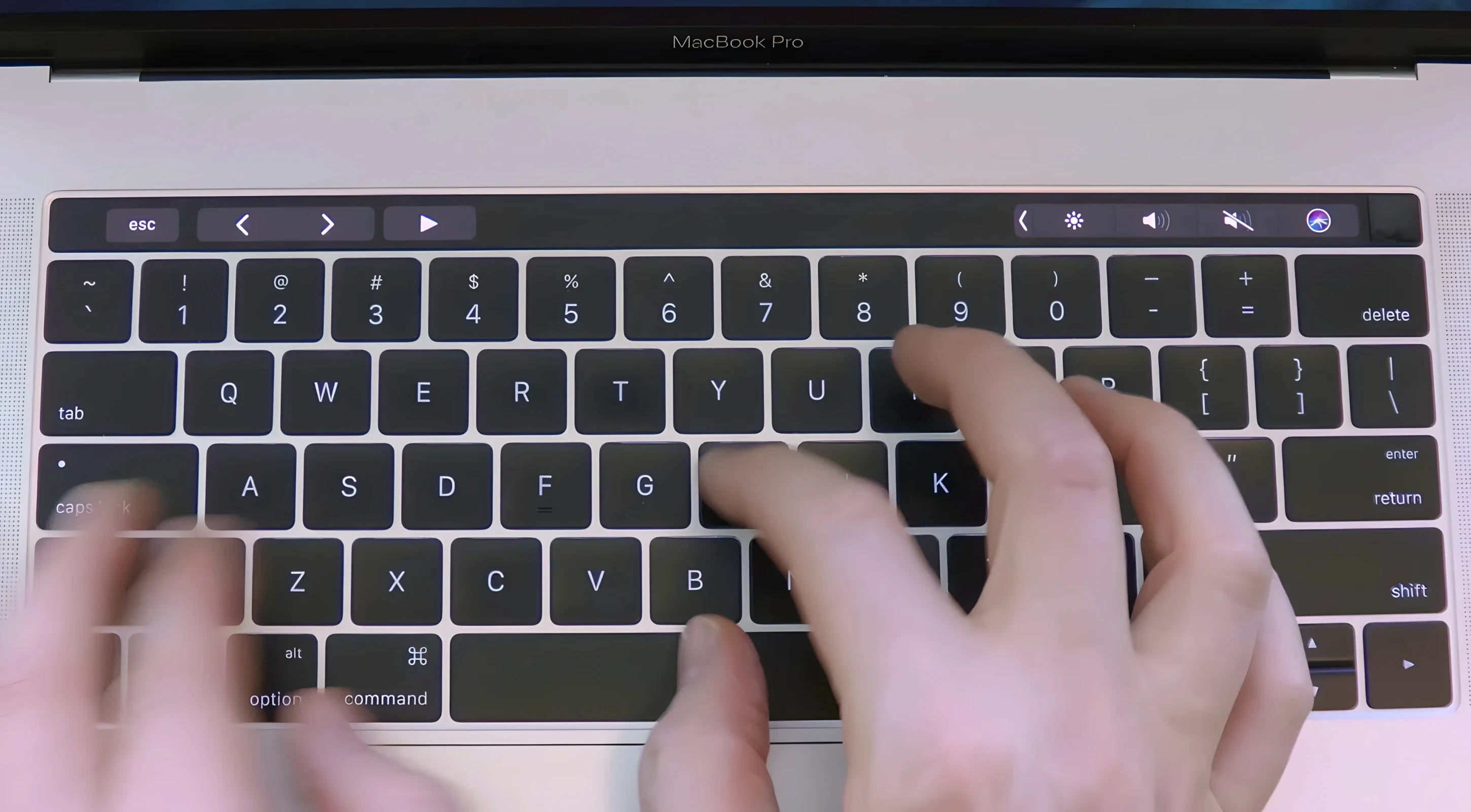
Apple’s Magic Keyboard is quiet — almost too quiet if you miss the audible punch of a mechanical board. Haptyk gives you that click back without plugging anything in. It taps into the accelerometer already inside Apple Silicon MacBooks, reads how hard you’re pressing, and plays a typing sound that changes with your intent.
Match sound to pressure
Hit a key softly and Haptyk produces a gentle tick; dig in harder and the sound intensifies. It turns the built-in keyboard into something that feels mechanical without any hardware mods.
Stay in the zone
Some people just type better when they hear a rhythm. Haptyk creates that feedback loop on a silent MacBook, so late-night sessions or open-plan desks still get a satisfying clatter — for you alone.
Launch and forget
Once it’s in your Applications folder, the app sits quietly and adds its layer to every keystroke. No menus to babysit, just sounds that scale with your fingers.
A screenwriter’s late‑night companion
Take someone like Mia, a screenwriter who drafts most of her pages between 11 p.m. and 2 a.m. The house is asleep, her partner is a light sleeper in the next room, and she’s on a 14‑inch MacBook Pro. Before Haptyk, the silence started to feel stale — she missed the percussive feedback that used to keep her sentences moving on an old clicky keyboard. With Haptyk running, every line of dialogue lands with a soft but definite tap, and when she’s rewriting an argument scene and hammering the keys, the sound swells just enough to match the energy of the moment. The room stays quiet for everyone else; Mia stays in the scene. That’s the quiet magic of it: the sound is hers alone, and it scales so naturally that after twenty minutes she forgets it’s software at all.
Only M2 MacBooks and newer carry the hidden sensor
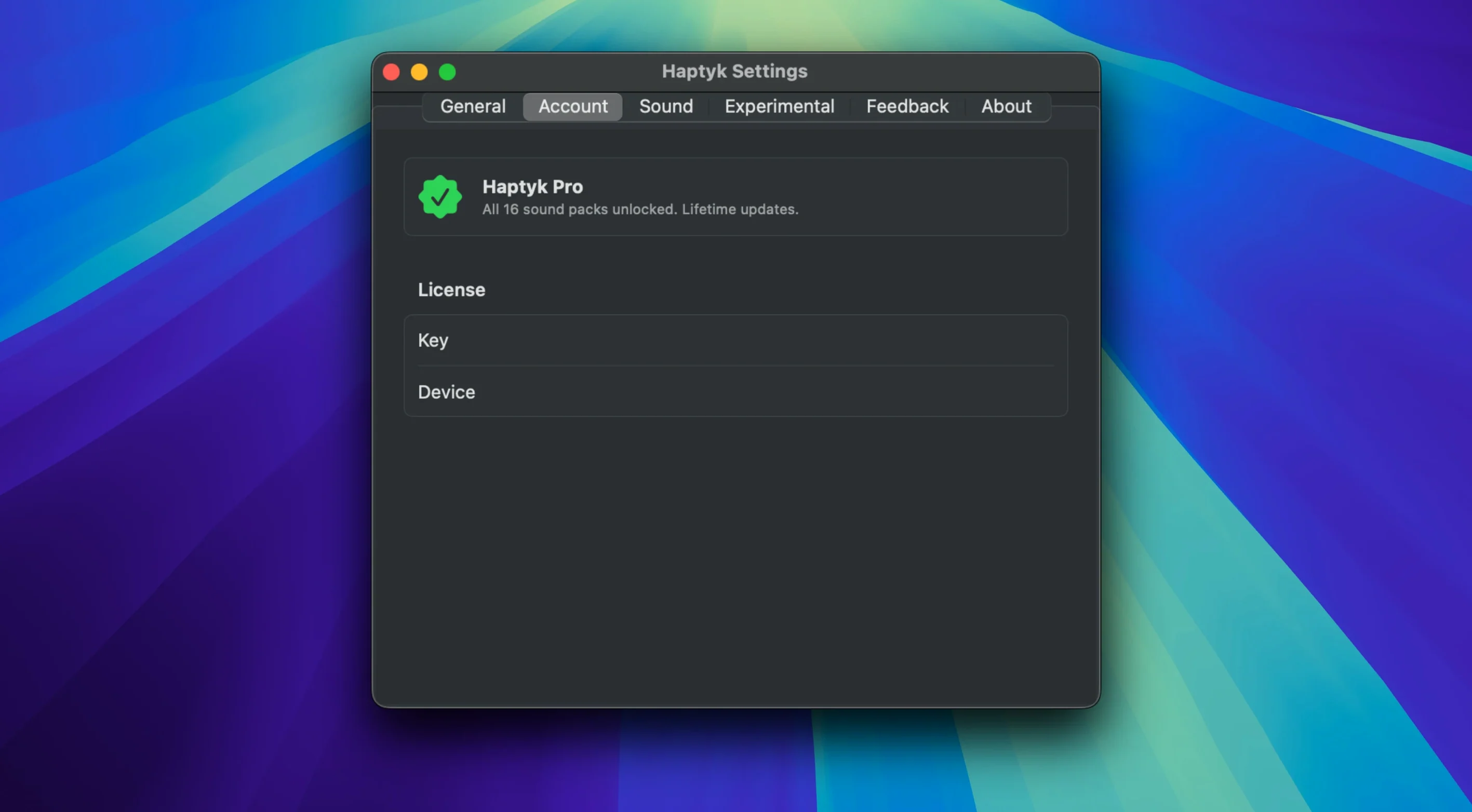
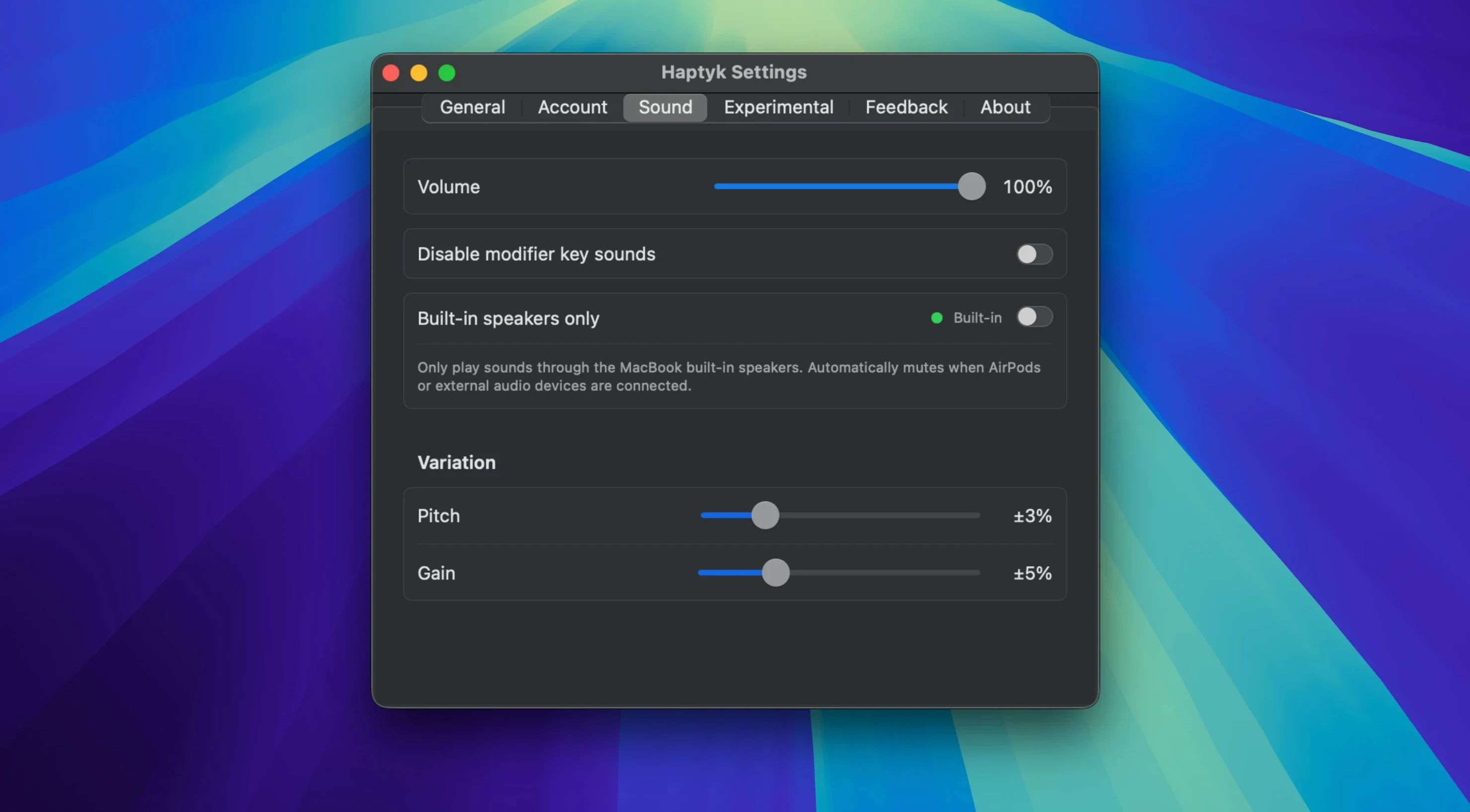
First time users often expect Haptyk to work on any Mac, and that’s the biggest stumble. The app leans on a hidden accelerometer that only exists in Apple Silicon MacBooks from the M2 generation onward — M1 machines, Intel MacBooks, and any desktop Mac simply don’t have the sensor it needs. Another common slip: launching the app and immediately cranking the system volume. Because the sound intensity follows key force, a too‑loud setting makes light taps feel disproportionately loud, which can feel jumpy rather than natural. Start with your Mac’s volume around 40–50% and then let your fingers find the rhythm. Lastly, some people launch it and expect a preferences window: Haptyk doesn’t have one, which can feel odd for about ten seconds until you realise it’s already working.
Train your fingers with three pressure levels in TextEdit
- Day one — test the force curve. Open TextEdit and type your name softly, then with normal pressure, then with deliberate force. Listen for the three distinct sound levels. That simple exercise teaches your fingers the range faster than any guide would.
- Day two — pair it with Focus modes. If you use macOS Focus modes for writing blocks, set Haptyk to launch automatically via a Shortcut that triggers when the Focus turns on. It’ll be there when you sit down to write and gone when you switch to browsing, keeping the sound tied to deep‑work sessions.
- Day three — try it in a coffee shop. The real test of the dynamic sound is a noisy environment. Pop in one AirPod, keep the Mac volume modest, and notice how the tactile‑audio loop still grounds you even when the room is buzzing.
Where Haptyk fits in your Mac ecosystem
Haptyk isn’t an island — it plays well with other apps precisely because it stays out of their way. Writers who draft in Ulysses or iA Writer get the click‑clack under their prose without any plug‑ins or export menus. Coders in Xcode or Nova hear the rhythm change when they’re tapping out boilerplate versus hammering through a tricky function. Because the app lives at the system level, it doesn’t conflict with text‑expansion tools like TextExpander or keyboard remappers like Karabiner‑Elements — each keystroke still triggers the sound after any macro fires.
On the macOS side, the app respects the same privacy sandbox as any modern utility: it reads accelerometer data locally and never asks for accessibility or input‑monitoring permissions. That makes it an easy companion alongside clipboard managers, window organisers, and launchers that do require those permissions — you’re not stacking up another security prompt. And if you’re already in the habit of using the haptyk app alongside a distraction‑free writing environment, you’ll appreciate how it coexists with background utilities like f.lux or Night Shift, adding nothing but audio texture to a late‑night screen.
If you’ve ever tried a haptyk free download from a friend’s recommendation, you’ll know it slots into a portable setup beautifully. MacBook users who dock at a desk with an external mechanical keyboard can simply quit the app when they’re clacking on real switches, then relaunch it when they’re back on the built‑in keyboard. No settings to toggle, no profiles to juggle — just quit and relaunch. It’s the sort of friction‑free pairing that makes you appreciate how lightweight the utility really is. Once you’ve used haptyk mac on a silent keyboard, you’ll start to notice how much of your typing cadence depends on sound — and how natural it feels to have that layer back on a modern MacBook.
- macOS 13 or later
- Apple Silicon or Intel 64-bit Mac
Questions people ask
Which MacBooks does Haptyk work with?
It requires an Apple Silicon MacBook. The developer lists the 14‑inch and 16‑inch MacBook Pro with M1 Pro, M1 Max, and later chips as officially supported.
Also on readers' docks
Sign in or create an account to leave a comment.
No comments yet. Tell me how it got on with your other devices.