
Download HarborDrop for macOS
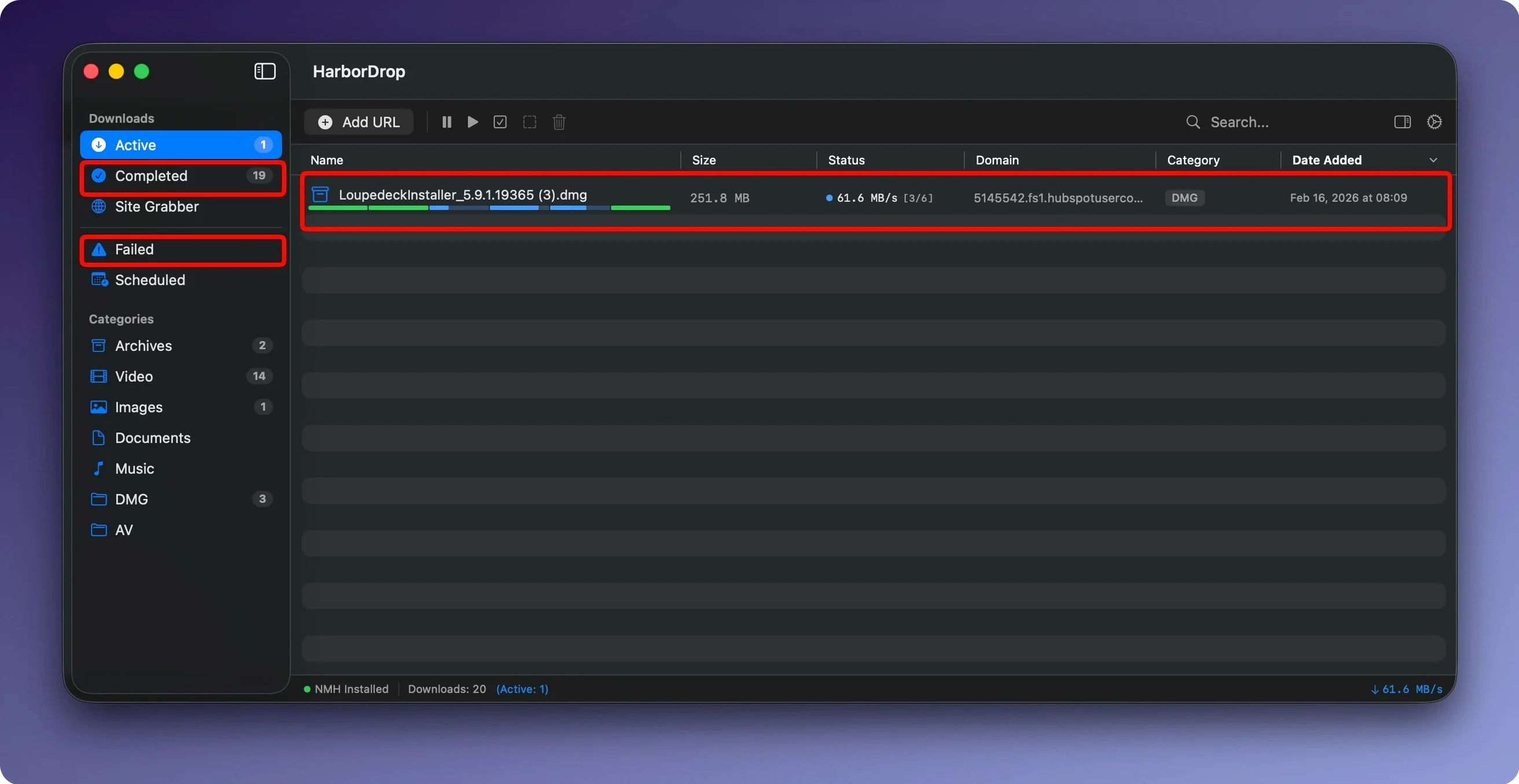
You spot a batch of high-res photos on a photographer's site and queue them up with a single right-click. HarborDrop grabs the links, accelerates each file with multi-threaded fetching, sorts them into a folder just for that domain, then runs a script that opens them in your editor — all without you touching a thing after the first click.
- Send media links straight to the queue. The browser extension — available for Chrome, Edge, Brave, and Arc — catches downloadable files and passes them to HarborDrop in one click, so you never juggle URLs by hand.
- Let segmented downloads do the heavy lifting. Every file splits into up to 6 segments by default, pulling data in parallel to saturate your connection and finish faster than a single-threaded browser download.
- Auto-sort into domain or type folders. Turn on automatic sorting and finished files land in subfolders named after the site they came from or the file extension — images go one place, zips another.
- Trigger post-download automation. After a download completes, HarborDrop can open the folder in Finder, fire an AppleScript, or run JavaScript. That means renaming, moving, or processing files happens hands-off.
There’s also a built-in Site Grabber for collecting every link on a page at once, which turns a manual scavenger hunt into a one-shot operation. Think of HarborDrop as your IDM alternative for macOS — it doesn’t just download, it finishes the job.
A video editor’s last-minute asset grab
Imagine a freelance editor who gets a late-night message: “We swapped three b-roll shots and a title card — links below.” The deadline hasn’t moved. She pastes the first link into HarborDrop while Chrome catches the rest through the extension, and instead of baby-sitting four progress bars in a browser, she watches all six segments chew through each file at once. The real win comes after. She’s set a rule that any download from the client’s domain lands in a project folder named after that domain, and an AppleScript tags the new files with a green Finder label. By the time she pours her coffee, the assets are sitting in the right bin, color-coded and ready to drag into the timeline. No renaming, no hunting through the Downloads pile — HarborDrop did the scut work while she stretched her legs.
Taming the segment spike in your first hours
When you install HarborDrop, the temptation is to just throw a big file at it and watch the segments spike. That’s fine — but a few small moves in the first hours make the tool feel like yours.
- Install the browser companion straight away. Visit a page with a few media links, click the extension icon, and watch how it populates the queue. You’ll stop copying URLs by hand within a day.
- Pick two auto-sort rules you’ll actually use. Start simple: sort by file type so .dmg installers don’t mingle with .zip archives, or sort by domain so work files stay separate from personal downloads. You can tweak the rules later, but having them from the start keeps the Downloads folder sane.
- Try one post-download action. Even a tiny shell script — say, moving a finished .csv into a “Ready for Numbers” folder — teaches you how the automation pipeline feels. Once you see it fire, you’ll start dreaming up bigger workflows.
- Leave the segment count at 6 for a week. It’s the sweet spot for most connections. If you’re on a spotty network, dropping to 3 can help; if you’re on gigabit fiber and the server can keep up, nudging it higher squeezes out a bit more speed. But don’t overthink it on day one.
HarborDrop rewards a “set it and let it” mindset. The more you let the sorting and scripting run in the background, the less you think about downloading at all — it just becomes a quiet engine that puts files where they belong.
Workflow: bulk-grabbing reference images with the Site Grabber
A designer is building a mood board for a rebrand and lands on a competitor’s gallery page — 40 product shots scattered across a single lazy-loaded grid. Right-clicking each one would take half the afternoon. Instead, she opens the Site Grabber, pastes the page URL, and sets a crawl depth of 1 so HarborDrop sticks to the images linked directly from that page. She filters for .jpg and .png, hits go, and the queue populates with every matching asset in seconds.
Before the download even starts, she’s configured the auto-sort to funnel anything from that domain into a folder called “Competitor Reference,” and she’s attached a post-download JavaScript that appends the source domain to each filename. As the segmented connections pull the images down, they land in the right folder with names that make sense — no more “IMG_4829_3.jpg” mysteries. The whole batch is sitting in Finder, organized and labeled, by the time she finishes tweaking a color palette in another app. The Site Grabber turned a tedious link-collecting chore into a single dialogue box and a cup of tea.
- macOS 12 or later
- Apple Silicon or Intel Mac
- Activation not required
Questions people ask
Can HarborDrop run scripts after a download finishes?
Yes, it can execute AppleScript or JavaScript automatically when a download completes, so you can trigger custom processing without manual steps.
Which browsers does the HarborDrop extension work with?
The extension integrates with Chrome, Edge, Brave, and the Chromium-based version of Arc to send media links directly to the app.
How does HarborDrop organize finished downloads?
It can automatically sort downloaded files into subfolders by site domain or file type, keeping your downloads structure clean from the start.
Also on readers' docks
Sign in or create an account to leave a comment.
No comments yet. Tell me how it got on with your other devices.