








Download iDownerGo for macOS
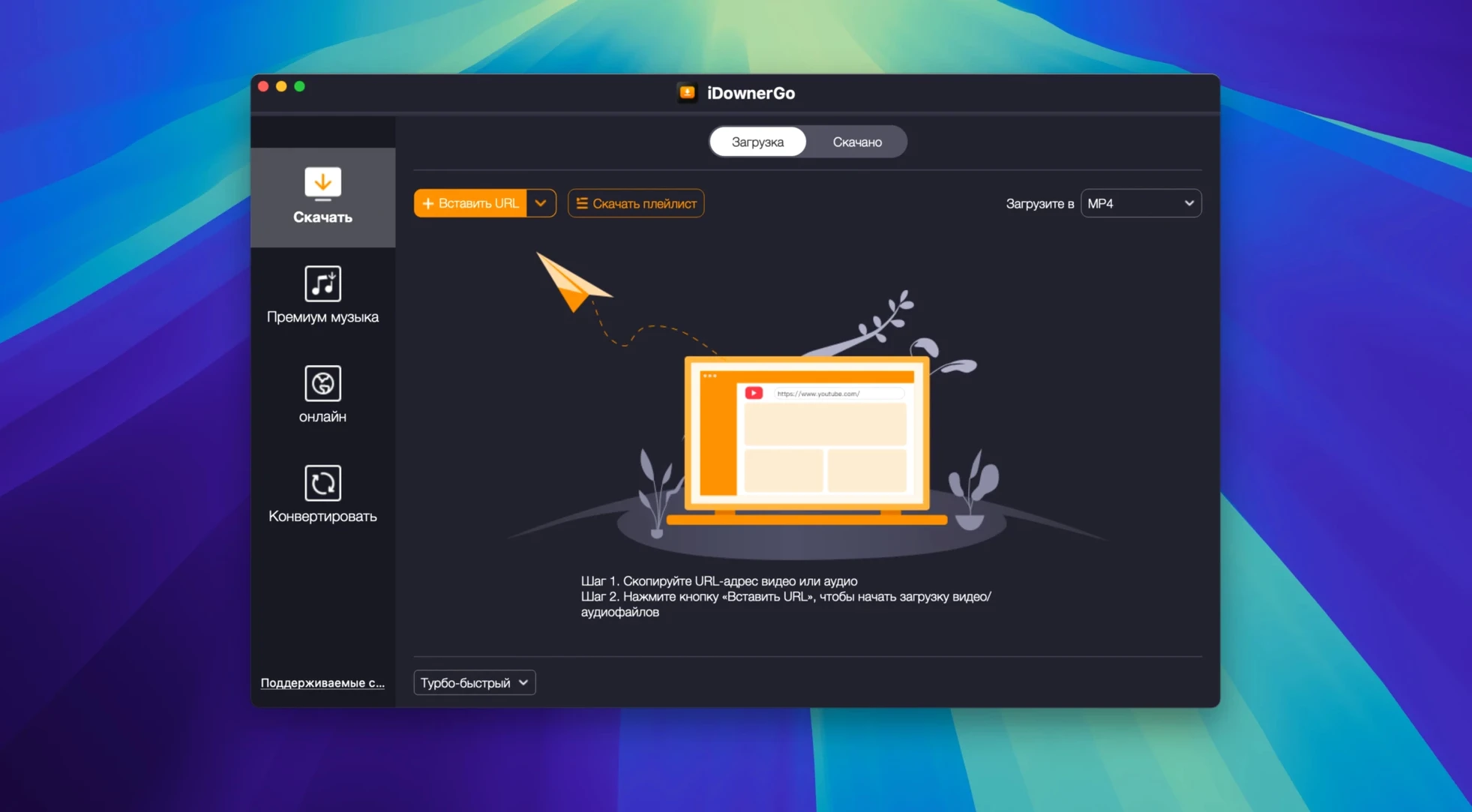
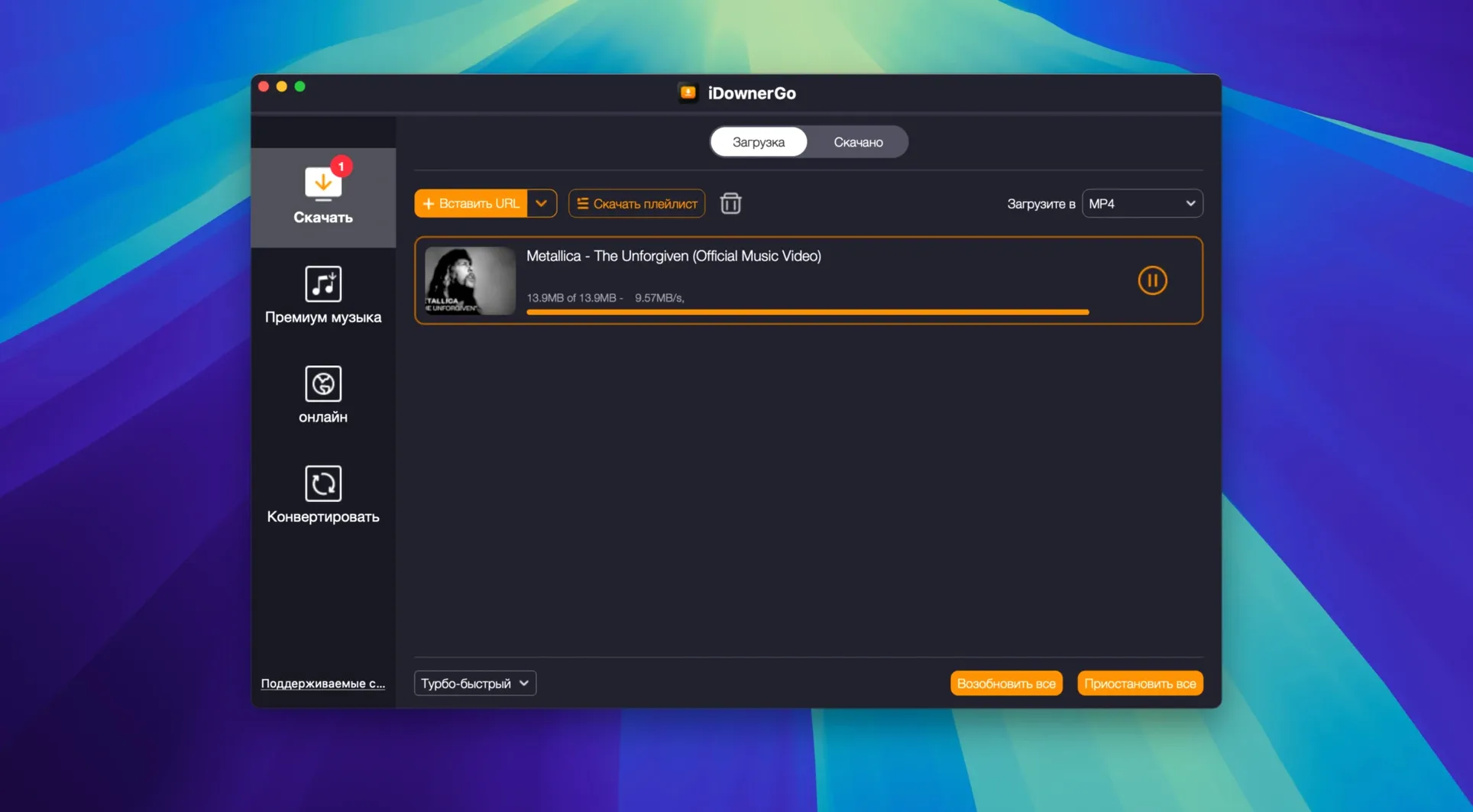
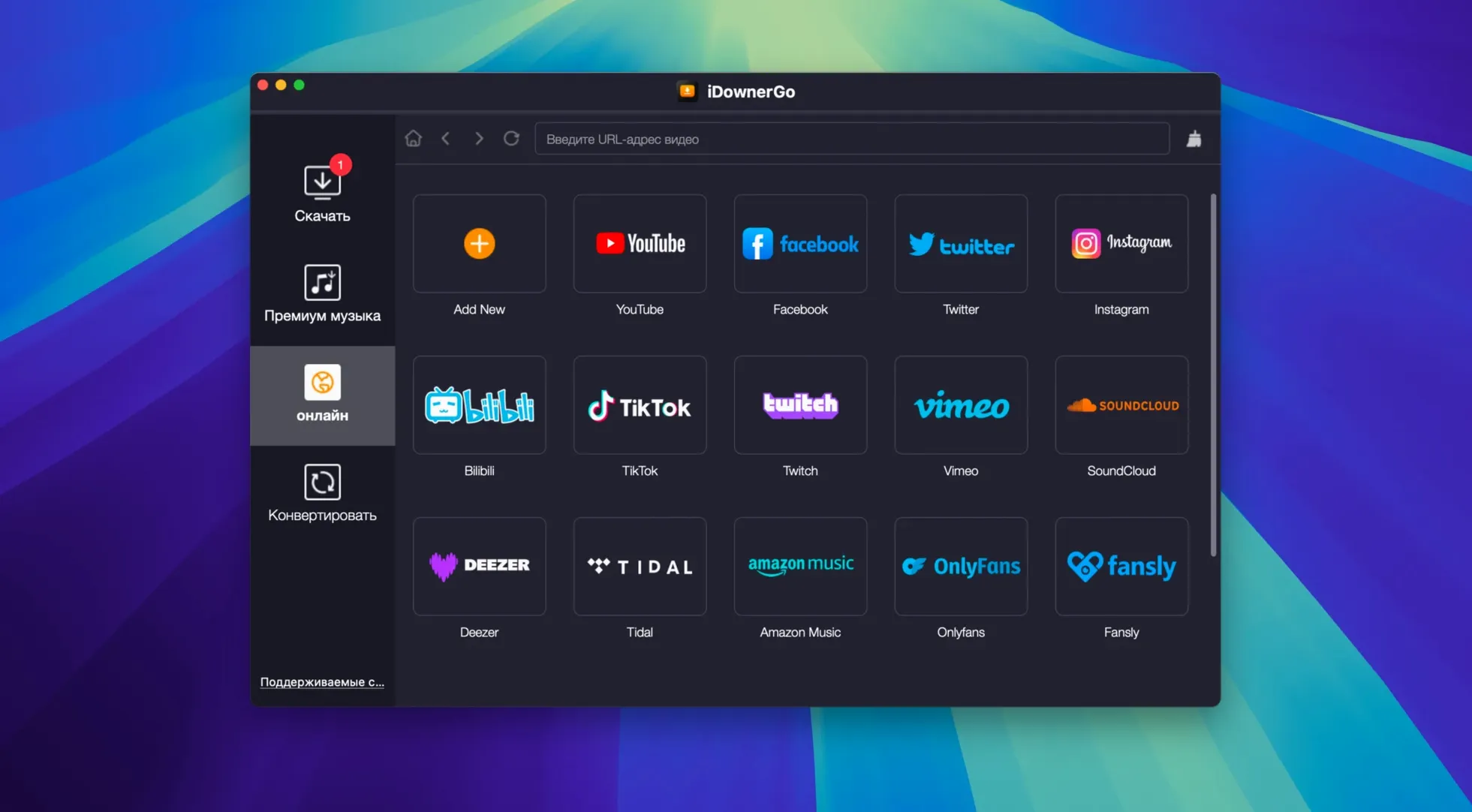
Finding a video you want to keep is easy; actually saving it for offline viewing on a Mac often isn't. Most streaming sites don't offer a download button, and browser extensions can be hit-or-miss. That's the gap iDownerGo fills. It's a straightforward desktop app for grabbing clips and audio from a huge range of platforms, and the current version 10.15.0 makes it a solid starting point for anyone new to the process.
Where can I save videos from?
Start with the big social and media names. iDownerGo handles Facebook, Instagram, TikTok, Dailymotion, and Bandcamp effortlessly, alongside thousands of other sites. Paste a link, and the app gets to work.
Can I pull just the audio?
Absolutely, and it's one of the best features to try early. You can convert a saved video into a music file, which is perfect for grabbing a live set from Bandcamp or a podcast clip from a video platform.
Lock in output format before your first download
Open the app and immediately head to the preferences. You'll want to pick your preferred output format and quality before your first download, so every saved file is ready to use in your library or editing timeline without extra conversion steps.
Spend a few minutes with iDownerGo and the broad shape of it makes sense, but there are a handful of corners worth knowing about. Here's where I've seen things get a little sticky and what I'd do differently if I were setting it up fresh.
Who fits the tool best
Someone who encounters this app on an idownergo mac search is usually after one of two things: a reliable way to pull clips from social feeds, or a no-fuss music grabber that doesn't demand a browser extension. The people who get the most mileage share a few habits. They keep a messy bookmarks folder of videos they mean to watch later and never do — iDownerGo turns that folder into an offline queue. They make playlists from scattered sources and want the audio living in one place, not inside five different apps. And they often work on an older Intel Mac. Because the build requirements stay friendly to OS X 10.10 and above, it runs comfortably on machines that haven't seen a major macOS update in years. That's a genuine advantage if you're keeping a 2012 MacBook Pro around as a media hub.
It's less of a natural fit for someone who only ever streams via subscription services that wrap content in heavy DRM. The app won't crack those, and it doesn't pretend to. If your entire watching life lives inside Netflix or Disney+, this isn't the downloader you need. But for the open web — the videos friends send, the live performances, the tutorials you want to reference offline — it clicks.
Skipping the Terminal command blocks the launch
The Gatekeeper bypass step trips up newcomers the most. The install flow asks you to mount the disk image, then launch a Terminal command and press Enter. People sometimes skip reading that part, double-click the app icon, and get the standard "unidentified developer" block. The fix is always the same: run the provided open step from the disk image window. Once you've done it once, macOS remembers the exception and launches normally afterward.
Another common hiccup is pasting a link and seeing no response. Nine times out of ten the URL includes tracking parameters that confuse the parser. Strip everything after the first question mark — the ?utm_source=… tail — and try again. If the site requires a login to view the content, like a private Instagram post, iDownerGo can't reach it. Test with a public video first to confirm the app is working.
People searching idownergo 10.14.0 often land here thinking they need an older version for their Mac. The current build 10.15.0 runs on the same minimum OS, so there's no reason to step back. Any reference to an earlier version number floating around forums is usually just a stale listing.
First-days playbook
Before you queue up a dozen downloads, grab one short clip from three different sites. A TikTok, a YouTube music video, and a Bandcamp track cover the range nicely. Watch each output file in QuickTime Player and check the audio sync. This tiny test run surfaces format mismatches before you've spent an hour downloading, and it gives you a feel for how long different sources take.
Next, create a dedicated folder in Finder called "iDownerGo Inbox." Point the app's download location there in preferences. Keeping everything in one place for the first week makes it easier to spot duplicate files or incomplete downloads, and you won't scatter MP4s across your desktop. Once you trust the workflow, you can redirect output wherever your main media library lives.
Match default video quality to your everyday screen
- Default video quality. The app offers HD, 4K, and even 8K where the source supports it. Set this to match your most common use. If you mainly watch on an iPad or a 1080p monitor, pulling 4K for everything eats drive space for no benefit.
- Audio extraction format. The default may not be MP3. Switch it to MP3 at 320 kbps if you're building a music library for an older iPod or a car USB stick. For archival purposes, consider AAC at a similar bitrate.
- Concurrent downloads. Dropping the simultaneous download count to two prevents the app from hammering a single site and triggering rate limits. It also stops older Macs from bogging down during batch jobs.
- Language interface. The app ships with over two dozen localizations. If English isn't your preferred working language, a quick visit to the language dropdown gets you menus in Russian, German, Spanish, French, Japanese, and many others. It's a small touch that makes daily use smoother.
The translation coverage extends far beyond the usual handful of European languages. Arabic, Bulgarian, Hungarian, Vietnamese, Danish, Indonesian, Italian, Traditional and Simplified Chinese, Korean, Malay, Dutch, Polish, Serbian, Slovenian, Thai, Filipino, Croatian, and Czech are all present. That's a genuinely thoughtful inclusion for a utility that gets shared across family computers and handed around friend groups where not everyone navigates English comfortably.
If you ever bump into a site that seems supported but won't cooperate, the real-time streaming download feature sometimes behaves better when you start playback in your browser first, then copy the URL while the video is actually playing. The app sniffs the stream more reliably that way. Folks who arrive via an iDownerGo torrent query occasionally mention this trick on forums, and it's a good one to keep in your back pocket.
- OS X 10.10 or later
- Intel-based Mac
Also on readers' docks
Sign in or create an account to leave a comment.
No comments yet. Tell me how it got on with your other devices.
More in Mac Apps
See all IDA Pro
9.4.260713.a97520e5 Mac Apps
947 MB
IDA Pro
9.4.260713.a97520e5 Mac Apps
947 MB
 iExplorer
4.6.0 Mac Apps
30 MB
iExplorer
4.6.0 Mac Apps
30 MB
 Imagenomic Plugin Suite
2027 Mac Apps
71 MB
Imagenomic Plugin Suite
2027 Mac Apps
71 MB
 Imagenomic Portraiture
4.5 Build 4501 Mac Apps
65 MB
Imagenomic Portraiture
4.5 Build 4501 Mac Apps
65 MB
 iMazing
3.6.5 Mac Apps
242 MB
iMazing
3.6.5 Mac Apps
242 MB
 HitPaw Watermark Remover
2.4.7 Mac Apps
290 MB
HitPaw Watermark Remover
2.4.7 Mac Apps
290 MB
 Infuse Pro
8.5.5 CRACKFIX Mac Apps
90 MB
Infuse Pro
8.5.5 CRACKFIX Mac Apps
90 MB
 HitPaw Video Converter
4.5.0 Mac Apps
577 MB
HitPaw Video Converter
4.5.0 Mac Apps
577 MB