









Download Folder Preview Pro for macOS
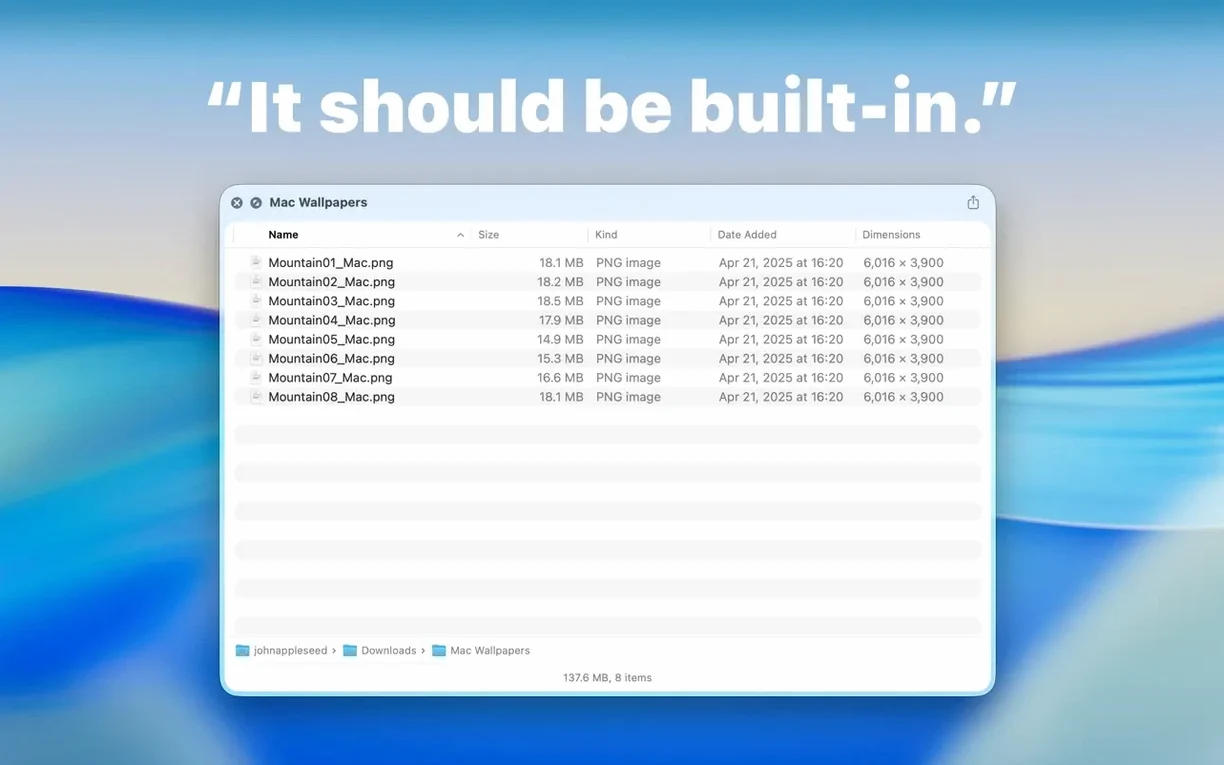
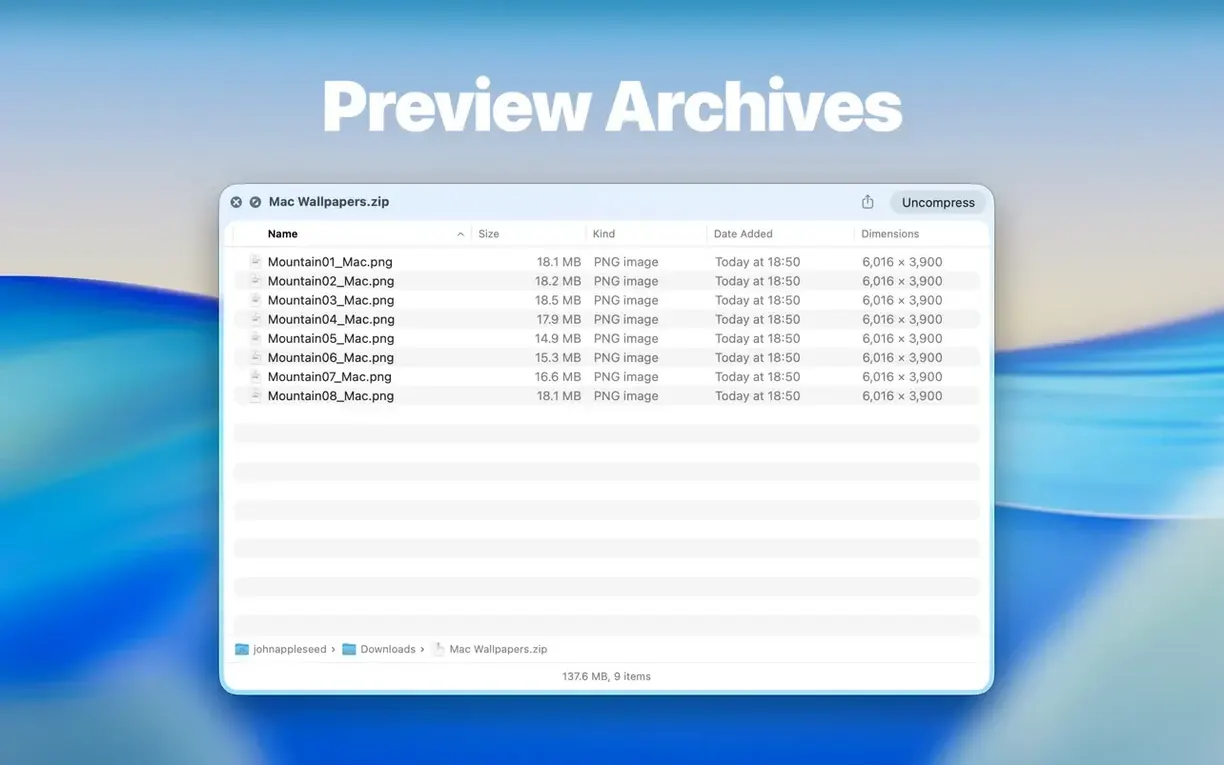
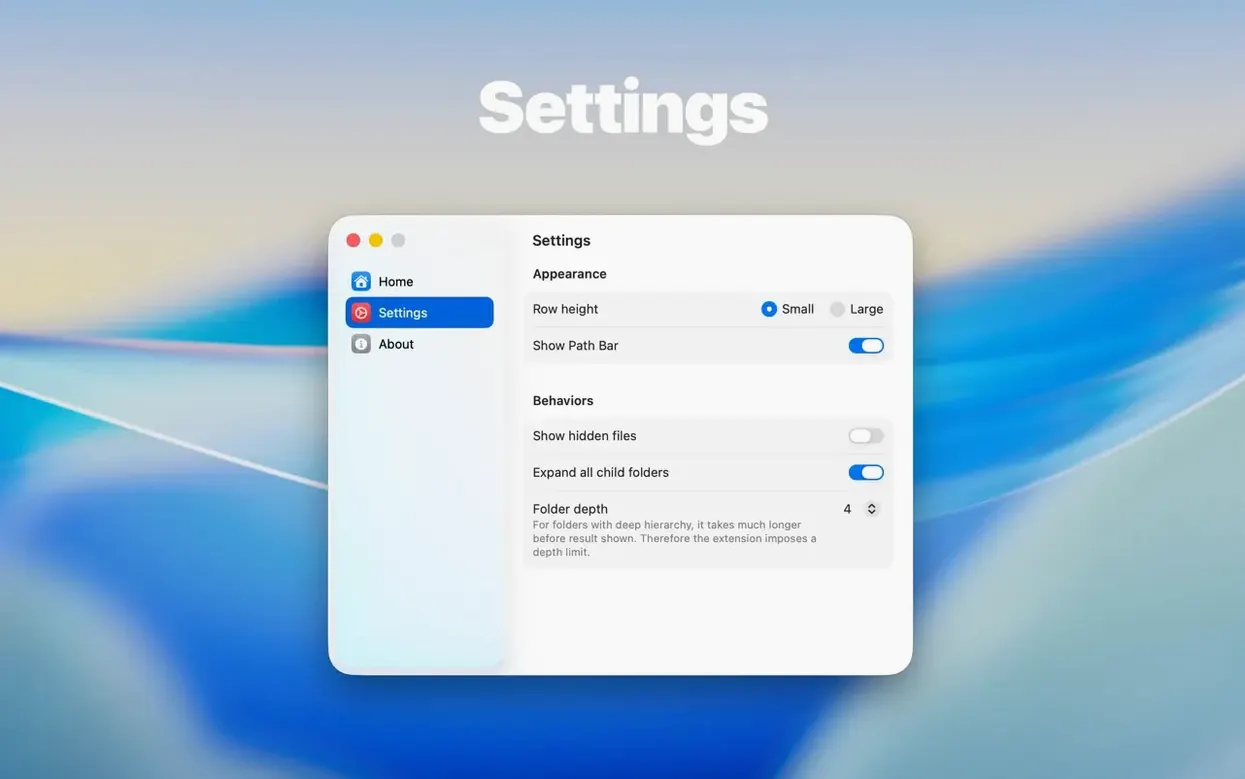
You're in a packed project folder, three levels deep, and just need to check what's inside a client's compressed archive without firing up another app. You hit the spacebar and… nothing useful. That's the exact moment Folder Preview Pro earns its keep. It’s a Quick Look extension that turns folders from opaque icons into transparent windows, and it handles archives like ZIP, TAR, GZ, 7Z, and RAR as if they were regular directories.
Peek inside archives without unpacking
- Glancing inside archives without unpacking a single file.
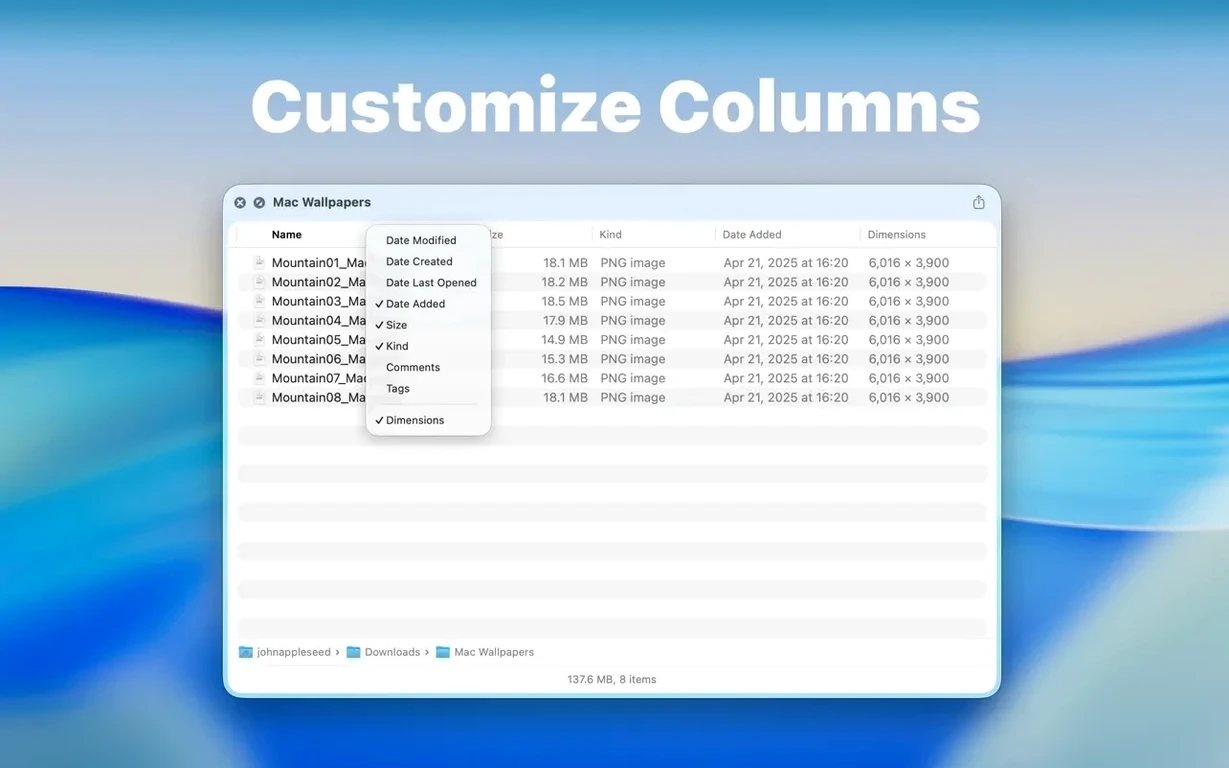
- Right-clicking column headers to show or hide metadata like file size and modification date.
- Dragging files straight out of the preview panel into another Finder window or app.
- Navigating folders level by level with the new Contents item — no more opening a cascade of windows.
Finder extension, not standalone browser
- It’s a Finder extension, not a standalone file browser. You need to be comfortable in the macOS file system.
- The Dual Columns view added in this version is powerful, but it takes a moment to get used to if you normally lean on icon view.
- Folder size now lives in the toolbar under the folder name, which is cleaner, but you might hunt for it the first time.
Raise the archive size limit first
Out of the box, Folder Preview Pro works fine, but a quick trip through its preferences makes it feel more like your own tool. The first stop should be the archive size limit — version 3.1 added 5 GB and 10 GB options, and if you regularly work with large compressed backups or media bundles, bumping this up stops the preview from refusing to open files that are perfectly reasonable for your workflow.
Next, decide which columns you actually need to see. Right-click any column header inside a preview and uncheck what you never use. I keep name, size, and kind visible and hide everything else — the less visual noise, the faster I spot what I'm after. The folder size display moved to the toolbar in this release, so glance up there instead of hunting the status bar like in older versions.
Finally, give the Dual Columns view a spin even if you think you won't need it. It splits the preview into two panes, so you can browse two directories side by side without leaving Quick Look. It's off by default, but once you turn it on for a session, it remembers your preference until you switch back.
Quick Look vs. ForkLift and Path Finder
Several tools promise better folder previews, but they approach the problem differently. Here's how Folder Preview Pro stacks up against three of them.
Quick Look extensions built into other file managers — apps like ForkLift and Path Finder ship their own preview panels, and they work well inside those environments. The trade-off is obvious: they don't touch Finder at all. If you live in macOS's native file browser, Folder Preview Pro is the one that actually shows up when you press the spacebar. The others demand you open their app first.
Commander One — this dual-pane manager includes an eps preview mac style of browsing where archives and folders expand inline. It's more powerful for heavy lifting, but it replaces Finder rather than extending it. Folder Preview Pro stays out of the way until you need it, which suits people who don't want to learn a whole new file management paradigm.
Built-in Archive Utility and The Unarchiver — these handle extraction, not preview. You can set The Unarchiver as your default for RAR and 7Z files, and it does a great job unpacking them, but you still can't peek inside without extracting first. Folder Preview Pro fills that gap specifically, and it handles the same formats without ever creating a temporary folder on your desktop.
Launch once, then forget the app icon
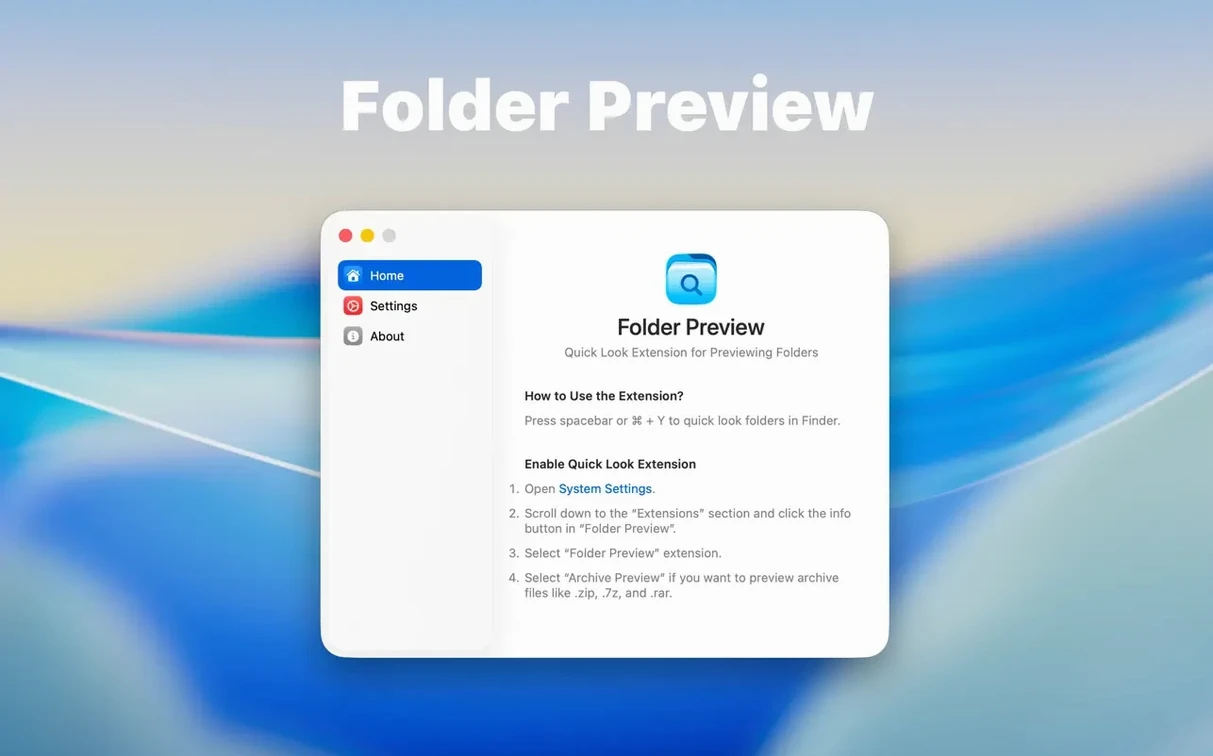
After installing, launch the app once from your Applications folder so macOS registers the extension — then you can forget the app icon exists. Everything happens through Finder from that point forward.
On day one, resist the urge to preview every folder you see. Instead, pick three real scenarios from your week: a compressed client delivery, a project folder with mixed file types, and perhaps a downloaded ZIP you don't fully trust. Test the preview on each. This builds muscle memory for the spacebar shortcut and teaches you which columns help in which context.
If you download a lot of archives from the web, enable the 10 GB size limit early. Nothing breaks the flow like hitting spacebar on a large RAR file and getting a blank preview because the default cap blocked it. Also, try dragging a file out of the preview panel in both list and icon views — this feature just landed in version 3.1, and it works more smoothly than you'd expect for a Quick Look extension.
One small habit worth forming: when you're browsing a deep folder structure, right-click and use the Contents item to step through levels instead of opening Finder windows. It keeps your desktop cleaner and your brain less scattered.
Pull an invoice from a RAR without unpacking
Here's a scenario I run into constantly: a client sends a project folder compressed as a RAR file, and I need to grab last week's invoice template from inside it without unpacking the whole thing onto my desktop.
I locate the RAR file in Finder and tap the spacebar. Folder Preview Pro opens it like any other folder, showing me the top-level contents immediately. I switch to list view because I'm looking for a specific filename, then sort by modification date to surface recent files first. The invoice template sits inside a subfolder called Admin, so I right-click that folder and pick Contents — the preview shifts down one level without opening a new window.
From there, Dual Columns view comes in handy: I keep the Admin folder on the left and open my local Invoices directory on the right. Now I can see both panes at once, confirm the file is the right one by checking its size and date in the column headers, and simply drag the template from the left pane straight into my working folder. The archive stays untouched — no extraction, no cleanup, no duplicate files littering my drive.
This whole sequence takes maybe twenty seconds once you've done it a few times. Before Folder Preview Pro, the same task meant unpacking the entire RAR, hunting through the extracted mess, copying what I needed, then remembering to delete the extracted folder afterward. The friction was small but constant, and eliminating it adds up over a week of client work.
Version 3.1 makes moving data feel more natural and folder structures easier to parse:
- A new Dual Columns view splits your preview, so you can see a folder's hierarchy and its contents side by side.
- The Contents item lets you browse folder levels one at a time without losing your place.
- You can now drag files out of the preview directly from list and icon views — just grab and drop.
- macOS 13 or later
- Apple Silicon or Intel processor
Questions people ask
Does Folder Preview Pro work on Apple Silicon Macs?
Yes, it runs natively on both Apple Silicon and Intel-based Macs.
Can I preview the contents of a RAR file without extracting it?
Absolutely. Supported archive formats include ZIP, TAR, GZ, 7Z, and RAR, all viewable in Quick Look.
Also on readers' docks
Sign in or create an account to leave a comment.
No comments yet. Tell me how it got on with your other devices.
More in Mac Apps
See all Folx Pro
5.34 Mac Apps
30 MB
Folx Pro
5.34 Mac Apps
30 MB
 FontLab
8.4.3.8984 Mac Apps
131 MB
FontLab
8.4.3.8984 Mac Apps
131 MB
 Updated ForkLift
4.7.7 Mac Apps
19 MB
Updated ForkLift
4.7.7 Mac Apps
19 MB
 Updated FotoMagico
6.11.0 Mac Apps
75 MB
Updated FotoMagico
6.11.0 Mac Apps
75 MB
 Find Any File
2.6.1 Mac Apps
14 MB
Find Any File
2.6.1 Mac Apps
14 MB
 Updated Final Cut Pro
12.4 CS Mac Apps
6.2 GB
Updated Final Cut Pro
12.4 CS Mac Apps
6.2 GB
 Fusion Studio 21
21.0.4 AIO Mac Apps
3.1 GB
Fusion Studio 21
21.0.4 AIO Mac Apps
3.1 GB
 FileMaker Pro
21.0.1 Mac Apps
397 MB
FileMaker Pro
21.0.1 Mac Apps
397 MB