Download Final Cut Pro for macOS
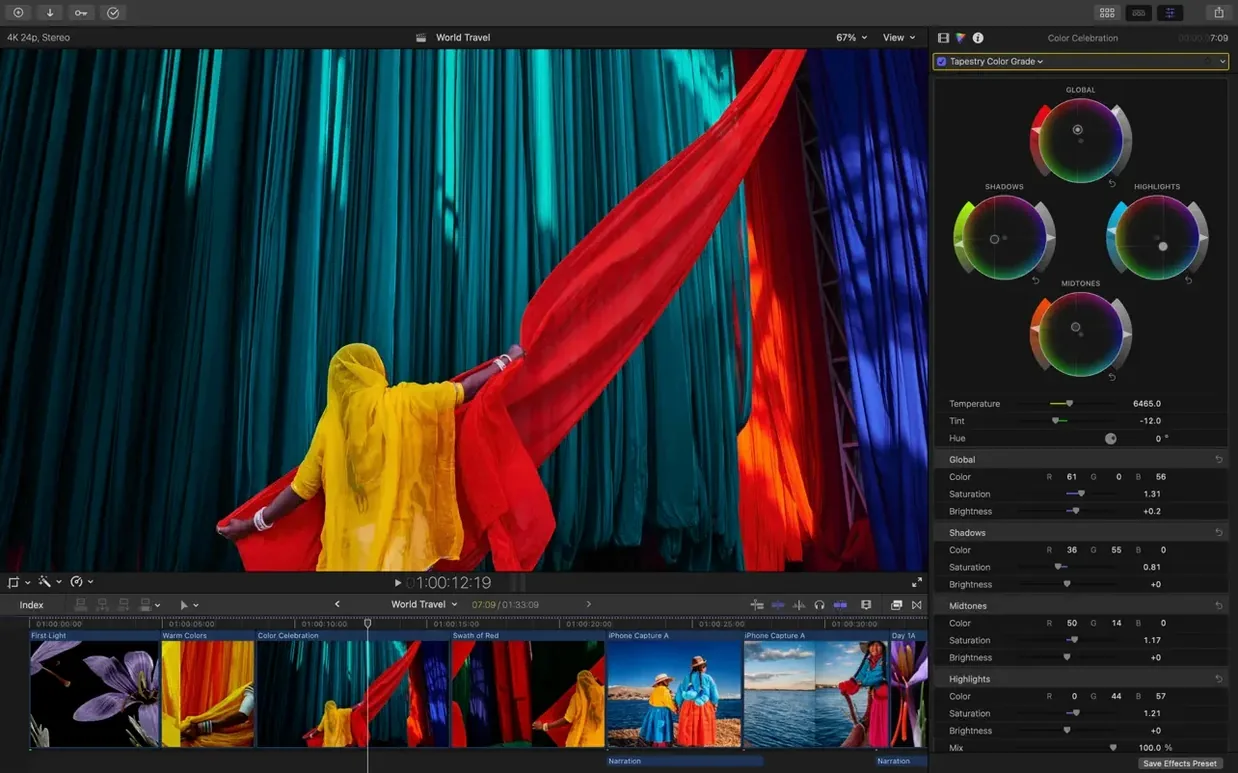
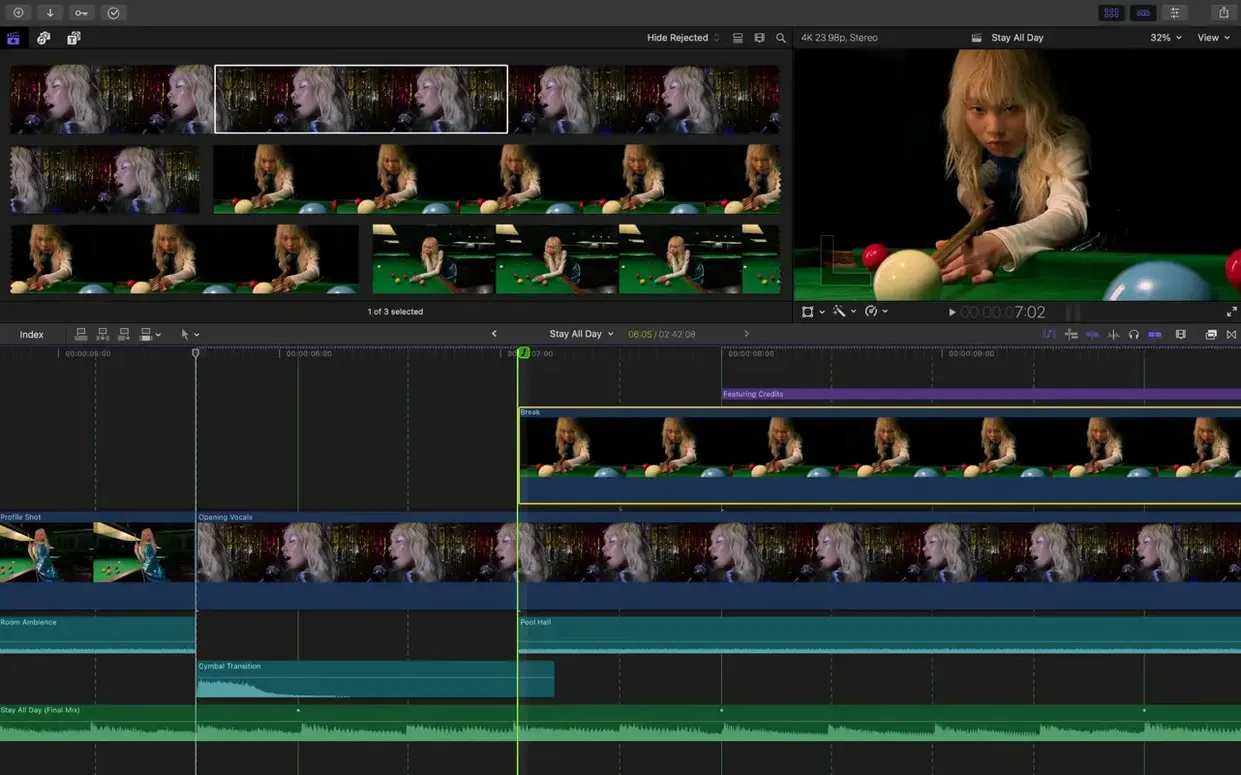
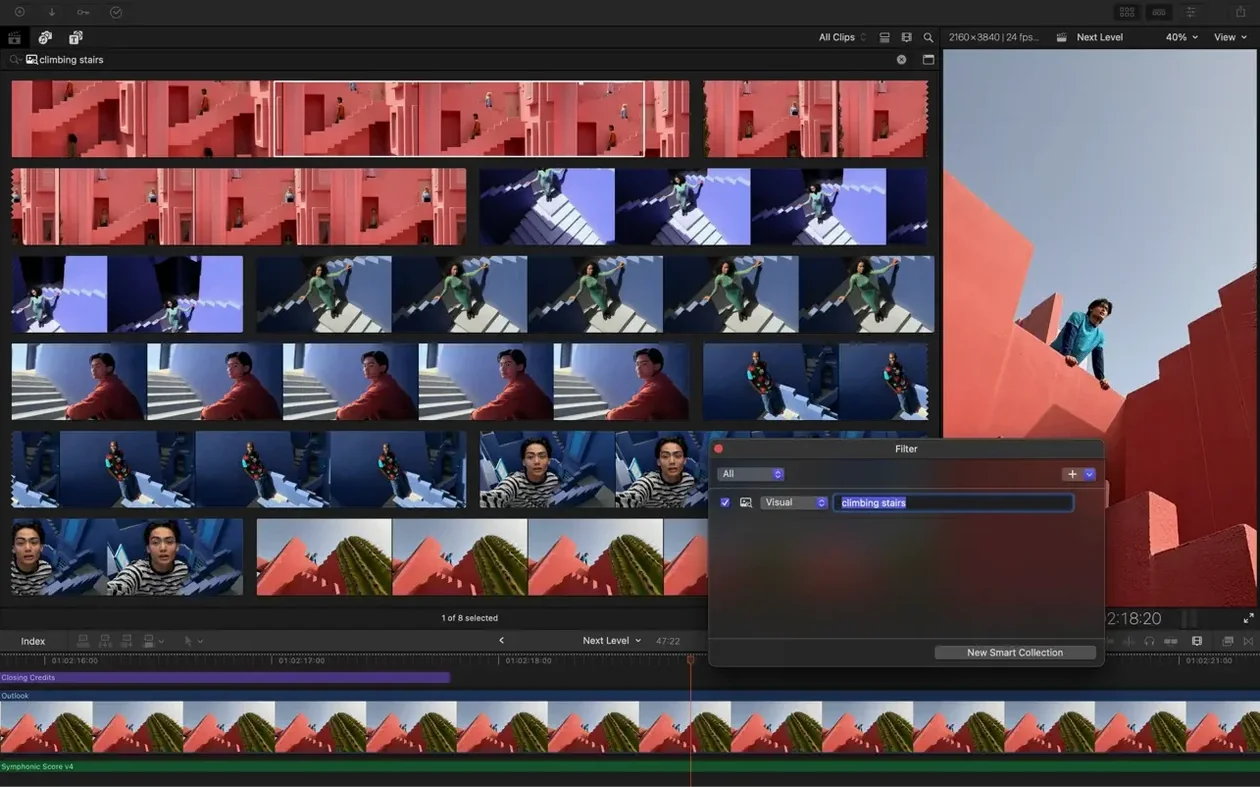
Stitching together a dozen clips from different cameras shouldn’t feel like solving a puzzle with missing pieces. A timeline that fights you, audio that drifts, color that shifts — those friction points pull you out of the creative flow and into damage control. Final Cut Pro is built to keep you in the story, not in the settings.
Who is Final Cut Pro actually for?
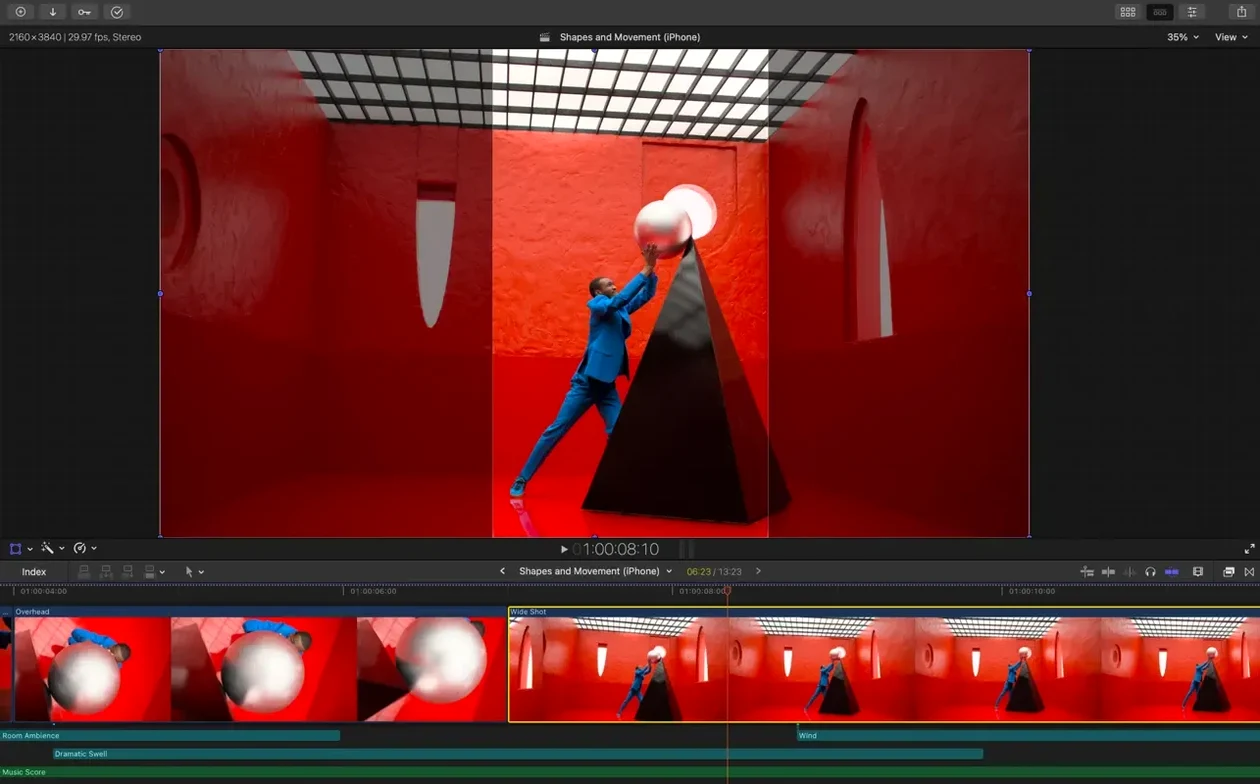
It’s for editors who want a clean, modern timeline without sacrificing professional finishing tools. Solo filmmakers, news cutters, and agencies all find a comfortable pace here. The Magnetic Timeline keeps clips connected the way you intended, so ripple edits don’t unravel your work down the line.
What makes the editing experience different?
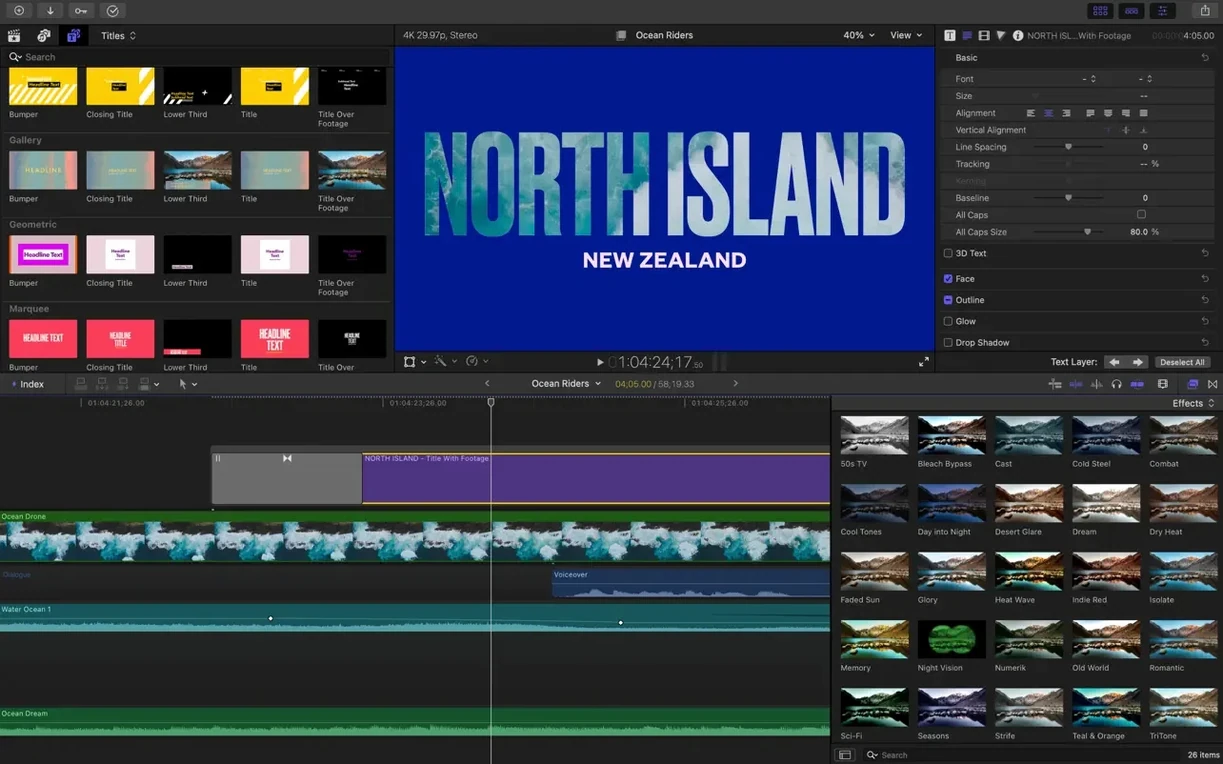
The timeline doesn’t use traditional tracks. Clips attach to a primary storyline and slide into place automatically, which cuts down on accidental sync breaks. On top of that, the Object Tracker lets you pin titles or effects to a moving face or object with a couple of clicks — no frame-by-frame keyframing required.
XML handoff and ProRes through RED raw ingest
Yes. You can ingest anything from H.264 and HEVC through to ProRes, RED, XAVC, and Avid DNxHR media. Multichannel audio editing with waveform-based sync keeps dual-system sound in check, and XML import/export means you can hand off a timeline to Resolve for color or Pro Tools for a mix without rebuilding the project.
Handshake with the whole Apple ecosystem
Final Cut Pro doesn't live in a bubble. Apple built it to shake hands with the whole ecosystem, and that matters when you're pulling footage from a dozen places and sending it out to three different destinations. The tightest integration is with Apple's own finishing tools. Motion handles the motion graphics and effects templates — anything you design there shows up right inside Final Cut as a title, transition, or effect with parameters you can tweak on the timeline. Compressor takes over when you need batch export with custom codec settings that go beyond what the share menu offers. The three apps together form the Creator Studio bundle, and they pass projects back and forth without translation steps that could trip things up.
On the macOS side, the app taps into system-level frameworks in ways that feel invisible but save real time. Core ML powers the Object Tracker and the new Auto Mask feature, so face recognition and subject isolation run on the Neural Engine without eating into your render budget. Metal handles real-time playback and effects rendering — the timeline stays responsive even with 4K ProRes layered over color grades and compound clips. If you use iCloud Drive or a shared network volume, you can store libraries there and open them on another Mac without manually relinking media, assuming your paths match. The media management underneath ties into Finder tags and Spotlight, so searching for a clip by a keyword you added inside Final Cut surfaces results in a system-wide search.
For audio workflows, the XML roundtrip path opens doors. You can edit your rough cut with all the multichannel audio roles intact, export an XML, and bring it into Logic Pro or Pro Tools for a full mix. Roles — dialogue, music, effects — carry through as stems, and when the audio engineer sends it back, you reimport without rebuilding fades or levels. The same logic applies to color grading: send an XML to DaVinci Resolve with your timeline structure preserved, grade there, and return a flattened or referenced file. No AAF translation layers, no EDL guesswork.
There's also the quiet integration with Photos and Music apps. Need a song from your library? It's right in the media browser, ready to drop onto the timeline with proper waveform previews. Stock footage from a Photos album works the same way. Small touches, but they cut out the export-import shuffle that bogs down quick-turnaround edits.
64-angle multicam sync by audio waveform
Editors who work across multiple cameras benefit the most — and I mean that literally. The multicam sync engine handles up to 64 angles and aligns them by audio waveform automatically. Wedding filmmakers and event shooters who roll three or four cameras plus a dedicated audio recorder see that as a lifeline. Instead of syncing by hand and hoping the timecode matches, you select your angles and let Final Cut build a multicam clip in seconds. Cutting between angles during playback feels instant, even on a MacBook Air, because the app caches the streams intelligently.
Solo content creators who handle their own post-production from ingest to delivery get a streamlined experience. There's no track patching, no source monitor to timeline gymnastics. You drag a clip, it lands where you want; you move it, everything ripples to accommodate. For someone editing a weekly YouTube series or a short documentary alone, that predictability means finishing a rough cut by lunch instead of dinnertime. The new Edit Detection feature — which splits a long rendered export into individual clips — is tailor-made for these folks. Shot a 20-minute presentation and want to pull out the usable sections without scrubbing for cuts? It finds the edit points and breaks the file apart.
Post-production teams and agencies that already work in Apple-heavy environments gain from the XML interchange. If your colorist uses Resolve and your sound designer prefers Pro Tools, Final Cut Pro sits in the middle without forcing anyone to adopt a platform they don't want. The library system also suits shared storage setups: you can create proxy media copies for lightweight editing on a MacBook Pro while the full-res media lives on a SAN, then relink later for the final render. The keyword and smart collection system makes it possible for an assistant editor to tag hours of footage and have the lead editor pull up exactly the selects they need without opening a single bin.
Neutralizing a magenta camera against Rec. 709
Here's a real scenario I keep coming back to. You shot an interview with two cameras — one a modern mirrorless shooting in Rec. 709, the other a slightly older body that leans a bit magenta under the same lights. In the past, you'd drop a color board on the oddball clip and nudge wheels until your eyes crossed. With version 12.3, the Match Color feature changed that entirely.
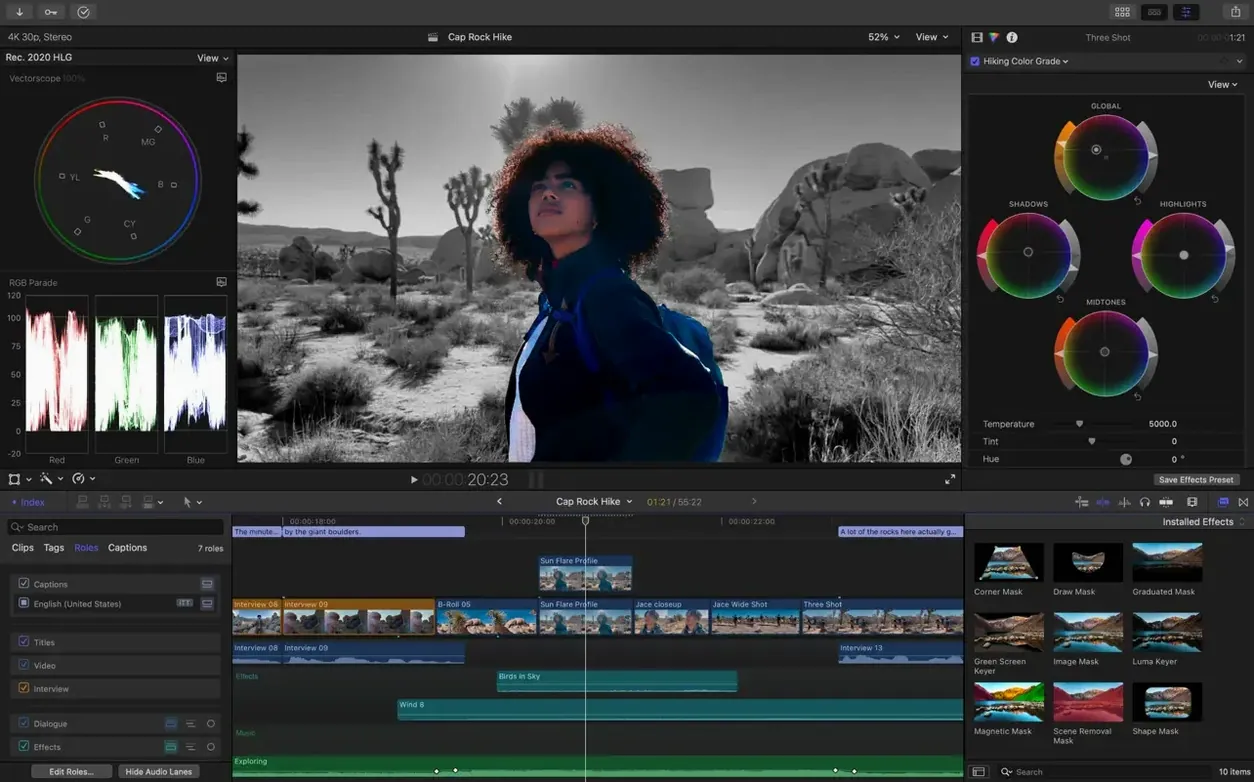
First, ingest everything into a new library and create a keyword collection for the interview. Skim through both angles, pick the frame from the good camera that represents the look you want, and park the playhead there. Now select the clip from the mismatched camera on the timeline, open the inspector, and choose Match Color from the color section. The interface asks you to pick a reference frame — drag the eyedropper to the viewer showing your target clip from the good camera. Final Cut analyzes both, calculates the difference in luma and chroma, and applies a correction. You'll see the result immediately in the viewer; the magenta cast is gone and skin tones align. If it feels too aggressive, a strength slider lets you dial it back.
From there, you might notice the background wall behind the subject looks a little busy. That's where Auto Mask comes in. With the clip still selected, you add an Auto Mask effect, draw a rough box around the subject's face, and let Core ML isolate the moving shape. Now you can apply a subtle exposure bump just to the face without lifting the whole frame. The mask tracks head movement automatically — no keyframes drawn, no bezier curves adjusted frame by frame.
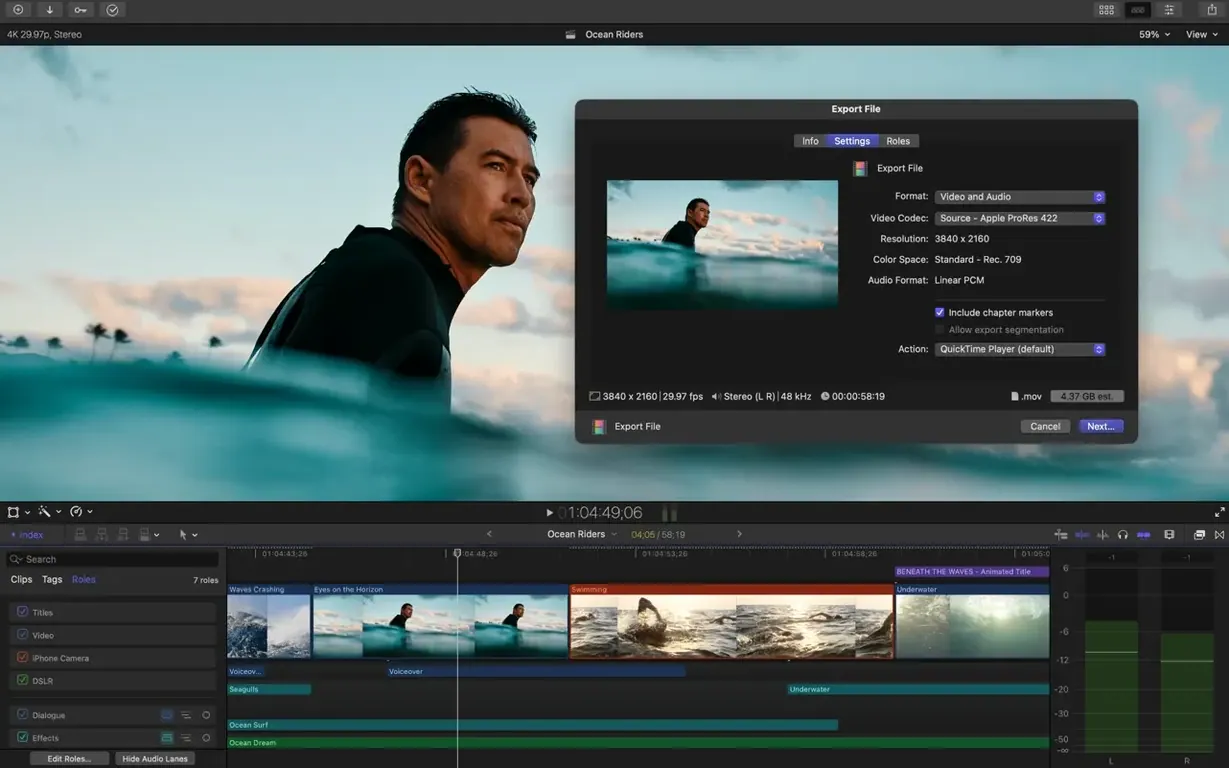
Next, you want subtitles for social media. Generate Captions runs a speech-to-text pass on the timeline, dropping a caption track below the primary storyline. You can scrub through, correct any misinterpreted words right in the text panel, and customize the font, size, and background box from the inspector. Export as a burned-in video or as a sidecar file for platforms that accept them. The whole process — ingest, match, mask, caption, export — takes maybe twenty minutes for a five-minute edit, and the heavy lifting happened in the background while you stayed on the timeline.
Generate Captions lands in mid-2026
Version 12.3, which landed in mid-2026, didn't overhaul the interface or rename the tools you already know. Instead, it added four features that solve specific pain points editors face weekly. Generate Captions is the one people are talking about most, and for good reason. Before this, subtitling meant exporting to a transcription service or typing out dialogue by hand while scrubbing. Now you hit a button, wait a few moments, and get a full caption track with word-level timing that you can adjust inline. The appearance controls are comprehensive — font, outline, background shape, positioning — and everything stays editable inside the project without third-party plugins.
Auto Mask addresses the "I just want to brighten the subject's face" problem that used to require manual rotoscoping or sending the clip to Motion for a tracking mask. The object recognition is surprisingly accurate on faces, cars, and other distinct shapes, and it degrades gracefully when the subject crosses complex backgrounds. It's not a replacement for heavy VFX work, but for quick beauty fixes or drawing attention to a product in a review video, it's fast and stays live on the timeline.
Match Color got a quiet but meaningful upgrade. Older versions had a basic color match that sometimes produced unnatural results with mixed lighting. The 12.3 version analyzes a broader set of color science data and handles clips from different camera brands with smarter gamut mapping. The difference shows most when you're matching a Sony to a Canon or a RED to a drone shot — the result needs less manual tweaking afterward. It's not magic, but it's close enough that you trust the first pass.
Edit Detection is the sleeper hit. If you've ever received an exported master file and been told "we lost the project, can you make changes?", this tool parses the video back into clips by finding the cuts. It doesn't recover the original media structure, but it gives you a timeline with splits at every edit point, which turns a nightmare request into something workable. For archival work or pulling b-roll from old exports, it's genuinely useful.
Under the hood, the app now requires macOS 15.6 or later, which means it leans on the latest Metal optimizations and Apple silicon efficiency gains. On M-series Macs, features like Auto Mask and Generate Captions run noticeably faster than they would on Intel hardware — the Neural Engine handles the inference work without pinning the CPU. If you're still on an Intel Mac with a Metal-capable graphics card, everything still runs, but the smartest new tools leave some performance on the table.
Final Cut Pro 12.4 CS is here with the developer's latest fixes and performance improvements. You can find the full release notes on Apple's support site.
- macOS: 15.6 or later
- Architecture: Apple Silicon, Intel 64-bit
Questions people ask
Does Final Cut Pro work on both Apple silicon and Intel Macs?
Yes, it runs on both architectures, though a few newer features require an Apple silicon Mac and a Metal-capable graphics card is needed on Intel machines.
Also on readers' docks
Sign in or create an account to leave a comment.
No comments yet. Tell me how it got on with your other devices.