Download Clip Studio Paint for macOS
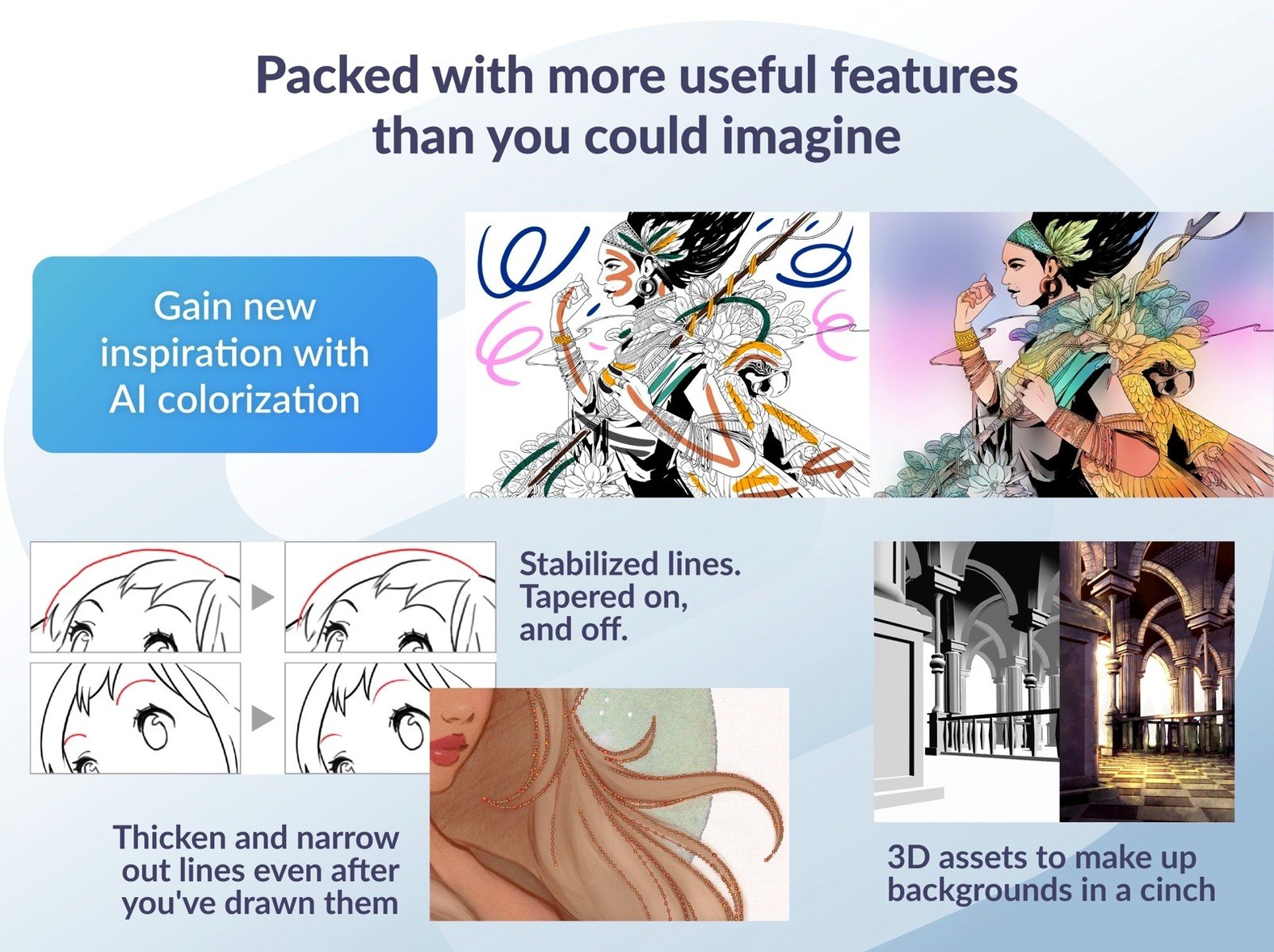
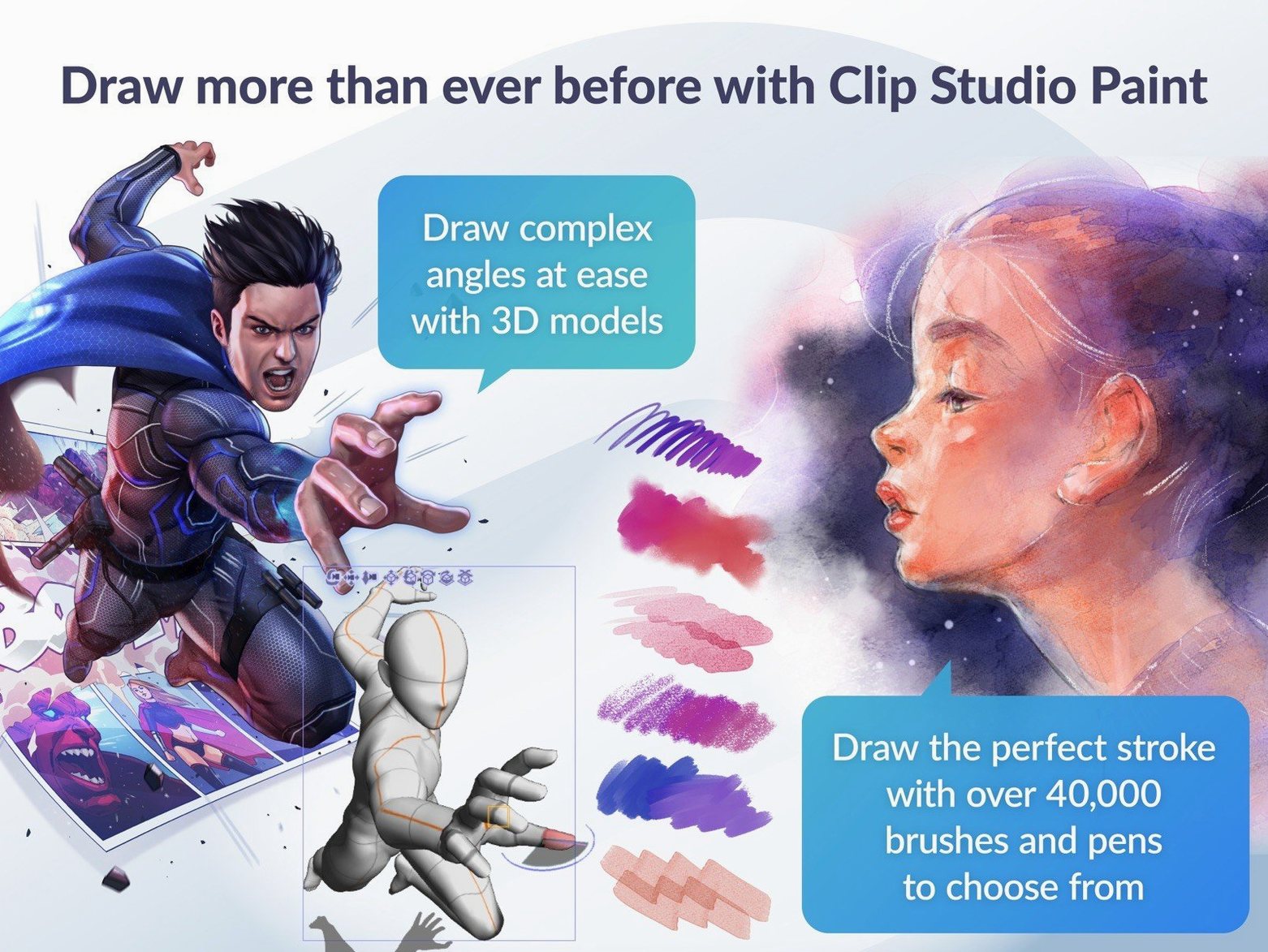
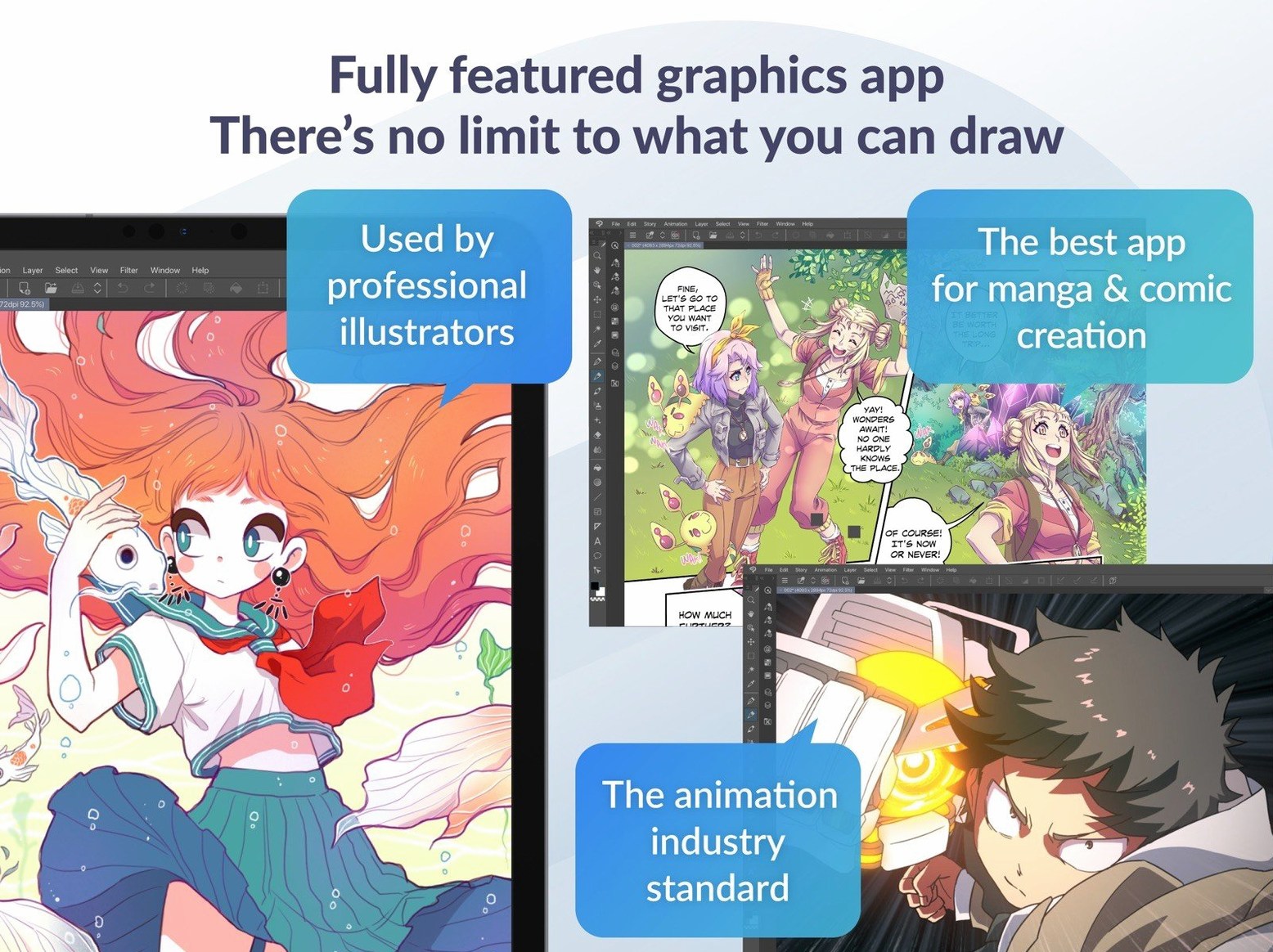
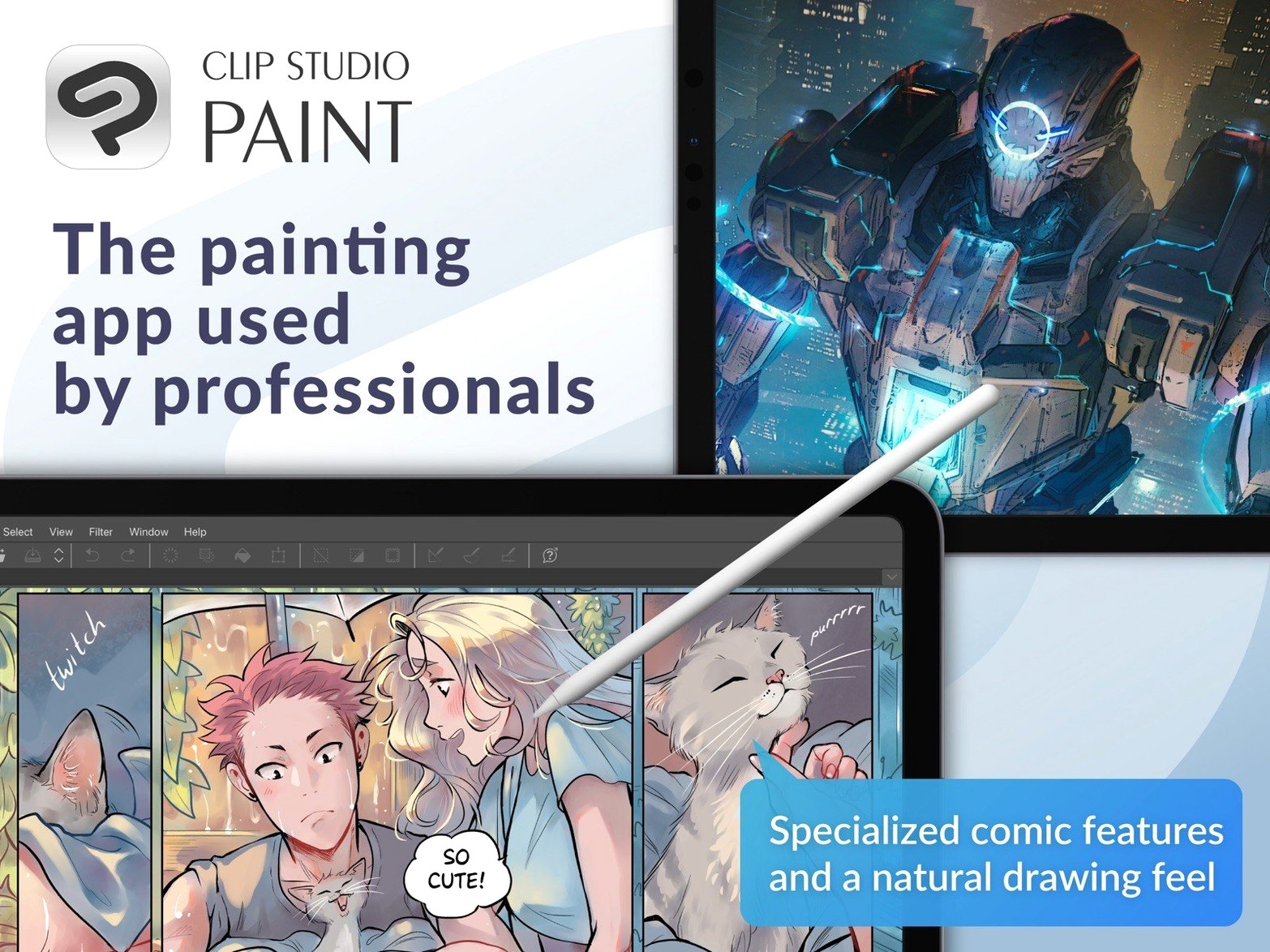
Clip Studio Paint handles layered PSD files, frame-by-frame animation exports as GIF or movie files, and full multi-page story layouts in the EX edition — a breadth of formats that still sets it apart from lighter drawing apps.
Sketch and ink with vectors
Pen tablet support and a responsive vector engine let you lay down lines that stay crisp at any scale, then tweak every point after the fact.
Build a comic from storyboard to export
Multi-page management, panel rulers, and speech-balloon tools turn the canvas into a full production desk — no need to jump between separate layout and art programs.
Animate frame by frame
The light table function makes onion-skinning straightforward, and you can ship the result as sequential images, an animated GIF, or a movie file straight from the timeline.
Little helpers you’ll kick yourself for missing
Clip Studio Paint buries a few quiet conveniences that save real time once you know they exist. The Quick Access panel — that pop-up wheel you summon with a modifier key or a pen button — isn’t just a launcher; you can stock it with your most-used tools, brushes, menu commands, and even auto actions. Drag items into it from anywhere in the interface and it remembers their exact settings. Artists who customize it early tend to stop hunting through menus altogether.
Another gem: holding the Eyedropper hotkey over the canvas and dragging outside the Clip Studio Paint window samples any color visible on your desktop — reference images in Preview, a mood board in your browser, anything. No importing, no workarounds.
If you work with 3D figures, try the Register material as template option after posing one. You can store a fully posed figure as a reusable preset and drop it into future scenes without rebuilding the pose. Combine that with the new 3D material drag-and-drop behavior in version 4.1.4 — which respects whether a 3D layer is selected outside a frame folder — and staging a scene feels less like wrestling with a mannequin and more like directing actors.
Quick Look and .clip previews
macOS 15 users get an understated improvement: Quick Look previewing of .clip files now works reliably. Press the spacebar on any saved project in Finder and you’ll see an accurate thumbnail without launching the app — a small thing, but a godsend when you’re digging through a folder of fifty variations of the same page.
Why multiply layers muddy your colors
One of the most common early mistakes is ignoring layer expression modes. A lot of beginners import a pencil sketch, set the layer to “Multiply,” and call it done — then wonder why colors look muddy when they paint underneath. Clip Studio Paint offers monochrome expression modes specifically for line art and screentoning, and switching a layer to the right mode before inking prevents those subtle blending artifacts that ruin a clean cel-shaded look.
Another trap: vector eraser shortcuts. New users often grab the standard eraser and scrub away at vector strokes, which erases whole segments instead of just the intersection. Holding the eraser tool and tapping the “Vector” option in the tool property palette reveals three erase modes — erase up to intersection, erase whole line, and erase touched area. The difference between a frustrating clean-up pass and a fast one usually lives right there.
Beginners also tend to overlook canvas recovery settings. Clip Studio Paint can save recovery data at a user-defined interval, but it’s off by default. Turning it on — and setting a reasonable backup folder — means a crash won’t cost an afternoon of work. The version 4.1.4 fixes for force-close issues and timeline anomalies make the feature even more dependable than before.
One afternoon with an animator
Imagine a short-film animator who’s been storyboarding on paper and scanning frames into a compositing tool. They’ve got a tight deadline for a thirty-second looping piece — mostly hand-drawn characters over a static painted background. In Clip Studio Paint, they import the background as an image layer, lock it, then create an animation folder with twenty-four cels. The light table and onion skin are dead simple: the previous frame glows blue, the next one glows red, and the slider adjusts opacity instantly.
They sketch rough keys first, flipping between frames with the timeline’s playback controls, then ink on a vector layer above the roughs. Because vector strokes stay editable, they can go back and adjust line weight on a character’s arm across multiple frames without redrawing anything. When a cel lingers too long after resizing a clip — a bug fixed in 4.1.4 — they no longer find orphaned keyframes gumming up the timeline. The export panel gives them a GIF for client approval and a ProRes movie for the final render, all from the same file. No round-tripping, no naming-convention headaches.
Vector layers and multi-page layouts Procreate can’t match
Compared to Procreate, Clip Studio Paint is the overachiever that refuses to be a sketchbook. Procreate wins on instant-on simplicity and iPad-native feel, but it doesn’t do multi-page layouts, it lacks a deep vector system, and its animation tools are rudimentary next to a full timeline with onion-skinning and light table controls. Procreate feels like a sketchpad; Clip Studio Paint feels like a studio.
Next to Adobe Fresco, the gap narrows on painting but widens everywhere else. Fresco’s live oil and watercolor brushes are genuinely lovely, and its PSD round-tripping with Photoshop is slick. But Fresco doesn’t touch storyboarding, panel management, speech balloons, or frame-by-frame animation with a proper timeline — features Clip Studio Paint wraps into one workspace. If your job stops at a single illustration, Fresco might charm you. If you’re delivering a chapter, a storyboard, or an animated sequence, Clip Studio Paint does more of the walk.
Set against Krita, the open-source contender, Clip Studio Paint trades blows on brush engines — both are deep — but pulls ahead on comic-specific tooling and 3D figure support. Krita’s animation workflow has matured, yet it still lacks the story-management features EX users rely on, and its PSD import isn’t as polished. Where Krita earns loyalty through its community and donation model, Clip Studio Paint earns it through a toolset purpose-built for sequential art from day one.
Version 4.1.4 adds Simplified Chinese as a display language and improves Quick Look previewing of .clip files on macOS 15. A handful of fixes landed too: an edge-artifact glitch with Quick Filters, a force-close tied to Running color mixing, and PSD exports that now show up correctly in Finder on macOS 15 or later.
- macOS 14 or later
- 2 GB memory (8 GB or more recommended)
- OpenGL 3.3 compatible GPU
- Pen tablet with pressure sensitivity supported
- Internet connection for license verification and select features
Questions people ask
Does Clip Studio Paint work on Apple Silicon Macs?
Yes, it runs natively on both Intel and Apple Silicon Macs as a 64-bit application.
Can I open Photoshop files without losing layers?
Absolutely — it imports and exports layered PSD files, so round-tripping with Photoshop is built right in.
What tablet features are supported?
Pen pressure sensitivity works with any compatible tablet and stylus, and the app is built around that input from the ground up.
Also on readers' docks
Sign in or create an account to leave a comment.
No comments yet. Tell me how it got on with your other devices.