Download Canopy for macOS
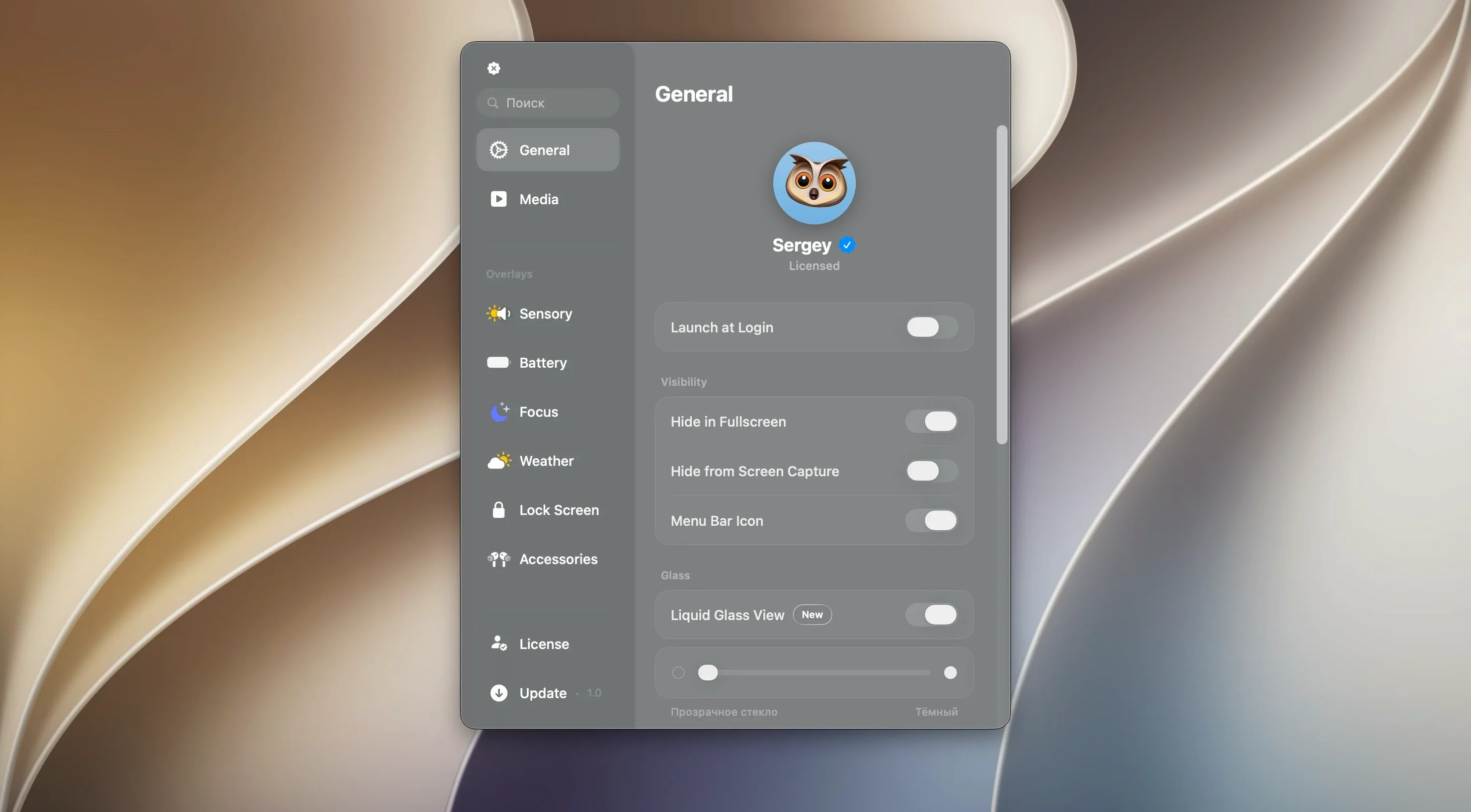
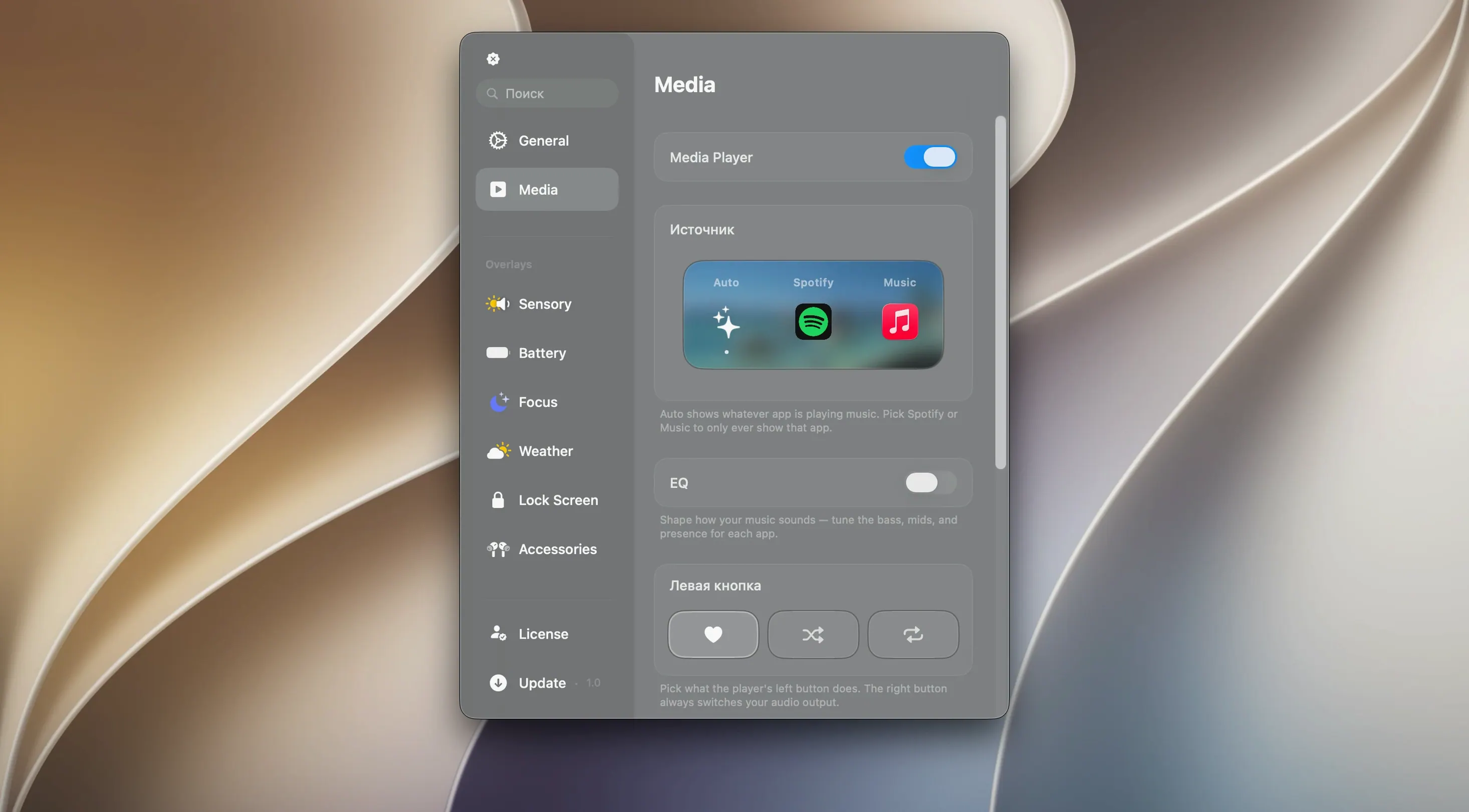
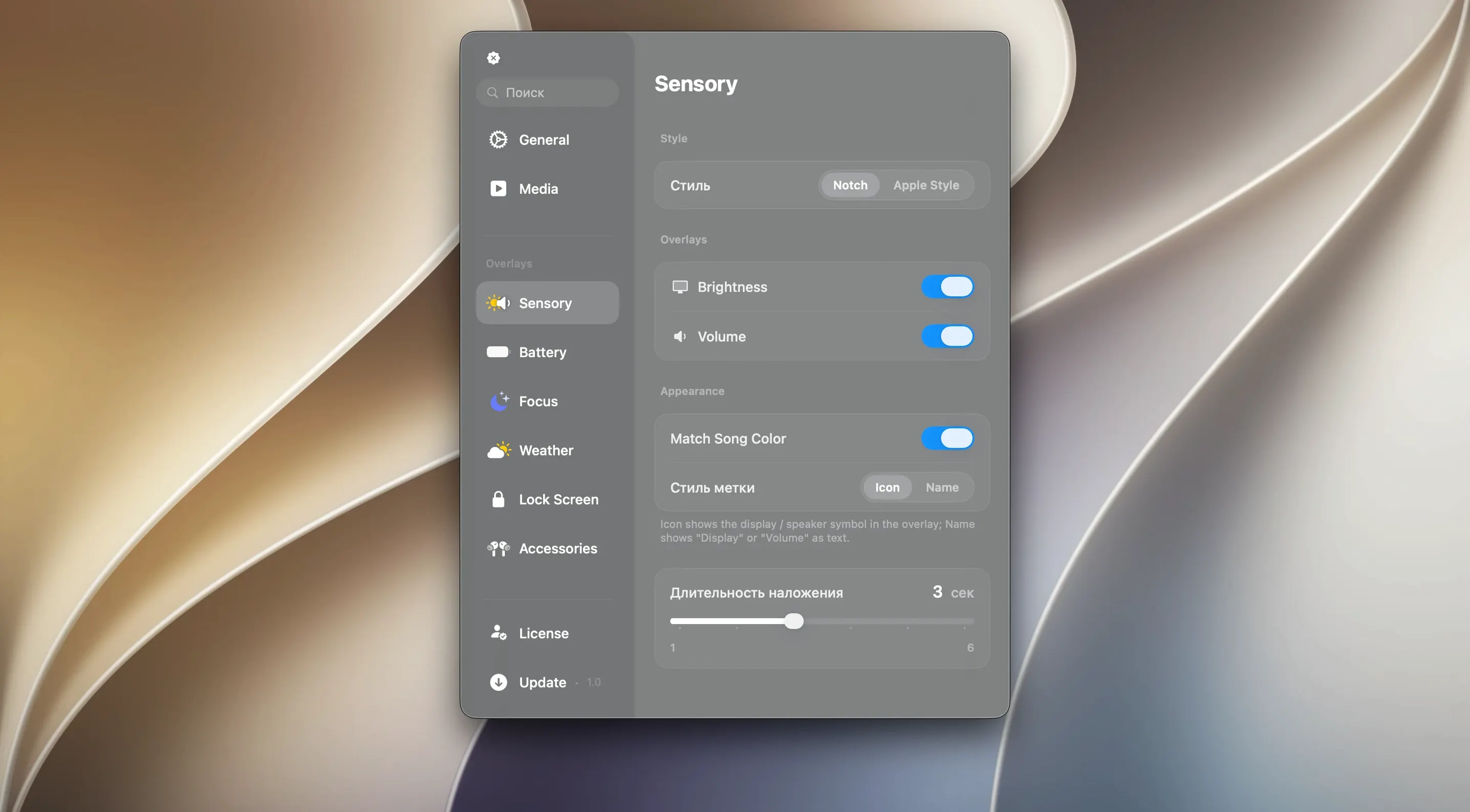
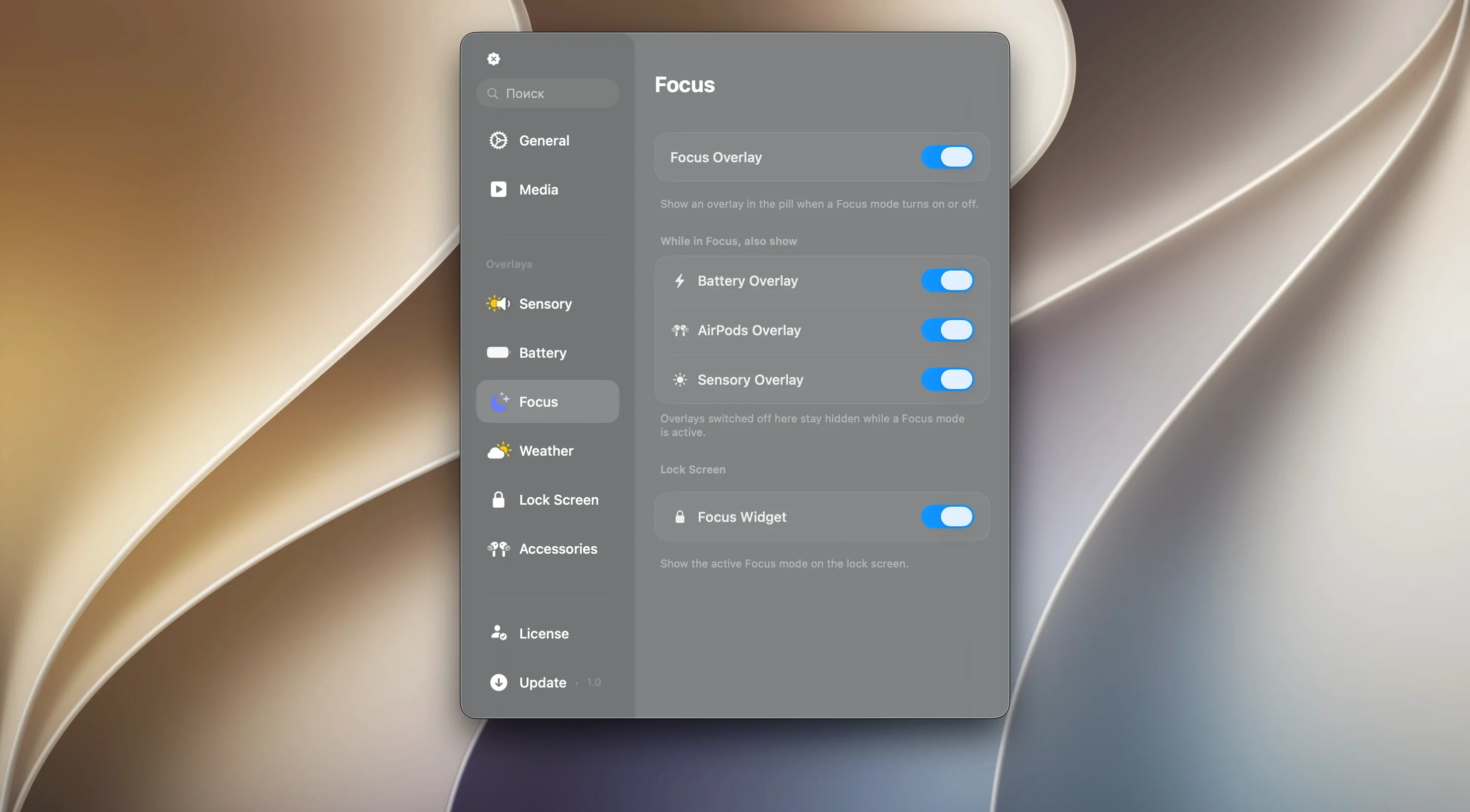
Canopy is an app that transplants the Dynamic Island concept from iPhone straight onto your Mac's menu bar or notch. It sits quietly alongside your existing tools—Finder windows, browser tabs, Slack threads—and surfaces playback controls, system toggles, and notifications in a small interactive panel that expands when you need it and shrinks when you don't.
Where Canopy fits in your setup
- Menu bar or notch. It works on any Mac, notched or notchless, so your iMac and MacBook Air each get the same treatment. The panel tucks itself into whatever space macOS gives it.
- Liquid Glass visuals. The effects borrow from Apple's own design language, which means it looks less like a third-party add-on and more like something that shipped with the system.
- Keeps other apps front and center. Canopy doesn't demand its own window; it hovers over what you're already doing. Tap the notch area, and it unfolds controls without pulling you out of your flow.
A quick, polished companion
Think of it as a shortcut layer that lives between Notification Center and Control Center. It handles quick actions—music, timers, maybe a calendar peek—without the full swipe-and-scan routine. If you already lean on menu bar utilities or widgets to trim clicks from your day, Canopy slides in as a natural next piece. It's light enough to stay out of the way and polished enough that you'll actually want to reach for it.
The panel now wakes instantly from sleep
Before 2.1.0, the panel sometimes hesitated when you hovered over it after waking the Mac from sleep. That's gone now—the response is immediate, which matters more than it sounds when you're reaching up to pause a track mid-call. The update also tightened how Canopy handles multiple displays. On earlier builds, unplugging an external monitor while the panel was active occasionally left the widget stranded off-screen. Now it snaps back to the built-in display without a relaunch.
Less visible but just as welcome: memory use dropped by roughly a third during long sessions. If you keep Canopy running all day alongside Xcode or a dozen Safari tabs, you'll notice it hangs onto fewer CPU cycles during idle stretches. The Liquid Glass animations also got a frame-rate cap that respects ProMotion displays better, so the panel moves smoothly without the occasional micro-stutter that crept in on 120Hz screens.
Snags people bump into—and how to fix them
A handful of friction points come up repeatedly, and most have quick fixes.
- Panel won't appear on a notchless Mac. Canopy defaults to the menu bar area, but if you've got Bartender or a similar utility rearranging your menu bar items, they can push Canopy's trigger zone off-screen. Temporarily disable the conflicting utility, position Canopy where you want it, then re-enable. The placement sticks.
- Music controls show the wrong player. If you switch between Spotify, Apple Music, and a browser tab playing audio, Canopy sometimes latches onto the first source it found. Click the tiny source icon on the expanded panel and choose the correct player from the pop-up list. Once you set it manually, it usually remembers your preference per session.
- Notifications double up with system banners. Canopy mirrors certain alerts that Notification Center also shows. To avoid the echo, open System Settings > Notifications and set specific apps to "Banners" only—or turn them off entirely if you'd rather Canopy handle them. You won't lose the notification; it just won't appear twice.
- Panel obscures a browser tab's close button. On smaller MacBook screens, the expanded panel can overlap the top edge of a maximized window. Hit the
Esckey or click outside the panel to collapse it instantly. You can also adjust the panel's horizontal offset in Canopy's preferences if it consistently sits where you don't want it.
A timer workflow, start to finish
Say you're deep-cleaning a camera sensor and you need a fifteen-minute countdown that won't get buried under Photoshop. Here's how Canopy handles it without breaking your concentration.
Hover the notch or menu bar area to expand Canopy. On the right side of the panel, there's a timer icon—tap it. A small dial appears with preset durations: 1, 3, 5, 15, and 30 minutes. Spin or click to pick 15. The panel collapses immediately and a thin progress ring wraps around the notch cutout (or the floating widget on notchless Macs), counting down silently.
While the timer runs, you open Photoshop, adjust sliders, and clean the sensor. The progress ring stays visible but unobtrusive—no floating window, no Dock badge demanding attention. With thirty seconds left, the ring pulses amber, then red. At zero, a gentle chime plays and the panel expands briefly to show the completed timer. Tap to dismiss or tap again to restart the same duration.
If you need a second timer for something else—say, five minutes for a cleaning-solution soak—just repeat the process. Canopy handles multiple concurrent timers and labels them by duration in the expanded panel. Swipe sideways on a timer to cancel it early.
How Canopy fits with other apps and macOS features
Canopy isn't a silo; it plays well with the tools already on your Mac. Media controls talk to Now Playing, which means anything that surfaces there—Music, Spotify, Overcast's Mac app, even a YouTube tab in Safari—shows up automatically. No separate plugin or extension needed; Canopy reads the same metadata macOS already collects.
Shortcuts integration opens another door. You can trigger a Shortcut from Canopy's customizable action row—three slots sit at the bottom of the expanded panel. Assign one to a "Focus Mode" shortcut, another to a "Start Pomodoro" script that sets a timer and flips on Do Not Disturb, and a third to an AppleScript that ejects external drives before you yank a cable. It turns Canopy from a notification mirror into a quick-launch surface for your own workflows.
On the accessibility side, Canopy respects system-wide Reduce Motion and Reduce Transparency settings. Flip those on in System Settings and the Liquid Glass effects flatten out, which keeps things readable and responsive on older hardware. VoiceOver also reads the panel contents in a logical order: playback info first, then notifications, then timers. If you rely on assistive tech, the tab order feels intentional rather than an afterthought.
If you've been hunting for a canopy app mac search that delivers something closer to the iPhone's Dynamic Island than a simple menu bar utility, this is where the conversation usually lands. The canopy mac experience sits somewhere between a widget layer and a control center—light enough that you'll forget it's not native, present enough that reaching for it becomes muscle memory. Some folks look for canopy mac free alternatives, but the polish here—particularly the multi-display reliability and Shortcuts hooks—sets it apart. Whether you find it as canopy for mac or stumble across a canopy mac crack discussion, the real thing integrates with macOS 26's architecture in ways that reward a clean setup with full system permissions granted.
- macOS 26 or later
- Intel or Apple Silicon Mac
Questions people ask
Does Canopy work on a Mac without a notch?
Yes, Canopy is designed to work on any Mac, with or without a notch. It adapts to the menu bar area regardless of your display.
What macOS version does Canopy require?
Canopy requires macOS 26 or later. It runs natively on both Intel and Apple Silicon Macs.
Is there a companion app for iPad or iPhone?
No, Canopy is built specifically for macOS to bring Dynamic Island-style interactions to the Mac. There's no iPad or iPhone version.
Also on readers' docks
Sign in or create an account to leave a comment.
No comments yet. Tell me how it got on with your other devices.