Download Caffeinated for macOS

You're reading a long article, watching a build progress, or keeping an eye on a dashboard — and your Mac decides it's nap time. The screen dims, the fans hush, and you have to jiggle the trackpad just to see what's happening. System sleep exists for good reasons, but sometimes you need to override it without digging through System Settings.
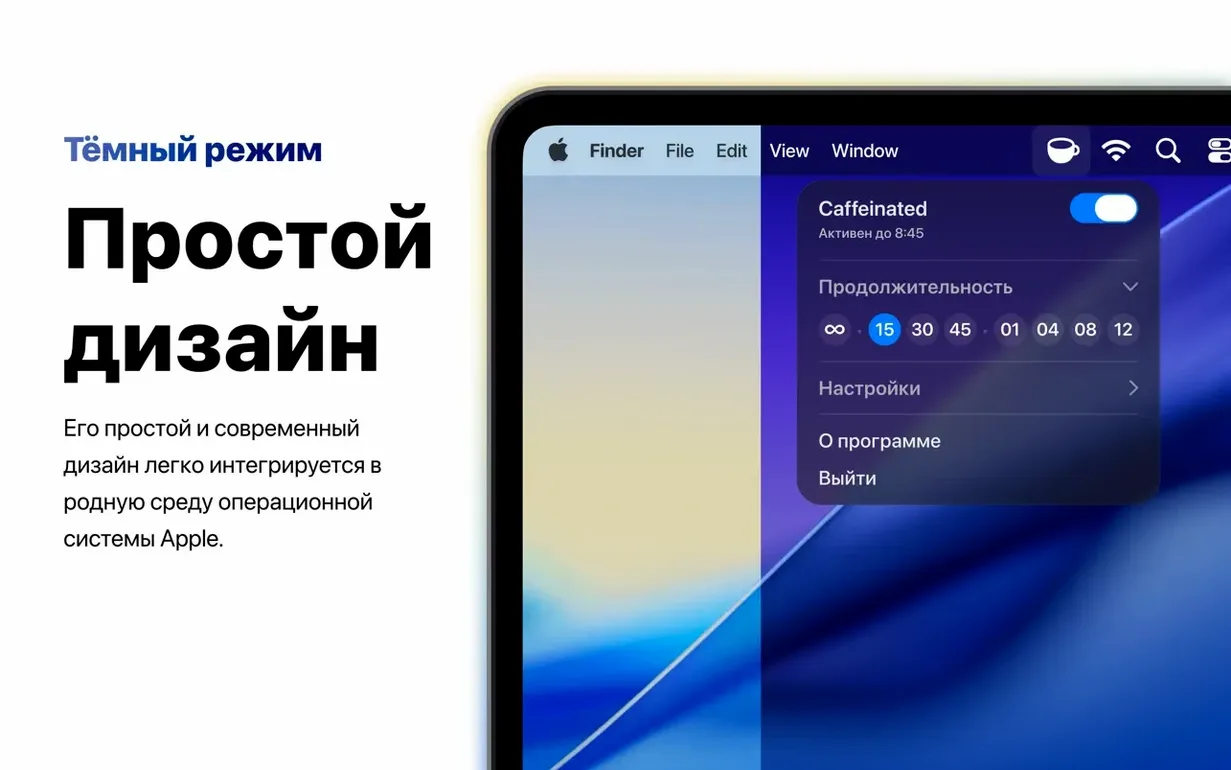
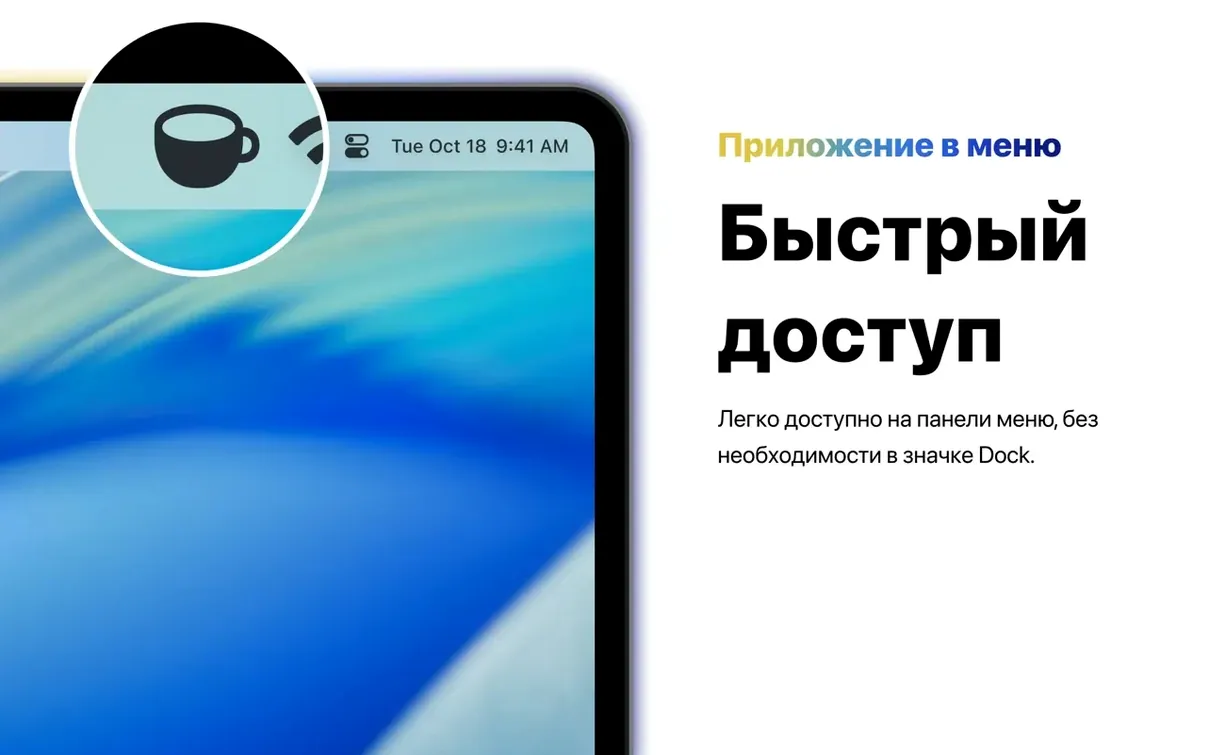
- Click the coffee cup. Caffeinated lives in your menu bar as a simple coffee cup icon. One click toggles wakefulness on; another click turns it off. No Dock icon, no windows — just a straightforward switch.
- Set a timer when you remember. The built-in timer lets you stay awake for a set duration — say 30 minutes — and optionally pings you with a notification when time's up. Handy for presentations or focused work blocks.
- Close the lid, keep working. The latest update adds a setting to keep the system awake even with a MacBook lid closed, which pairs nicely with an external display.
Under the hood, Caffeinated picks up where the old Caffeine utility left off, rebuilt for modern macOS and optimized for Apple Silicon. It prevents display dimming, screensaver activation, and system sleep — and unlike some alternatives, a MacBook doesn't need to be plugged into power for it to work. If you routinely fight your Mac's sleep timer during tasks that don't count as active use, this is the quiet little utility you'll reach for.
No Dock icon, menu bar only
Does it add a Dock icon? Nope — Caffeinated stays in the menu bar and that's it. You won't find it cluttering up your Dock or showing up in the app switcher. It's meant to be a set-and-forget kind of companion.
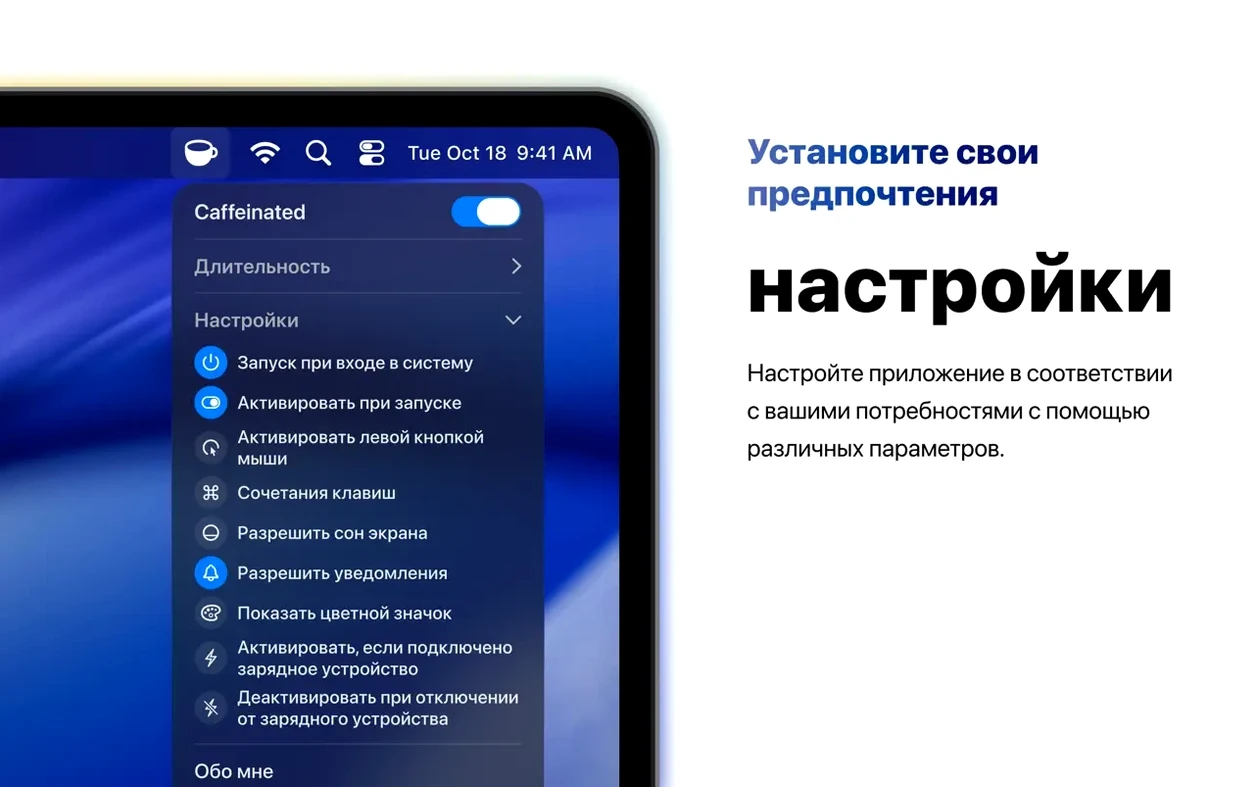
Can I flip the left-click and right-click behavior? Yes. By default, a right click toggles activation and a left click opens the menu, but you can swap those around in preferences if that feels backwards to you. The app remembers your choice across restarts.
What happens if I forget to turn it off? The timer is your safety net. If you know you only need an hour of wakefulness, set it for 60 minutes and Caffeinated will disable itself when time runs out. You can also have it fire a notification as a gentle reminder. Without a timer, the coffee cup stays active until you manually click it — so if you close your MacBook and toss it in a bag while Caffeinated is still running, you'll drain the battery. The app won't stop you, but a glance at the filled coffee cup icon is a pretty clear signal.
Is this the same as typing caffeinated -d mac in Terminal? Not quite. The Terminal command caffeinate (with an 'e') is a built-in macOS utility that does something similar, but Caffeinated wraps all of that into a menu bar app with a timer, visual indicator, and no need to remember flags. If you've ever typed caffeinated mac into a search bar hoping for a friendlier version, this is probably what you were looking for. The app handles the caffeinated macos needs without a single Terminal window.
A presenter's last-minute save
Imagine you're 10 minutes into a client walkthrough. You're sharing your screen, talking through mockups, and your Mac dims the display to 50% brightness because it hasn't seen a keypress. You have to stop mid-sentence, wiggle the cursor, and apologize. That little friction breaks your rhythm.
With Caffeinated, you click the coffee cup before the call starts and forget about it. Your screen stays bright, the screensaver never kicks in, and your Mac stays awake even during long stretches where you're just talking and pointing at slides. When the meeting ends, a quick glance at the menu bar tells you whether you're still in awake mode — and a single click puts things back to normal. For anyone who presents regularly, teaches online, or runs long demos, this caffeinated app for Mac earns its menu bar spot in the first week.
Version 3.3.0 [MAS] lands with a handful of thoughtful tweaks and under-the-hood stability work. The duration menu now remembers whether you had it expanded, so you won’t have to click twice every time. On the visual side, those pesky tick marks have been swept off the duration slider in macOS 27, and the global shortcut recorder should feel much steadier on the same release.
- macOS 15 or later
- Apple Silicon or Intel 64-bit Mac
Questions people ask
Does a MacBook need to be connected to power for Caffeinated to work?
No, Caffeinated keeps the system awake on battery power just as well as when plugged in.
Can Caffeinated prevent the screensaver from starting?
Yes, it stops the screensaver from activating alongside preventing display dimming and system sleep.
Also on readers' docks
Sign in or create an account to leave a comment.
No comments yet. Tell me how it got on with your other devices.