Download Camo Studio for macOS
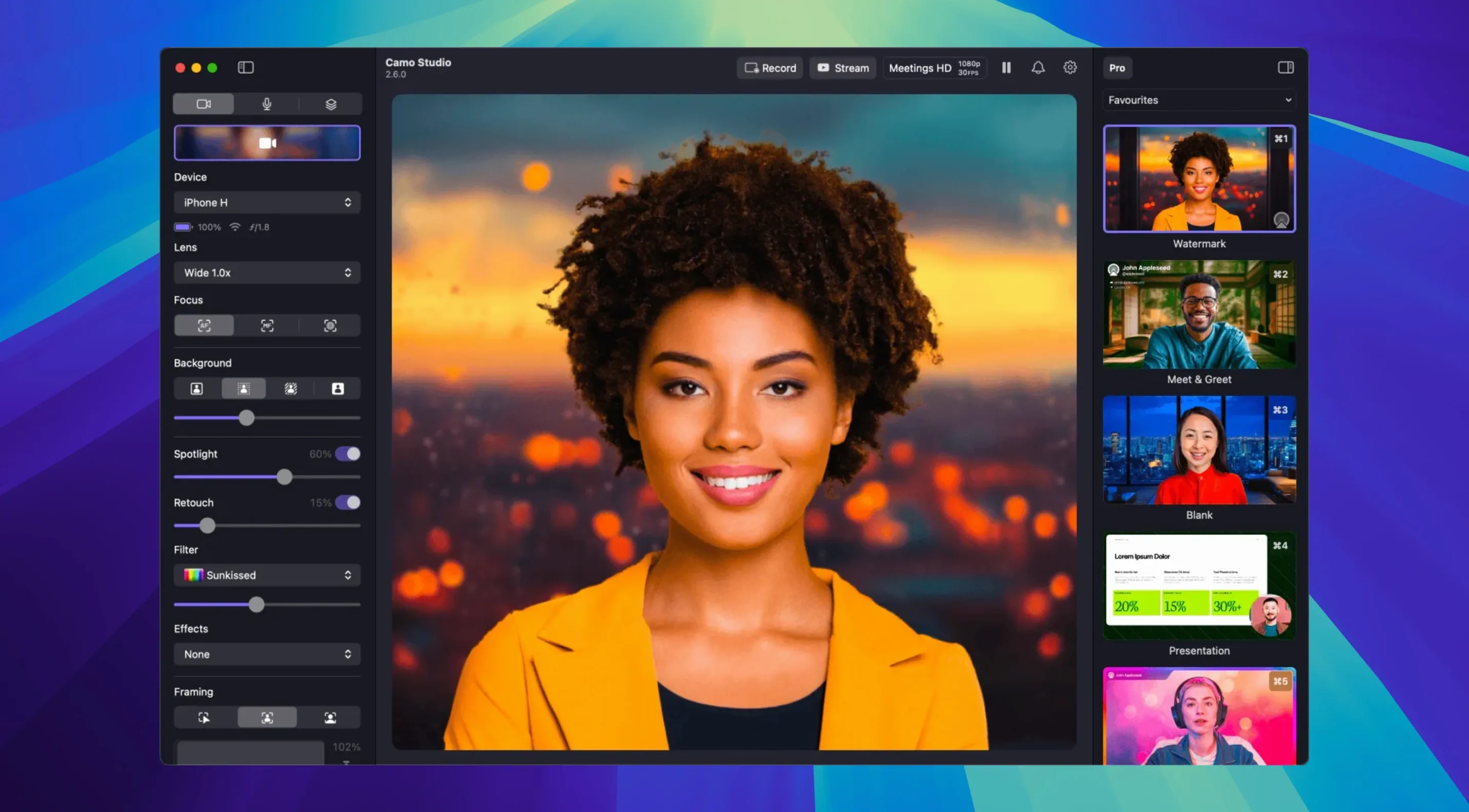
Where Camo Studio fits
Camo Studio runs on any Mac with Apple Silicon or an Intel 64-bit processor, as long as you are on macOS 12.3 or newer. It does not work on macOS Tahoe. You pair it with an iPhone, an Android phone, or even a tablet, and it turns that device into a studio camera your Mac can use in any app.
Building a clean talking-head shot, step by step
- Connect your phone. Plug in via USB or join the same Wi‑Fi network. Camo spots the device in seconds and the preview appears.
- Lock the look. Open the manual controls panel and dial in focus, exposure, and white balance so the lighting stays consistent even if you shift in your chair.
- Turn on auto framing. Enable automatic framing and Camo keeps you centered in the shot — handy when you lean forward to grab a note.
- Add an overlay. Drop a small logo into the corner and a lower‑third text bar with your name. The layer system makes it easy to resize and position both without leaving the preview.
- Set your frame rate. Switch to 60 FPS for a smoother picture before a recording or a live stream.
- Record or stream. Choose dual‑format recording to save a clean feed alongside the version with overlays, then hit record. Everything stays in sync.
What I like about this flow is how little friction there is between opening the app and having a shot that looks deliberate. The manual controls mean you are not fighting auto‑settings, and the overlay tools are straightforward enough that you will actually use them. If you spend your day hopping between Zoom calls, recording quick tutorials, or streaming to an audience that notices polish, Camo Studio fits right into that rhythm.
Dual-format recording saves a clean feed alongside overlays
Version 2.9.0 landed with a handful of additions that quietly reshape a regular workflow. The standout is dual-format streaming and recording on macOS — you can now save a clean camera feed at the same time as the version carrying your overlays, logos, and text. For anyone who repurposes footage later, that means no more choosing between a polished live look and a bare clip you can edit freely.
Isolated recordings push that idea further. Each source gets its own file, so audio from your microphone and video from your phone stay separate. When a take needs tighter editing or noise cleanup on just the voice track, you are not stuck with a single baked‑in mix. The new audio noise reduction also cleans up background hum before it reaches your stream, which is one less plugin to chain in OBS.
An unexpected curveball: control from AI agents arrived in this release. If you use automation tools or scripts to manage your setup, Camo can now take instructions from them — think scene switching or filter toggles without touching the mouse. It is a niche feature that power users will latch onto fast.
Remote workers lean on Video Call mode and auto-framing
Three groups keep coming back to Camo, and for different reasons. Remote workers and teachers lean on Video Call mode and automatic framing to show up clearly without fussing over lighting. The portrait bokeh and face retouching do a lot of heavy lifting when your office is a corner of the kitchen.
Streamers and live creators make the most of overlays, scenes, and the new dual‑format recording. Building a layered composition with web overlays, chat boxes, and a logo directly inside Camo means fewer tools to juggle while live. The 4K60 support keeps the picture crisp, and manual exposure stops the image from washing out mid‑stream.
Video editors and tutorial makers gravitate toward the isolated recordings and LUT support. Shooting a talking‑head segment at 4K with a custom LUT baked into the preview — while also capturing a flat, clean version for post‑production — turns a phone into a surprisingly capable A‑cam. Some users exploring a camo studio free license or a camo studio pro torrent are really after that recording flexibility upfront, and the app’s strength is how it handles both live and recorded work under one roof.
A 9 a.m. product walkthrough with iPhone wired in
You sit down at your desk around 9 a.m. with a coffee and a plan to record a short product walkthrough. Your iPhone is already on a small tripod, plugged into the Mac via USB. Camo Studio opens in two seconds and the preview lights up — no pairing dance required.
First move: tap the manual controls and lock white balance against the warm desk lamp on your left. Exposure gets nudged down half a stop because the window behind you is brighter today. You turn on auto framing so you can lean toward the sketchpad without drifting out of shot.
Next, you drag a semi‑transparent logo into the top‑right corner and type out a quick lower‑third with the product name. The layers panel lets you nudge the text block into place while watching the live preview. It feels like tidying a desk before a guest arrives.
Before hitting record, you switch the output to dual‑format — clean feed on one track, overlay version on the other — and enable isolated recordings so your narration stays separate. A quick test clip confirms the new noise reduction is catching the fridge hum across the room. You press record, talk through the demo, and wrap in twelve minutes. The files land exactly where you expect them, ready for a quick trim in your editor. Nothing needed rescuing, nothing needed re‑shooting. That is the session you want on a Tuesday morning.
Version 2.9.0 brings several macOS additions that make the recording and streaming pipeline more flexible:
- Dual-format streaming and recording — capture a clean feed and an overlay version at the same time.
- Isolated recordings for keeping audio tracks separate on macOS.
- Audio noise reduction built right in.
- Control from AI agents is now supported on macOS.
- macOS 12.3 or later
- Apple Silicon or Intel 64‑bit Mac
- iPhone, Android phone, or tablet for the camera feed
Also on readers' docks
Sign in or create an account to leave a comment.
No comments yet. Tell me how it got on with your other devices.