Download Bootstrap Studio for macOS
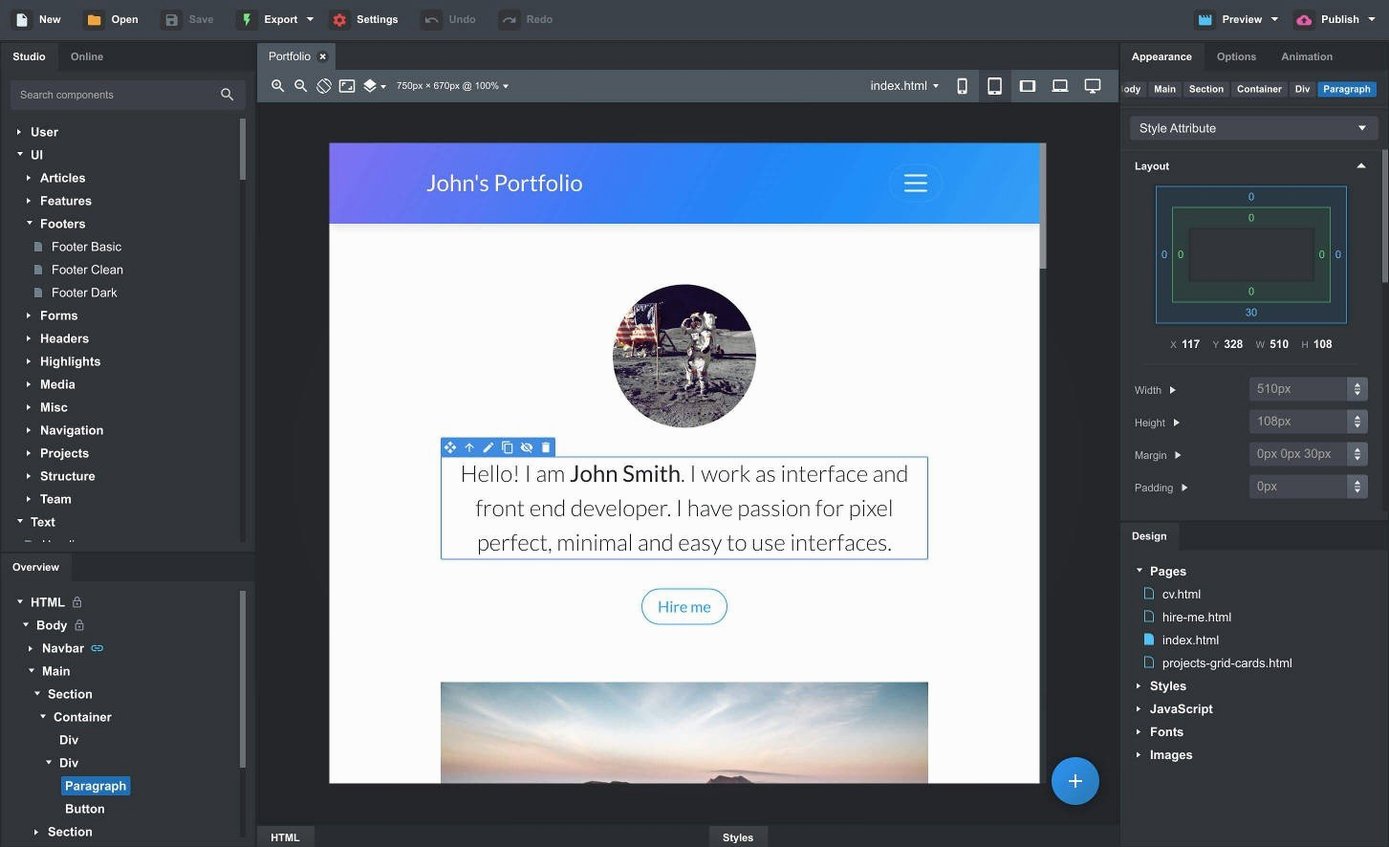
Over 60 community-created components sit in the online library, ready to be dropped into your page. That’s where the fun starts for a newcomer — you’re not building from an empty canvas.
Where do I find ready-made layouts?
Open the Online Library from the main toolbar. It’s packed with headers, footers, galleries and full page sections you can drag straight onto the stage, then tweak every detail to make them yours.
How does drag-and-drop work with nesting?
Drag a row onto the canvas, then drop columns inside it — the app understands Bootstrap’s parent-child rules. You’ll see blue drop zones lighting up to show exactly where a component will land, which stops you breaking the grid by accident.
Can I bring my own CSS and JavaScript?
Absolutely. You can import existing CSS, JS and HTML files, or write SCSS directly inside the app with full syntax support. The editor compiles it live, so you see your custom styles the moment you save.
What’s a quick way to polish interactions?
Try the new Click Outside to Close option on a modal — it’s a tiny setting that makes pop-ups feel more natural. While you’re at it, open the Icon Dialog to browse the updated icon counts and pick a set that fits your project’s tone.
Dragging a Navbar to Finish in One Afternoon
I usually start with a rough sketch in my head — nothing formal, just a sense of the page structure. Here’s how a relaxed afternoon build tends to unfold with Bootstrap Studio open on my Mac.
First, I drag a fresh Page into the design panel. The canvas starts blank except for the default Bootstrap scaffolding. I head straight to the Online Library, scroll past the hero sections until one catches my eye, and drop it onto the stage. In seconds I’ve got a navbar, a headline, a call-to-action button and a background image that actually looks intentional.
Next, I swap out the placeholder text and images. Double-clicking any text block gives me an inline editor — no need to hunt through the overview panel. I drop my own photo onto the hero background, resize it in the CSS pane, and watch the live preview update without a single manual refresh.
Then I build out the rest of the page. A Features section from the library, a Gallery block with my own screenshots, and a Footer I customized last week and saved as a linked component. I drag that footer onto three pages. When I tweak the copyright line on one, the others update automatically — that’s the linked component feature doing its quiet magic.
To wrap up, I open the new Sticky On option for the navbar and set it to stick only on medium screens and up. On mobile it stays out of the way. I hit Export, glance at the clean HTML output, and the build’s done in under half an hour.
Two-Second Launch on Apple Silicon
Bootstrap Studio runs like a native Mac app should — because it is one. On my Apple Silicon machine it launches in about two seconds, and the canvas stays responsive even with half a dozen pages open. Switching between Design and Code views feels instantaneous, with no flicker or redraw lag that you might expect from an Electron app (this isn’t one).
Memory use hovers around 400–600 MB for a medium project with multiple pages, custom SCSS and a handful of imported assets. That’s reasonable for a visual builder that’s compiling stylesheets and maintaining live previews across browsers. I’ve pushed it with a 20-page site full of high-res images, and while the initial import took a few extra seconds, scrolling and editing never stuttered.
Stability has been solid through several minor updates. The auto-save kicks in unobtrusively — I’ve force-quit the app twice by accident and lost nothing beyond the last few keystrokes. The latest 6.7.3 build fixed a quirky bug where the OpenAI key dialog rejected certain characters, so the AI Assistant connects reliably now when I want quick placeholder text or a color palette suggestion.
Right-Click to Save a Custom Component
Some of the best features hide in plain sight. Here are a few I missed at first and now rely on:
- Right-click a component and choose “Convert to Custom Component.” It saves that block — with all its children and styles — to your local library. You can reuse it across projects without ever touching the Online Library.
- Hold Option while dragging a component. It duplicates the element instantly. Faster than copy-paste when you’re building repetitive grids.
- The Attributes panel accepts data attributes directly. No need to switch to code view just to add
data-triggeroraria-label— there’s a dedicated field that won’t get stripped on export. - SCSS partials work as expected. Create files named
_variables.scssor_mixins.scss, import them into your main stylesheet, and the compiler handles the rest. It’s a real SCSS pipeline, not a simplified approximation. - Preview on a real device by scanning a QR code. The live preview toolbar generates one. You don’t need to export and transfer files just to see how a hover state feels on an iPhone.
If you’ve been hunting around for a bootstrap studio mac workflow that doesn’t involve wrestling with online builders or code editors that don’t understand the grid system, the desktop approach here clicks nicely. Even the occasional bootstrap studio torrent search tells me people are curious and want to try before committing — and the drag-and-drop precision plus native performance make a strong case once you’ve spent an afternoon building something real.
Version 6.7.3 polishes a few rough edges and adds smarter control over common Bootstrap components:
- Sticky navbars now have a Sticky On option, so you decide exactly when they pin.
- Bootstrap modals get a Click Outside to Close toggle — great for cleaner UX.
- The Icon Dialog shows the number of icons and their type for every set, which makes browsing faster.
- The AI Assistant picks up gpt-4o-mini and gpt-4o models.
- A fix landed for the OpenAI API key entry dialog that rejected some valid keys.
- macOS 10.13 or later
- Runs on both Intel and Apple Silicon Macs
Questions people ask
Does Bootstrap Studio let me edit the HTML directly?
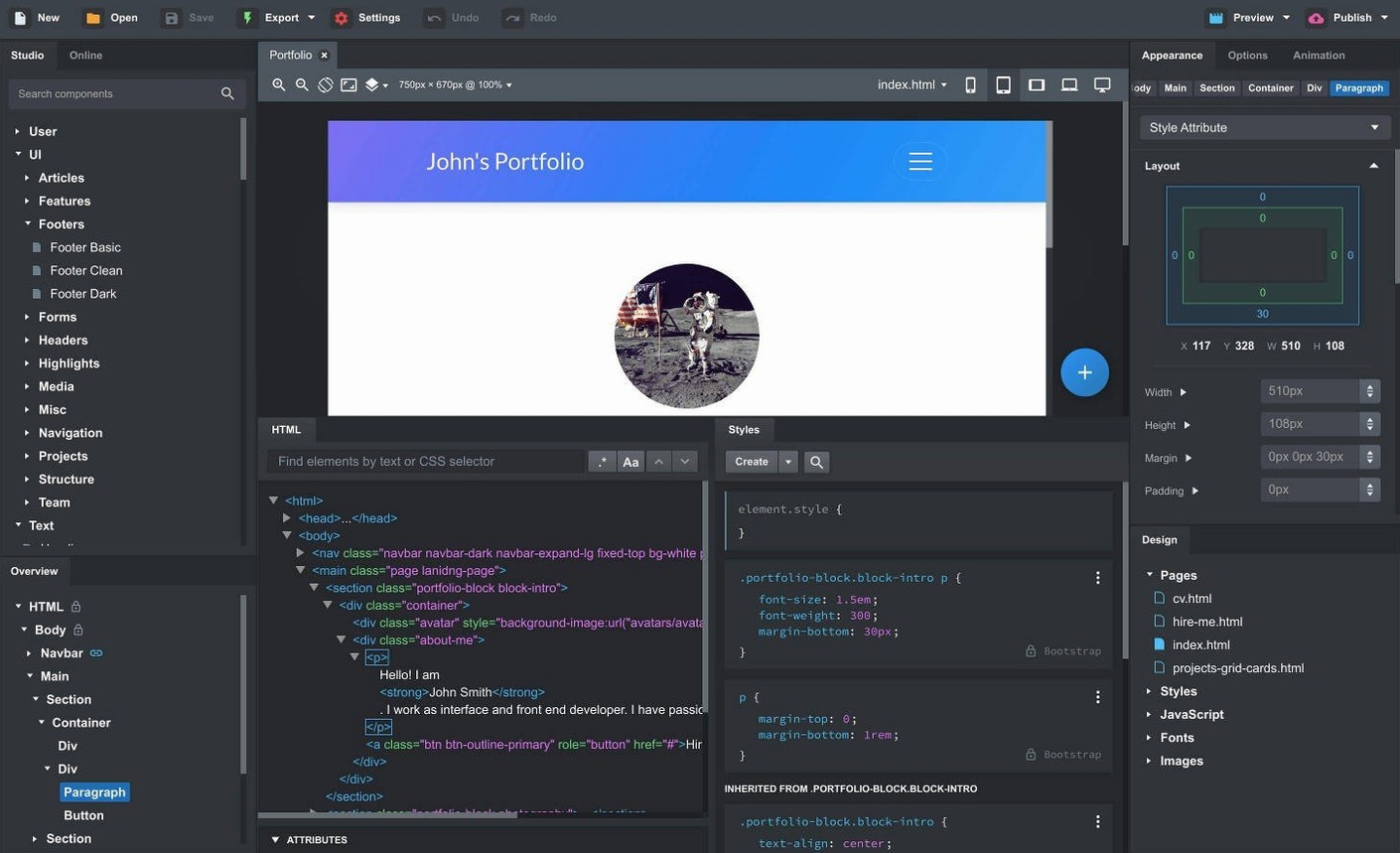
Yes, it supports importing and editing HTML, CSS, and JavaScript, and you can switch between the visual canvas and a code editor whenever you like.
Also on readers' docks
Sign in or create an account to leave a comment.
No comments yet. Tell me how it got on with your other devices.