









Download Bloom for macOS
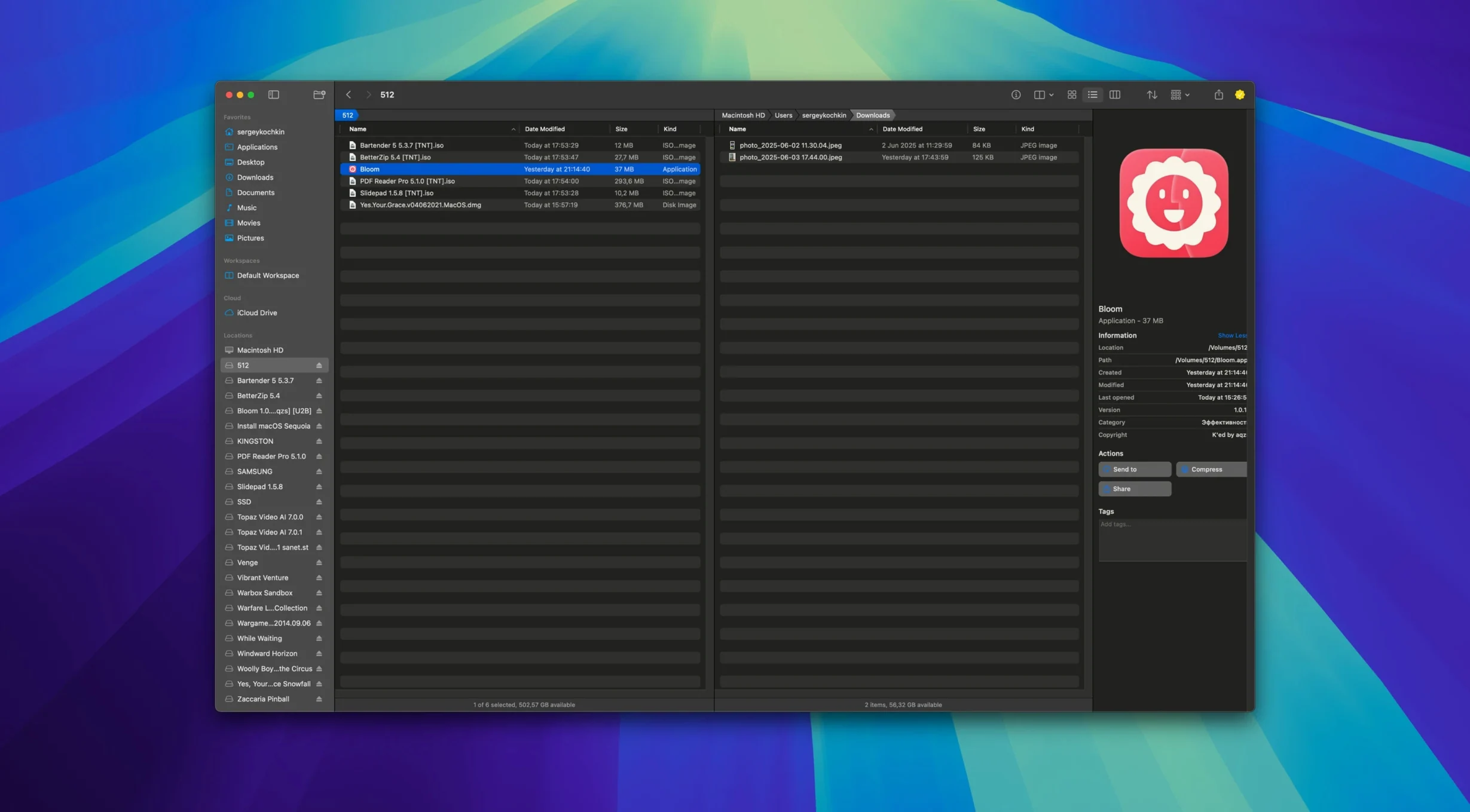
You’ve just wrapped a shoot and the card dump left files scattered across three folders. Instead of opening four Finder windows, you launch Bloom, trigger a quick keyword search across your predefined media locations, and drag the keepers into a date-sorted group — no sidebar clutter, no digging through nested directories.
What makes Bloom different from Finder?
It rethinks the desktop file manager around speed and focus. You get automatic column resizing, archive preview without extraction, and a Portal mode that shrinks the window into a compact floating panel with no sidebar or preview — handy when you’re referencing files while working in another app.
How does the search and organization hold up?
Bloom can search by keyword across locations you’ve pre-selected, and refresh results instantly with ⌘R. It also organizes files by type or date, supports batch renaming with regular expressions, and lets you insert images straight from the internet — small touches that cut out extra steps.
What does the treemap view do?
It scans a folder and draws a proportional grid showing disk usage, so you spot bloated files at a glance. Combined with archive preview, it’s a fast way to clean up storage without extracting every zip just to see what’s inside.
Portal mode ignored, files dragged one by one
Most people open Bloom and immediately treat it like Finder with a different skin — that’s the first misstep. They drag files one by one, ignore the predefined search locations entirely, and never realize Portal mode exists until they accidentally trigger it and think something broke.
A few other slip-ups I see constantly:
- Skipping the search location setup. Bloom’s keyword search only flies when you’ve told it where to look. If you haven’t added your common folders under workspace settings, ⌘F feels sluggish because it’s poking around in places you don’t care about.
- Forgetting undo is operation-based. People expect Cmd-Z to reverse a single rename — it does, but Bloom records entire file operations, so undoing a batch rename rolls back the whole set. That’s powerful once you know it, jarring if you don’t.
- Treating Portal mode as a bug. When the window collapses into that tiny floating strip without a sidebar, I’ve watched users close and reopen the app instead of just toggling it off. Portal’s a feature — it’s meant for quick drag-and-drop while you’re deep in something else.
- Ignoring the treemap scan entirely. It’s tucked away, and people open it once, see a colorful grid, shrug, and never touch it again. That grid is the fastest disk-audit tool you’ve got, and skipping it means manually hunting for space hogs.
Small conveniences you’ll kick yourself for missing
I used Bloom for a week before I stumbled on half of these — they’re the kind of shortcuts that aren’t advertised loudly but change how fast you move.
- ⌘⇧⏎ for instant jumping. Highlight a folder name or path reference anywhere in the app, hit that combo, and Bloom drops you straight into that system location. No browsing, no sidebar clicking.
- Archive preview without extraction. Select a zip or rar, tap the spacebar, and you’re browsing its contents inline — text, images, PDFs under 10 MB all render without unpacking a thing. I’ve stopped extracting anything just to check what’s inside.
- Right-click → Open in Terminal. Any folder, two clicks, and you’ve got a shell session at that path. No dragging icons into Terminal.app or typing long cd chains.
- Image insertion from URLs. The file-creation menu lets you paste a web image link and Bloom pulls it straight into your current folder. Sounds small, but if you’re collecting references or assets, it removes the save-rename-move dance.
- Pinning the Portal window. Once Portal mode is active, you can pin it above other windows or dock it to a screen edge. I keep it docked left when I’m sorting exports — it’s there when I need it, invisible when I don’t.
Extracting kicks and snares from a sample pack download
Let’s say I’ve just downloaded a batch of sample packs — some are compressed, some aren’t, and I need only the kicks and snares sorted into a project folder before I open my DAW.
I launch Bloom and hit ⌘F inside my Downloads folder, typing kick. Results pop immediately — no waiting, no spinning beachball. I spot three promising WAVs inside a zip file, spacebar to preview the archive contents without extracting, and drag just those samples into a folder I’ve already added to my workspace sidebar.
Next, I select all the loose files that didn’t come in archives and trigger the organize by type command. In two seconds, Bloom groups WAVs together, isolates the text files, and leaves me with a clean view. I batch-select the WAVs, open the advanced renamer, and apply a regex pattern that strips vendor prefixes and appends a project tag — something like s/(.*)_\d+_// and a suffix. The whole rename runs in one pass.
Then I notice my drive is tighter than expected. I open the treemap scanner on the project drive, and there it is: a forgotten cache folder from a video export eating 12 GB. I right-click it, launch Terminal from right there, and run a quick cleanup — no Finder digging, no memorizing paths.
Before I close Bloom, I pin the Portal window to the right edge of my screen and drag a few reference images from it straight into the DAW’s sampler. The whole session — from download to organized project — took under four minutes. That’s the rhythm Bloom encourages: search, preview, act, move on.
- macOS 14 (Sonoma) or newer
- Apple Silicon or Intel 64-bit Mac
Questions people ask
Does Bloom run on Apple Silicon Macs?
Yes, it runs natively on both Apple Silicon and Intel Macs, requiring macOS 14 or later.
Can I preview compressed archives without unpacking them?
Absolutely — Bloom can browse inside archives and show their contents before you decide to extract anything.
What is Portal mode?
It’s a compact, distraction-free window that hides the sidebar and preview pane, giving you a minimal file browser that floats over other apps.
Also on readers' docks
Sign in or create an account to leave a comment.
No comments yet. Tell me how it got on with your other devices.
More in Mac Apps
See all Binary Ninja
6.0.10601-personal Mac Apps
584 MB
Binary Ninja
6.0.10601-personal Mac Apps
584 MB
 BookReader
5.16 Mac Apps
14 MB
BookReader
5.16 Mac Apps
14 MB
 BetterZip
6.0.6 Mac Apps
25 MB
BetterZip
6.0.6 Mac Apps
25 MB
 Bootstrap Studio
6.7.3 Mac Apps
159 MB
Bootstrap Studio
6.7.3 Mac Apps
159 MB
 BetterTouchTool
6.726 Mac Apps
61 MB
BetterTouchTool
6.726 Mac Apps
61 MB
 BuhoLaunchpad
2.0.0 Mac Apps
15 MB
BuhoLaunchpad
2.0.0 Mac Apps
15 MB
 BetterMouse
1.7.8995 Mac Apps
7 MB
BetterMouse
1.7.8995 Mac Apps
7 MB
 Updated BetterDisplay Pro
4.0.4 Mac Apps
16 MB
Updated BetterDisplay Pro
4.0.4 Mac Apps
16 MB