









Download Bartender for macOS
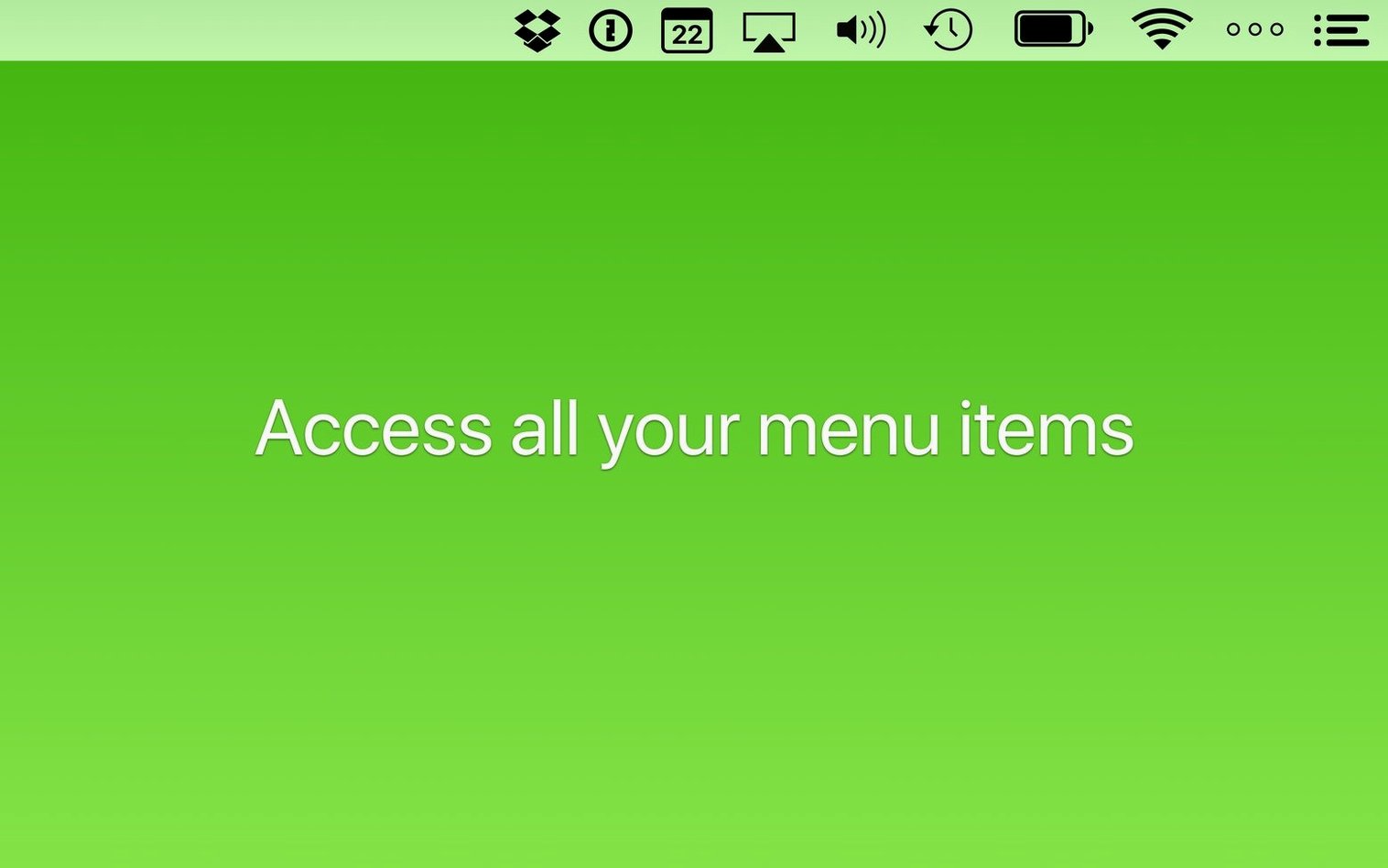
If you’ve ever used the built-in Command-Tab switcher, you know the frustration of an overflowing list. The menu bar suffers from the same problem—too many utilities jostling for space. That’s where Bartender steps in, acting as a smart organizer that sits right alongside your other essential tools, ready to tame the icon sprawl.
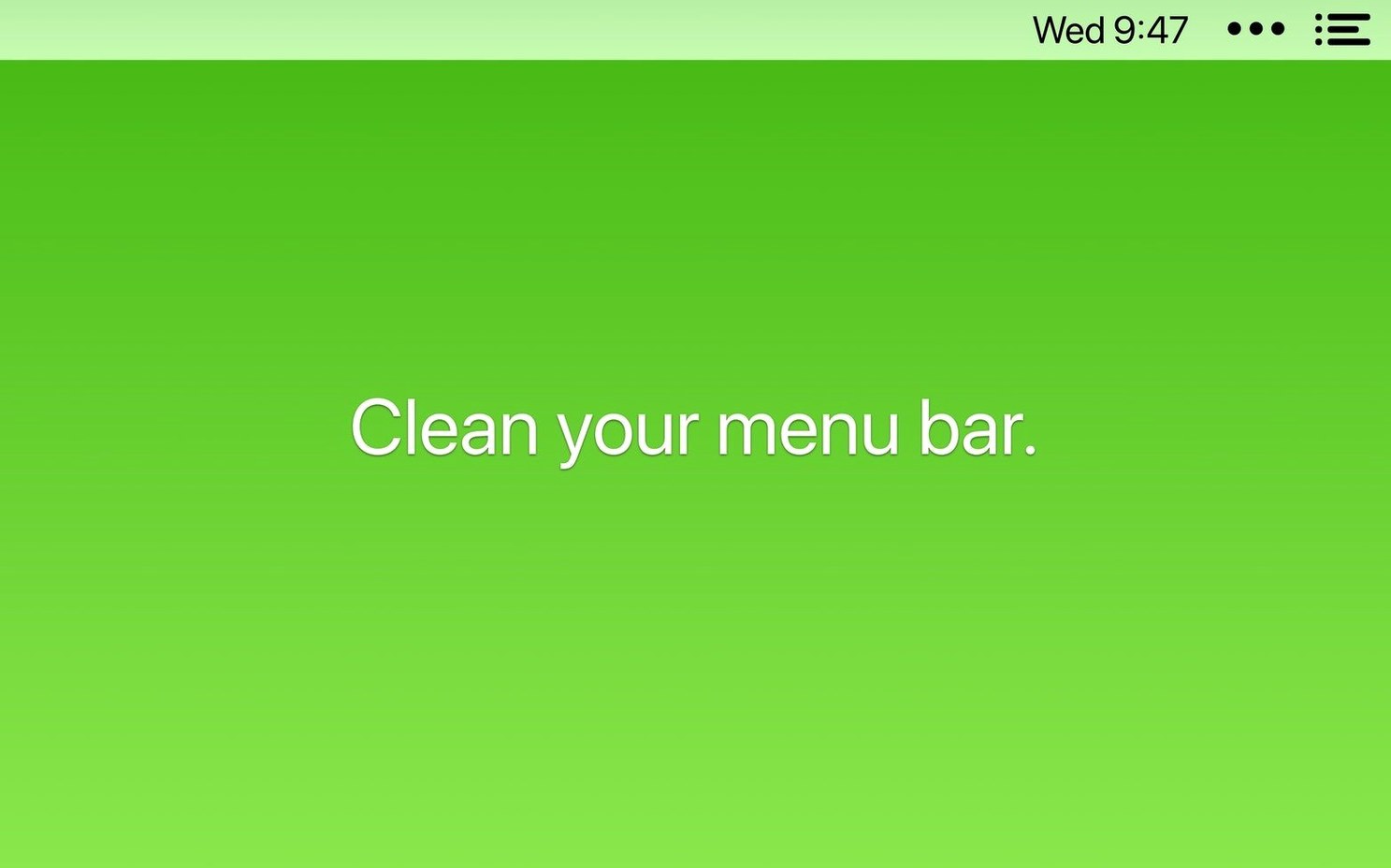
- Decide what lives where. Keep vital indicators in the main menu bar, and tuck everything else into the hidden Bartender Bar for a clean look.
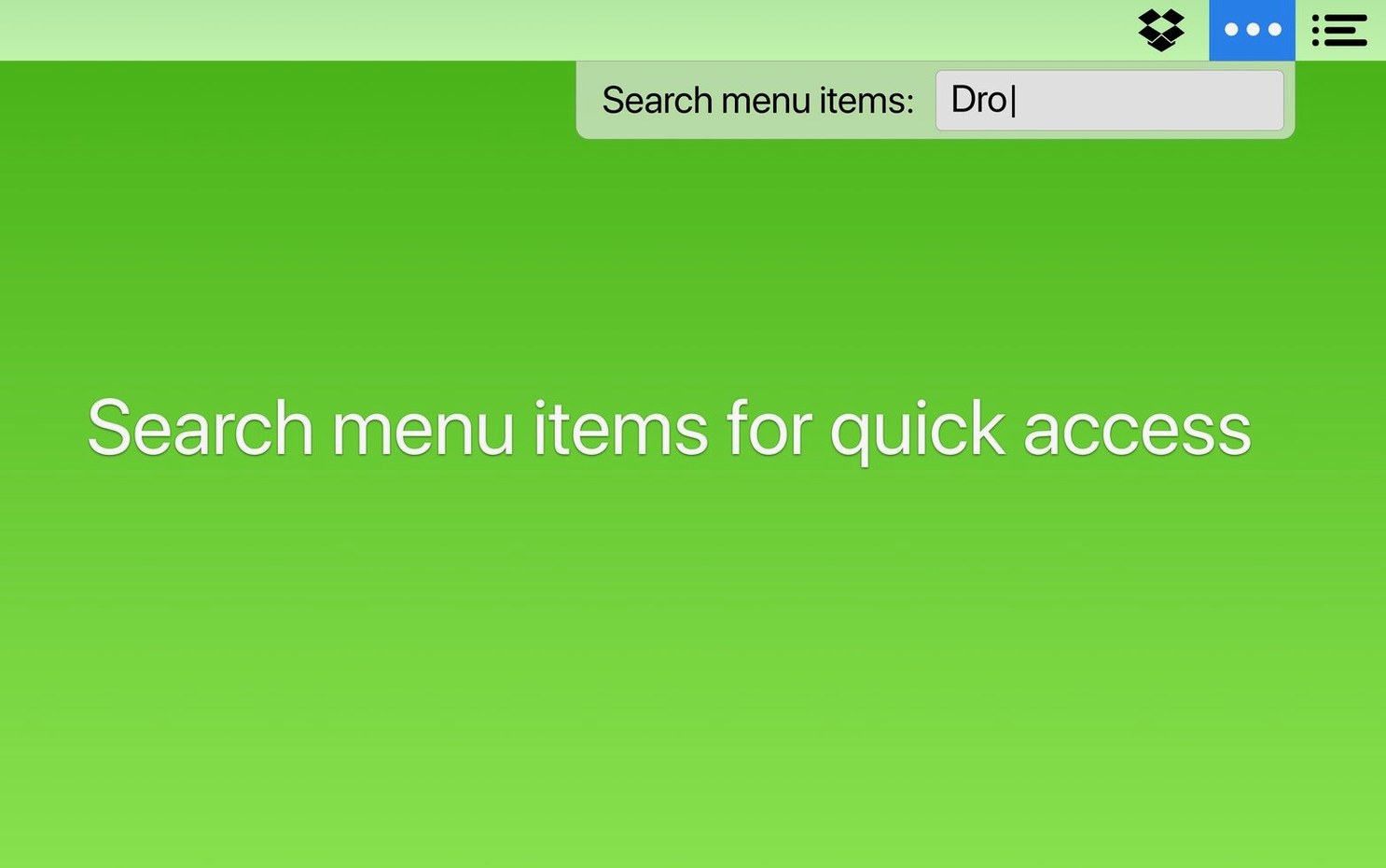
- Search it instantly. With the new Command Bar, you can find and activate any menu bar item by typing a few letters—no hunting needed.
- Rearrange with a drag. Changing the order of your icons is as simple as moving them around directly in the bar.
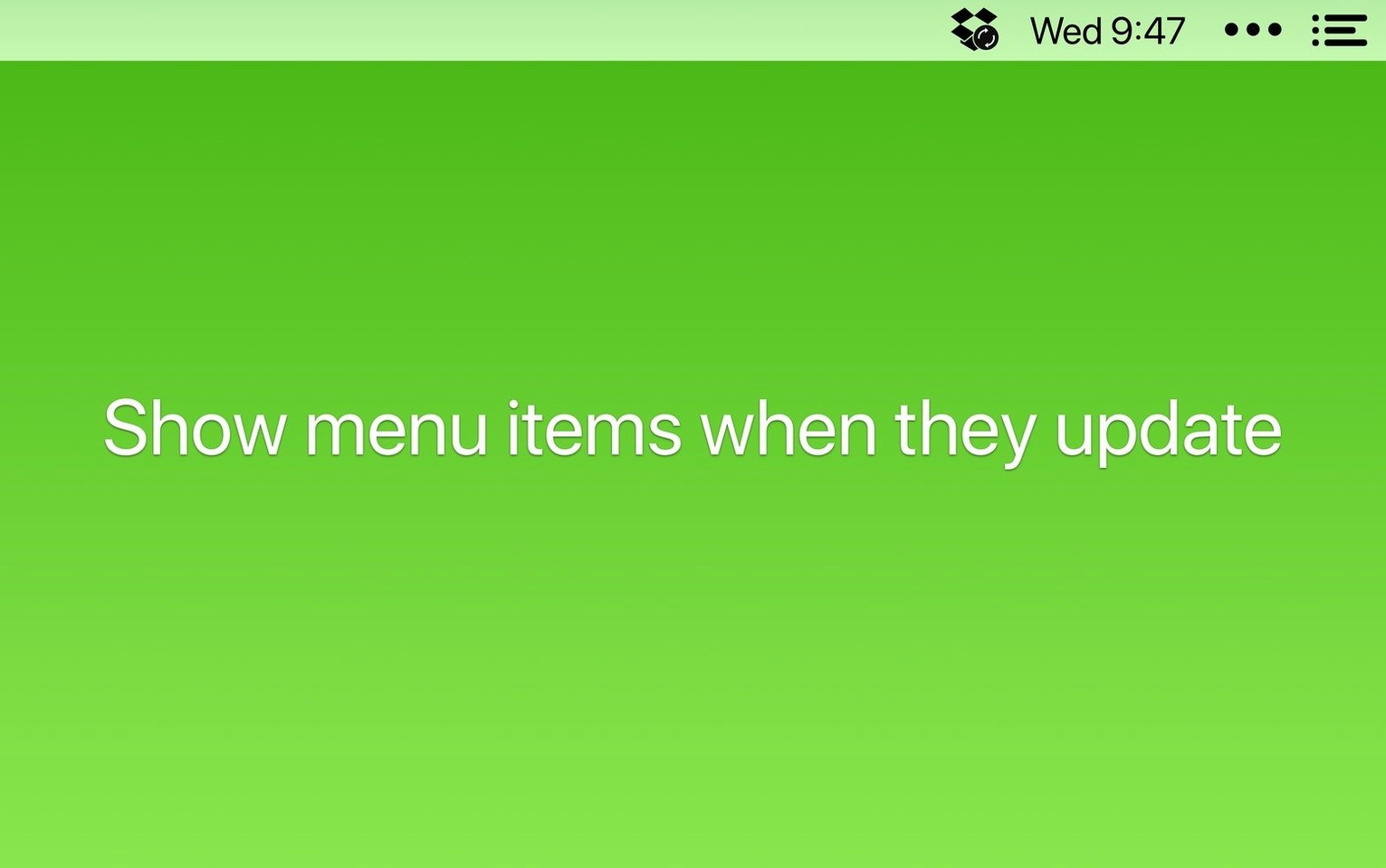
- Stay informed quietly. Set conditions so icons only appear briefly when they have an update, a sync status to share, or an error to flag.
- Keep itself invisible. You can even hide the Bartender icon itself, so the cleanup tool doesn’t add to the clutter.
Version 7 works without requiring screen recording access, which feels like a more natural fit next to your other privacy-conscious apps. It’s for anyone who’s built up a collection of handy menu bar tools and suddenly realized they’ve run out of real estate.
Let It Spy on Your Menu Bar for a Day
Installation takes maybe a minute—open the disk image, drag the app into Applications, launch it. The real magic starts when you resist the urge to micromanage everything at once.
Let Bartender observe your habits for a day. Don't hide anything yet. Just watch which icons you actually click versus which ones sit there out of muscle memory. By the second day, you'll have a clear picture: three icons get clicked hourly, two only matter during work sprints, and that one weather widget? You check it twice a week.
Now start small. Pick five items that genuinely earn their spot in the main bar—battery, Wi-Fi, clock, maybe your password manager and a focus timer. Everything else gets a new home behind a single click in the Bartender Bar. The relief is immediate. A tip that took me embarrassingly long to discover: hold Command while dragging any menu bar icon (including Bartender's own) to reposition it without opening preferences. This works across both the main bar and the hidden bar, so you can fine-tune on the fly.
If you're a keyboard-driven person, set aside ten minutes to learn the Command Bar shortcut. Open it with your chosen key combination, type three letters of whatever you need—blu for Bluetooth, bat for battery settings—and hit Enter. After a day of practice, it becomes faster than mousing up to the menu bar ever was. You might even start hiding more items once you realize you don't need to see them to reach them.
The Real CPU and Memory Footprint
There's always a handful of questions that come up when someone's standing at the edge of a Bartender download. Let's walk through the honest answers.
Will this slow my Mac down? Bartender runs lean. It's not a background service chewing through CPU cycles; it hooks into the menu bar system quietly and stays out of the way. On Apple Silicon or Intel, you won't feel its presence. The only time it wakes up is when you summon the hidden bar or trigger a condition—and even then, it's a blink.
Does it work with every menu bar app? Nearly. Some apps draw their icons in unconventional ways, especially older utilities that haven't been updated in years. Version 7.0.4 fixed a handful of edge cases where items failed to appear or got stuck while moving, so the list of stubborn holdouts is shrinking. Spacers in particular behave themselves after a restart now, which used to be a sore spot.
Can I try the keyboard workflow without committing? Absolutely. The Command Bar doesn't require you to hide anything first. You can leave every icon visible and still use the keyboard to search and activate items. If you like it, you'll naturally start decluttering. If you don't, you've lost nothing.
What happens to hidden icons when they need my attention? That's where triggers earn their keep. Set an app to show itself only when it's updating, syncing, or throwing an error. The icon pops into the main bar for the duration, then slips back into hiding when the moment passes. You stay informed without the permanent visual noise.
Developers with a Dozen Local Servers Running
Some Mac users install Bartender and wonder how they ever lived without it. Others try it and shrug—their menu bar was never crowded to begin with. The sweet spot sits with a few specific types.
Developers who run local servers, database tools, Git clients, and Docker side by side. Their menu bars often stretch halfway across a 14-inch screen by lunchtime. For them, Bartender isn't a luxury; it's a sanity saver. The keyboard navigation especially clicks for coders who already keep their hands off the mouse.
Designers and video editors fall into the same camp. They're running color pickers, screen rulers, cloud sync indicators, and font managers alongside Adobe apps that already eat every pixel of screen real estate. A clean menu bar keeps the focus on the canvas, not on a dozen tiny icons competing for attention.
Anyone who works from a laptop screen gets disproportionate value. On a 13- or 14-inch MacBook, the notch on newer models already steals center space, and every icon beyond the first ten or twelve gets swallowed by the camera housing. Bartender effectively gives you back the menu bar you thought you'd lost to the hardware.
Oddly enough, minimalists benefit too. The people who only keep six or seven menu bar apps but obsess over their order and visibility. They use triggers religiously, hide Bartender's own icon, and end up with a menu bar that looks like a stock macOS screenshot—until they press a shortcut and reveal the quietly humming utilities beneath.
Only Seven Icons at 9:15 AM
Imagine it's 9:15 on a Tuesday. You've just sat down with coffee, and your MacBook Air wakes from sleep. The menu bar shows exactly seven items: clock, battery, Wi-Fi, Bluetooth, Focus mode, 1Password, and a tiny waveform for your audio router. Clean. Calm. Ready.
You press Control-Shift-B—the shortcut you chose for the Command Bar—and type drop. Dropbox surfaces instantly from the hidden bar. You hit Enter, and its menu drops down to confirm last night's file sync finished without errors. You press Escape twice to dismiss everything. The icon never needed to live in the main bar.
Mid-morning, a Slack notification banner slides in. You glance up and notice a new icon has appeared next to your clock: a small orange dot from your time tracker, which you set to show only when it's actively recording. You click it, log the meeting that just ended, and the icon disappears again five seconds after you stop the timer. No manual cleanup required.
Around lunch, you need to tweak your VPN. You click the Bartender Bar's three-dot handle—or press your keyboard shortcut to expand the hidden section—and the full secondary bar unfurls. There's your VPN client, sitting in the third position where you placed it last week. Two clicks later, you're on a different server. You click away, and the bar collapses back into invisibility.
By 3 p.m., you're deep in code and haven't touched the menu bar in hours. The Command Bar has become muscle memory: air for AirDrop, key for your keyboard manager, bat to check battery health before a meeting. Your fingers do the work. The menu bar stays silent and sparse, showing only what matters right now. That's the rhythm Bartender settles into after a week—not something you think about, just something that quietly keeps the noise at bay.
- macOS 27 or later
- Runs on Intel and Apple Silicon Macs
Questions people ask
Does the latest Bartender 7 require screen recording permissions?
No, Bartender 7 works without requiring screen recording permissions to manage your menu bar items.
Also on readers' docks
Sign in or create an account to leave a comment.
No comments yet. Tell me how it got on with your other devices.
More in Mac Apps
See all BAO Mask Avenger
2.7.5 Mac Apps
6 MB
BAO Mask Avenger
2.7.5 Mac Apps
6 MB
 Beauty Box Photo
6.0.5 Mac Apps
107 MB
Beauty Box Photo
6.0.5 Mac Apps
107 MB
 Bandizip
7.39 Mac Apps
36 MB
Bandizip
7.39 Mac Apps
36 MB
 Updated BetterDisplay Pro
4.0.4 Mac Apps
16 MB
Updated BetterDisplay Pro
4.0.4 Mac Apps
16 MB
 BetterMouse
1.7.8995 Mac Apps
7 MB
BetterMouse
1.7.8995 Mac Apps
7 MB
 BetterTouchTool
6.726 Mac Apps
61 MB
BetterTouchTool
6.726 Mac Apps
61 MB
 BetterZip
6.0.6 Mac Apps
25 MB
BetterZip
6.0.6 Mac Apps
25 MB
 Binary Ninja
6.0.10601-personal Mac Apps
584 MB
Binary Ninja
6.0.10601-personal Mac Apps
584 MB