
Download Bandizip for macOS
Version 7.39 tightened up security with several vulnerability fixes and made a few workflow tweaks, like a smarter way to update file sizes when you pick a folder.
macOS support — Runs on macOS 10.13 High Sierra or later, with native support for both Intel and Apple Silicon Macs.
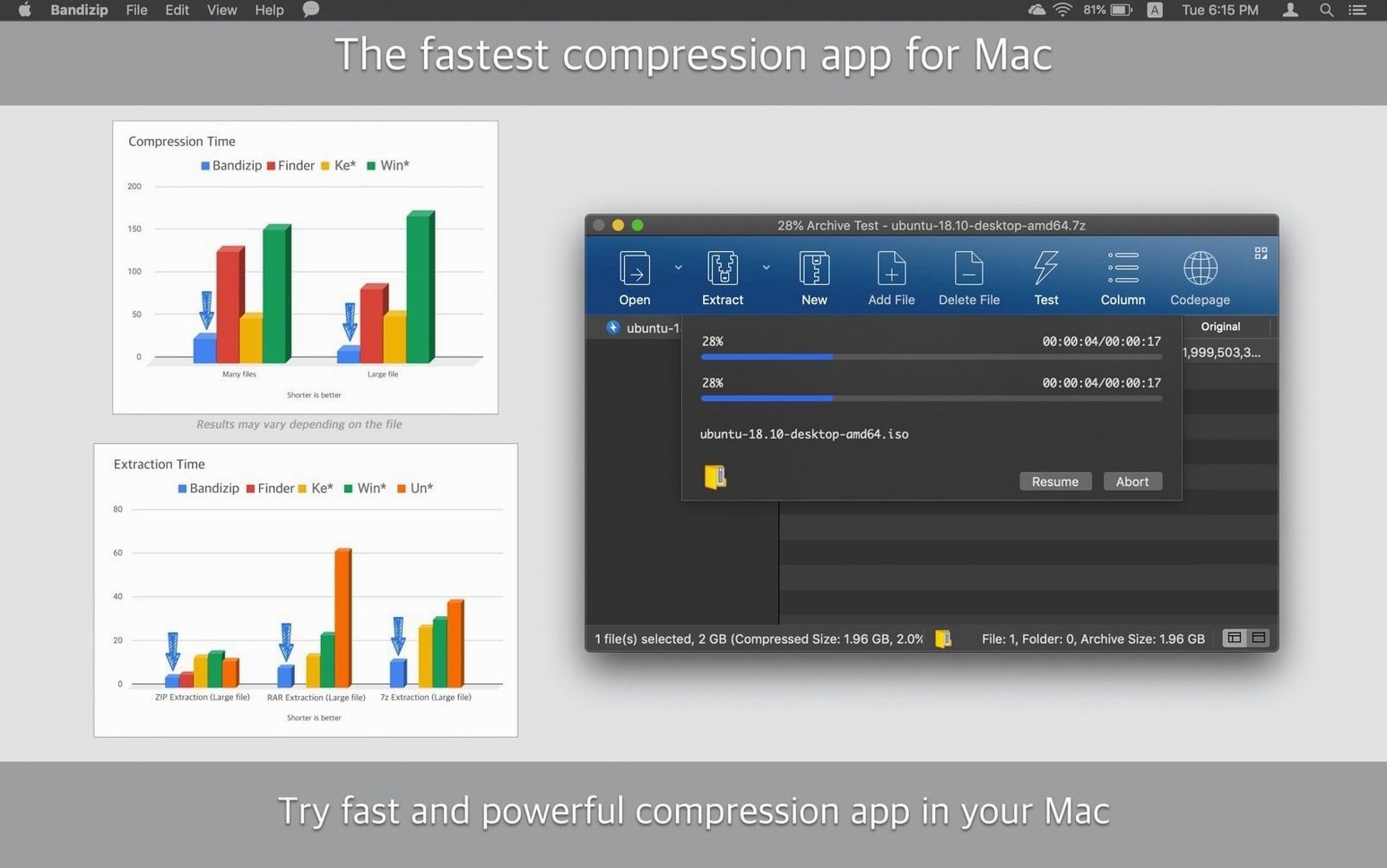
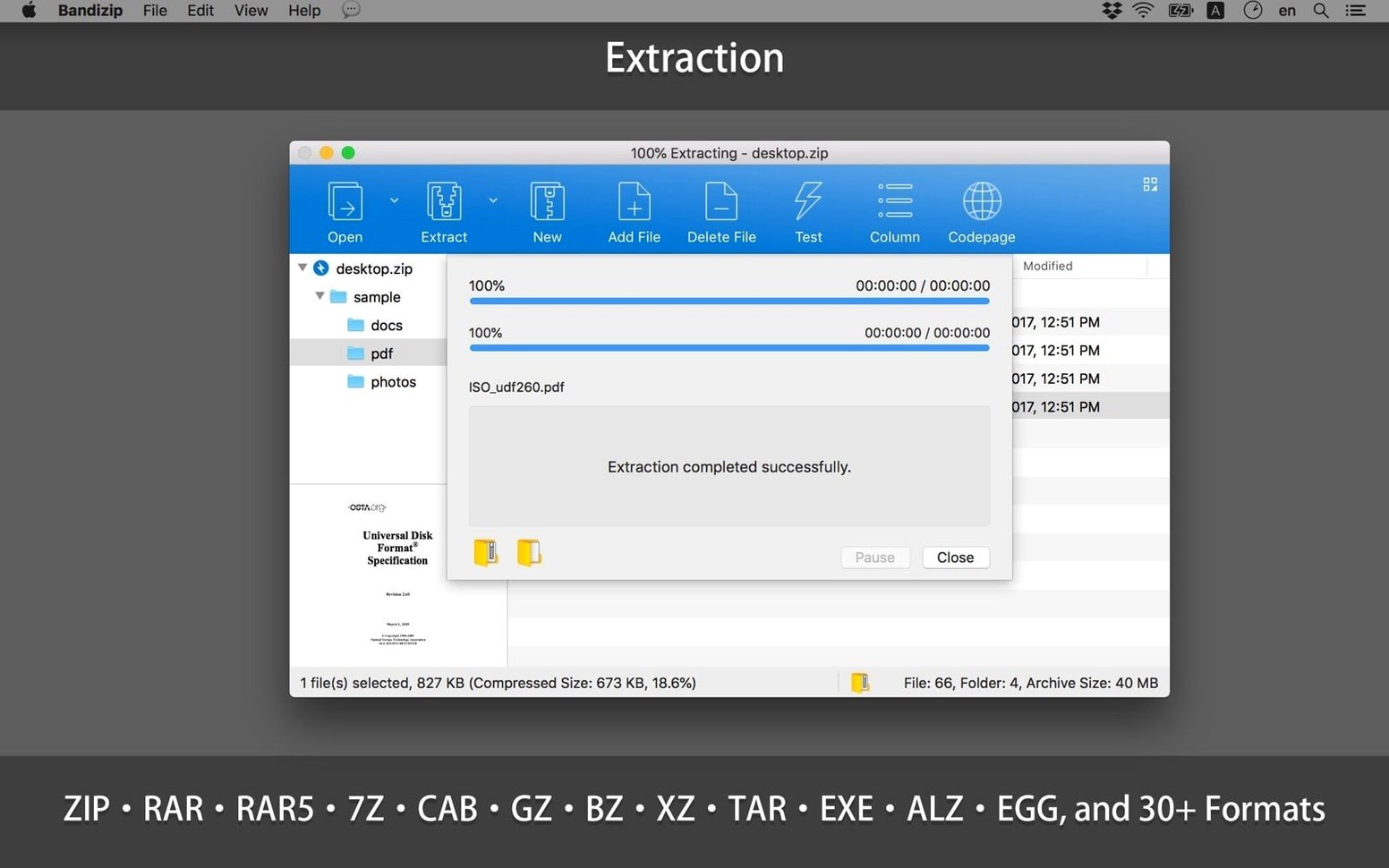
What it does — Bandizip is a single archiver that covers compression, extraction, browsing, and in-place editing. You can open over 30 formats including RAR, RAR5, 7Z, and ZIP, and create archives with AES256 encryption.
ZIP editing — Unlike basic tools, you can modify an existing ZIP without re-compressing the whole thing. Add, delete, or rename entries right inside the archive.
Unicode handling — ZIP archives with Unicode or MBCS file names come through intact, which saves a lot of headaches with downloads from Windows or older systems.
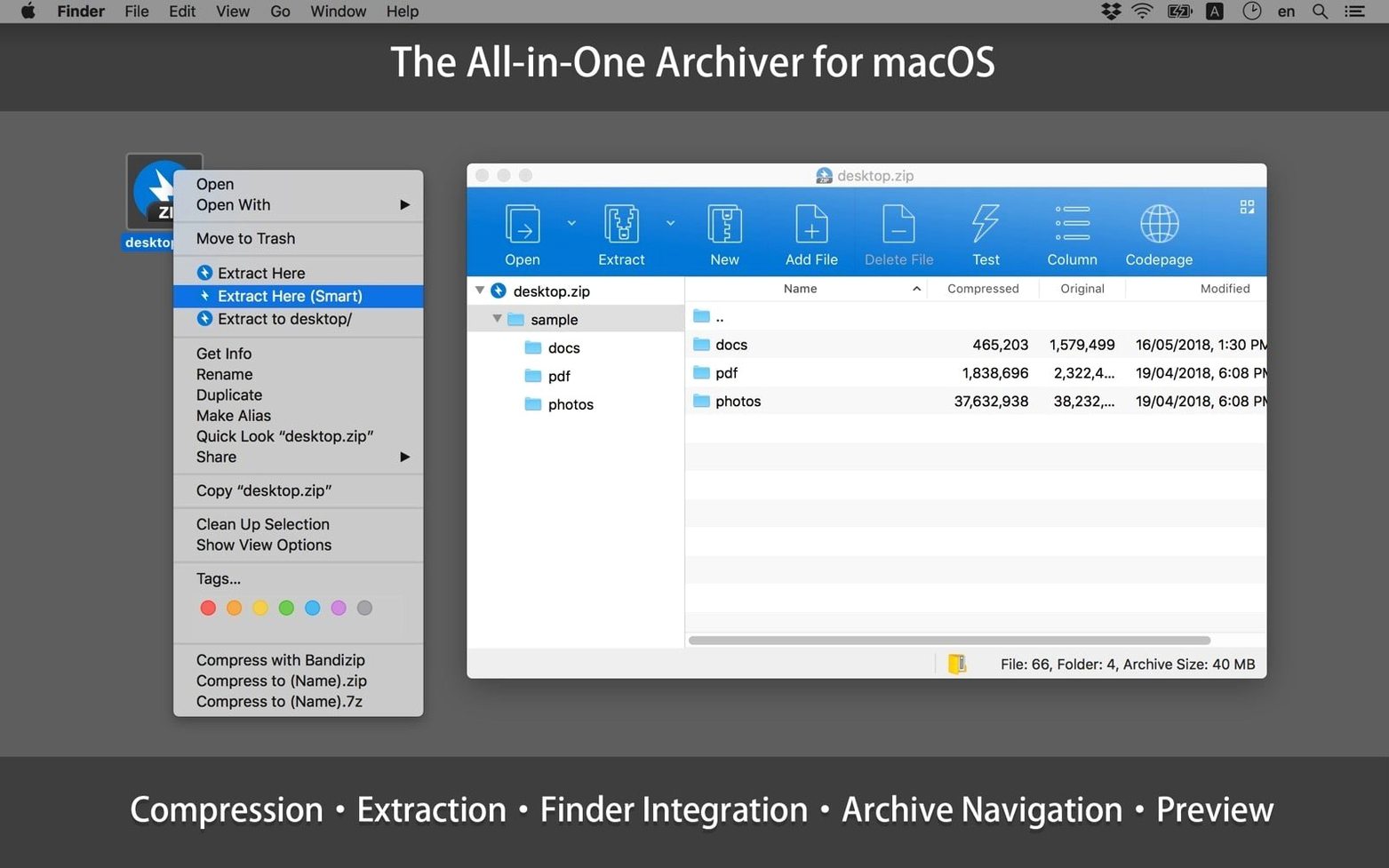
Finder integration — Compress and extract straight from the Services menu. It's a lightweight addition that keeps the app close without cluttering your right-click menu.
Turn off menu clutter in Context Menu preferences
Out of the box, Bandizip plays it safe — which is fine, but a few quick changes make it feel more like your tool. Head into Preferences and hit the Context Menu tab first. I turn off “Extract to folder with archive name” for single files because I rarely want a nested folder for one document. For batch extractions, though, leaving it on saves cleanup time later.
Next, visit the Compression section. If you regularly shoot archives to Windows users, switch the default format from 7Z to ZIP — it avoids the “what do I open this with?” conversation. While you’re there, bump the compression level to “Normal” instead of “Fast.” The speed difference is negligible on modern Macs, and the size savings add up over a month of file shuffling.
One setting I wish more people knew about: under Extraction, enable “Create a folder when extracting multiple files.” It stops a dozen loose files from scattering across your Downloads folder when you double-click a packed project.
Double-click a RAR, unlock a password ZIP in minutes
Let’s say a client sends over a RAR full of design assets and a password-protected ZIP of contract drafts. You’ve got ten minutes before a call.
You grab the RAR first — double-click, or right-click and pick Bandizip > Extract Here from Finder. The app unpacks the folder without fuss and keeps the Japanese file names intact, which is why you switched from the built-in Archive Utility months ago. You skim the extracted PNGs in place; no renaming needed.
The ZIP is trickier. It asks for a password. Bandizip prompts you before extraction, so you paste it once and let it run. Then you realize the client included an outdated draft. Instead of re-zipping everything, you open the archive in Bandizip by double-clicking, delete the old PDF, and drag the revised version in. Two clicks, no re-compression round-trip. You close the window and the updated ZIP is ready to forward.
Before the call, you select a folder of finalized assets, right-click, and choose Compress > 7Z. The archive lands next to the original folder, AES256-encrypted with a password you set on the fly. The whole session took under three minutes, and you never opened a separate app.
Who clicks with Bandizip the most
This isn’t a tool for people who only unzip the occasional download. The sweet spot is anyone who sends and receives archives across platforms regularly. If half your collaborators are on Windows and you’re tired of mojibake file names, Bandizip’s Unicode handling pays for itself in reduced frustration.
Designers and developers who deal with RAR archives daily — asset packs, code repos, reference bundles — will lean on the in-place ZIP editing more than they expect. Changing a single file inside a large archive without re-compressing is the kind of quality-of-life feature that spoils you fast. Once you’ve done it, going back to extract-modify-recompress feels absurd.
Users who value Finder integration without menu bloat also get a lot out of it. The Services menu entries stay tidy, and if you’re the type who batch-extracts project folders, the right-click workflow becomes muscle memory within a week. On the flip side, if you mostly compress single files and never touch RAR or multi-volume archives, the default macOS tools probably cover you — and that’s okay too.
- Fixed multiple security-related vulnerabilities.
- Improved the method for updating file sizes when selecting a folder.
- Adjusted the order of the compression format list when creating an archive.
- Added minor UI improvements and stability enhancements.
- macOS 10.13 or later
- Apple Silicon & Intel 64-bit
Also on readers' docks
Sign in or create an account to leave a comment.
No comments yet. Tell me how it got on with your other devices.