








Download Apple Remote Desktop for macOS
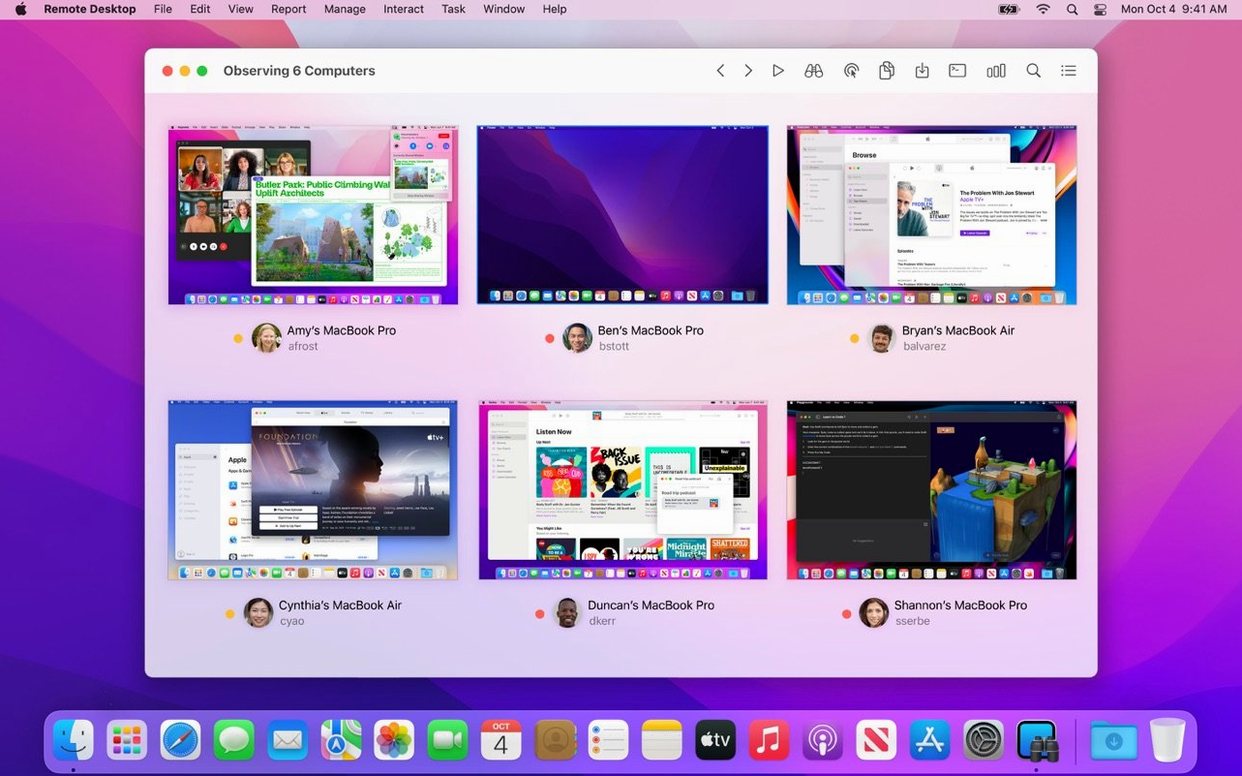
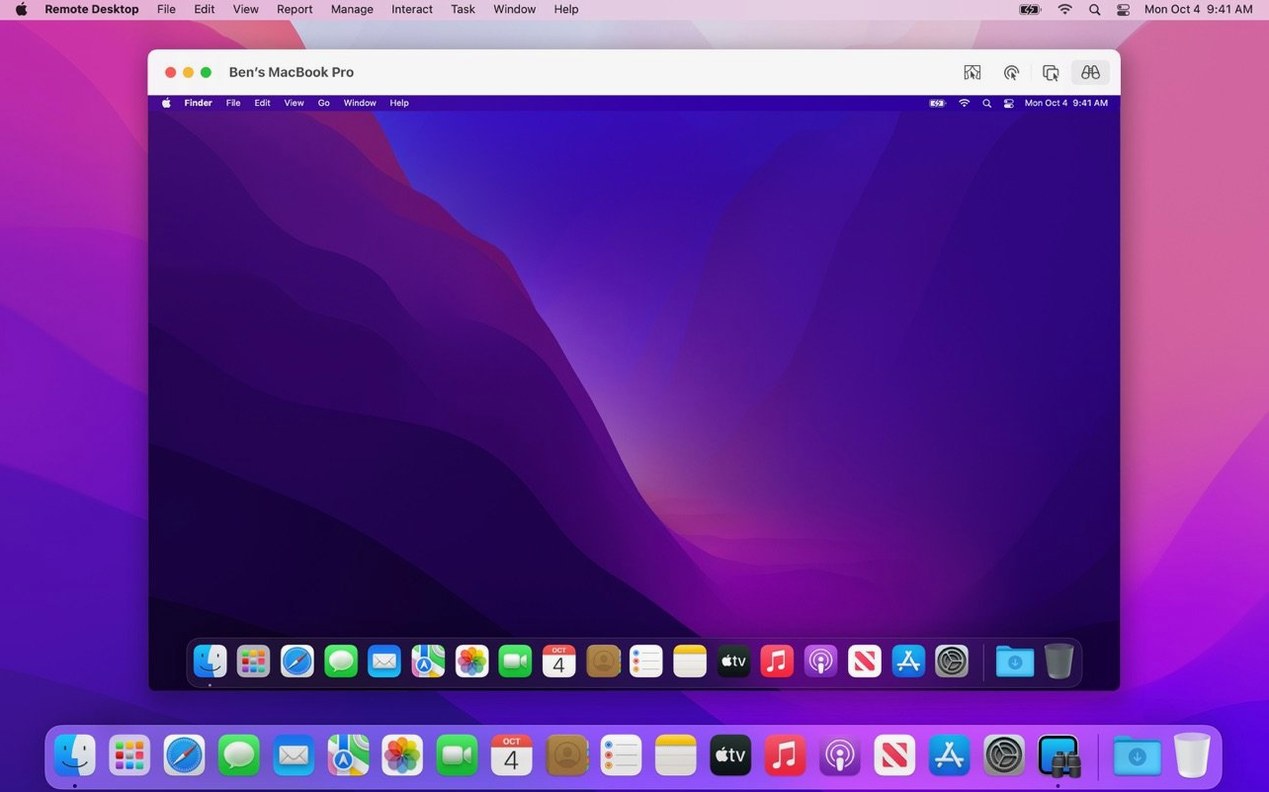
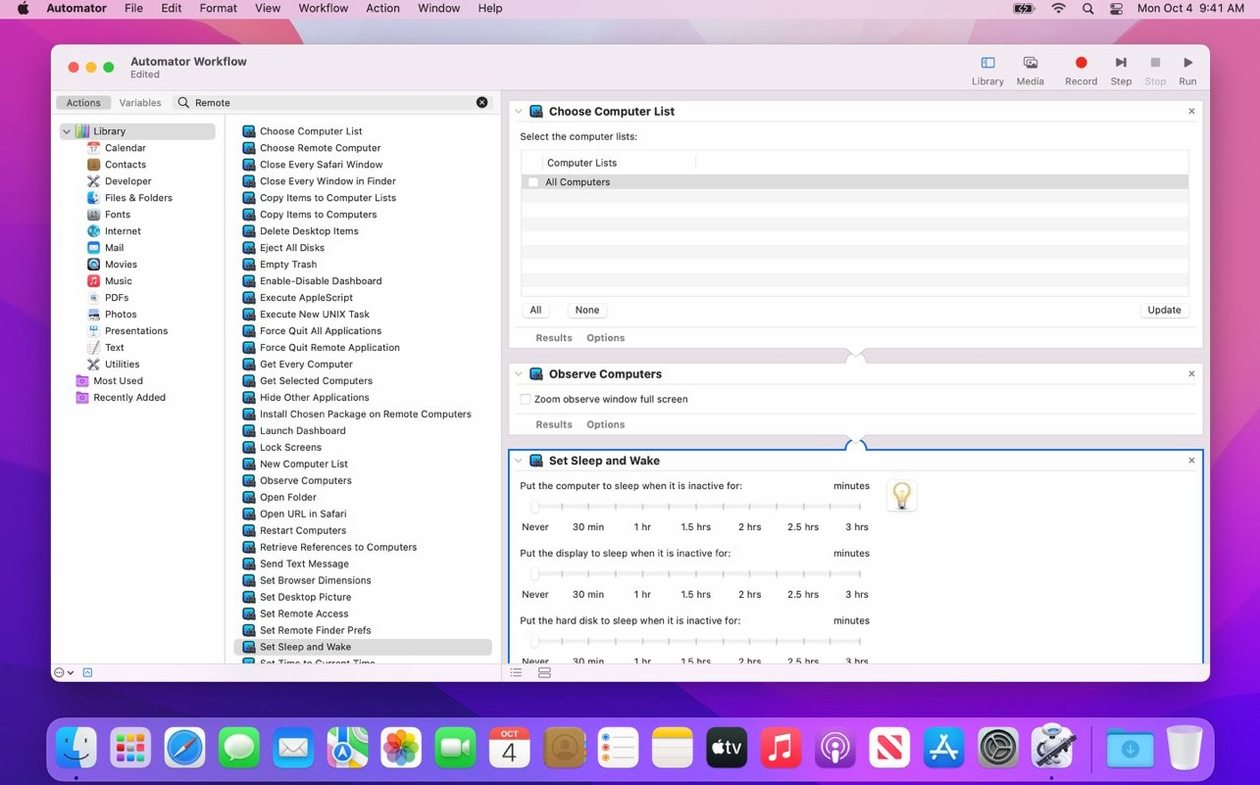
Apple Remote Desktop is Apple's own tool for watching over and controlling a fleet of Macs from a single screen. If you just launched version 3.10 for the first time, the long feature list can look like a cockpit you're not yet cleared to fly. Instead of clicking around blindly, aim for a handful of concrete, satisfying wins that teach you how the app actually thinks.
- Drag a file to a faraway Mac. Pick any two Macs in your list, open a control window, and literally drag a document from your desktop onto the remote screen. It lands in the Dock and feels like the distance just collapsed.
- Run a remote Spotlight search. Choose a computer, hit the Spotlight toolbar button, and type something mundane — a plist name, a font, a buried preference file. Watch results appear as if you were sitting at that desk. You're not just controlling a screen; you're querying a Mac's brain.
- Pull a five‑minute hardware report. Under the Report menu, pick a template like System Overview and run it against a few machines. In seconds you'll have firmware versions, free disk space, and GPU details lined up side by side. It's a spreadsheet that writes itself.
- Schedule a package install for an offline Mac. Copy a PKG into the task list and set it to install later. The job waits quietly until that classroom iMac wakes up and checks in. No babysitting, no post‑it notes.
- Pair one Automator action with ARD. In Automator, drop in a single Remote Desktop action — Execute Command feels like a safe bet — and run
pmset displaysleepnowon a test group. One saved workflow later, you'll start seeing the forty other actions as Lego bricks, not noise.
None of these need deep networking knowledge. Each one leaves you with something visible: a moved file, a filled‑out report, a machine that woke up on its own. Master these five moves and the rest of the app starts feeling like your own extension cord stretched across the building.
How Apple Remote Desktop Plays With the Rest of Your Mac
ARD doesn't live in a bubble, and that's where most of its quiet power hides. After a few days you'll notice it borrows from macOS features you already use, which means less learning and more doing.
The most immediate friend is Spotlight. When you run a remote Spotlight search, ARD taps the same index that powers the local ⌘Space bar — so if a Mac can find a file locally, you can find it remotely. Pair that with the Copy Items task and you've got a pipeline: find a misbehaving plist on ten lab iMacs, then push a fixed version without ever touching a keyboard.
Automator integration goes deeper than most people realize. Those forty‑plus ARD actions aren't just for power users; they're a bridge between one‑off fixes and recurring sanity. Drop "Set Computer Name" into a workflow that runs every Monday morning, chain it with "Install Package," and suddenly new Macs that join the network don't need a welcome wagon.
Then there's Screen Sharing and VNC compatibility. ARD can control Linux, Windows, and UNIX boxes through VNC, but it also understands Apple's own Screen Sharing protocol natively. The practical upshot: you can double‑click a Mac for a full‑quality Observe window, then open a second session to a Raspberry Pi running a VNC server — same interface, same toolbar, no mental context switch. Curtain Mode works on Mac clients too, blanking the local display so your remote tweaks stay invisible to whoever's sitting in front of the screen.
Copy and paste between computers deserves its own mention. Highlight text in a report on your Mac, click into a remote TextEdit document, and paste. It sounds small, but after the third time you avoid typing an IP address or license key manually, it feels essential. The clipboard travels alongside your mouse pointer without extra steps.
Set Up a Self‑Updating Computer List
You've already pulled a few reports and dragged a file across the building. Here are three less‑obvious moves to fold into your routine before the week is out:
- Build a computer list that updates itself. Instead of manually adding machines, let ARD discover them. Use the Scanner and set a range of IP addresses; the app finds Macs, shows whether the Remote Desktop client is active, and lets you drag them into a permanent group. Label that group by room or building, not by function — physical location saves you when a user calls and says "I'm in the west wing, computer's frozen."
- Teach yourself Curtain Mode muscle memory. Next time you need to install something quietly on a classroom Mac, click Observe, then immediately hit the Curtain button. The screen goes dark for anyone nearby while you work. It's faster than walking over and less disruptive than locking the screen, which logs a user out.
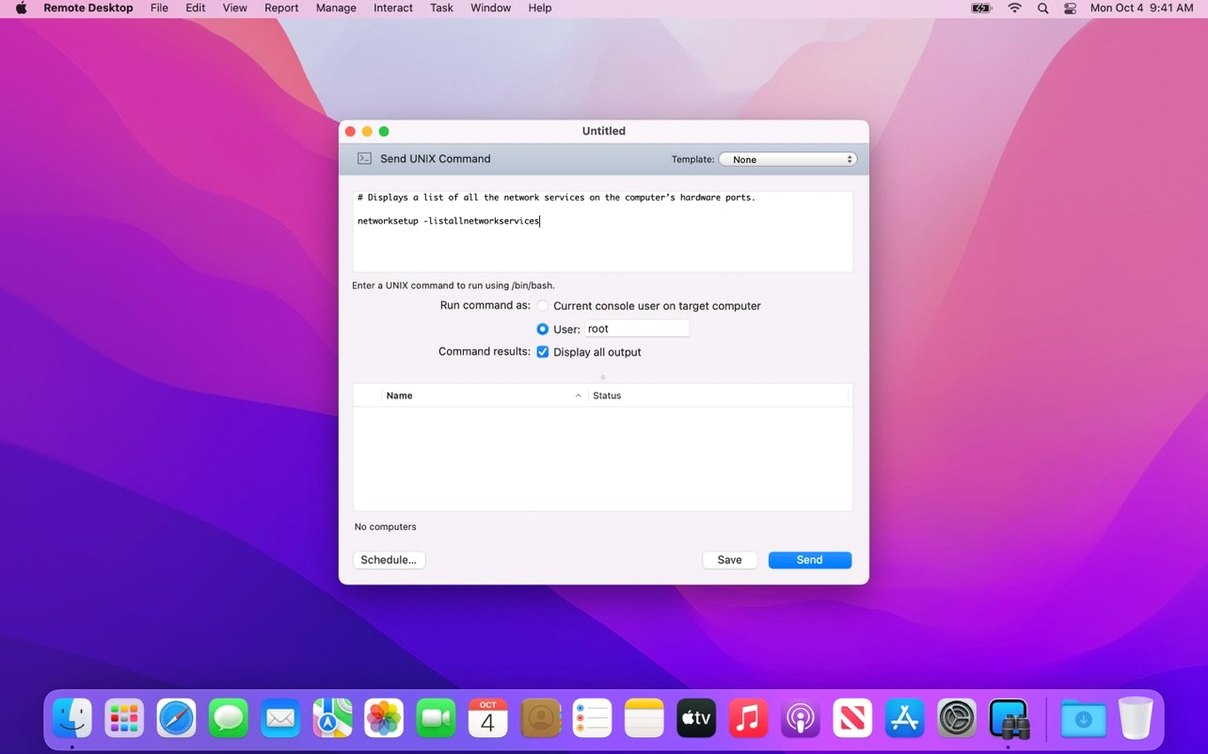
- Use the Send UNIX Command window as a scratchpad. Pick a remote Mac, choose Manage > Send UNIX Command, and type
softwareupdate --list. Run it as root. The output shows updates waiting on that machine. Now save that command as a template — drag it into an Automator workflow later, or just bookmark it mentally for the next patch cycle.
Remote Keyboard Pulled Out of Observe
The move to macOS 15.5 brought more than compatibility. On Tahoe 26 and later, you'll find a new Remote Keyboard item in the menu bar and toolbar, which separates keyboard control from the full Observe window. If you spend part of your day typing commands into remote Macs without needing to watch the screen constantly — say, running scripted maintenance — this puts keystrokes at the front of the interface.
Accessibility took a real step forward. VoiceOver can now traverse a remote Mac's interface the same way it reads your local screen, which means a visually impaired admin can navigate another person's desktop, find a stuck dialog, and close it — all through auditory feedback. These aren't bullet points in a changelog once you see them in action; they reshape who can use ARD comfortably.
Performance tweaks under the hood mean screen sharing feels snappier over congested networks. You won't see a named feature for it, but switching between tabs in a multi‑computer Observe window now carries less lag. For anyone juggling five or six sessions simultaneously, that small smoothness builds real goodwill by lunchtime.
Version 3.10 lands with macOS Tahoe 26 readiness and a handful of welcome accessibility touches:
- Compatibility with macOS Tahoe 26 is now baked in.
- New Accessibility and Remote Keyboard menu and toolbar items appear when running on macOS Tahoe 26 or later.
- VoiceOver support extends to the remote Mac's screen on macOS Tahoe 26 or later.
- The usual round of bug fixes and performance smoothing comes along for the ride.
- macOS 15.5 or later
- Apple Silicon or Intel 64-bit Mac
Questions people ask
Can I use Apple Remote Desktop to manage Windows PCs?
Yes, version 3.10 can connect to Windows, Linux, and UNIX computers through standard VNC, though full control features require the Remote Desktop Client on managed Macs.
Does Apple Remote Desktop work on both Intel and Apple Silicon Macs?
Absolutely. The app runs natively on both architectures and requires macOS 15.5 or later.
What is the Remote Desktop Client and where do I get it?
It's the helper component that must be installed on Mac computers you want to fully control. You can push it out from the admin copy of Apple Remote Desktop itself.
Also on readers' docks
Sign in or create an account to leave a comment.
No comments yet. Tell me how it got on with your other devices.
More in Mac Apps
See all Apple Keynote
15.3.1 Mac Apps
356 MB
Apple Keynote
15.3.1 Mac Apps
356 MB
 AppZapper
2.0.3 Mac Apps
4 MB
AppZapper
2.0.3 Mac Apps
4 MB
 AppCode
2023.1.5 Mac Apps
1.8 GB
AppCode
2023.1.5 Mac Apps
1.8 GB
 App Cleaner & Uninstaller
10.0 Mac Apps
47 MB
App Cleaner & Uninstaller
10.0 Mac Apps
47 MB
 AnyTrans for iOS
8.9.14 Mac Apps
398 MB
AnyTrans for iOS
8.9.14 Mac Apps
398 MB
 Updated Antivirus Zap - Virus Scanner
3.25.1 Mac Apps
49 MB
Updated Antivirus Zap - Virus Scanner
3.25.1 Mac Apps
49 MB
 AmpliTube
5.8.2 Mac Apps
3.1 GB
AmpliTube
5.8.2 Mac Apps
3.1 GB
 Alfred 5 Powerpack
5.8.1 Mac Apps
6 MB
Alfred 5 Powerpack
5.8.1 Mac Apps
6 MB