









Download Alfred 5 Powerpack for macOS
If your Mac runs macOS 10.14 or newer, you’re all set. Alfred 5 Powerpack keeps its hardware demands modest — it’s a native app for both Intel and Apple Silicon machines, so no compatibility surprises.
Chain file actions into custom keyboard workflows
- Anyone who already relies on Alfred’s core search and wants to go much further without leaving the keyboard.
- Building custom workflows that chain together file actions, web lookups, and system commands.
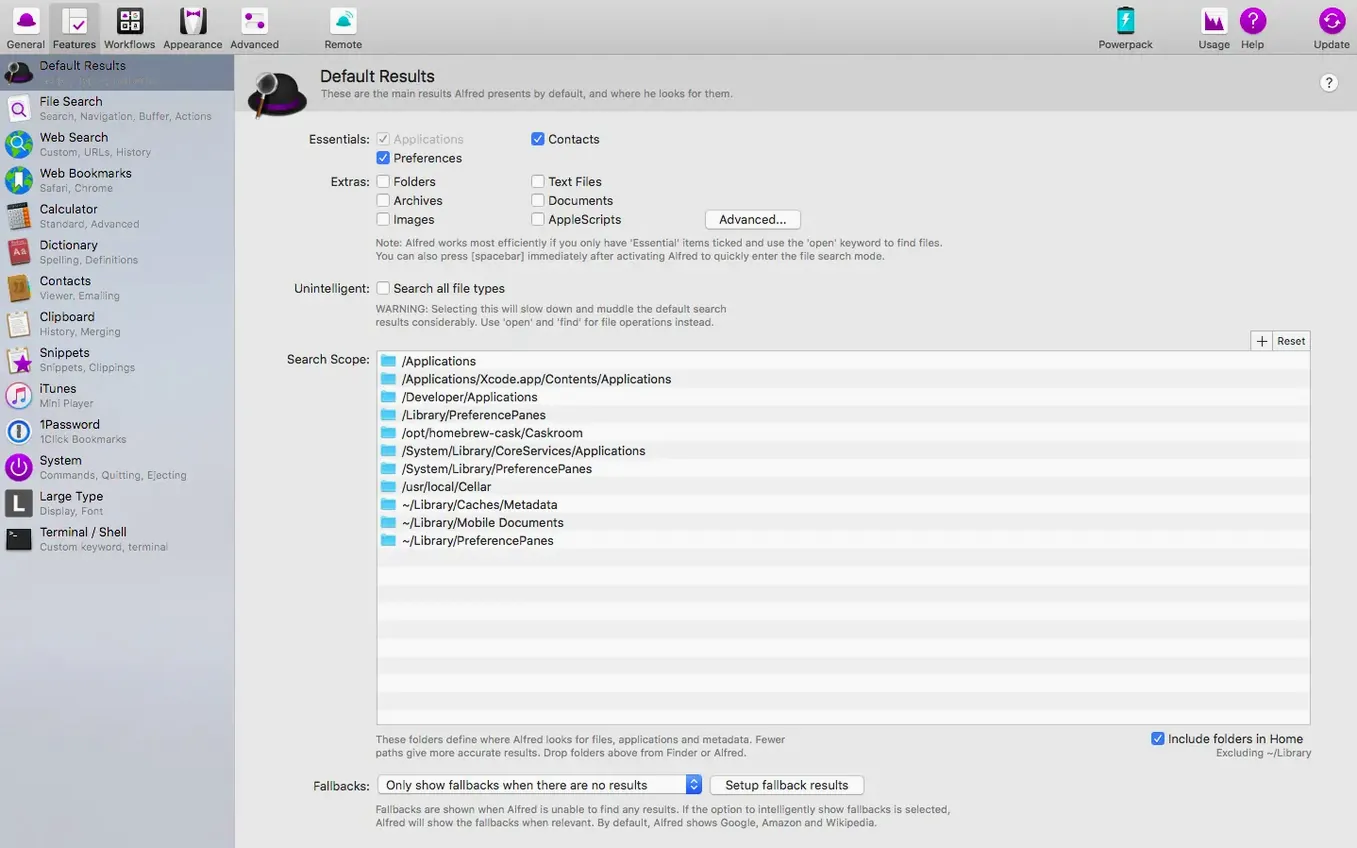
- People tired of hunting through folder trees — the enhanced file search and navigation shortcuts make locations feel irrelevant.
- Clipboard history fans who copy and paste all day; the Powerpack remembers what you copied so you don’t have to.
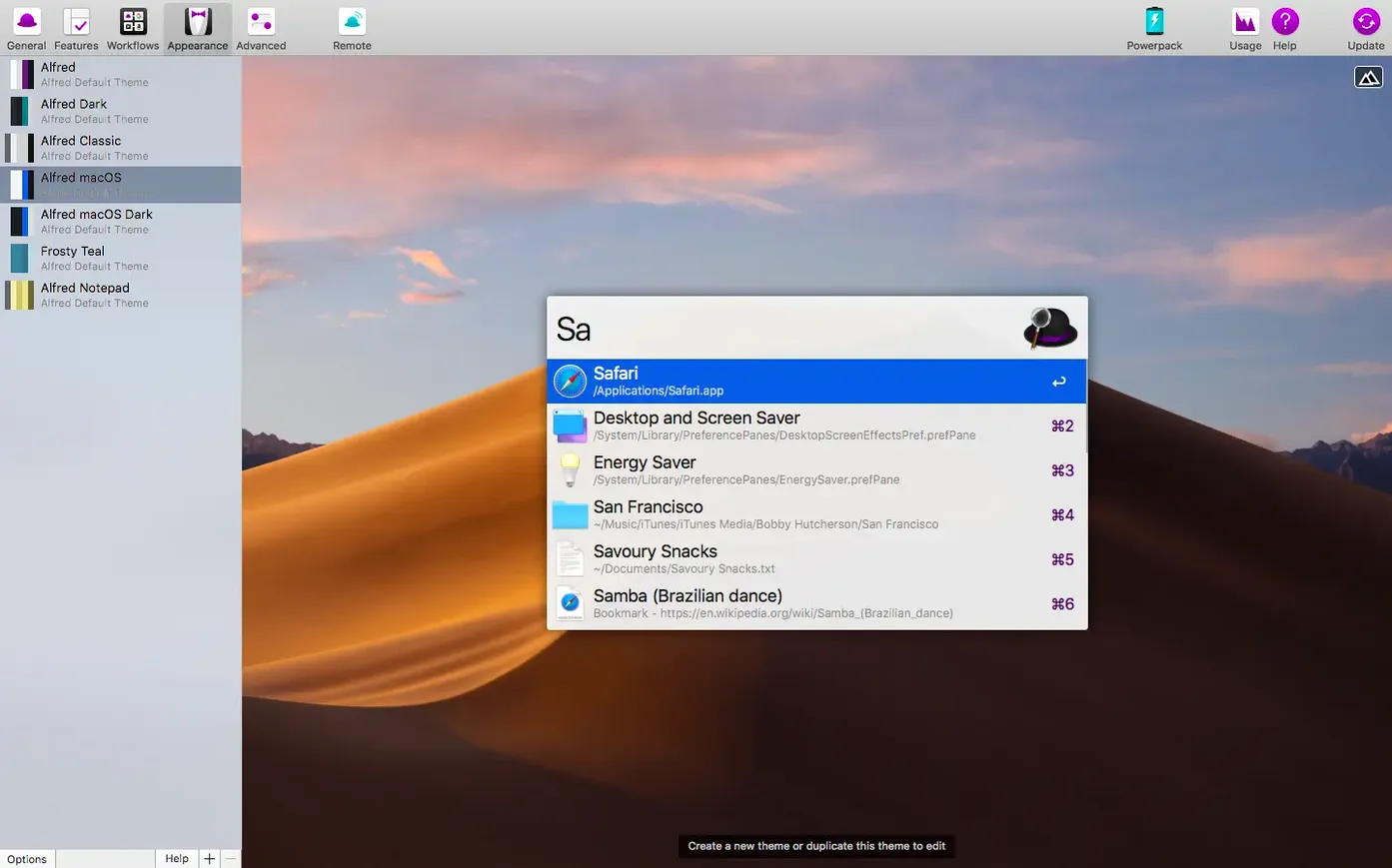
- Making Alfred look the part with custom themes so the launcher fits your desktop, not the other way around.
An afternoon of tinkering to master workflow creation
- It’s an add-on, not a standalone app — you need the core Alfred application installed from the developer’s website first.
- The feature set is wide; getting comfortable with workflow creation takes an afternoon of tinkering.
- Everything lives on your Mac, so if you switch machines frequently you’ll want to sync your preferences separately.
Clipboard history as your first small win
Don't try to learn everything at once — that's the fastest way to bounce off a tool this deep. Instead, pick two or three small wins for your first afternoon. I'd start with clipboard history: open Alfred's preferences, head to Features > Clipboard, and tick "Keep Plain Text" and "Keep Images" so you're not losing anything. Set the history to remember at least three months of clippings, then memorize the shortcut to bring up the clipboard viewer. That alone changes how you copy and paste across every app.
Next, browse the built-in workflow gallery and enable one that already matches a daily annoyance. The "Should I watch?" workflow that searches IMDb and Rotten Tomatoes in one keystroke is a crowd-pleaser, and the password generator workflow saves trips to Keychain Access. After that, spend ten minutes in the Appearance tab picking a theme you actually enjoy looking at — the default is fine, but a softer dark theme with reduced transparency makes the palette feel less like a utility and more like a natural extension of your desktop.
Summon a client snippet with Option-Space
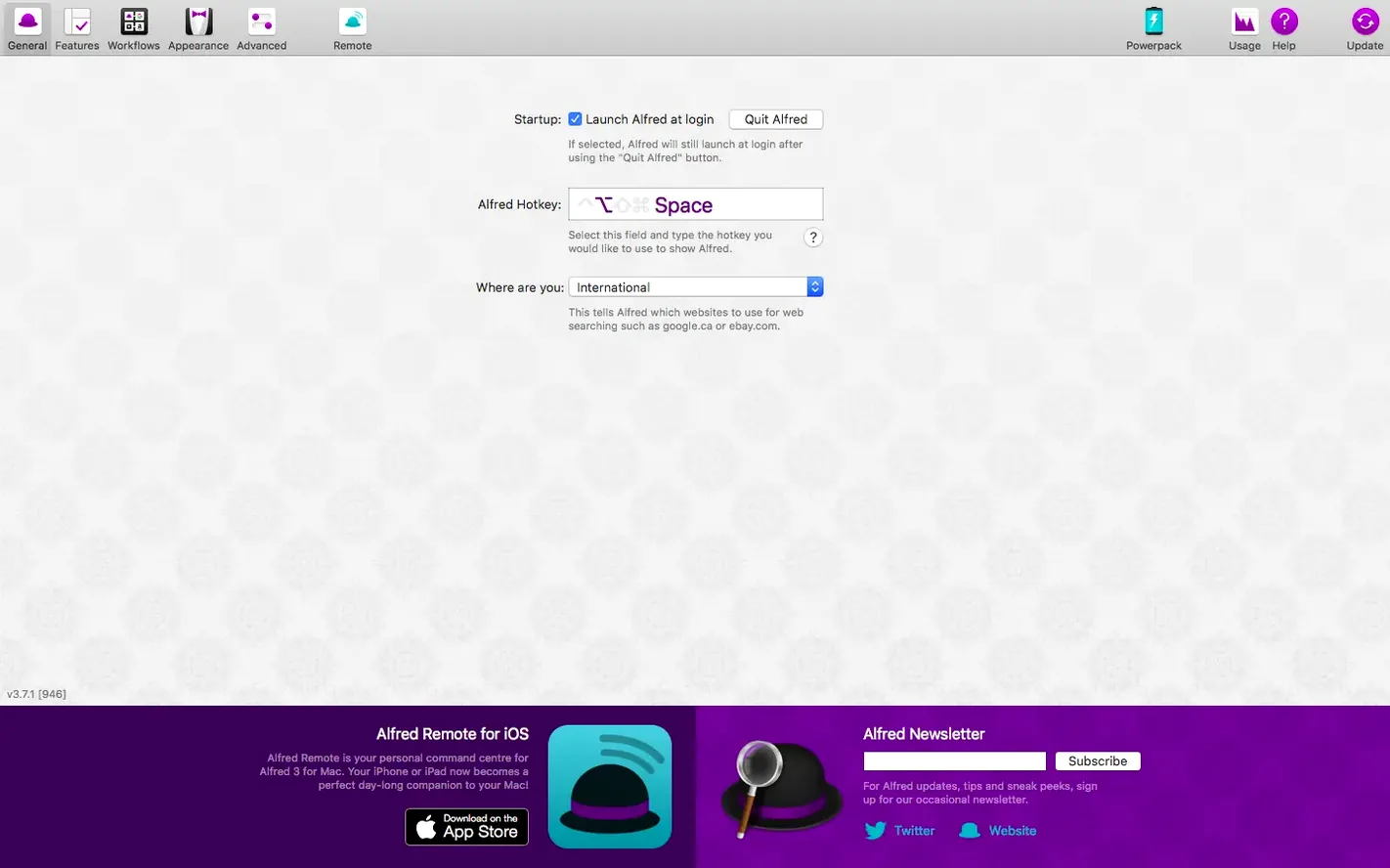
Let's say you sit down to write, but first you need to gather a few things. You tap Option-Space (or whatever hotkey you've chosen) and the Alfred bar drops down. You type a snippet of the client's name — not the full path, just a few letters — and the file you worked on yesterday appears as the top result. Right-arrow to reveal file actions, hit "Copy to..." and send it to the project folder without ever opening Finder. Three seconds, no mouse.
A colleague messages about an old invoice. You invoke Alfred, type "inv" and the clipboard history shows a reference number you copied last Tuesday. Select it, paste, done. Then you need to calculate a quick percentage for the reply: type "= 3400 * 0.18" into Alfred, see the result, and the number sits on your clipboard ready to paste. The whole exchange — find file, recall clipping, run calculation — plays out inside the same search bar, never touching the Dock or a single menu.
Workflow for renaming batches of screenshots
This is a task I used to do manually, one file at a time, until I built a short workflow for it. The problem: macOS screenshots pile up with names like "Screenshot 2026-09-24 at 14.33.17" and I need them renamed with a project prefix and incrementing number before sending to a client.
Inside Alfred's Workflows tab, I created a new blank workflow and added a File Action trigger set to accept multiple files. That connects to a Run Script object set to /bin/bash, with a script that reads the selected files, asks for a base name via an Arg and Vars utility, then renames each file sequentially. The final output object is a simple Post Notification so I know it worked. Now the process is: select the screenshots in Finder, double-tap my Alfred hotkey, type the action keyword, enter the project name — and six files become "client-report-01.png" through "client-report-06.png" before I can reach for my coffee. If you're hunting for an alfred 5 powerpack license free option to test workflows like this, the community gallery has dozens you can pick apart and adapt. Once you've built two or three of your own, you start seeing repetitive tasks everywhere — and that's where the real productivity shift happens.
Version 5.8.1 shipped on September 24, 2026 with a handful of fit-and-finish fixes:
- Light Mode plays nicer with the updated General preferences.
- Searching System Settings on macOS 27 now pulls up iCloud and General results correctly.
- Google Chrome bookmarks search finally covers your full bookmark collection instead of skipping entries.
- macOS 10.14 or later
- 64-bit Intel or Apple Silicon Mac
- Core Alfred 5 application installed
Questions people ask
Does the Powerpack replace the free version of Alfred?
No, it builds on top of the core Alfred 5 app — you install the free base first, then the Powerpack unlocks workflows, clipboard history, themes, and the rest of the advanced feature set.
Also on readers' docks
Sign in or create an account to leave a comment.
No comments yet. Tell me how it got on with your other devices.
More in Mac Apps
See all AlDente
1.39.4 Mac Apps
12 MB
AlDente
1.39.4 Mac Apps
12 MB
 Alcove
1.7.9 Mac Apps
14 MB
Alcove
1.7.9 Mac Apps
14 MB
 Airflow
3.3.10 Mac Apps
69 MB
Airflow
3.3.10 Mac Apps
69 MB
 AirBuddy
3.0-890 Mac Apps
49 MB
AirBuddy
3.0-890 Mac Apps
49 MB
 AmpliTube
5.8.2 Mac Apps
3.1 GB
AmpliTube
5.8.2 Mac Apps
3.1 GB
 Air Printer - Printer Server
6.7.9 Mac Apps
47 MB
Air Printer - Printer Server
6.7.9 Mac Apps
47 MB
 Updated Antivirus Zap - Virus Scanner
3.25.1 Mac Apps
49 MB
Updated Antivirus Zap - Virus Scanner
3.25.1 Mac Apps
49 MB
 Aiarty Video Enhancer
3.8 Mac Apps
182 MB
Aiarty Video Enhancer
3.8 Mac Apps
182 MB