








Download Alcove for macOS
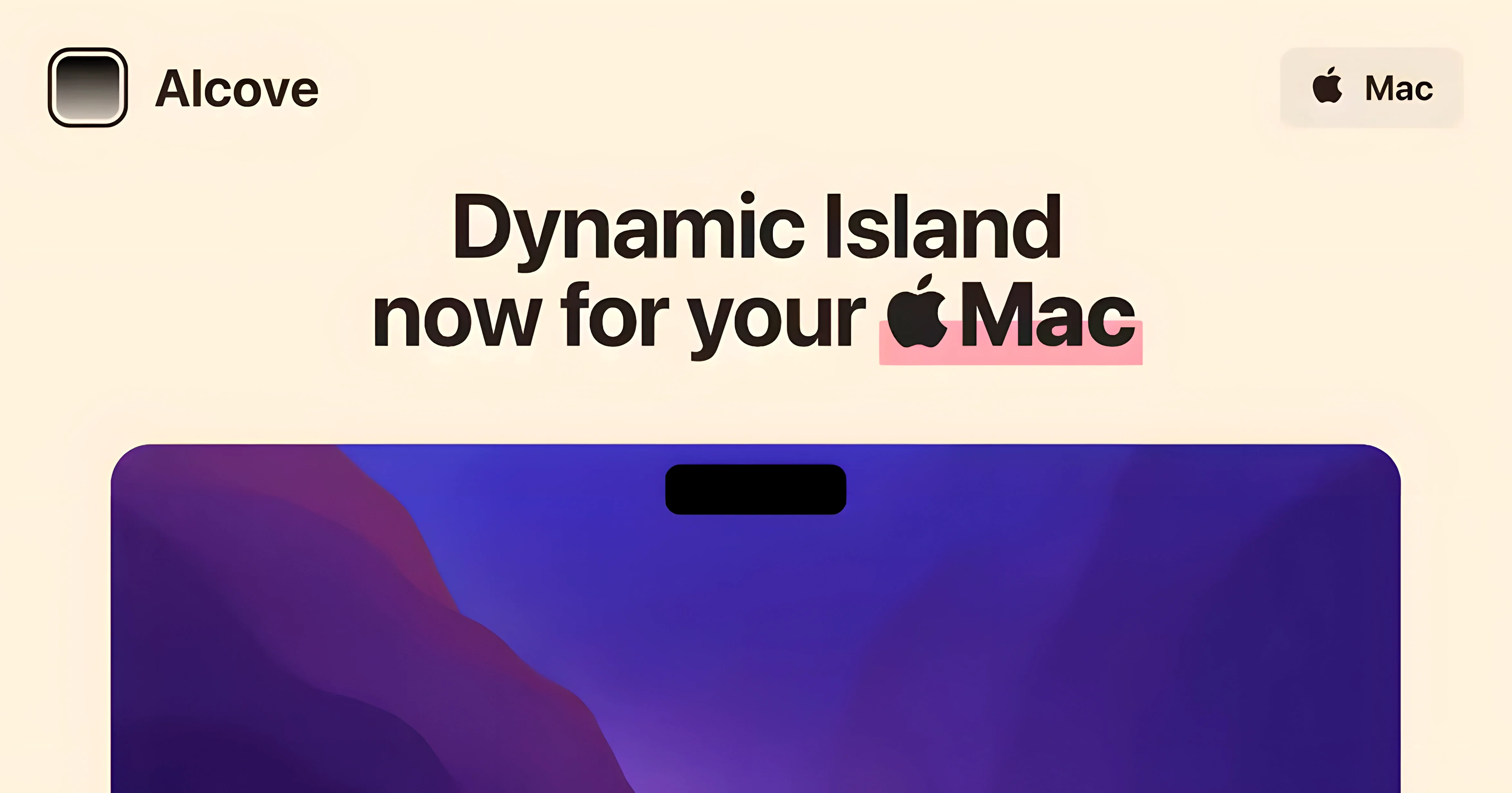
The first question is always compatibility, so let's get straight to it: Alcove runs on any Mac with a notch, requiring macOS 14 Sonoma or later. That includes both Apple Silicon and Intel models, so if you're rocking a recent MacBook Air or MacBook Pro, you're all set.
What the notch becomes
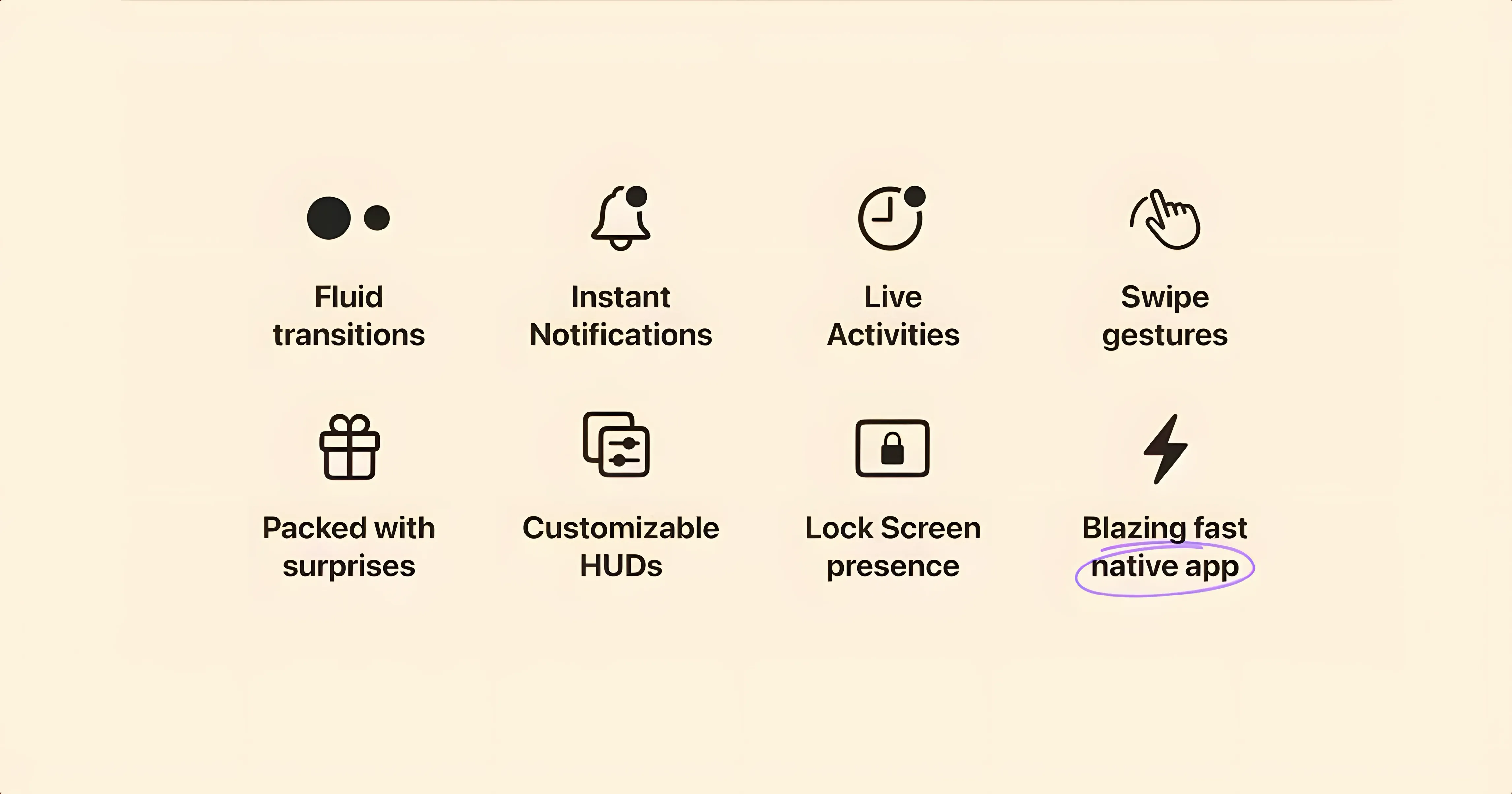
Once installed, the static notch transforms into a responsive capsule that handles media playback, notifications, and even Live Activities. The stock system volume and brightness HUDs get swapped out for custom ones that appear right up top, making adjustments feel more native to the hardware. It responds to different actions and events, so the area becomes genuinely useful instead of just sitting there.
Extending the Notch with Dynamic Island Playfulness
Henrik Ruscon built Alcove to extend the Mac notch with the kind of interactive behavior you'd expect from Dynamic Island on an iPhone. If you enjoy keeping controls tidy and within easy reach, the utility fits smoothly into daily use. The interface speaks English and launched back in November 2024, so it's still actively finding its feet. Anyone who glances at their notch a dozen times a day and wishes it did more will find a lot to like here.
Swapping the Volume and Brightness HUDs
Out of the box, Alcove is eager to replace the system HUDs for volume and brightness — that's its headline trick. Everyone's muscle memory differs, though. Open the app's preferences from the menu bar icon and check the HUD Replacement toggle first. If you rely on the translucent overlays Apple ships, turn this off immediately; you'll keep the media and notification capsule without messing with controls you already know.
Next, decide how clingy you want the capsule to be. The Auto-hide delay slider deserves a tweak. The default is fine for casual glances, but bumping it shorter keeps the top of the screen cleaner while you work in full-screen editors. If you often miss notifications, drag it longer. A small adjustment here stops Alcove from feeling either too chatty or too invisible.
Lastly, poke at Allowed Notifications. By default, Alcove mirrors everything Notification Center throws at it. Unticking chat apps that already ping your wrist and your Dock means the capsule only surfaces things you actually want interrupting your gaze. It takes thirty seconds and the difference is stark.
Weaving into Control Center Without Stealing Toggles
Alcove isn't a standalone island — it weaves into existing macOS behaviors, and knowing the seams helps. It plays nicely with Control Center: the capsule doesn't steal keyboard brightness or Do Not Disturb toggles; those stay where they've always lived. Think of the notch area as gaining a new layer rather than replacing the right-side menu bar controls.
Media apps show the tightest integration. Whatever's playing in Music, Spotify, or even a browser tab pipes its track info and scrub controls into the capsule. If you use Shortcuts, you can trigger automations that Alcove notices — a HomeKit scene that fires during a playlist change, for instance — though that relies on Live Activities support from the app in question. Calendar events and timers also pop up here, which makes the Mac feel a step closer to the iPhone's lock screen awareness.
On the accessibility front, Alcove respects Reduce transparency and Increase contrast system settings. If you have those enabled, the capsule shifts to a solid, high-legibility background without any extra configuration. Not every third-party overlay bothers, so this is worth appreciating.
Fixing the Empty Capsule with Permissions
The most common hiccup: the capsule appears but shows nothing useful. Usually, this means the app hasn't been granted Screen Recording or Accessibility permissions. Pop into System Settings > Privacy & Security and confirm both are toggled on for Alcove. macOS sometimes prompts for these on first launch, but if you dismissed the dialog, the app sits there blank.
Some people report the HUD replacement flickers when adjusting volume in rapid bursts. Reducing the animation speed inside Alcove's preferences (look for Animation duration) settles this down. It doesn't remove the smoothness — just reins in the redraws enough that macOS stops fighting it.
If the capsule overlaps your menu bar items in a cluttered setup, Bartender or a similar menu bar manager can help. Hide a few icons and the notch area breathes again. This isn't an Alcove bug so much as a geometry lesson: the notch space is finite, and macOS doesn't automatically reflow things around it. A leaner menu bar makes the capsule feel integrated rather than wedged in.
For anyone who grabbed the alcove 1.7.9 build and wonders why automatic updates are off — that's deliberate. The developer recommends it to prevent macOS from silently replacing a version that works with your permission set. If you ever want to check for a newer release, just visit the official site and compare notes. The capsule itself won't nag you.
- macOS 14 Sonoma or later
- Apple Silicon or Intel Mac with a notch
Also on readers' docks
Sign in or create an account to leave a comment.
No comments yet. Tell me how it got on with your other devices.
More in Mac Apps
See all AlDente
1.39.4 Mac Apps
12 MB
AlDente
1.39.4 Mac Apps
12 MB
 Airflow
3.3.10 Mac Apps
69 MB
Airflow
3.3.10 Mac Apps
69 MB
 Alfred 5 Powerpack
5.8.1 Mac Apps
6 MB
Alfred 5 Powerpack
5.8.1 Mac Apps
6 MB
 AirBuddy
3.0-890 Mac Apps
49 MB
AirBuddy
3.0-890 Mac Apps
49 MB
 Air Printer - Printer Server
6.7.9 Mac Apps
47 MB
Air Printer - Printer Server
6.7.9 Mac Apps
47 MB
 Aiarty Video Enhancer
3.8 Mac Apps
182 MB
Aiarty Video Enhancer
3.8 Mac Apps
182 MB
 Aiarty Image Enhancer
3.14 Mac Apps
129 MB
Aiarty Image Enhancer
3.14 Mac Apps
129 MB
 AI Transcription
2.16 Mac Apps
5.1 GB
AI Transcription
2.16 Mac Apps
5.1 GB