Download AlDente for macOS
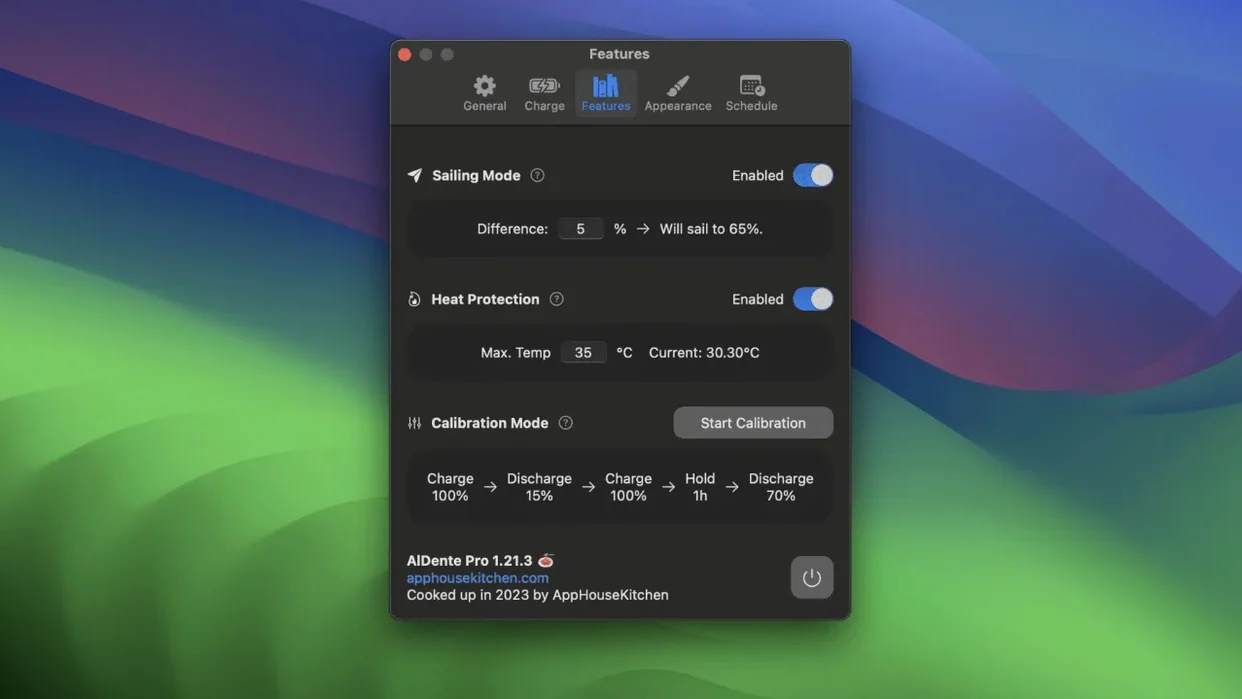
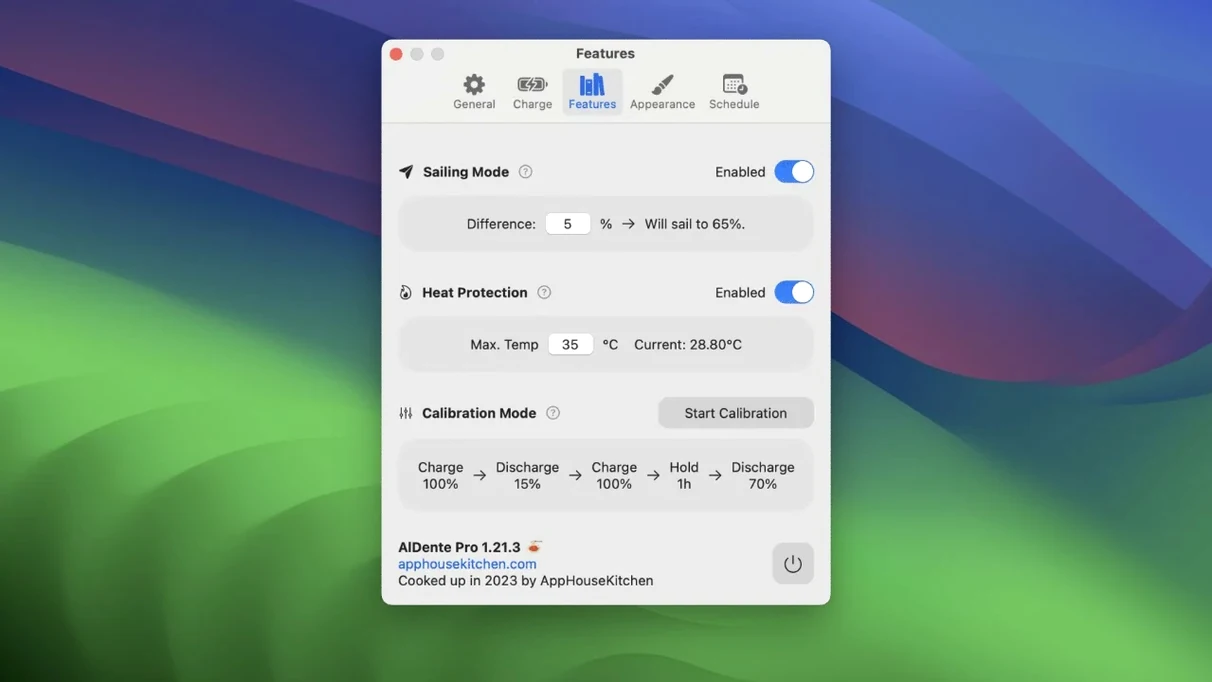
Most MacBooks spend far more time plugged in than their batteries actually need to hit 100%. AlDente changes that by letting you set a hard charge limit — say, 70% — so your Mac stops drawing power once it reaches that threshold.
Good for
- Anyone whose MacBook lives on a desk most of the day, plugged into a dock or external display
- Protecting long-term battery health by avoiding the constant high-voltage stress of sitting at full charge
- Giving you a clearer read on battery temperature, cycle count, and current capacity than macOS offers on its own
- Running an occasional Calibration Mode to keep your battery percentage readings accurate
Keep in mind
- It runs on macOS 12 Monterey and later, on both Intel and Apple Silicon machines
- The interface is translated into sixteen languages, including Simplified Chinese, French, Japanese, Italian, Russian, Greek, Turkish, Polish, and Korean
- If you regularly need a full day away from a charger, you will have to remember to lift the limit manually before you unplug
A desk-bound MacBook Air, a year later
Picture someone who edits photos in Lightroom during the day, hops on Zoom calls, and keeps a dozen Safari tabs open. They use a MacBook Air as their only machine — but it sits on a Twelve South stand, plugged into a 4K monitor and a mechanical keyboard, ninety-five percent of the time. Before they installed AlDente, the battery sat at 100% for weeks on end. After about fourteen months with the charge limit locked at 75%, they opened System Information and saw a cycle count that barely moved and a maximum capacity still above 97%. That is the kind of quiet difference the app makes when you treat your MacBook more like a desktop that occasionally travels.
It is not flashy, and that is exactly the point. The user rarely thinks about AlDente — until they grab the laptop for a coffee-shop morning, remember to toggle the limit off twenty minutes before leaving, and walk out with a genuinely full charge. For anyone whose MacBook doubles as both a stationary workstation and a portable machine, that ritual becomes second nature surprisingly fast.
A real calibration workflow, end to end
Calibration Mode is one of those features that sounds technical but is actually simple to run. Here is a realistic weekly routine for someone who wants their battery percentage readout to stay accurate without babysitting the process.
1. Check the calendar. Pick a morning when you will be at your desk for a few hours and do not need to unplug suddenly. Friday or Sunday works for a lot of people.
2. Enable Calibration Mode from the menu bar. AlDente will first charge the battery all the way to 100%, then let it discharge down to around 15% while you keep using the Mac normally. The app handles the whole cycle automatically. You can keep editing, coding, or answering email the entire time.
3. Let it discharge. Depending on your machine and workload, this part takes anywhere from two to five hours. The menu bar icon shows the current step, so you can glance at it without interrupting your flow.
4. Plug back in when prompted. Once the battery hits the lower threshold, AlDente will ask you to reconnect the charger. It then charges back up to your usual limit — say, 70% or 80% — and exits Calibration Mode on its own.
5. Repeat once every two to four weeks. You do not need to do this weekly. Most people find a monthly cadence keeps the percentage readout trustworthy without adding unnecessary cycles. AlDente even tracks your last calibration date, so you never have to guess.
What makes the workflow painless is that you never stare at a progress bar waiting for something to finish. The Mac stays usable the whole time, and the app quietly returns to your set limit when it is done.
What version 1.39.4 smoothed out
The latest build is a maintenance release, but it fixes a genuinely annoying cosmetic issue. In early betas of macOS 27.2, the Popover — the small panel that drops down from the menu bar icon — suffered from visual glitches that made text flicker and controls redraw awkwardly. For an app you interact with mostly through that Popover, even a minor rendering hiccup erodes the feeling of polish.
With version 1.39.4, those glitches are gone. The Popover now draws cleanly regardless of whether you are on a stable macOS release or dipping into a beta. In everyday use, that means the temperature readout, the charge-limit slider, and the Sailing Mode toggle all feel responsive and solid again. It is the kind of fix you notice only if you lived with the broken behavior before, but it makes the app feel properly maintained — the developer clearly keeps an eye on upcoming macOS changes rather than scrambling after the public release.
For users who have been running the same al dente pro version for months, this update is worth grabbing even if nothing else changed. A flicker-free Popover matters when you check your battery stats several times a day.
Observe your baseline before locking 50 %
When you first install the app, it is tempting to set a charge limit of 50% and call it done. That impulse is understandable, but a slightly different approach makes the first week smoother.
Day one — observe the baseline. Open AlDente and just watch for a few hours. Note the temperature your MacBook usually hovers at while plugged in, how quickly it charges, and what the current maximum capacity reads. This gives you a reference point for later. Do not change the limit yet; let the app sit in its default state while you get familiar with the menu bar icon and the Popover layout.
Day two — pick a realistic limit. Think about when you next expect to run on battery. If that is tomorrow, set the limit to 90% for now. If you will be desk-bound all week, try 70% or 75%. The key is to match the limit to your upcoming schedule, not to an abstract ideal. You can always change it in two clicks.
Day three — test the discharge behavior. Unplug intentionally for an hour while you work. Watch how the battery percentage drops and whether your estimated time remaining feels accurate. If the reading seems off, that is your cue to schedule a Calibration Mode session later in the week. Also check whether Sailing Mode is on — it is useful for keeping the battery at its limit without constant micro-charging, but you may want to turn it off during this initial test to see the raw behavior first.
By day four, you will have a sense of how AlDente fits into your daily rhythm. For most people, the app recedes into the background after that and only pops into attention when they need to lift the limit before traveling.
Enable this off-by-default login setting first
AlDente ships with sensible defaults, but a few tweaks make it feel more personal right away. Open the app's preferences — not just the Popover — and consider these changes.
- Enable Launch at Login. This is off by default. Turn it on. If the app is not running, your charge limit is not enforced, and macOS will happily charge to 100%. A menu bar utility that protects your battery only works if it is actually running.
- Turn on Sailing Mode. Without it, the MacBook may repeatedly trickle-charge to maintain the exact limit, which creates tiny charge cycles. Sailing Mode lets the battery drift a few percentage points below the limit before topping up, mimicking how a sailboat uses the wind rather than fighting it. It is gentler on the battery over long plugged-in stretches.
- Set a Heat Protection threshold. The default is 35°C (95°F). If your MacBook regularly runs warmer — common if you render video or compile code while charging — consider lowering it to 33°C. When the battery hits that temperature, AlDente pauses charging until it cools down. It is a small safety net that costs you nothing.
- Check the menu bar display options. You can show the current charge percentage, the battery temperature, or both. If you prefer a clean menu bar, display only the percentage. If you want to keep an eye on heat without opening the Popover, add the temperature readout. The choice is purely about what information you find glanceable.
- Review the automatic discharge setting. Some users prefer AlDente to automatically let the battery drift down to a lower threshold before charging resumes. This setting works well alongside Sailing Mode but may be overkill if you already have a moderate limit like 70%. Try it with and without for a day each to see which behavior matches your mental model of battery care.
These are not settings you will revisit often. Spending five minutes on them after the first launch pays off for months, because the app then behaves exactly how you expect every time you glance at the menu bar.
Version 1.39.4 tidies up a few visual hiccups that appeared in the popover on early macOS 27.2 betas.
- macOS 12 Monterey or later
- Works on Intel and Apple Silicon Macs
Questions people ask
What does Calibration Mode do in AlDente?
Calibration Mode lets the battery run through a full discharge and recharge cycle, which helps the Mac’s power management keep its percentage readings accurate over time.
Also on readers' docks
Sign in or create an account to leave a comment.
No comments yet. Tell me how it got on with your other devices.