Download Air Printer - Printer Server for macOS
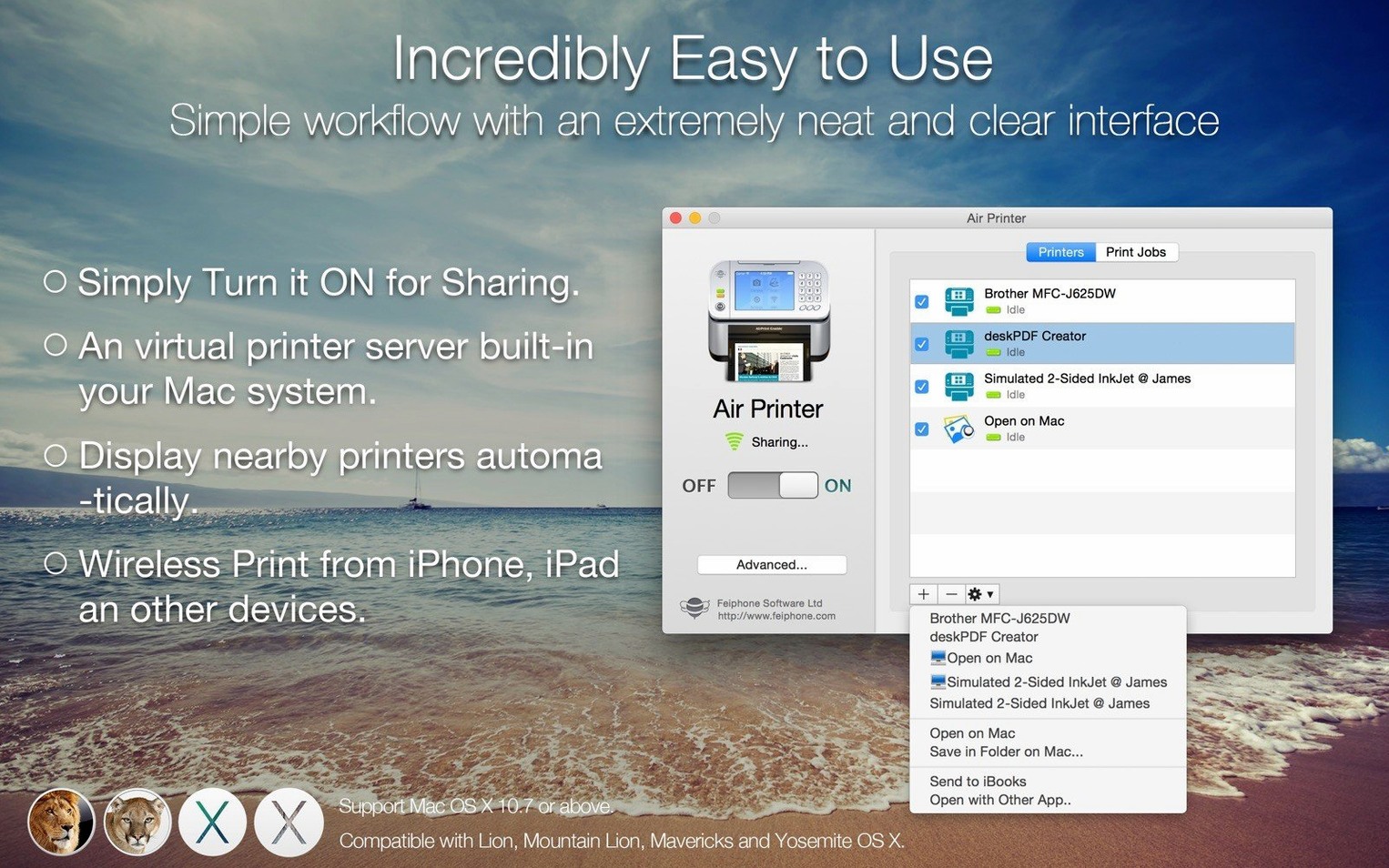
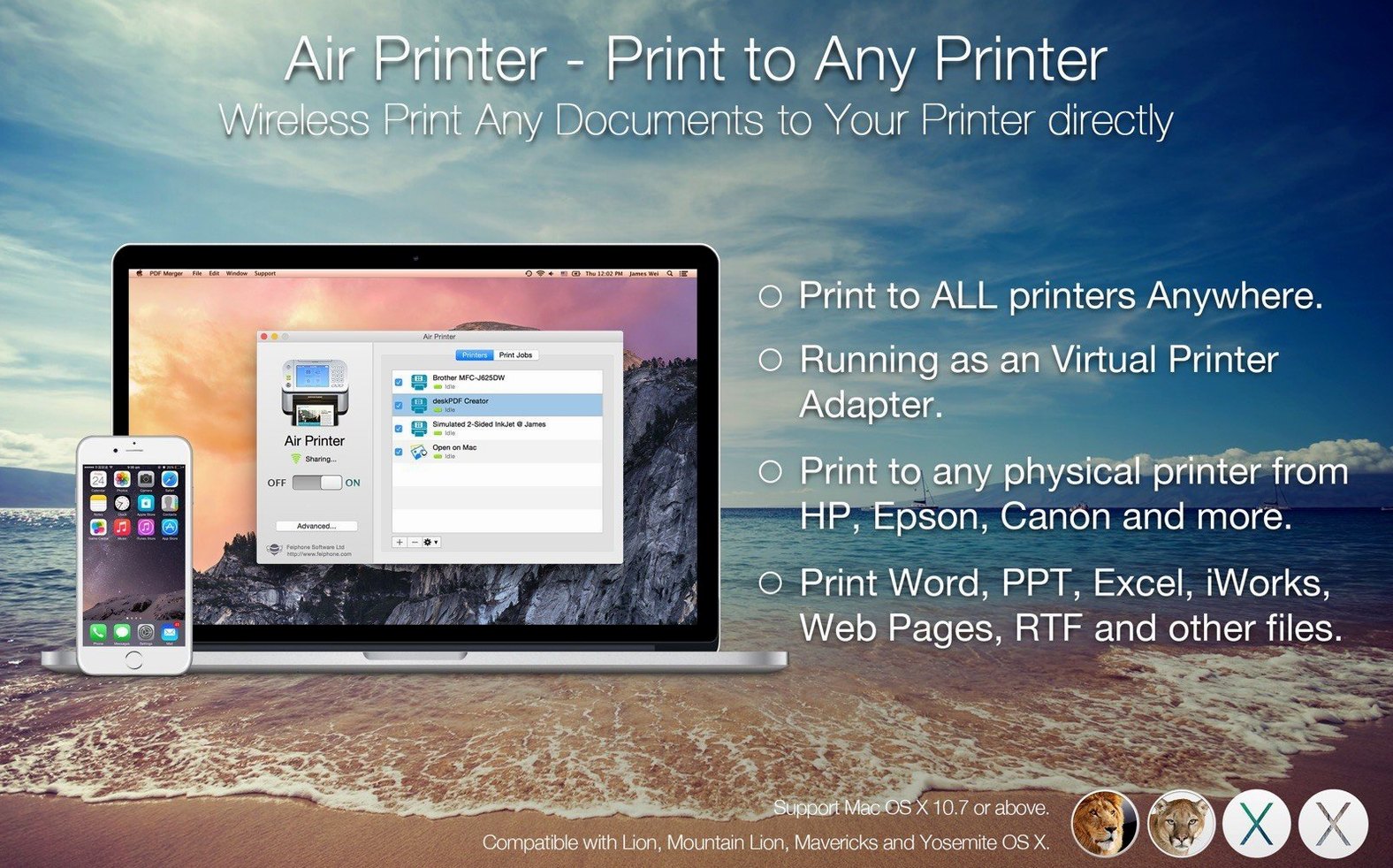
Before you set anything up, the first question is always whether your machine can run it. Air Printer needs macOS 10.13 or newer, and it runs natively on both Apple Silicon and older Intel Macs. If your Mac still gets security updates, you're probably fine. You'll also need a Wi‑Fi network that your Mac and any device you want to print from can share — it doesn't work across separate networks.
Common questions people look up
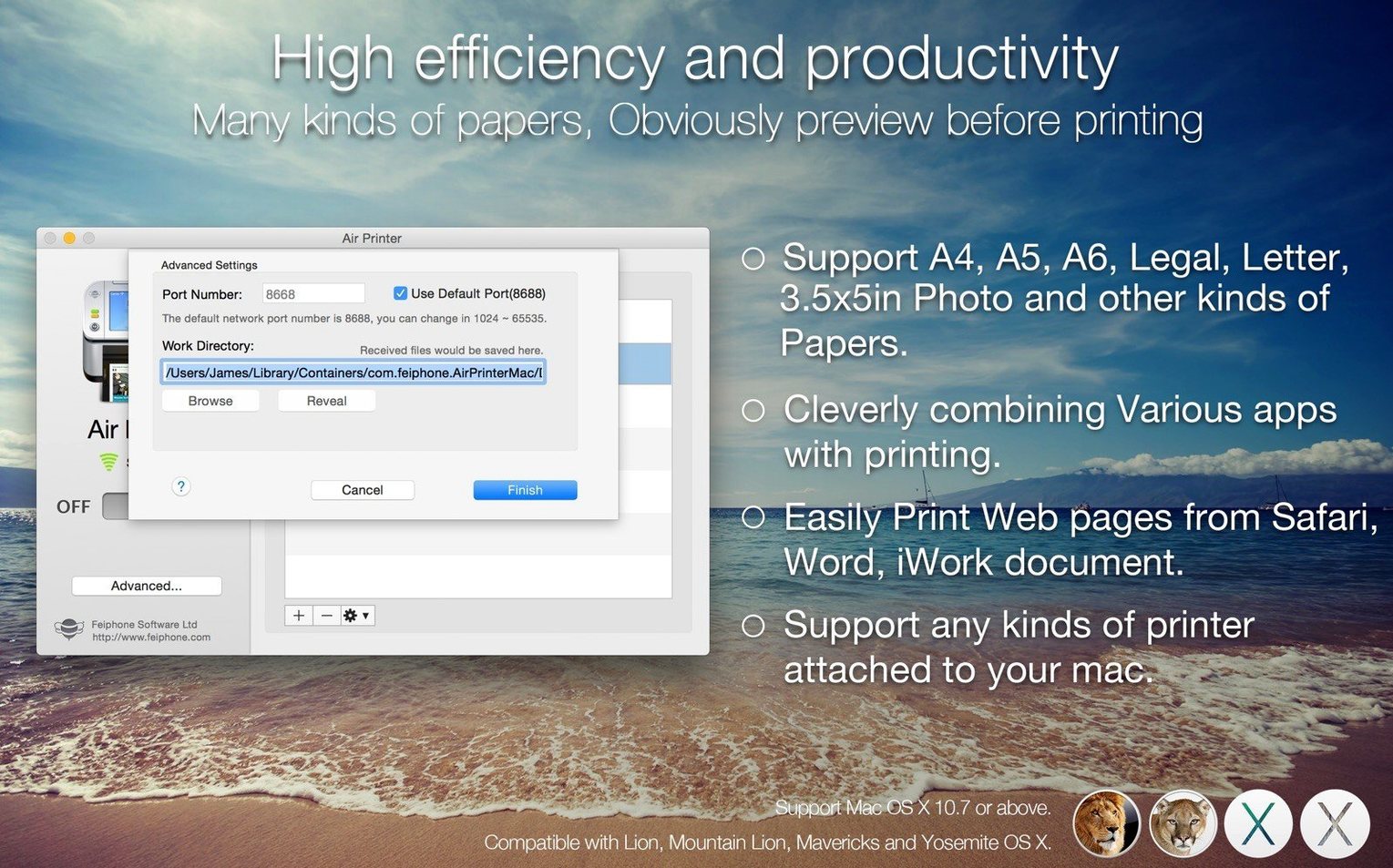
- Can it print more than just web pages? Absolutely. It handles iWork and Microsoft Office documents, email bodies with their attachments, and photos. The printer dialog gives you proper control too — paper type, page range, print quality, orientation, color vs. black and white, duplex printing, and paper size are all there.
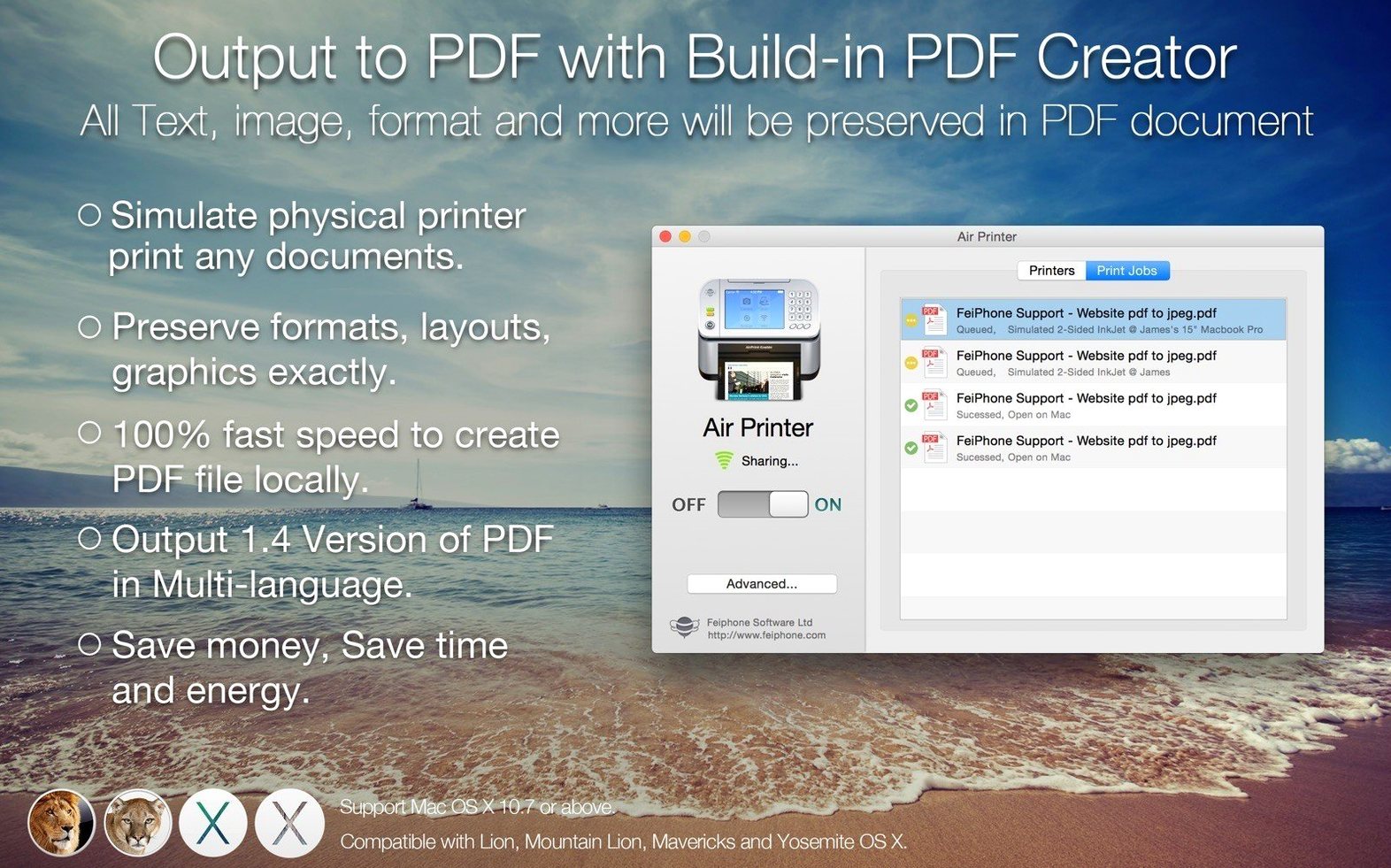
- Does it only send jobs to a real printer? No. One of the handiest tricks is creating PDF documents straight from any print job, so you can save a receipt or form without ever touching paper. Your Mac becomes both a print server and a quiet little PDF factory.
- How solid is the latest build? Version 6.7.9 is a maintenance release focused on bug fixes and performance improvements. Nothing flashy, just the kind of update that keeps things humming along in the background.
The quick compatibility checklist
Apple Silicon and Intel 64-bit Macs, macOS 10.13 or later, a single shared Wi‑Fi network — that's the whole list. No extra drivers to hunt down, no cloud accounts to create. Once it's running, any device on the same network can find it and send a print job the way it would to a regular AirPrint printer.
Who clicks with Air Printer right away
People who juggle a newer MacBook alongside an older iMac on the same desk get the most mileage here. That aging machine still has a perfectly good USB printer attached, and Air Printer lets the MacBook talk to it without cables, dongles, or printer-sharing menus buried three panels deep. Households with a mix of Macs and iPads also win — anything that speaks AirPrint discovers the server automatically, and suddenly the iPad isn't a read-only device anymore.
Small offices with one workhorse printer and several Mac users land in the sweet spot too. Instead of emailing documents around or playing sneakernet with a thumb drive, everyone prints directly. The Mac acting as the server doesn't need a monitor attached; it just sits there doing its one job, and version 6.7.9's performance fixes keep memory use flat even when a few jobs stack up.
If you spend half your day in Safari and the other half in Mail, Air Printer earns its keep by printing both without switching contexts. Tapping the same printer dialog for a web receipt and an email attachment feels more natural than it should, and the PDF-creation option turns every print action into a potential filing step.
Both devices must share the same Wi‑Fi band
The biggest one is forgetting that both devices need to be on the exact same Wi‑Fi network. A Mac on the 5 GHz band and an iPad on the 2.4 GHz band with the same network name usually works, but some routers split them just enough that Air Printer never shows up. If nothing appears in the printer picker, checking the network on each device clears it up faster than restarting the app five times.
Another common slip: launching Air Printer and immediately hunting for a fancy configuration window. The app is deliberately quiet — it lives in the menu bar or sits in the background, and there's no dashboard to stare at. New users sometimes open and close it repeatedly, thinking it crashed, when it's actually running exactly as intended. Look for the icon, trust that it's working, then go to the other device and try printing.
Beginners also overlook that printer options live in the standard macOS print dialog, not inside the app. Paper size, duplex, color settings — all of that appears after you hit print in whatever application you're using. Changing those options inside Air Printer's sparse settings won't do what you expect, because the real controls are downstream.
Send PDFs straight to an iCloud or Dropbox folder
First stop: the PDF output folder. Air Printer defaults to a generic location, but pointing it at a folder that syncs with iCloud or Dropbox means every document you "print" to PDF lands somewhere you can grab from your phone later. It takes thirty seconds and changes how useful the feature feels day to day.
Next, check the printer-sharing name. The default is functional but forgettable — something like "Jordan's MacBook Printer." Changing it to a shorter, descriptive label makes it easier to spot in a list of nearby AirPrint devices, especially in a building with several Macs running the same setup. Keep it simple: "Office LaserJet" beats "Mac mini in the Corner Near the Window."
If you print photos regularly, open the print dialog once and confirm that paper type and quality settings match what your printer actually supports. Air Printer passes those options through faithfully, but it can't guess whether you loaded glossy photo paper or plain copy stock. Setting sensible defaults early prevents a batch of prints from coming out looking washed out or over-inked.
Finally, on the Mac acting as the server, disable automatic sleep in System Settings. Air Printer can't advertise itself on the network while the Mac is napping, and waking a machine just to print a single page gets old fast. A display sleep is fine; full system sleep is the one that breaks the spell.
- macOS 10.13 or later
- Apple Silicon or Intel 64-bit Mac
- A Wi‑Fi network shared by your Mac and any device you want to print from
Questions people ask
Can Air Printer create PDFs instead of printing on paper?
Yes, you can route any print job into a PDF document right on your Mac, which is perfect for saving receipts, forms, or web confirmations without using ink.
Also on readers' docks
Sign in or create an account to leave a comment.
No comments yet. Tell me how it got on with your other devices.