









Download Affinity Publisher for macOS
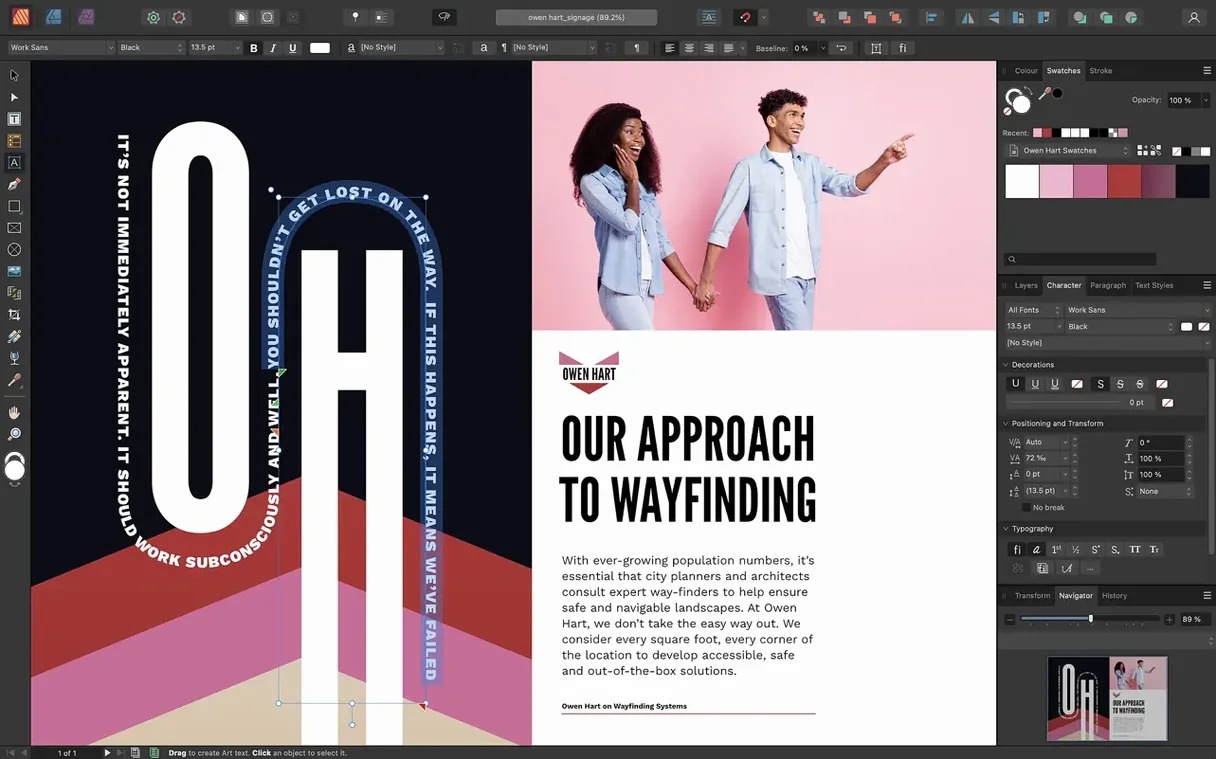
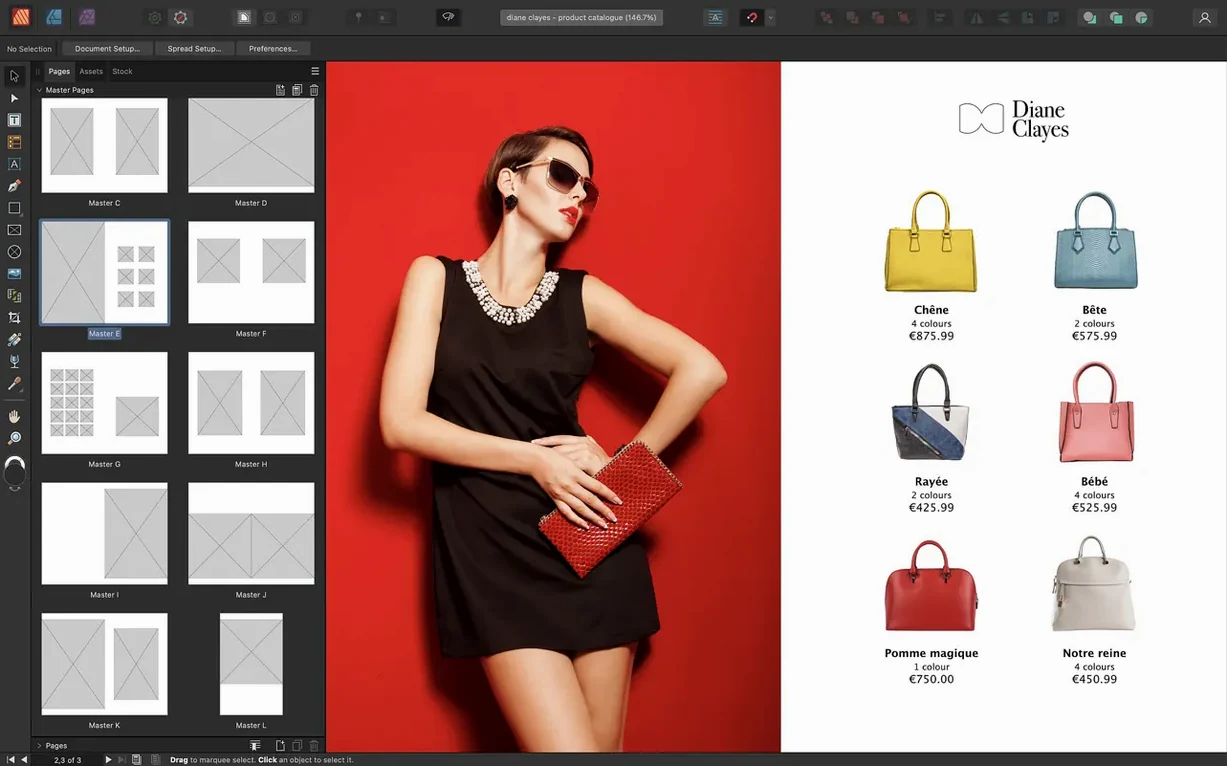
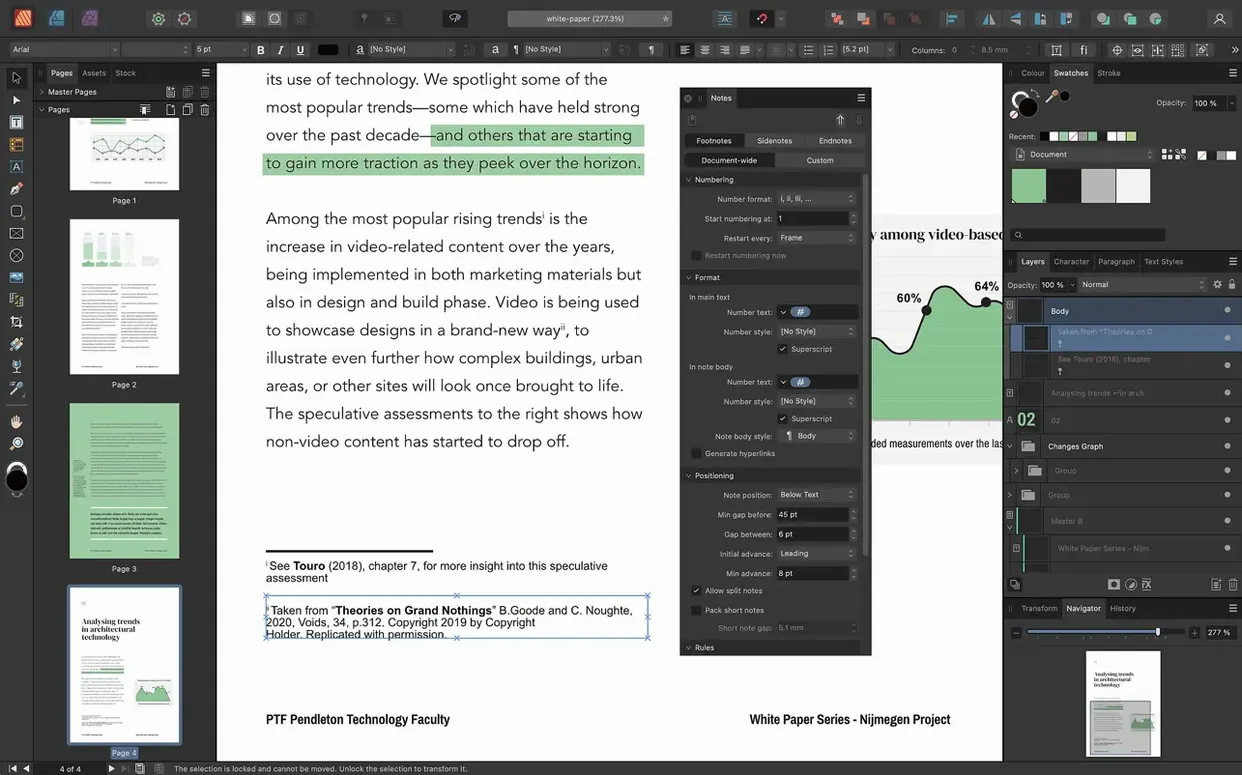
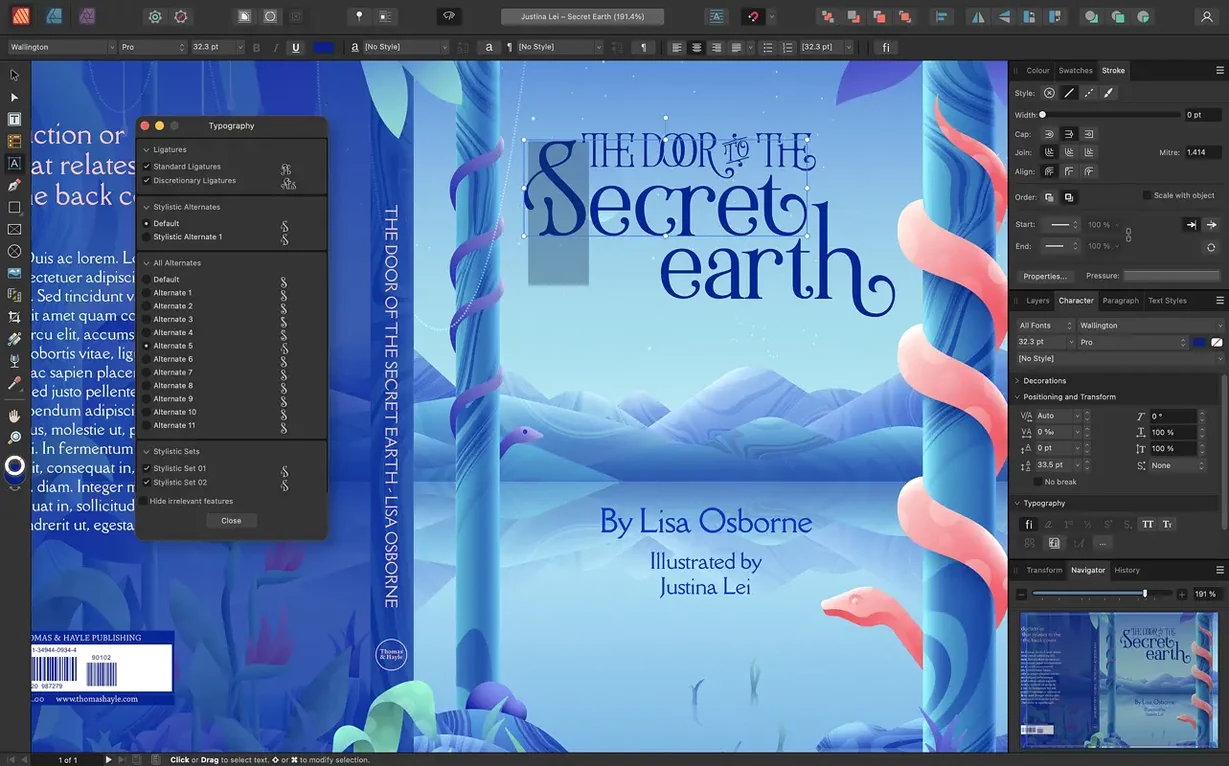
If you’ve used Adobe InDesign, you already understand the kind of work Affinity Publisher tackles. It’s the desktop publishing powerhouse from Serif, built for anyone laying out magazines, books, brochures, or posters. But where that other tool feels like a subscription you’ll never escape, Publisher keeps things refreshingly straightforward — buy it, own it, and get to work on any Intel or Apple Silicon Mac.
What sets it apart
- Master pages that go deeper. Dynamic and nested masters mean you can build a chapter template, then nest it inside a book-wide master. Change one, and the cascade updates everywhere. The 2.6 release even added foldable spreads for gatefolds and accordion folds.
- Text frames with personality. Any shape can become a text frame, and combined with boolean shape operations, you can flow copy into custom silhouettes that standard rectangles never match.
- Professional color, right there. Full CMYK and spot color support sits alongside non-destructive adjustment layers, so you can tweak placed PSD, AI, or TIFF images without ever leaving your layout.
- Styles that do the heavy lifting. Character and paragraph styles keep a 200-page report consistent, while advanced guides, grids, and snapping make every element land exactly where you intend.
New tools for accessibility and complex folds
Version 2.6 brought two headliners alongside the multi-page spreads. A Reading Order panel now lets you define how a PDF announces itself to screen readers — a quiet but critical feature for anyone producing public-facing documents. Meanwhile, the new foldable spread types turn a simple brochure into a properly imposed gatefold or trifold, ready for print without guesswork. It’s the kind of update that shows Serif listens to print designers who live in the real world of bleeds, creep, and imposition.
Dodging the Other‑App Habits That Break Your First Layout
Everyone opens Affinity Publisher for the first time with a head full of ideas and a few habits from other software. Those habits can trip you up fast. Here’s what catches newcomers most often.
- Ignoring master pages until page twenty. A lot of people start slapping elements directly onto document pages, then realize halfway through a 48-page catalog that the footer needs to move. Apply a master early, even if you only define margins and a page number. Nested masters — one for chapters, another for appendixes — save you from rebuilding the same structure twice.
- Embedding everything instead of linking. Publisher lets you place images as linked or embedded. Embedding bloats the file size and makes updating a hero shot across fifty pages a manual chore. Linked resources keep the document nimble, and the Resource Manager panel flags anything that’s moved or renamed.
- Overlooking text frame linking. Dragging out a new frame for every column of a story works, until you edit the intro paragraph and everything reflows. Linked frames — click the little triangle on a frame’s edge, then click the next frame — turn a layout into a proper flowing document instead of a collection of disconnected boxes.
- Forgetting that StudioLink exists. If you own Affinity Photo or Designer, the Persona buttons at the top left aren’t decorative. Clicking into the Photo Persona mid-layout means you can clone-stamp a blemish on a placed headshot without launching another app. Beginners often round-trip through export-and-reimport, which eats time and introduces version confusion.
Building a Gatefold Café Menu from Phone Photos and a Word Doc
Let’s walk through what a typical afternoon with Publisher actually looks like — say, assembling a four-page café menu with a gatefold cover. The café owner sent you a folder of phone photos, a Word doc of descriptions, and a vague idea that it should “feel warm.”
You start by creating a new document. For the cover spread, you click the Spread Setup button and choose Gatefold from the foldable spread options — three panels that fold inward. Publisher adjusts the page count automatically. You pull guides from the rulers, snapping them to the fold lines so you know exactly where the creases land.
Next, you hop into the Photo Persona on a placed latte art shot. The highlights are blown out, so you add a non-destructive Curves adjustment right there inside the layout. No bouncing to another app. Back in Publisher, you draw a rounded rectangle with the shape tools, convert it to a text frame, and flow the café’s story across panels one and three, with the photo anchoring panel two.
For the interior, you set up a master page with running headers and a subtle background tint. You link the menu item frames so that editing a description on page two pushes the overflow neatly to page three. Before wrapping, you open the Reading Order panel and tag the headings and body text in logical sequence — the owner plans to post the PDF online, and you want screen readers to announce the specials clearly. Export to PDF/X-4, check the bleeds, and you’re done in under two hours.
Pen‑to‑Node Toggle and Other Hidden Clicks That Speed Up Bézier Work
- Double-click the Pen tool icon to toggle between Pen and Node tools without reaching for the toolbar every time. Once you’re adjusting Bézier curves on a custom text frame, that flick saves dozens of trips.
- Hold Space while drawing a shape or frame to reposition it mid-creation. It’s the kind of thing you stumble across by accident and then rely on daily.
- The Constraints panel hides inside the Studio menu and doesn’t announce itself. Use it to pin a logo to the top-right corner of a master page so it stays put regardless of page size changes — invaluable for templates you reuse across print and digital formats.
- Text on a path sounds niche until you need a circular stamp or a curved headline wrapping a coffee cup illustration. Select the path, grab the Artistic Text tool, and click the curve. Publisher treats it like any other text frame, styles and all.
- Save as Template lives in the File menu. If you churn out similar brochures or reports, saving your masters, swatches, and guides as a template file means your next project starts three-quarters finished.
Turning a Word‑Processor Manuscript into Print‑Ready Paperback Interiors
Imagine a novelist preparing a paperback interior for print-on-demand. She’s written the manuscript in a word processor and now needs proper typesetting — facing pages, mirrored margins, a title page, and chapter openers that don’t feel like an afterthought. She downloads an affinity publisher mac download and gets to work.
She sets up a facing-page document with generous inner margins for the gutter. A character style called “Body” handles Garamond at 11.5 points with a 14-point leading; a paragraph style for chapter headings applies drop caps and a subtle rule below. She creates a master spread that places the book title on the left header and the author name on the right, then nests a chapter master inside it so each chapter opener gets its own full-page treatment.
When she places the manuscript, Publisher auto-flows the text across linked frames, and she spends an afternoon tidying widows and orphans. The Reading Order panel helps her tag the structure before exporting a PDF/X-1a that the print service accepts without complaint. No subscription, no surprise fees — just a polished book interior from a tool that stays out of her way.
Version 2.6 is all about print-ready complexity and smarter PDFs:
- Multiple-page spreads let you view and design across more than two facing pages at once.
- Foldable spreads — gatefolds, trifolds, accordion folds — are now built in, so you can lay out folded documents correctly from the start.
- A new Reading Order panel helps you tag content for PDF accessibility, making documents friendlier for screen readers.
- macOS 10.15 or later
- Intel or Apple Silicon Mac (64-bit)
- 8 GB RAM recommended
- Up to 2.8 GB available disk space
- Display resolution 1280x768 or higher
Questions people ask
Can Affinity Publisher open Adobe InDesign files?
Not directly, but it can import PSD, AI, and PDF files, so you can bring in assets from Adobe apps and rebuild layouts inside Publisher.
Also on readers' docks
Sign in or create an account to leave a comment.
No comments yet. Tell me how it got on with your other devices.
More in Mac Apps
See all Affinity Photo
2.6.5 Mac Apps
789 MB
Affinity Photo
2.6.5 Mac Apps
789 MB
 Affinity Designer
2.6.5 Mac Apps
779 MB
Affinity Designer
2.6.5 Mac Apps
779 MB
 AI Transcription
2.16 Mac Apps
5.1 GB
AI Transcription
2.16 Mac Apps
5.1 GB
 Adobe XD
59.0.12 Mac Apps
2.6 GB
Adobe XD
59.0.12 Mac Apps
2.6 GB
 Aiarty Image Enhancer
3.14 Mac Apps
129 MB
Aiarty Image Enhancer
3.14 Mac Apps
129 MB
 Aiarty Video Enhancer
3.8 Mac Apps
182 MB
Aiarty Video Enhancer
3.8 Mac Apps
182 MB
 Adobe Premiere Rush
1.5.62 Mac Apps
1.6 GB
Adobe Premiere Rush
1.5.62 Mac Apps
1.6 GB
 Air Printer - Printer Server
6.7.9 Mac Apps
47 MB
Air Printer - Printer Server
6.7.9 Mac Apps
47 MB