








Download Adobe Premiere Rush for macOS
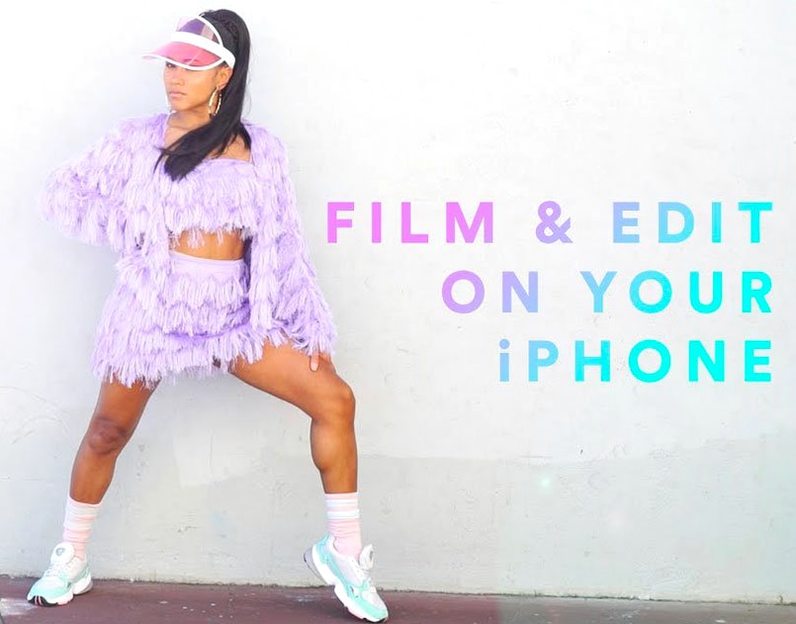



Version 1.5.62 lands as a bundled Intel build for folks who want a quick, cross-device editing setup. The questions I see most often center on whether something this streamlined can actually keep up when you need more than a phone editor but less than a full timeline beast.
| Detail | Glance |
|---|---|
| Architecture | Intel 64-bit |
| macOS | 10.12 or newer |
| Video tracks | 4 |
| Audio tracks | 3 |
| Languages | 14, including Russian, Japanese, Korean |
What catches people off guard is how much motion design sits right inside the simple timeline. You get customizable motion graphics templates and a set of professionally designed animated titles that don't require any keyframe tinkering. Voiceover recording is built in too, so you can narrate directly on the timeline without hopping to another app. Four video lanes and three audio lanes run at the same time, which covers most quick-turnaround projects comfortably. It won't pretend to be a full Premiere Pro replacement, but as a capture-edit-share tool that moves with you across devices, it knows exactly what it is.
Drop clips straight from Finder onto the timeline
Premiere Rush plays nicely with Finder and the share sheet in ways that make grabbing footage feel less like a formal import session. Drop a clip from a desktop folder right onto the timeline and it lands ready to trim — no transcoding step, no media browser pop-up. The app also shows up in the system share menu, so selecting a video in Photos or QuickTime Player and sending it straight to Rush takes about two seconds. I keep a "Rush drafts" folder in iCloud Drive that syncs between my Mac and iPad, and the desktop version opens those project files without complaint. It won't read a full Premiere Pro project, but pulling in a rendered clip from another editor for quick social cuts works smoothly.
Color and audio adjustments rely on sliders rather than scopes or curves, which sounds limiting until you realize how fast you can match two clips shot in different lighting. The auto-balance tool gets most outdoor footage looking consistent, and the noise reduction toggle actually helps when you record voiceover near a fan or a busy street. Adobe Stock integration pops up when you browse for motion graphics templates — if you already have a Stock subscription, the assets appear inline; if not, it simply shows what's available without nagging.
On iPad and iPhone
The mobile companions share the same project format and timeline layout, so edits started on a Mac open right where you left them on an iPad. Syncing happens through a Creative Cloud login, not iCloud, which means you need an Adobe account — but the handoff between devices feels tighter than what most third-party editors manage.
A quick social reel from start to finish
Here's a workflow I used for a 45-second Instagram reel shot across three devices. The goal was a snappy product teaser with voiceover, two music stems, and a handful of title cards — nothing complex, but tight enough that fumbling around a full NLE would slow things down.
- Gather the clips. The footage sat in a mix of folders — some from an iPhone, a few screen recordings from the Mac. Dragged all four raw clips onto the timeline from Finder, no import dialog.
- Rough cut. Trimmed the dead air at the head and tail of each clip by dragging the edges. Rush snaps to clip boundaries, which kept the pacing tight without counting frames.
- Add titles. Dropped in two motion graphic title cards from the built-in library — one for the opening logo reveal, one for a mid-video callout. Adjusted the text and font size inline on the preview window, no separate panel needed.
- Record voiceover. Hit the microphone button, watched the preview while talking, and the track appeared on audio lane three. Used auto-ducking against the music bed so the voice stayed intelligible without manual keyframes.
- Color match. The screen recordings looked cooler than the phone clips. Applied auto-color to all four, then nudged the warmth slider on the two cooler shots until they matched by eye.
- Publish. Exported at 1080p and sent directly to Instagram through the share menu, no intermediate file sitting on the desktop.
The whole edit took under fifteen minutes. The timeline never felt cramped with four video lanes — I stacked a b-roll overlay on lane two and kept the title overlays on three and four without any lag when scrubbing.
Barely touches your CPU while idling
On an Intel Mac running macOS 10.15, Rush sits around 600–800 MB of RAM during editing and barely touches the CPU when idle. Playback of 1080p H.264 clips is butter-smooth at full resolution; scrubbing through 4K footage from a mirrorless camera introduces a brief stutter before it settles, but the timeline never beachballed on me. Export times feel reasonable — a one-minute 1080p clip with titles and a music track renders in under forty seconds, which is quick enough that I don't reach for my phone while waiting.
The app hasn't crashed mid-export across a dozen projects, though I noticed the audio waveform redraw can lag when you first drop a long clip onto the timeline. Not broken, just a half-second delay before the waveform appears. For an Intel build running on older macOS versions, the stability impresses more than I expected. It won't push your GPU the way a heavier editor does, which means the fans stay quiet on most MacBooks — a real plus when you're editing in a coffee shop and don't want to sound like a jet engine.
- macOS 10.12 or later
- Intel processor (64-bit)
Also on readers' docks
Sign in or create an account to leave a comment.
No comments yet. Tell me how it got on with your other devices.
More in Mac Apps
See all Adobe Premiere Pro
26.5.2 Mac Apps
4.1 GB
Adobe Premiere Pro
26.5.2 Mac Apps
4.1 GB
 Adobe Photoshop
27.11 Mac Apps
3.5 GB
Adobe Photoshop
27.11 Mac Apps
3.5 GB
 Adobe XD
59.0.12 Mac Apps
2.6 GB
Adobe XD
59.0.12 Mac Apps
2.6 GB
 Adobe Media Encoder
26.5.0 Mac Apps
3.4 GB
Adobe Media Encoder
26.5.0 Mac Apps
3.4 GB
 Affinity Designer
2.6.5 Mac Apps
779 MB
Affinity Designer
2.6.5 Mac Apps
779 MB
 Adobe Lightroom Classic
15.6.0 Mac Apps
3.7 GB
Adobe Lightroom Classic
15.6.0 Mac Apps
3.7 GB
 Affinity Photo
2.6.5 Mac Apps
789 MB
Affinity Photo
2.6.5 Mac Apps
789 MB
 Adobe InDesign
21.6.0 Mac Apps
1.5 GB
Adobe InDesign
21.6.0 Mac Apps
1.5 GB