








Download Adobe XD for macOS
You've just opened a blank artboard. A client needs a mobile checkout flow by Friday, and you're staring at a toolbar full of icons you don't quite know yet. That first hour inside any design tool sets the tone for how comfortable you'll feel building real work in it. Adobe XD keeps that early journey surprisingly straightforward once you know where to look.
Start with repeat grids
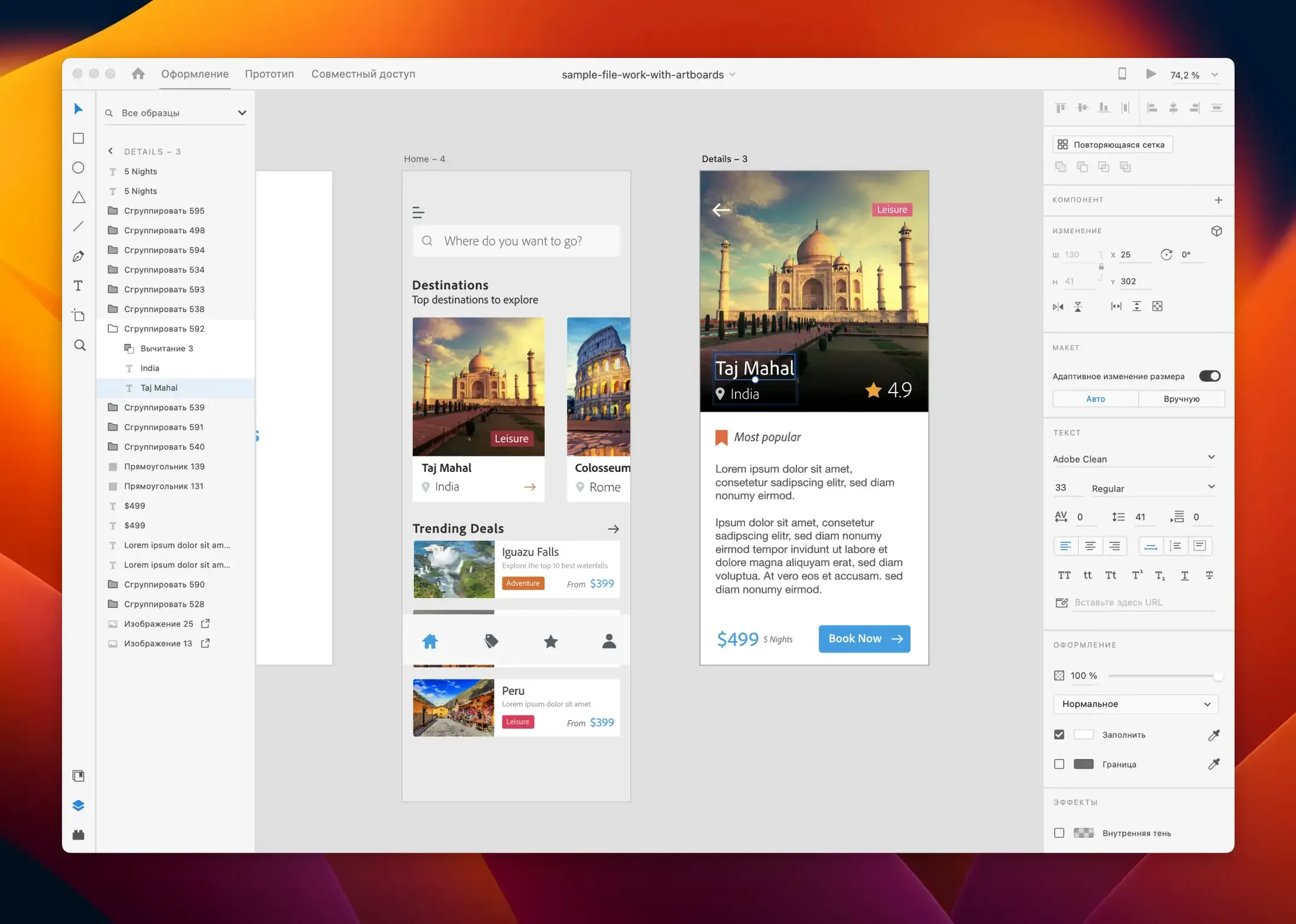
Forget drawing twenty identical cards by hand. Grab the Rectangle tool, style one item the way you want it, then click the Repeat Grid button in the Property Inspector and drag the handles — XD populates the grid instantly. You can pull in real text and images from a folder and watch every cell update at once. It's the kind of feature that makes designing a photo gallery or a product list feel less like labor and more like playing with a smart set of Lego bricks.
Wire a few artboards together
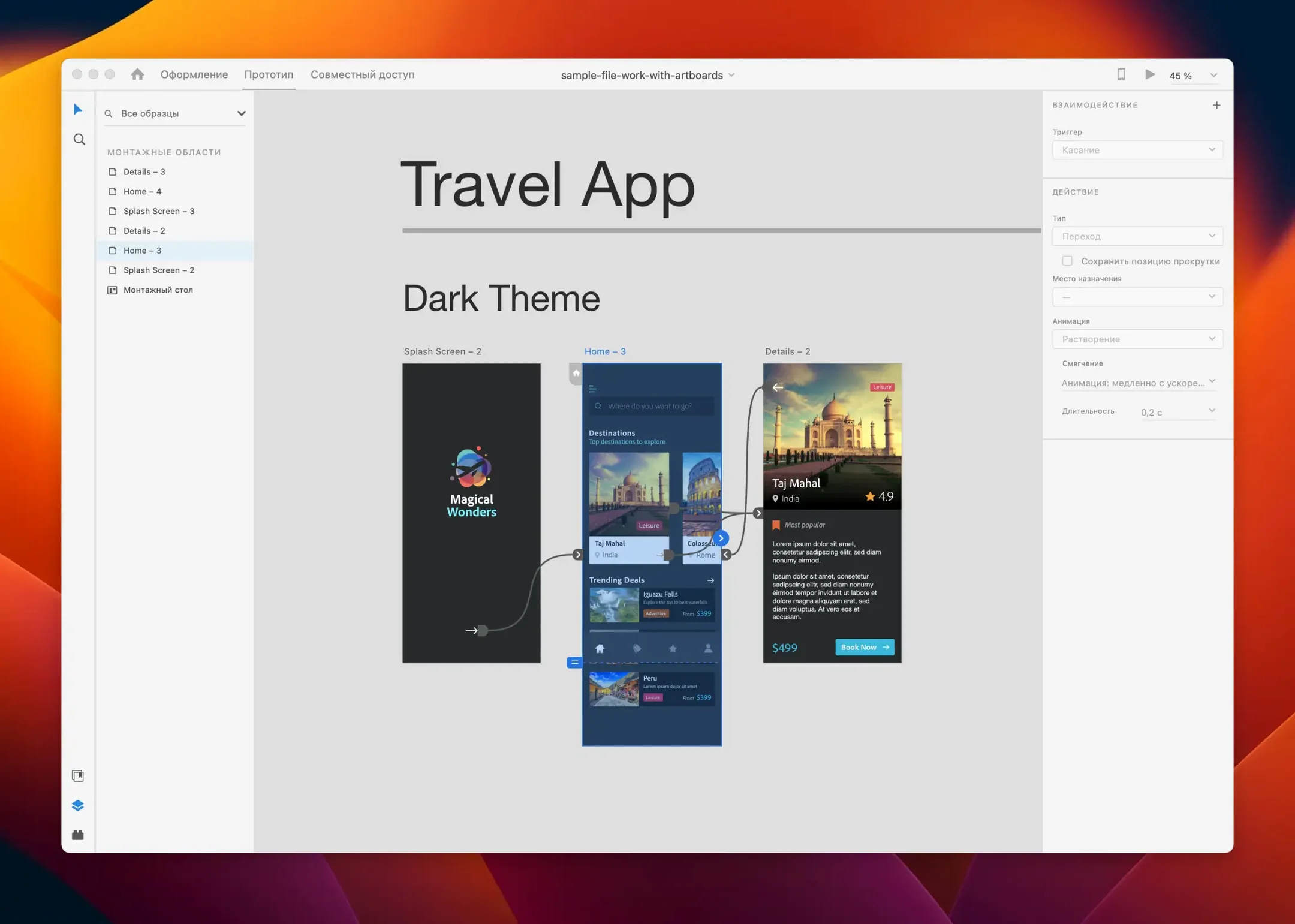
Switch to Prototype mode, click the blue arrow on a button, and drag it to another artboard. That's it — you've built your first interactive flow. Tinker with the transition type and easing in the sidebar, then hit the desktop preview to click through your prototype. When you're ready, sharing a link with your team or the client takes two clicks. Starting small with two or three linked screens teaches you the rhythm of the tool faster than any tutorial video will.
Opening a half-finished onboarding flow across six artboards
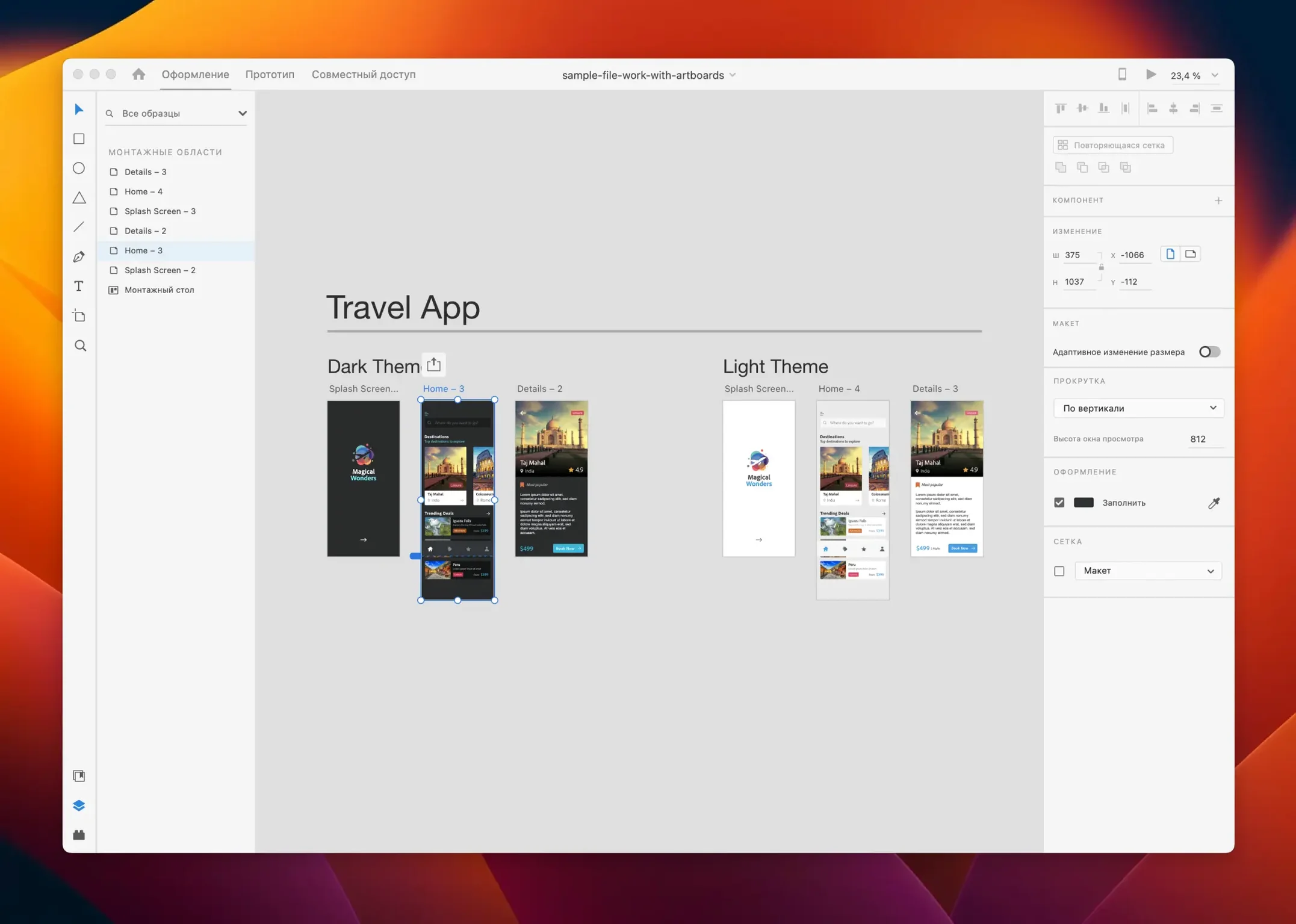
You open XD on a Tuesday morning with coffee in hand and a half-finished onboarding flow on screen. The artboards stretch across the canvas like storyboard frames — six screens for sign-up, email verification, and a welcome dashboard. You click the first artboard and zoom in. A text label on the "Create Account" button needs tweaking, so you double-click it and type. No switching tools, no opening a separate properties panel. XD's inline editing keeps your eyes on the layout, not on floating windows.
Next, you notice the spacing between the form fields feels off. You select the three input fields, open the Responsive Resize panel, and pin the left and right edges. When you drag the artboard width to test a tablet breakpoint, the fields stretch proportionally while keeping their margins intact. Satisfied, you undo the resize and hop into Prototype mode. The wire from the sign-up button to the verification screen is already there, but you want a smoother transition. You change it from "Slide Left" to "Dissolve" with a 0.4-second ease-out, then hit the desktop preview to click through it live. Feels right.
You've been pulling icons from a shared Creative Cloud Library all morning, and the color swatches your teammate updated last night appear automatically. You drag a new "Home" icon onto the welcome dashboard artboard without ever leaving the app. Before closing for lunch, you click "Share" and generate a new prototype link. The stakeholders will tap through it on their phones before your next meeting.
Designing and prototyping offline without a connection
Does it work without an internet connection? Yes, for the most part. You can design, prototype, and preview locally without any connection. Things like cloud document sharing, co-editing, and Creative Cloud Library syncing obviously need a connection, but the core design tools run fine offline. If you're on a train or working from a spotty Wi-Fi café, you won't hit a wall.
Will my old Sketch or Figma files open here? Not directly — XD doesn't natively parse .sketch or .fig files. You can import Sketch files through third-party converters, and Figma designs typically come over as SVG or via copy-paste workflows. It's an extra step, sure, but once the assets land on an artboard, they behave like any other vector layer.
How heavy is it on an older Mac? Fairly light. Adobe XD runs on macOS 10.15 and supports both Intel and Apple Silicon Macs. On machines with 8 GB of RAM, even mid-sized projects with thirty or forty artboards stay responsive. It won't punish a five-year-old MacBook the way some creative apps do, partly because it keeps its rendering engine focused rather than bloated.
Can I hand off designs to developers without extra plugins? Absolutely. The built-in "Share for Development" option generates a link where developers can inspect measurements, grab CSS snippets, and export assets without touching the design file. No third-party handoff tool required.
A workflow from concept to clickable prototype
Say you're designing a podcast player mini-app. You start with a 375-by-812-point artboard for iPhone. Grab the Rectangle tool, round the corners to 16 points, and place a cover art placeholder near the top. Below it, you add a playback scrubber, three control buttons, and an episode list using the Repeat Grid — two minutes of setup, and the grid is already pulling real episode titles from a text file you dragged in. You select all the elements on the artboard and check "Fix Position When Scrolling" in the Property Inspector so the player controls stay sticky while the list scrolls underneath.
You duplicate the artboard twice: one for the episode detail screen and one for the subscriptions tab. On the detail screen, you swap the placeholder cover art with an actual album image from Adobe Stock, accessible right inside the Libraries panel. A few text tweaks later, you jump to Prototype mode and wire the episode list items to the detail artboard, setting the trigger to "Tap" with an auto-animate transition. For the tab bar at the bottom, you link the "Subscriptions" icon to the third artboard and choose "Slide Right" as the transition.
You click the desktop preview icon in the top-right corner, and a window opens with your phone-shaped prototype. Tapping an episode title smoothly animates the transition to the detail view. The sticky player controls stay put. You record the interaction with the built-in recording tool, export it as an MP4, and drop it into Slack for quick feedback. The whole flow — from blank canvas to walkable prototype — clocks in under forty minutes.
Bug fixes and workflow polish in the July 2025 release
Version 59.0.12, released in July 2025, doesn't ship with splashy new features. What it delivers instead is a round of bug fixes and subtle workflow improvements that tidy up the rough edges. Designers who stuck with XD through earlier releases will notice fewer random crashes when handling large repeat grids, and the canvas zoom feels snappier on high-resolution external displays. Adobe's maintenance-mode commitment means the app isn't chasing a new paradigm right now — it's just smoothing out what's already there.
For day-to-day work, this translates to less friction during the boring moments: copying elements between artboards, switching between Design and Prototype modes, and exporting assets at multiple resolutions. A small but welcome refinement is the improved paste behavior — when you copy a component from one document and paste it into another, XD now preserves the component's states and interactions more reliably than it did in mid-2024 builds. Tiny thing, but it saves a few minutes every time you're assembling a design system from existing pieces.
The July 2025 release brings a handful of bug fixes and minor workflow improvements that keep things running smoothly.
- macOS 10.15 or later
- Compatible with Intel and Apple Silicon Macs
Questions people ask
Can I design voice interfaces and game UIs with Adobe XD?
Yes. Adobe XD supports designing for websites, mobile apps, voice interfaces, game interfaces, and email templates — it's not limited to traditional screen flows.
Does Adobe XD work with third-party tools?
It does. You can integrate XD with third-party tools and share design materials between team members.
Also on readers' docks
Sign in or create an account to leave a comment.
No comments yet. Tell me how it got on with your other devices.
More in Mac Apps
See all Affinity Designer
2.6.5 Mac Apps
779 MB
Affinity Designer
2.6.5 Mac Apps
779 MB
 Affinity Photo
2.6.5 Mac Apps
789 MB
Affinity Photo
2.6.5 Mac Apps
789 MB
 Adobe Premiere Rush
1.5.62 Mac Apps
1.6 GB
Adobe Premiere Rush
1.5.62 Mac Apps
1.6 GB
 Affinity Publisher
2.6.5 Mac Apps
783 MB
Affinity Publisher
2.6.5 Mac Apps
783 MB
 Adobe Premiere Pro
26.5.2 Mac Apps
4.1 GB
Adobe Premiere Pro
26.5.2 Mac Apps
4.1 GB
 AI Transcription
2.16 Mac Apps
5.1 GB
AI Transcription
2.16 Mac Apps
5.1 GB
 Adobe Photoshop
27.11 Mac Apps
3.5 GB
Adobe Photoshop
27.11 Mac Apps
3.5 GB
 Adobe Media Encoder
26.5.0 Mac Apps
3.4 GB
Adobe Media Encoder
26.5.0 Mac Apps
3.4 GB