








Download AI Transcription for macOS
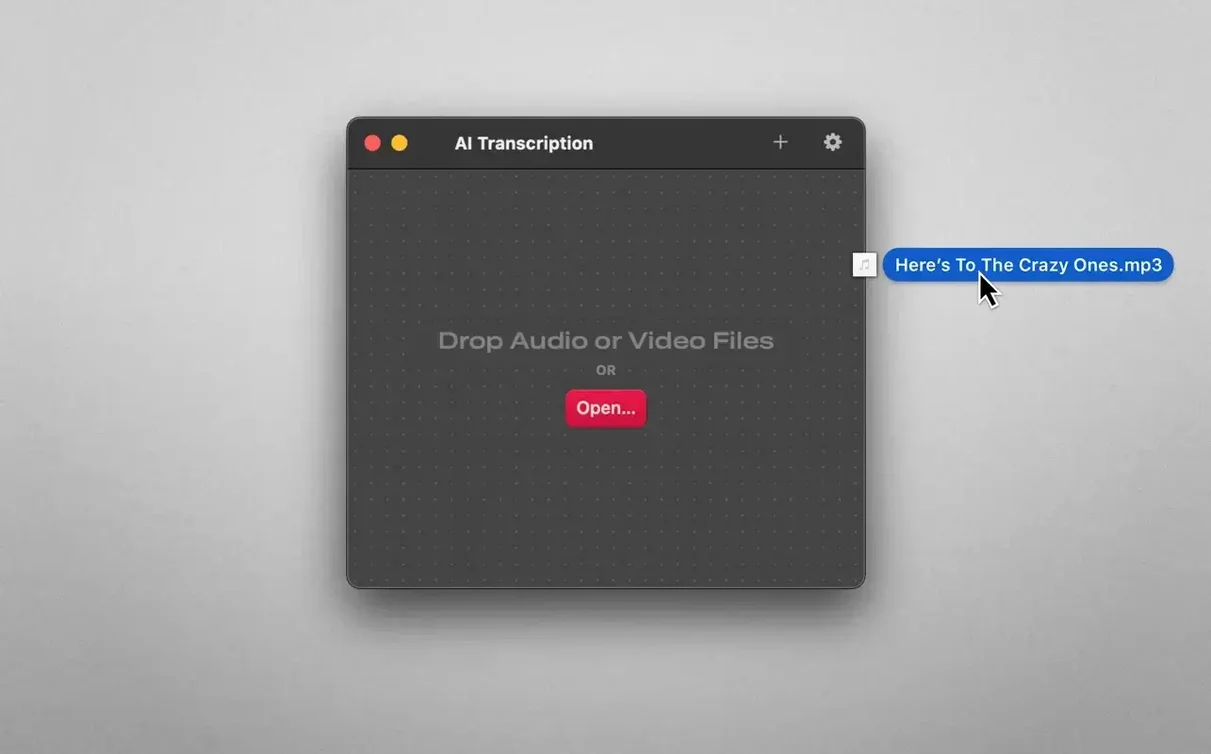
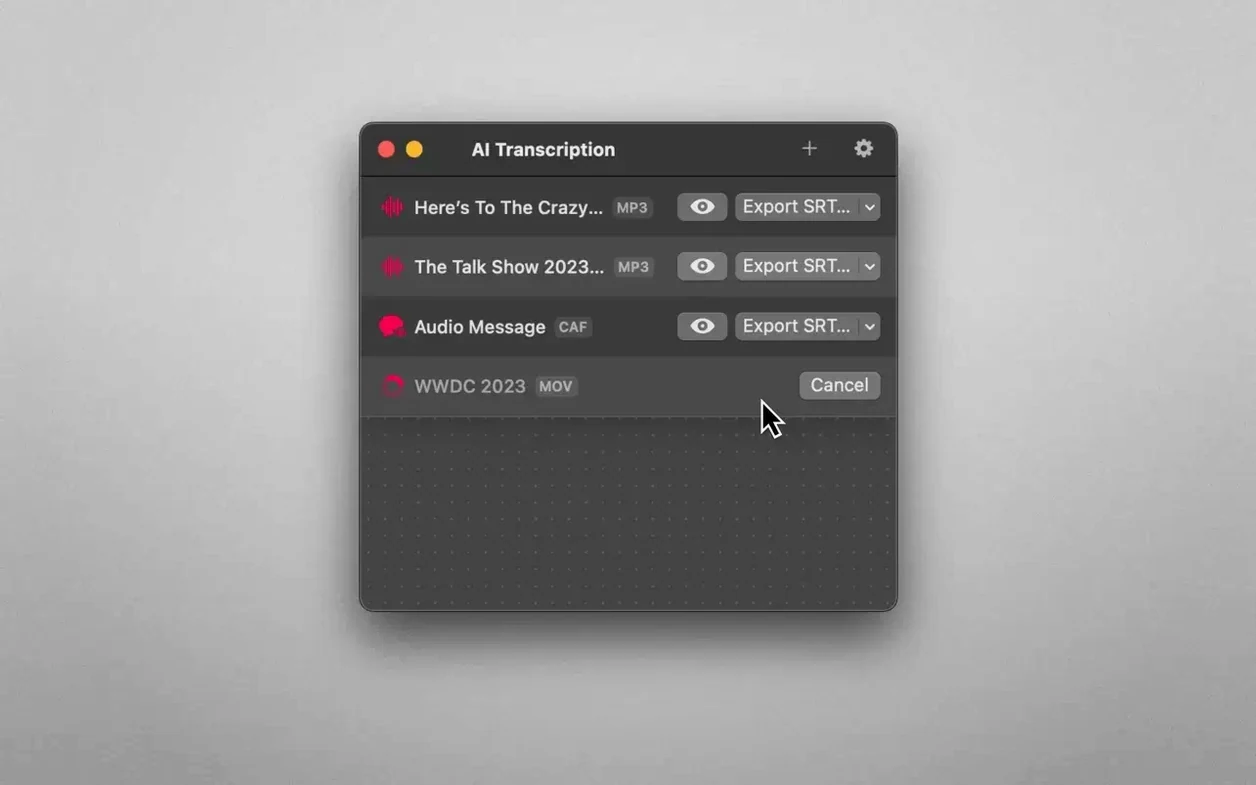
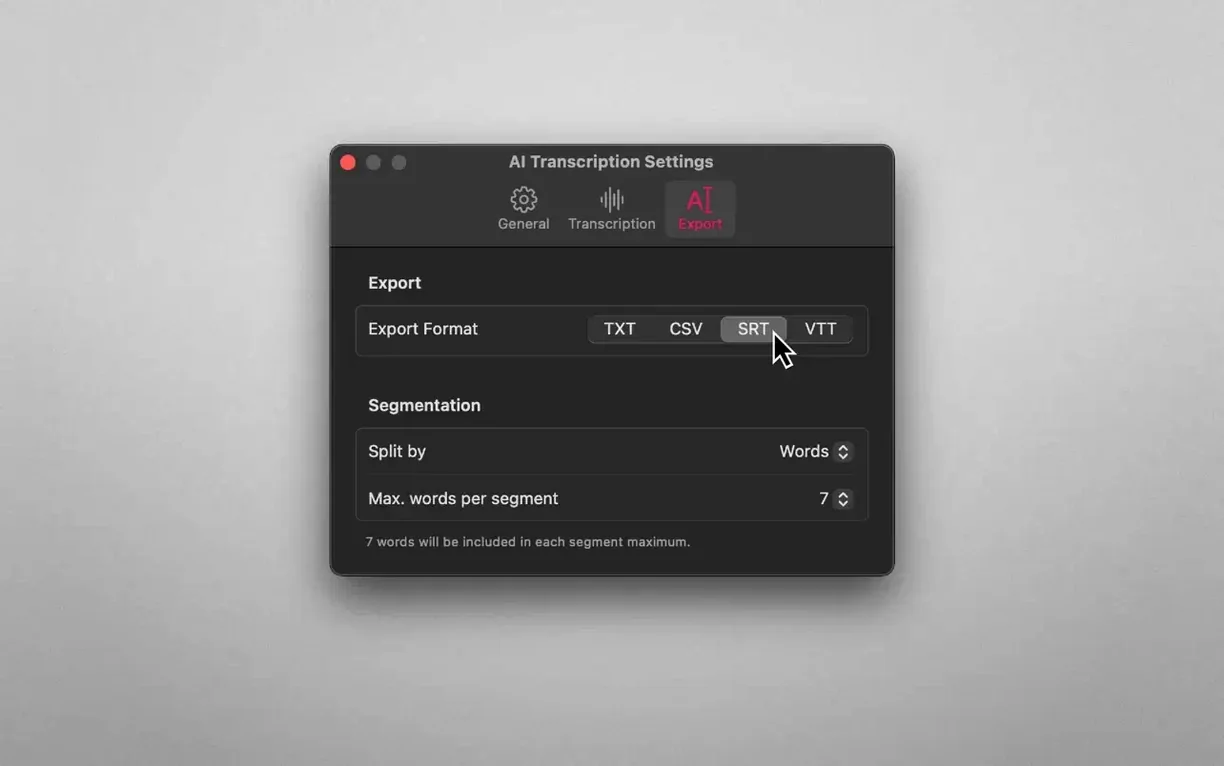
Uploading sensitive meeting recordings or family interviews to some cloud service never quite sat right with me. AI Transcription from App ahead keeps the whole process on your Mac, using on-device Apple Speech Recognition to turn spoken words into text without a single packet leaving the machine.
Offline-only transcription on Apple Silicon
- Full support for Apple Silicon and Intel Macs running macOS 14.6 or later
- Offline-only transcription — audio files never touch a remote server
- Input flexibility with MP3, WAV, CAF, AIFC, M4A, and MP4 formats
- Export transcripts as plain text, CSV, SRT, or WEBVTT for different workflows
- Interface translated into nine languages including English, German, Japanese, and Korean
Still no accounts or monthly credits
Version 2.16 doesn't shake up the formula, and honestly that is fine. The foundation remains a straightforward, privacy-first transcription tool. Drop in a file, get text back, pick your export format. No account sign-ups, no monthly credits to track. The app sticks to what it does well: letting the Mac do the heavy lifting locally, whether you are captioning a video or pulling quotes from a podcast interview.
The podcast editor’s Saturday morning
Picture a freelance audio editor staring at ten hours of raw interview tape on a Saturday. The deadline is Monday, the topics are sensitive, and uploading to a browser-based service would break the client’s NDA. They drag a 90-minute M4A into AI Transcription, pick the Apple Speech Recognition engine for speed, and walk away to pour coffee. Fifteen minutes later the transcript is on screen, split by speaker pauses. They skim the text, grab the three quotes they actually needed, and export the rest as WEBVTT for a rough caption file. No cloud account, no upload anxiety — just a quiet Mac doing the work in the corner.
No model-size paywall like MacWhisper
MacWhisper leans heavily into the same offline Whisper engine and feels equally private, but its free tier limits model size and nudges you toward a paid upgrade for larger models. AI Transcription doesn’t play that game — you get the full engine from the start. Buzz sits on the opposite end: it’s open source, free, and technically powerful, but the interface assumes you know what a WER score means and you don’t mind fiddling with Python dependencies. AI Transcription strips all that away. Then there’s Otter.ai, which is genuinely brilliant for live meetings and collaboration, yet everything flows through remote servers and a subscription model. If you need transcription that simply cannot leave the machine — legal strategy calls, medical dictations, pre-release podcast interviews — AI Transcription sits in the sweet spot between MacWhisper’s approachable design and Buzz’s zero-cost openness, without the cloud baggage of Otter.
30-minute WAV transcribed in three minutes
On an M1 MacBook Air the Whisper model chews through a 30-minute WAV file in about three minutes, spinning up the fans only faintly toward the end. The Apple Speech Recognition path is even faster — roughly real-time or better — and uses so little CPU that you can keep editing in another window without a hitch. Memory sits around 600 MB during transcription, which is modest enough that I’ve left it running alongside Logic Pro without a glitch. On an older Intel iMac it works, but you feel the difference: a 45-minute MP3 might take eight or nine minutes, and the interface gets a touch sticky if you’re dragging files during processing. Stability in version 2.16 has been rock-solid across a dozen test files. One crash surfaced when I threw a corrupted AIFC at it, but healthy files never tripped it up. The progress bar is honest — no spinning beach balls, no sudden jumps from 20% to done.
Apple engine garbles accented lectures
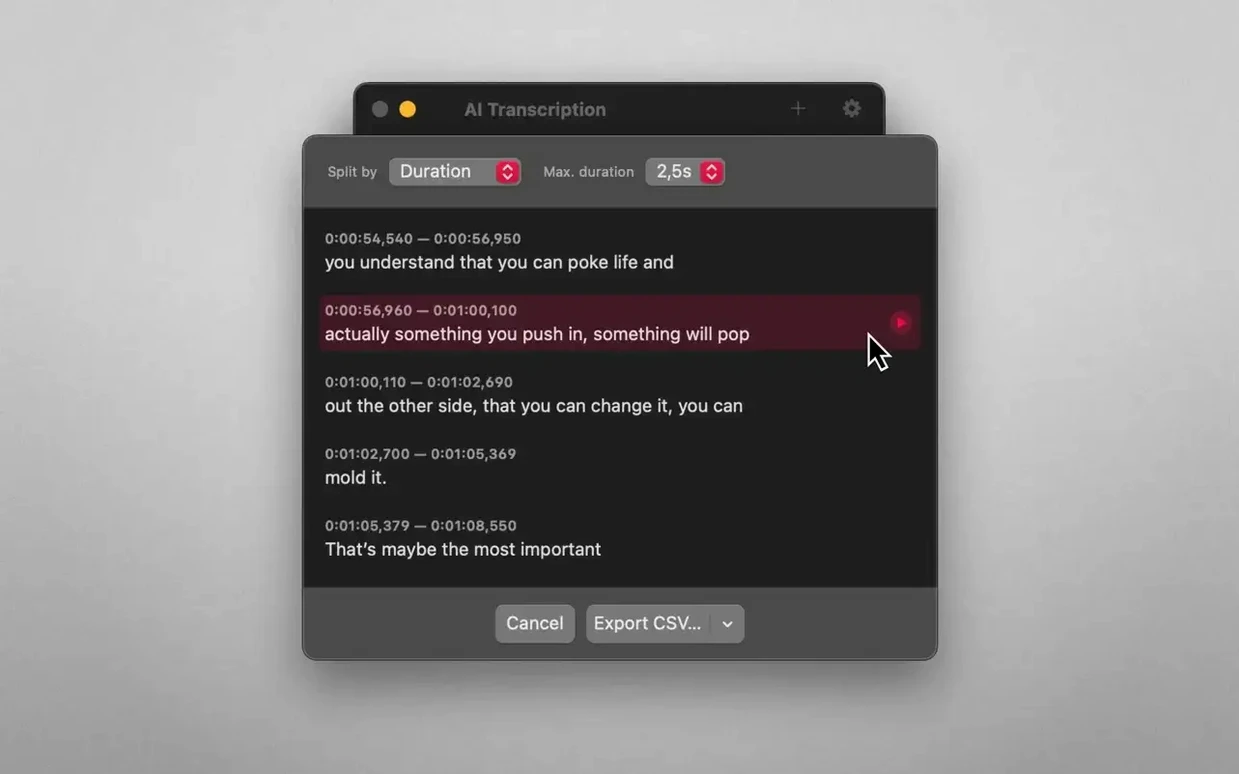
The most common stumble is picking the wrong recognition engine for the job. People grab the Apple engine because it says “fast,” then wonder why a heavily accented medical lecture comes out garbled. That engine prioritizes speed and common vocabulary; Whisper handles accents and niche terminology better, so swapping engines is usually the first thing to try. Another mistake is feeding the app a file still sitting in a cloud-synced folder that hasn’t fully downloaded. The app sees a placeholder, chokes silently, and returns an empty transcript. Moving files to a local folder first solves it instantly. Beginners also overlook the split-by-sentence option in the export panel and end up with a wall of text that’s impossible to scan. Splitting by duration works better for captions, while sentence-split is the smarter choice when you’re pulling quotes into a word processor. A small thing, but it saves ten minutes of manual reformatting.
- macOS 14.6 or later
- Apple Silicon and Intel 64-bit
Questions people ask
Does AI Transcription need an internet connection?
No, it runs completely offline. All transcription happens on your Mac and audio never leaves the device.
Which export formats are available?
You can export transcripts as plain text, CSV, SRT, and WEBVTT files.
What audio and video file types can I use?
It supports MP3, WAV, CAF, AIFC, M4A, and MP4 input files.
Also on readers' docks
Sign in or create an account to leave a comment.
No comments yet. Tell me how it got on with your other devices.
More in Mac Apps
See all Aiarty Image Enhancer
3.14 Mac Apps
129 MB
Aiarty Image Enhancer
3.14 Mac Apps
129 MB
 Affinity Publisher
2.6.5 Mac Apps
783 MB
Affinity Publisher
2.6.5 Mac Apps
783 MB
 Aiarty Video Enhancer
3.8 Mac Apps
182 MB
Aiarty Video Enhancer
3.8 Mac Apps
182 MB
 Affinity Photo
2.6.5 Mac Apps
789 MB
Affinity Photo
2.6.5 Mac Apps
789 MB
 Affinity Designer
2.6.5 Mac Apps
779 MB
Affinity Designer
2.6.5 Mac Apps
779 MB
 Air Printer - Printer Server
6.7.9 Mac Apps
47 MB
Air Printer - Printer Server
6.7.9 Mac Apps
47 MB
 Adobe XD
59.0.12 Mac Apps
2.6 GB
Adobe XD
59.0.12 Mac Apps
2.6 GB
 AirBuddy
3.0-890 Mac Apps
49 MB
AirBuddy
3.0-890 Mac Apps
49 MB